To save a picture from Safari on an iPhone, touch and hold the image on the webpage until a menu appears, then tap Save to Photos. The picture goes straight into the Photos app, where you’ll find it in the Recently Saved collection. This works in the current release, iOS 27, and the gesture has been the same for years. Older versions label the option Save Image or Add to Photos.
That one gesture handles most pictures. The rest of this page covers what to do when it doesn’t: when the menu only shows link options, when you want the image in a note or on your Mac instead of in Photos, and how to keep a picture that simply won’t save.
Save an image to Photos with a long press
A “long press” (Apple calls it touch and hold) means resting your finger on the image, without pressing hard or moving, until a menu appears. A quick tap opens the image or follows its link instead, so if something unexpected opens, go back and hold a little longer.
- Open Safari and go to the page with the picture. If the image is a small thumbnail (in an image search result, for example), tap it first so the larger version loads. The thumbnail is often a smaller, lower-quality copy of the full picture.
- Touch and hold the image. Keep your finger still until a preview of the picture appears with a menu underneath it.
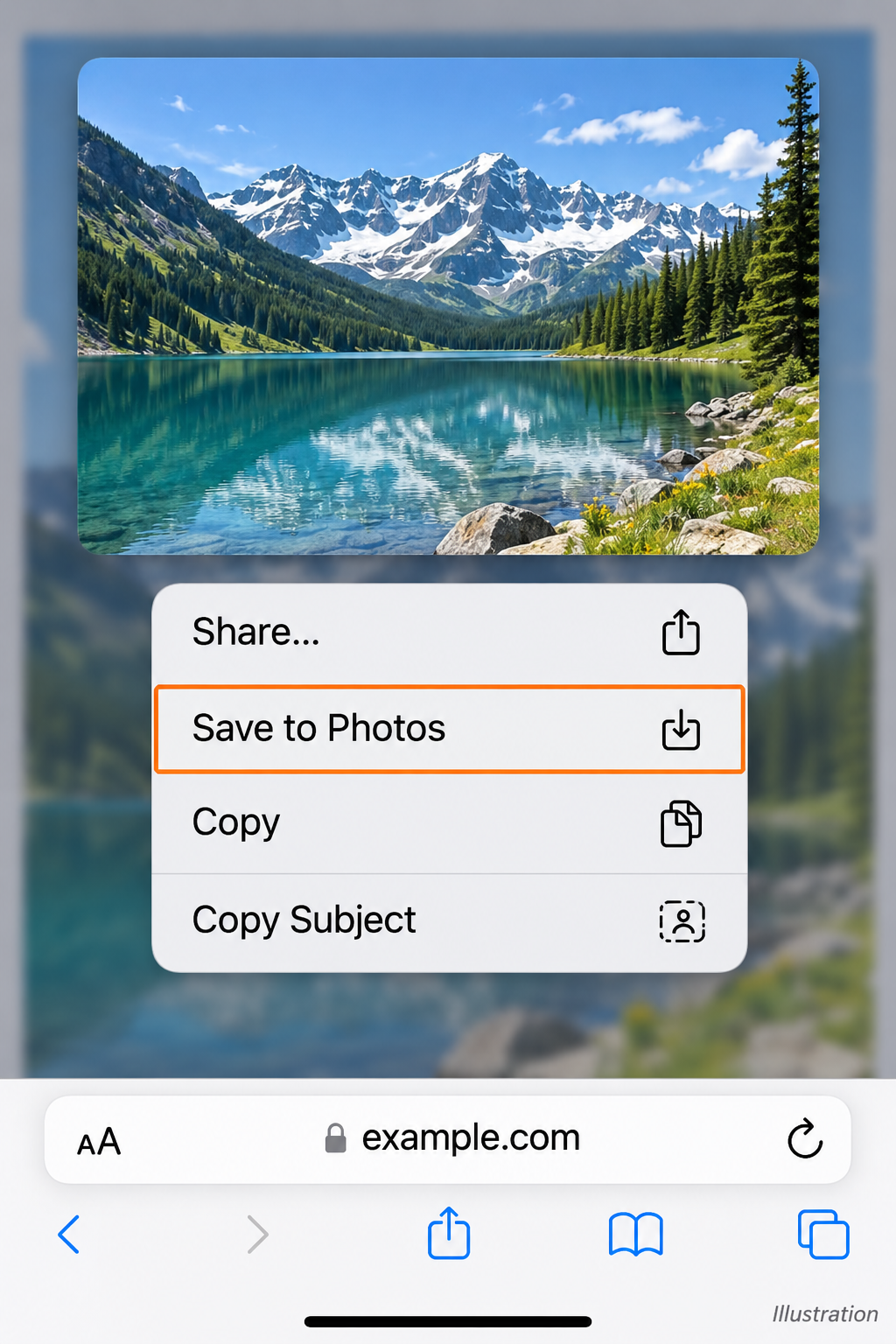
- Tap Save to Photos. The menu closes. You may not see any confirmation on screen, so use the next step to check.
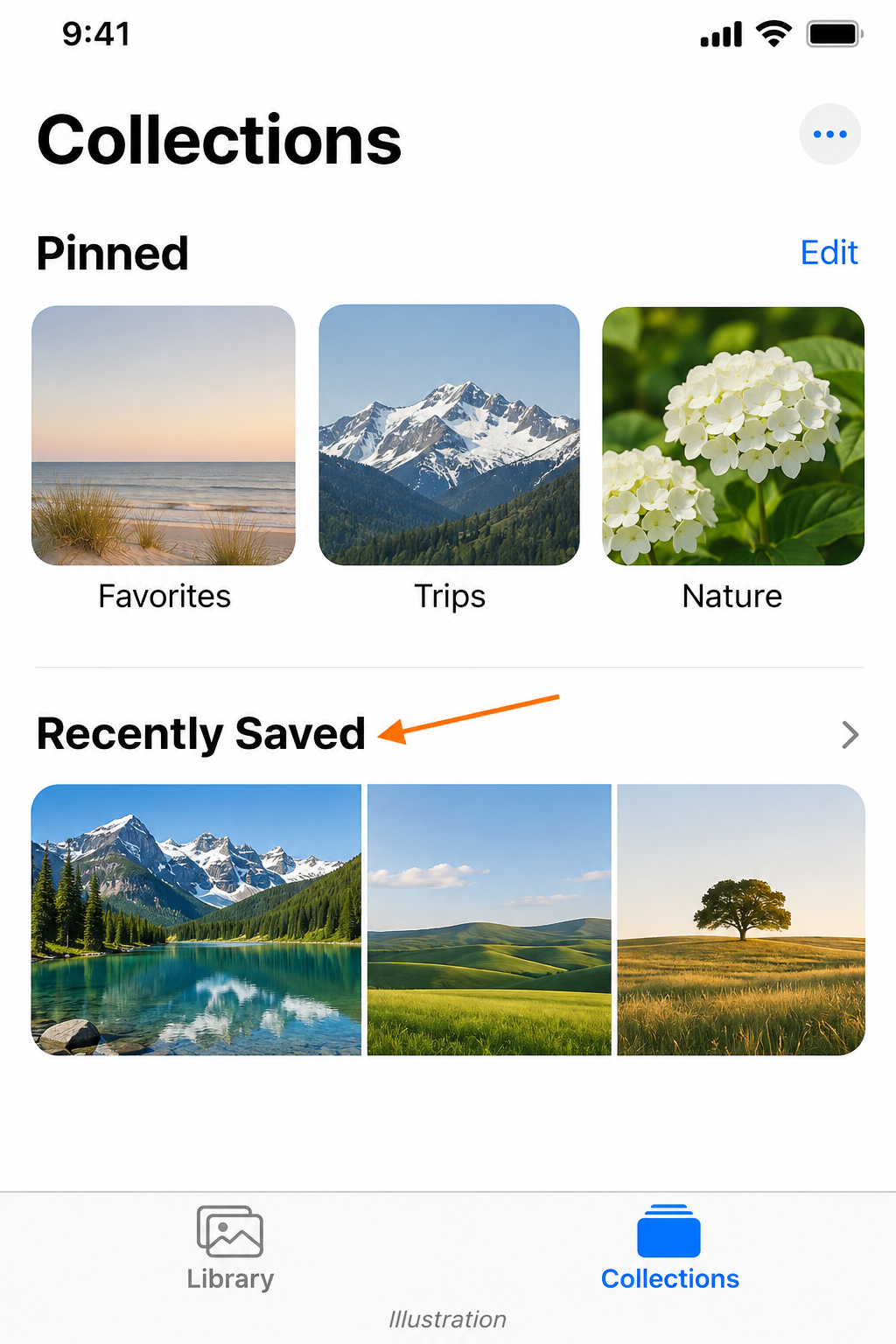
- Check that it saved. Open the Photos app, tap Collections, and look in Recently Saved.
If you want several pictures from the same page, repeat the long press on each one. Safari has no way to select every image on a page at once.
Where saved Safari pictures end up
A picture saved from a webpage may not sit next to today’s photos in your library, depending on the date information in the file. Apple’s guide on finding recently saved photos and videos lists three places to look in the Photos app:
- Recently Saved: tap Collections, then Recently Saved below Pinned. It gathers everything you’ve saved from Safari, Messages, Mail and other apps, plus items received by AirDrop. The same collection is also listed below Utilities.
- Saved Today: under Collections, look below Recent Days.
- The main library, sorted by date added: tap Library, tap the sort button, and choose Sort by Recently Added.
If iCloud Photos is on, the picture also uploads to iCloud and appears on your other devices that use iCloud Photos with the same Apple Account. If you’d rather keep web images on the phone only, see how to turn iCloud Photos on or off on iPhone before you save a large batch.
Other ways to keep a picture from a webpage
The same long-press menu, plus a couple of other built-in tools, covers the cases where Photos isn’t the right place.
Copy it and paste it into another app
Use this when the picture belongs in a note, a message or an email rather than in your photo library.
- In Safari, touch and hold the image, then tap Copy.
- Open the app where you want it, such as Notes, Messages or Mail.
- Tap where you want the image to go, then tap Paste.
Copying doesn’t add anything to Photos, so your library stays uncluttered. The copied image stays on the clipboard only until you copy something else.
Copy also works across devices. With Universal Clipboard, an image you copy in Safari on your iPhone can be pasted on your Mac or iPad. Both devices need Wi-Fi, Bluetooth and Handoff turned on and must be signed in to the same Apple Account, as explained in Apple’s page on copying and pasting between devices. Paste soon after copying, because the clipboard only holds the item for a short time.
Send it with Share or AirDrop
Tap Share in the long-press menu to open the share sheet. From there you can text or email the picture, send it to a nearby device with AirDrop, or, if the share sheet lists Save to Files, keep it as a file in the Files app instead of in Photos. Saving to Files is a good fit for images you plan to attach to forms or upload later, because they stay out of your photo library. If AirDrop is new to you, sending photos with AirDrop from an iPhone walks through it.
Grab just the subject, without the background
For a picture of a product, a pet or a person, you can lift the subject off its background. Apple notes that this works in Safari as well as in Photos. Touch and hold the subject itself until an outline appears around it, then tap Copy or Copy Subject and paste it into a message or note. The same menu offers Add Sticker, and the steps for turning a cutout into a sticker are in how to make a sticker on iPhone from a photo.

Take a screenshot when nothing else works
A screenshot captures whatever is on screen, including images a site won’t let you save. On most iPhones, quickly press and release the side button and the volume up button together. On iPhone SE, use the Home button and the side button instead. Tap the thumbnail in the lower-left corner (if one appears), drag the crop handles in around the picture, then finish editing and choose the option to save it to Photos. Screenshots are kept in the Screenshots collection under Media Types.
Keep in mind that a screenshot is a copy of your screen, not the original file. It can be lower quality than the real image and will include anything that was on top of it, such as a play button or a caption. For long pages, the screenshot editor also has a Full Page option that captures the entire webpage. See how to screenshot on iPhone 17 for more screenshot options.
Which method to use
| You want to | Use | Where it ends up |
|---|---|---|
| Keep the picture with your photos | Touch and hold, then Save to Photos | Photos app, Recently Saved |
| Drop it into a note, message or email | Touch and hold, then Copy, then Paste | Only in the app you paste into |
| Use it on your Mac or iPad right now | Copy, then paste on the other device | The other device (Universal Clipboard) |
| Keep it as a file for uploads | Touch and hold, Share, then Save to Files (if listed) | Files app |
| Keep only the object, not the background | Touch and hold the subject, then Copy Subject | Wherever you paste it |
| Save an image the page won’t let you save | Screenshot, then crop | Photos app, Screenshots |
If the menu doesn’t offer Save to Photos, work through these in order.
- You only see link options. If the picture is also a link, Safari may show a preview of the page it points to instead of the image options. Tap the image so the link opens. That page often shows the picture on its own, and a long press there gives you Save to Photos.
- A different page opened instead of a menu. Your tap was too short. Go back and hold your finger still a little longer.
- Nothing happens at all. The “picture” may be part of the page design, such as a background behind text, or the site may have blocked the menu on its images. In either case a long press usually won’t offer Save to Photos, so take a screenshot and crop it instead.
- The image is inside a slideshow or pop-up viewer. These viewers often catch your finger themselves. Open the image full size first, or look for a download button on the site.
- The saved picture is tiny or blurry. You saved a thumbnail. Tap through to the full-size version and save that instead.
- An animated GIF looks like a still picture. Open it in Photos to see whether it plays. If you only want to send it, copy the GIF in Safari and paste it into Messages, or check the tips in how to send GIFs on iPhone.
Some sites deliberately block saving to protect photographers’ work. Respect that. Saving an image for your own reference is one thing, but reposting or reusing someone else’s photo usually needs the owner’s permission, and tools that get around a site’s protection can break its terms of use.
Removing a picture you saved by mistake
Open the picture in Photos and tap the trash button. According to Apple’s page on deleting or hiding photos, deleted items stay in the Recently Deleted collection (below Utilities in Collections) for 30 days, so you can recover the picture if you change your mind. With iCloud Photos on, deleting it on the iPhone also removes it from your other devices. If you want to keep a picture but not see it in your library, use Hide instead.
More questions about web images
Can I find out where a saved picture came from?
Photos keeps the file, not the webpage address, so check the page itself before you leave it. If you’ve already saved the picture, a reverse image search on an iPhone can often find the original page and a larger copy.
Can I copy the words inside a picture instead?
Yes. If the image is a menu, a sign or a slide with text on it, Live Text can select and copy those words on iPhone XS or later, in supported languages and regions. If you can’t select the text in Safari, save the picture and use Live Text in Photos. Using Live Text on iPhone shows how.
Does this work in Chrome or on an iPad?
Mostly. Other browsers on iPhone, including Chrome, use a similar touch-and-hold gesture, though the menu wording can differ. On an iPad, Safari’s steps are the same as on the iPhone.
If you’d rather keep the picture as a document, you can also save a picture as a PDF on an iPhone.

Matthew Burleigh is the founder, head writer, and editor of Solve Your Tech, which he launched in 2012. He has written technology tutorials since 2008 and worked in IT since 2003, including small-business support, IT management, and consulting. He holds Bachelor’s and Master’s degrees in Computer Science from Arizona State University.
Matthew writes practical guides for Windows, iPhone and iPad, Microsoft Office, Outlook, Google apps, and Android. Solve Your Tech’s guides are checked step by step against the device or app maker’s own documentation and tested on his own devices whenever he has the hardware or software, with clear steps, sources, and update dates.
Read more about Matthew and how Solve Your Tech writes and updates its guides, or report a correction.