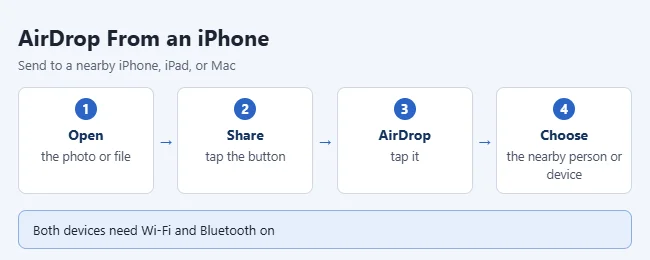
To AirDrop from your iPhone, open the photo or file, tap the Share button, tap AirDrop, and tap the person or device you want to send it to. The other person taps Accept, and the item saves on their device. AirDrop works between an iPhone, iPad, and Mac that are within about 30 feet of each other.
The steps below come from Apple’s Use AirDrop to send items to nearby Apple devices guide and its How to use AirDrop on your iPhone or iPad article.
What You Need
- Two Apple devices. Apple lists the iPhone, iPad, and Mac.
- Wi-Fi and Bluetooth turned on on both devices.
- Personal Hotspot disconnected on both devices.
- Distance of 30 feet (10 meters) or less between the devices.
- A receiver who allows you. Their AirDrop setting must be Contacts Only (with you in their contacts) or Everyone for 10 Minutes.
These steps apply to current versions of iOS, including iOS 26 and later. Two features need a minimum version. Sharing by holding two devices together needs iOS 17 or later on both. AirDrop codes need iOS 26.2, iPadOS 26.2, or macOS 26.2 or later.
How to Send Something With AirDrop
- Open the item you want to send, like a photo in Photos. To send several photos, tap Select in your library and tap each one.
- Tap the Share button. In some apps the button is labeled Share, or it sits behind a More button.
- Tap AirDrop. Nearby people in your contacts appear under People.
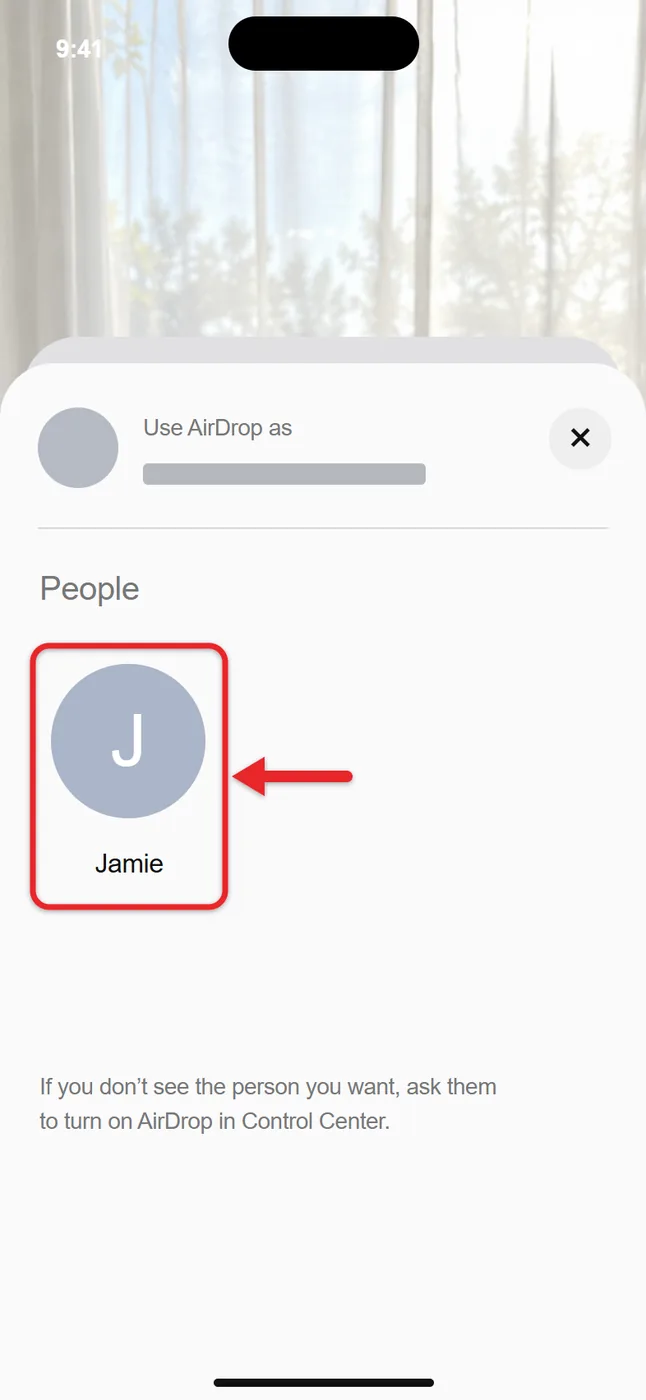
- Tap the person or device you want to send to.
- Ask the other person to tap Accept on their device. The item then saves on their device.
You are not limited to photos. The same Share button sends videos, documents, and other items from most apps. For example, you can send photos from your iPhone to your iPad this way, or share a contact card from the Contacts app.
How to AirDrop by Holding Two Devices Together
If both devices are on iOS 17 or later, Apple says you can try holding them together to share with AirDrop.
- Open the item you want to send on your iPhone.
- Hold your iPhone close to the other person’s iPhone.
- Follow what appears on screen to send the item. The exact prompt can vary by iOS version.
A related feature called NameDrop uses the same gesture to swap contact information. It needs iOS 17.1 or later. Hold the two devices a few centimeters apart until a glow appears, keep them close until NameDrop shows on both screens, and then choose what to share or receive.
To turn this gesture off, go to Settings > General > AirDrop and turn off Bringing Devices Together.
How to AirDrop to Someone Who Isn’t in Your Contacts
On iOS 26.2 or later, a sender who is not in the receiver’s contacts must use an AirDrop code. Both devices need iOS 26.2, iPadOS 26.2, or macOS 26.2 or later for this.
- Open the item, tap the Share button, and tap AirDrop.
- Ask the other person to open Control Center, touch and hold the top-left group of controls, tap AirDrop, and tap Everyone for 10 Minutes.
- Tap the other person under People on your iPhone.
- Ask the other person to tap Get AirDrop Code and tell you the code.
- Enter the code on your iPhone. The item is then shared.
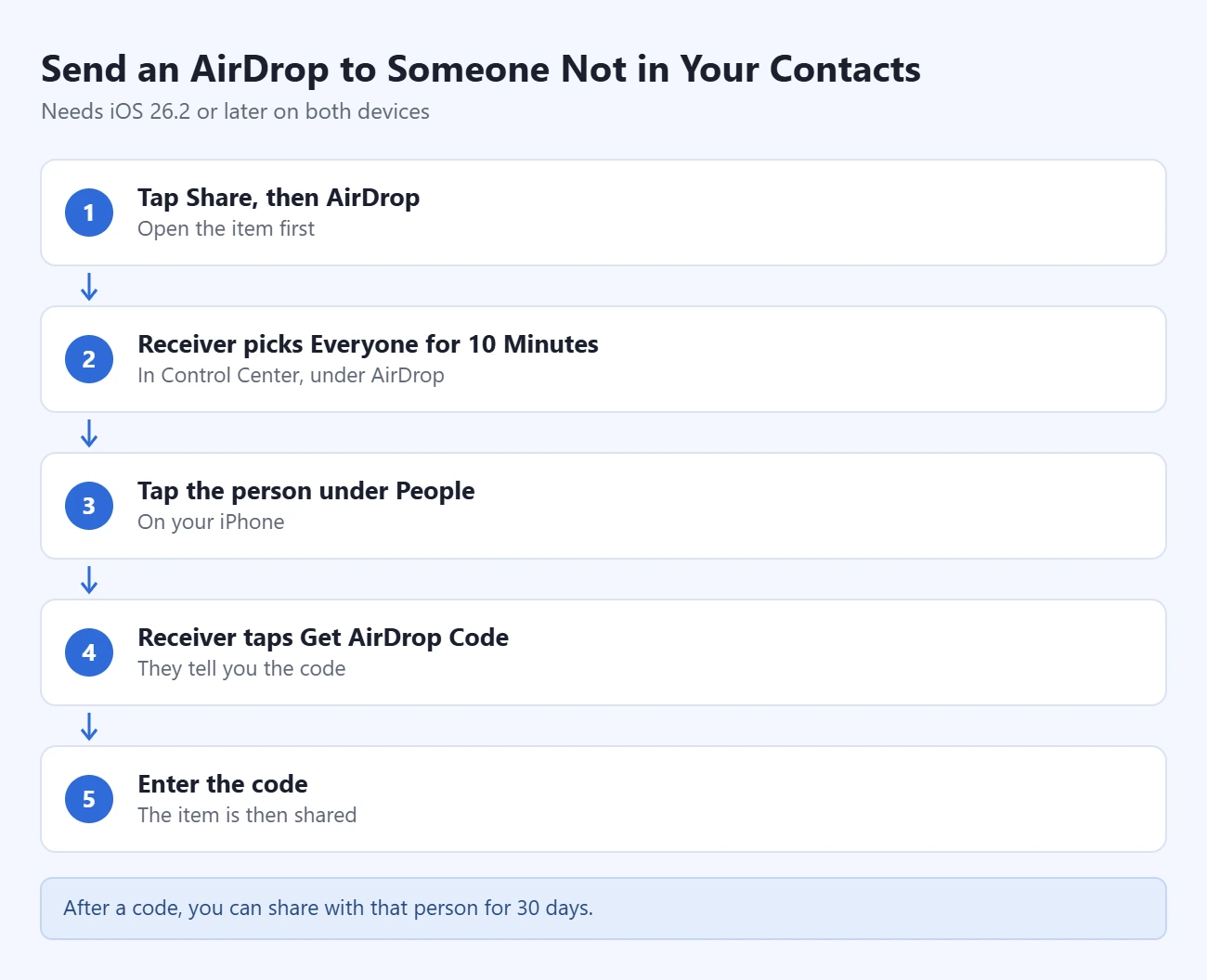
After you use a code, you can keep sharing with that person for 30 days without another code. Apple adds them to the Other Known list in Contacts for those 30 days. To end it sooner, open the Contacts app, find the person in your Other Known list, and select Forget This Person.
How to Turn On AirDrop and Choose Who Can Send to You
You only need this setting to receive. It controls who can see your iPhone as an AirDrop target.
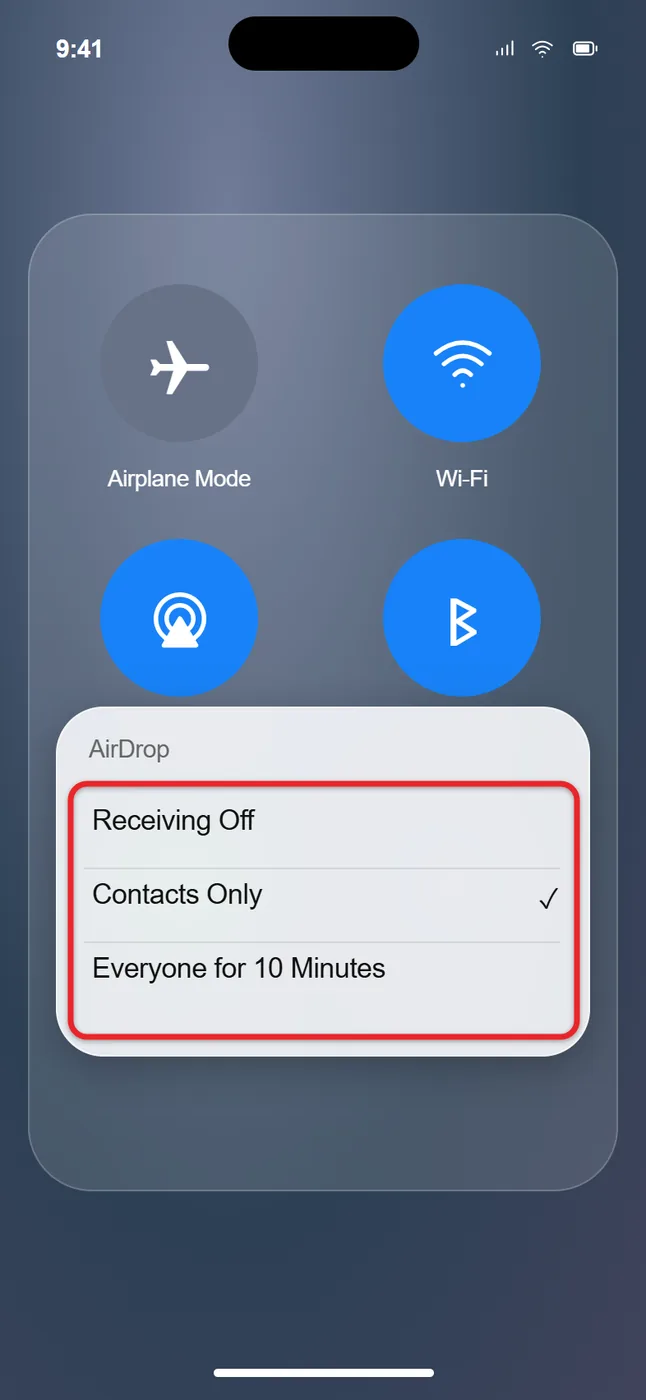
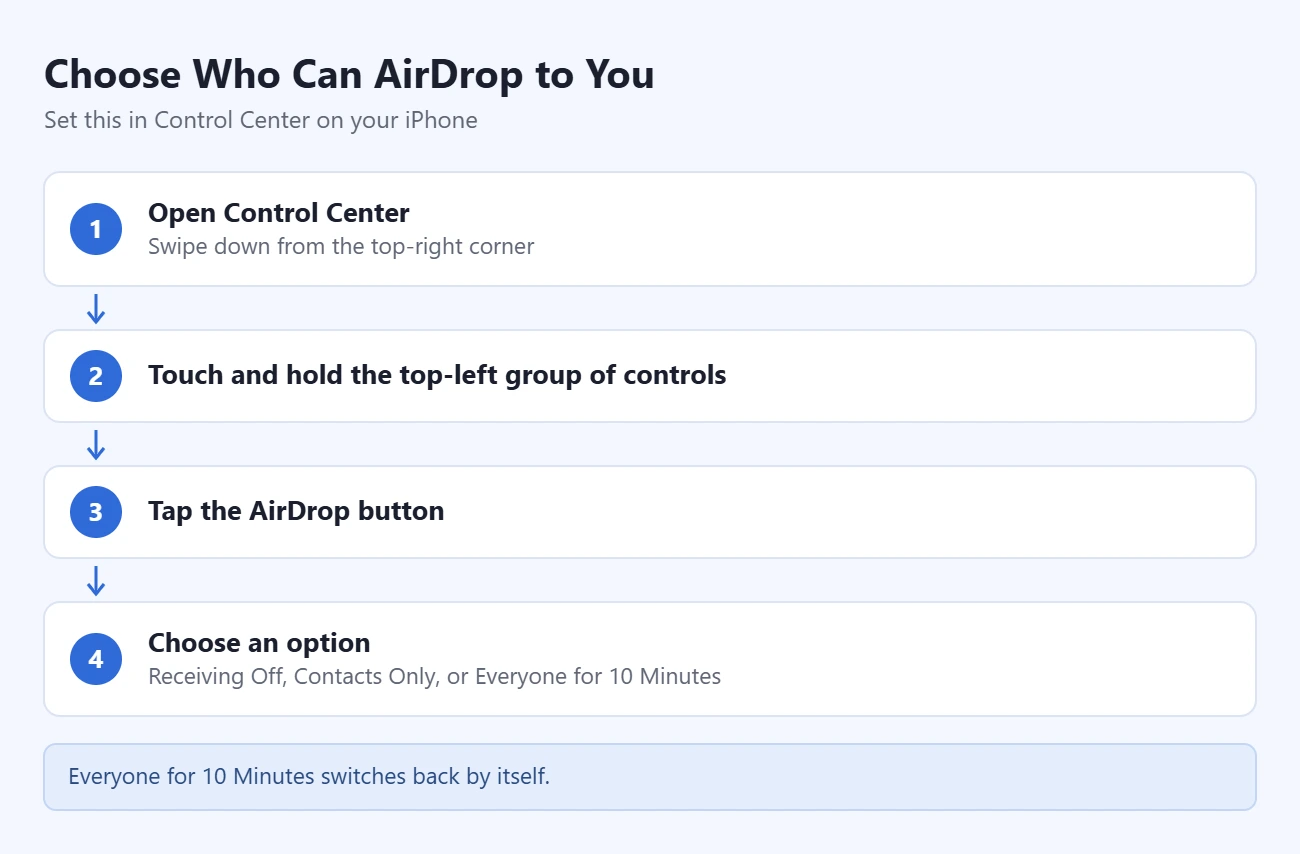
- Open Control Center. Swipe down from the top-right corner of the screen. On an iPhone with a Home button, swipe up from the bottom.
- Touch and hold the top-left group of controls.
- Tap the AirDrop button.
- Choose Receiving Off, Contacts Only, or Everyone for 10 Minutes.
| Option | Who can send to you |
|---|---|
| Receiving Off | No one. |
| Contacts Only | People in your contacts. Their contact card on your iPhone must include their Apple Account email address or phone number. |
| Everyone for 10 Minutes | Any nearby Apple device, for 10 minutes. Then it switches back by itself. |
When the 10 minutes end, the setting returns to Contacts Only if you are signed in to your Apple Account. If you are not signed in, it returns to Receiving Off. You cannot leave it on Everyone permanently.
The same AirDrop options are also in the Settings app under General > AirDrop. To change the name people see when you share, see how to change your AirDrop name. On a tablet, the steps to turn off AirDrop receiving on an iPad are almost identical.
How to Receive an AirDrop and Find the File
- Tap Accept on the AirDrop notification. Tap Decline if you do not want the item.
- If the notification says you need an AirDrop code, tap Get AirDrop Code and share the code with the sender.
- Most items save in the app they were sent from. For example, photos go to Photos.
- On an iPhone or iPad, some items may save in the Files app.
- On a Mac, some items save in the Downloads folder.
- Items sent between your own devices on the same Apple Account are accepted and saved automatically.
How to Confirm It Worked
Ask the receiver to open the app the item belongs to. A photo should be the newest item in Photos. A document should open in its app or appear in Files. If nothing arrived, the receiver probably did not tap Accept, or the transfer was interrupted. Send it again.
AirDrop sends a copy. The original stays on your iPhone, and you cannot recall an item after the other person accepts it. Check the name under People before you tap.
What Happens if You Walk Away During a Transfer
Apple says that if you leave Bluetooth or Wi-Fi range after an AirDrop transfer starts, the transfer continues over the internet. That can use cellular data on a large video.
If you want to avoid that, open Settings > General > AirDrop and look for a Use Cellular Data switch. Turn it off if your iPhone shows it. The options on this screen can vary by iOS version. With cellular off, stay near the other device until the transfer finishes.
If AirDrop Isn’t Working
Work through these checks in order. Most problems come from the first three.
- Turn on Wi-Fi and Bluetooth on both devices. Both the sender and the receiver need both switches on.
- Check the receiver’s AirDrop setting. It must be Contacts Only or Everyone for 10 Minutes. If it shows Receiving Off, your iPhone will not find them.
- Fix a Contacts Only mismatch. You must be in the receiver’s contacts, and your contact card there must include your Apple Account email address or phone number. The quick fix is for the receiver to choose Everyone for 10 Minutes.
- Disconnect Personal Hotspot on both devices.
- Move closer. The devices must be within 30 feet (10 meters) of each other.
- Restart your iPhone and try again.
A few other cases come up less often:
- The receiver’s setting changed by itself. Everyone for 10 Minutes expires. Ask them to turn it on again right before you send.
- You are asked for a code. This is normal on iOS 26.2 or later when the receiver does not have you in their contacts. Follow the code steps above.
- The other device is not an Apple device. Apple’s checklist says both people must be using an iPhone, iPad, or Mac.
- The AirDrop control is missing or cannot be changed. On a child’s iPhone or one managed by work or school, Screen Time or a management profile may restrict AirDrop. The person who manages the device has to allow it.
Frequently Asked Questions
Can I AirDrop to an Android phone or Windows PC?
Apple’s AirDrop instructions cover the iPhone, iPad, and Mac only. For a Windows PC, see how to AirDrop to Windows 11 for options that work instead.
Where do AirDropped photos go?
AirDropped photos go into the Photos app on the receiving iPhone or iPad. Apple says most items save in the app they were sent from. Some files on an iPhone or iPad save in the Files app, and some items on a Mac save in the Downloads folder.
Do I need an internet connection to use AirDrop?
You need Wi-Fi and Bluetooth turned on, and the devices must be near each other. Apple does not list an internet connection as a requirement. The internet only comes into play if you leave range after a transfer has started.
Why can’t I choose Everyone all the time?
The open setting on an iPhone is Everyone for 10 Minutes. After 10 minutes it goes back to Contacts Only, or to Receiving Off if you are not signed in to an Apple Account.
Why does AirDrop ask for a code?
On iOS 26.2, iPadOS 26.2, and macOS 26.2 or later, someone who is not in your contacts must use an AirDrop code to send you an item. You tap Get AirDrop Code and read the code to them. Once they enter it, the two of you can share for 30 days without another code.
Does the other person have to accept every AirDrop?
Yes, unless both devices are signed in to the same Apple Account. Items you send between your own devices are accepted and saved automatically.
Is AirDrop secure?
The receiver can accept or decline each item, and the Contacts Only setting limits senders to people in your contacts. On iOS 26.2 or later, people outside your contacts also need a code from you before they can send anything.
Can AirDrop warn about sensitive photos?
Apple says Communication Safety can warn a child, blur the content, and offer helpful resources when a sensitive photo or video arrives. It is a parental control you set up for a child’s device.
Next Step
Try a test transfer with one photo and someone standing next to you. Once that works, set your own AirDrop receiving option to Contacts Only so strangers cannot send you items.

Matthew Burleigh is the founder, head writer, and editor of Solve Your Tech, which he launched in 2012. He has written technology tutorials since 2008 and worked in IT since 2003, including small-business support, IT management, and consulting. He holds Bachelor’s and Master’s degrees in Computer Science from Arizona State University.
Matthew writes practical guides for Windows, iPhone and iPad, Microsoft Office, Outlook, Google apps, and Android. Solve Your Tech’s guides are checked step by step against the device or app maker’s own documentation and tested on his own devices whenever he has the hardware or software, with clear steps, sources, and update dates.
Read more about Matthew and how Solve Your Tech writes and updates its guides, or report a correction.