To use Live Text on an iPhone, open a photo in the Photos app (or pause a video), tap the Live Text button in the lower-right corner, then touch and hold the highlighted text and choose Copy, Translate, Look Up, Search Web or Share. In the Camera app, point the lens at text, wait for the yellow frame, and tap the same button. These steps match Apple’s iPhone User Guide for iOS 27, the current release, and they work the same way on iOS 16 and later. Live Text first arrived in iOS 15, but text in videos needs iOS 16 or later.
Live Text is not a separate app. It’s a text recognition feature built into Photos, Camera, Safari, Quick Look and other places where pictures appear. Once your iPhone spots words in an image, you can treat them almost like text on a web page: select them, copy them, call a phone number, open a link, or convert a price into your own currency.
What you need before you start
- A supported iPhone. Apple lists the iPhone XS, iPhone XR or later with iOS 15 or later. Every iPhone that can run iOS 27 (iPhone 11 and later, plus the iPhone SE 2nd and 3rd generation) qualifies.
- iOS 16 or later for video. Photos and Camera work on iOS 15, but pausing a video and grabbing its text needs iOS 16.
- A supported language. Live Text reads a long list of languages, including English, Spanish, French, German, Italian, Portuguese, Chinese, Japanese, Korean, Russian and Vietnamese. The full current list is on Apple’s iOS feature availability page.
- Live Text turned on. It’s on by default, but the next section shows where to check.
To see which iOS version you have, open Settings > General > About and look at the iOS Version line.
Make sure Live Text is turned on
There are two separate switches, and they control different things. The main one covers photos, videos, Safari and other apps. The Camera one only controls whether the camera viewfinder looks for text.
- Open Settings.
- Tap General, then tap Language & Region.
- Turn on Live Text. The switch is green when it’s on.
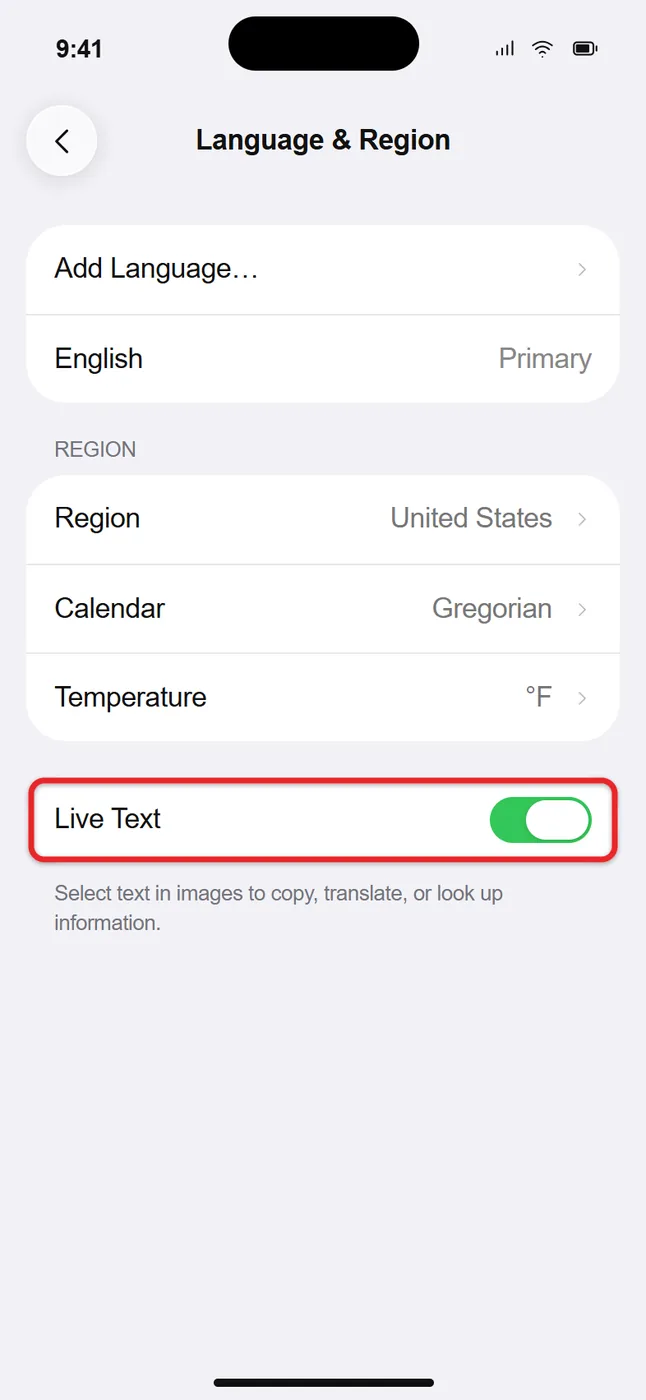
- Go back to the main Settings screen and tap Camera.
- Turn on Show Detected Text if you want the Camera app to find text before you take a picture.
If you don’t see a Live Text switch under Language & Region, your iPhone model, iOS version, or language and region settings don’t support it. On iOS 15 the Camera switch was simply called Live Text, so look for either name on the Camera settings screen.
Copy text from a photo
This is the method most people want: you snapped a picture of a Wi-Fi password card, a recipe or a whiteboard, and now you need the words as real text.
- Open the Photos app and tap the photo or screenshot that contains text.
- Tap the Live Text button in the lower-right corner. It looks like a few lines of text inside the corners of a frame. All the text your iPhone recognized is highlighted, and the rest of the photo dims slightly.
- Touch and hold a word. A blue selection appears with grab points on each end.
- Drag the grab points to cover the text you want, or tap Select All to take everything.
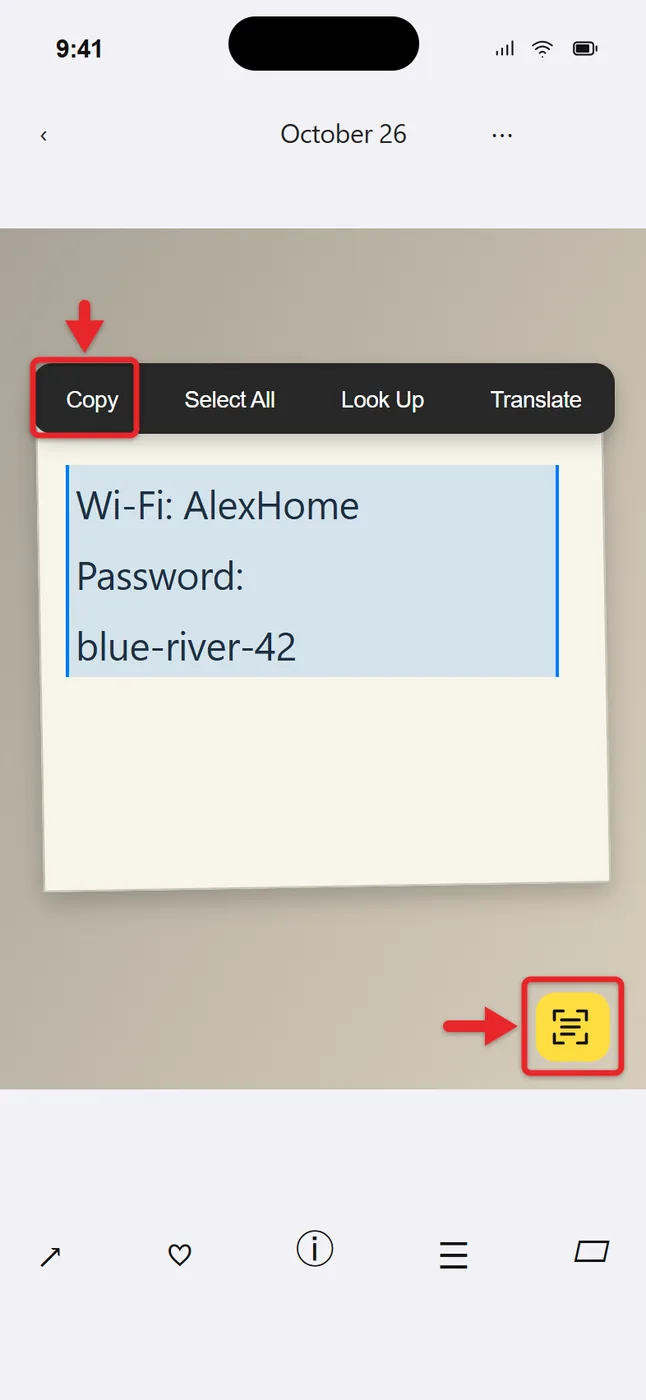
- Tap Copy.
- Open the app where you want the text, such as Notes, Messages or Mail. Tap in the text box, then tap Paste.
- Tap the Live Text button again to go back to the normal photo view.
You don’t always have to tap the Live Text button first. Touching and holding a word directly in the photo often selects it right away. The button is still useful because the highlight shows exactly what was recognized, which helps when a photo has small or faint text.
Live Text reads typed text and neat handwriting. Cursive, very small print, glare and steep angles cause most of the mistakes, so check names, numbers and passwords after you paste them.
Use Live Text in the Camera app
You don’t need to take a picture first. The Camera app can grab text from a sign, a menu or a package label while you’re looking at it.
- Open Camera in Photo mode.
- Point your iPhone so the text fills a good part of the screen.
- Wait for a yellow frame to appear around the text, then tap the Live Text button in the lower-right corner of the viewfinder. The view freezes so you can work with the text.
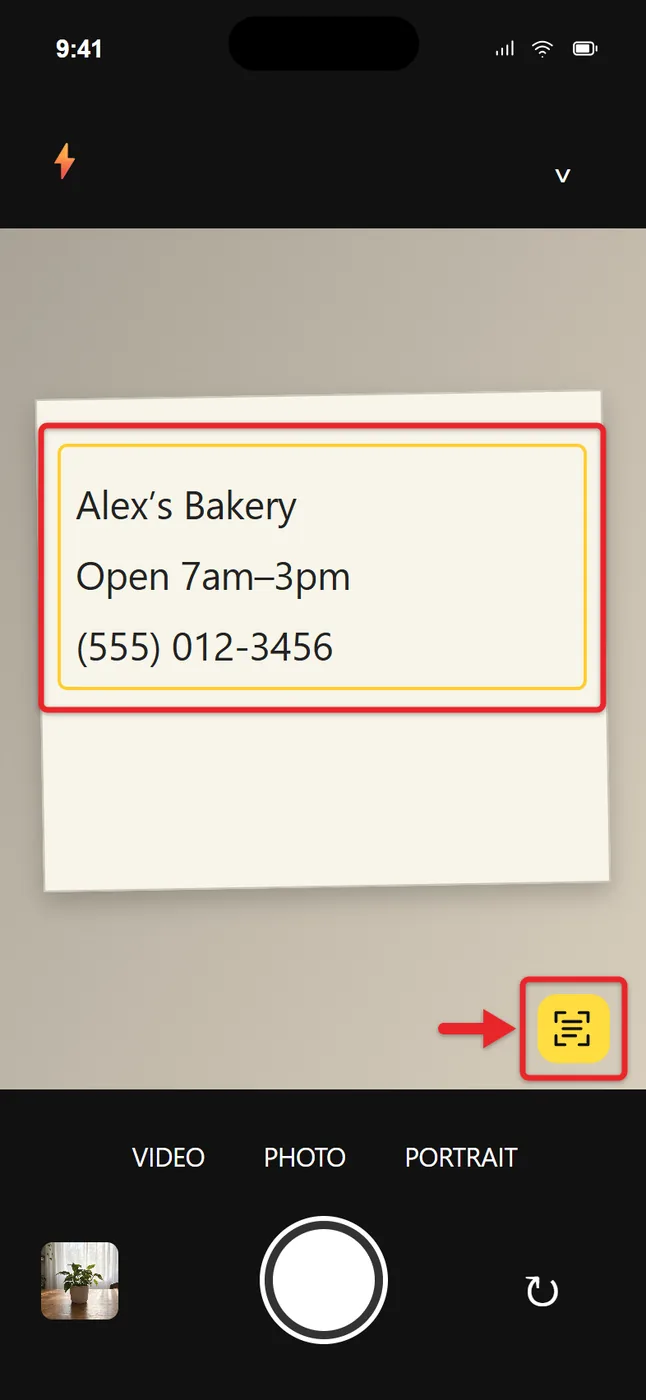
- Touch and hold the text, then use the grab points to select what you need.
- Pick an action: Copy, Select All, Look Up, Translate, Search Web or Share.
- Tap the Live Text button again to return to the regular camera.
Only text inside the yellow frame can be selected. If part of a sentence is cut off, step back a little or turn the phone sideways before you tap the button. Nothing is saved to your photo library with this method, so take a regular picture as well if you want to keep a copy of the sign or page.
Put camera text straight into a note
When the text is headed for a note anyway, you can skip the copy and paste step. In Notes, open a note, tap the attachment button (the paper clip or camera icon above the keyboard, depending on your version), then tap Scan Text. Aim at the text, drag or use the grab points to select it, and tap Insert. The words land at your cursor as editable text. Apple notes the same camera option works in apps such as Reminders. If you need a PDF of a full page instead, follow the steps to scan documents on an iPhone.
Quick actions: call, email, open links, convert and more
Live Text knows what certain kinds of text are. When a photo, paused video or camera view contains one of these, a quick action button shows up at the bottom of the screen after you tap the Live Text button. You can also tap the highlighted item itself.
| Text in the image | What you can do |
|---|---|
| Phone number | Call, send a message, start a FaceTime call, or add it to Contacts |
| Email address | Start a new email or add it to Contacts |
| Website address | Open the page in Safari |
| Street address | Get directions in Maps |
| Price in another currency | See the amount converted to your currency |
| Measurements or units | See a conversion, such as kilometers to miles |
| Text in another language | Translate it |
| Date or time | Create a calendar event |
| Flight or package tracking number | Check the flight or shipment status |
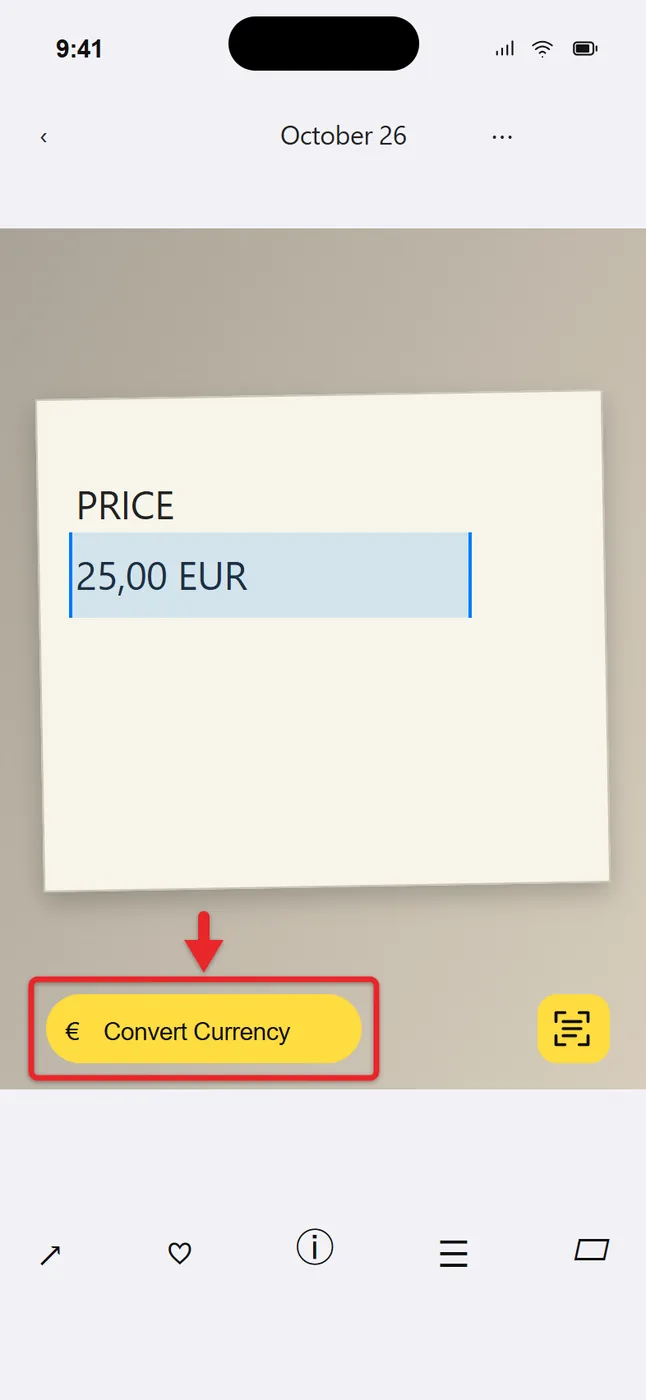
Apple’s guide confirms calls, websites, email, directions, translation and currency conversion. The other items depend on how clearly the text is formatted, so they don’t appear every time. If a quick action doesn’t show up, touch and hold the item and look for the option in the menu instead.
Translate text in a photo or with the camera
- Open the photo, pause the video, or point the Camera at the text.
- Tap the Live Text button.
- Tap Translate at the bottom of the screen to translate everything, or select a few words and tap Translate in the menu (you may need to tap the arrow to see more options).
- The first time, you may need to tap Continue or choose a language. To switch languages later, tap Change Language.
- Read the translation, tap the play button to hear it, or tap Copy Translation.
For a whole menu or a page of signs, the Translate app is often easier. Open it, tap Camera, and hold your iPhone over the text. The translation is laid over the original in real time, and you can tap the shutter button to freeze it. The same screen has a photo button for translating pictures already in your library.
Look up or search selected text
Select a word and tap Look Up to see a dictionary definition. Select several words, such as a restaurant name or a product model, and Look Up shows Siri suggested websites and other results instead. Search Web sends the selection straight to your default search engine in Safari.
Live Text works with words. To identify the thing in a picture, like a plant, a dog breed or a landmark, use Visual Look Up (the Info button with a star in Photos). For finding where a photo appears online, see how to do a reverse image search on an iPhone.
Grab text from a video
- Play the video in Photos (or another supported player) until the text you want is on screen.
- Pause the video. Live Text doesn’t work while it’s playing.
- Tap the Live Text button, or touch and hold the text in the paused frame.
- Select the text and choose Copy, Translate, Look Up or another action, or tap a quick action at the bottom of the screen.
This is handy for a phone number in a commercial you recorded or a slide in a class video. Motion blur is the main problem, so scrub a frame or two forward or back until the text looks sharp before you pause.
Use Live Text on images in Safari and other apps
Apple lists Safari, Photos, Camera and Quick Look among the places Live Text works, which covers pictures on web pages and image attachments you open from Mail, Messages or Files.
- Find the image with text on the web page in Safari.
- Touch and hold a word inside the image until it’s highlighted. If the image opens a menu instead, look for a text option there, or tap the image to open it full screen first.
- Drag the grab points to adjust the selection.
- Tap Copy, Translate, Look Up or another option.
If an image in an app won’t let you select its text, take a screenshot, open it in Photos, and use the Live Text button there. That trick also works for QR codes inside screenshots, which the guide on how to scan a QR code on an iPhone covers in more detail.
Find photos by the words in them
Because Photos reads the text in your pictures, you can search for it. Open Photos, tap Search, and type a word you remember from a receipt, a sign or a document, such as Alex Garage or invoice. Pictures containing that word appear in the results. There’s more on this in the guide to searching iPhone photos by keyword.
How to turn off Live Text
- Only in the Camera app: go to Settings > Camera and turn off Show Detected Text. The yellow frames and the Live Text button stop appearing in the viewfinder, but Photos and Safari still work.
- Everywhere: go to Settings > General > Language & Region and turn off Live Text.
Turning it off doesn’t delete anything. Your photos are untouched, and you can switch it back on at any time.
When Live Text doesn’t work
- No Live Text button on a photo. The iPhone didn’t find readable text. Zoom in on the photo, or retake it closer and straight on. Also confirm the Live Text switch in Language & Region is on.
- No yellow frame in the Camera. Check that Show Detected Text is on in Settings > Camera, that you’re in Photo mode, and that the text isn’t too small. Tap the screen to focus, and give it a second.
- The text is recognized but garbled. Glare, shadows, low light and cursive cause most errors. Turn on a light, tilt the page to remove reflections, or try a sharper photo.
- A language isn’t recognized. Live Text only reads its supported languages. Add the language in Settings > General > Language & Region > Add Language, then try again.
- The switch is missing entirely. Your iPhone is older than the iPhone XS and XR, it’s running iOS 14 or earlier, or Live Text isn’t offered in your region. Update in Settings > General > Software Update if your model allows it.
- Video text won’t select. Pause the video first, and make sure you’re on iOS 16 or later.
- It worked yesterday and not today. Restart the iPhone. If that doesn’t help, check for an iOS update.
Live Text, Visual Look Up and Visual Intelligence
These three get mixed up because they all use the camera or your photos. Live Text works with words and numbers. Visual Look Up identifies things in a photo, like animals, plants, art and landmarks. Visual Intelligence is part of Apple Intelligence and needs an iPhone 15 Pro, iPhone 15 Pro Max, iPhone 16 or later. It can do what Live Text does plus summarize text, read it aloud, and answer questions about what you’re looking at. If your phone doesn’t support Apple Intelligence, Live Text still covers copying, translating and acting on text.
Live Text questions people ask
Does Live Text need an internet connection?
Recognizing and copying text happens on the iPhone itself, so it works in airplane mode. Actions that reach out to the web, such as Search Web, Look Up website suggestions, and flight tracking, need a connection. Translation works offline only for languages you’ve downloaded in the Translate app.
Does Live Text change my photo?
No. Selecting and copying text leaves the picture exactly as it was. The highlight disappears when you tap the Live Text button again or close the photo.
Can Live Text read a PDF?
A PDF made from typed text already has selectable text, so you don’t need Live Text for it. A scanned PDF that is just a picture of a page is different. Take a screenshot of the page and use Live Text in Photos, or open it in an app that supports Quick Look.
Can I use Live Text on an iPad?
Yes, on supported models with iPadOS 15.1 or later, including iPad (8th generation) or later, iPad Air (3rd generation) or later, iPad mini (5th generation) or later, and all iPad Pro 11-inch models. The steps match the iPhone.
Is copied text private?
The text recognition runs on the device. Once you copy text, it sits on the clipboard like anything else you copy, and with Universal Clipboard turned on it can be pasted on your nearby Mac or iPad signed in to the same Apple Account.
Apple’s full instructions are in the iPhone User Guide article on interacting with text in a photo or video and its companion page on using Live Text with the Camera. A good first test is a screenshot with a phone number in it: open it in Photos, tap the Live Text button, and tap the number to see the call options.

Matthew Burleigh is the founder, head writer, and editor of Solve Your Tech, which he launched in 2012. He has written technology tutorials since 2008 and worked in IT since 2003, including small-business support, IT management, and consulting. He holds Bachelor’s and Master’s degrees in Computer Science from Arizona State University.
Matthew writes practical guides for Windows, iPhone and iPad, Microsoft Office, Outlook, Google apps, and Android. Solve Your Tech’s guides are checked step by step against the device or app maker’s own documentation and tested on his own devices whenever he has the hardware or software, with clear steps, sources, and update dates.
Read more about Matthew and how Solve Your Tech writes and updates its guides, or report a correction.