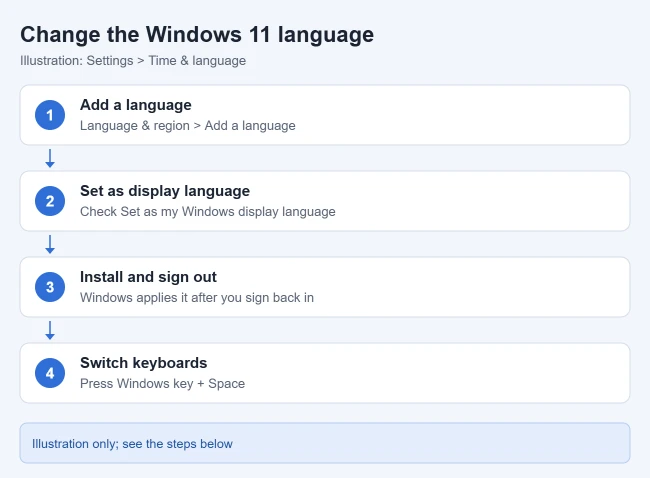
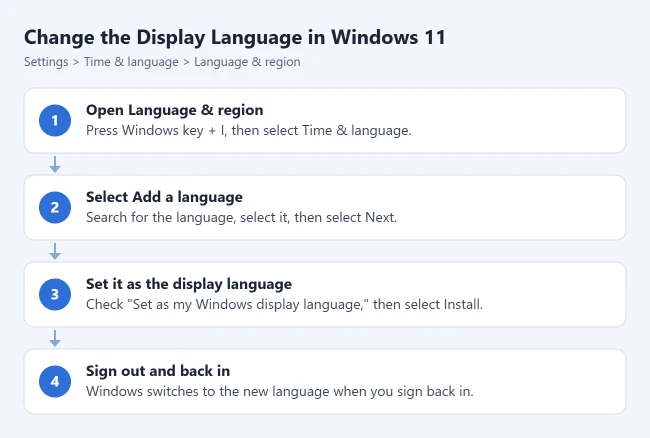
To change the language in Windows 11, open Settings > Time & language > Language & region, select Add a language, choose the language, check “Set as my Windows display language,” and select Install. Sign out and back in when Windows asks, and menus and Settings appear in the new language.
These steps apply to every current edition of Windows 11 except Home Single Language, which allows only one display language. They change the language for your own account; a separate section below covers the sign-in screen and new accounts.
Before You Start
- Internet connection. Language packs download from Microsoft, so the PC needs to be online. Large packs can take several minutes.
- Save your work. Windows signs you out to apply the new display language, which closes your open apps.
- Display language vs. keyboard language. The display language controls the words in menus, Settings, File Explorer and built-in apps. The keyboard (input) language controls what characters appear when you type. You can mix them, for example English menus with a Spanish keyboard.
- Work or school PCs. If your organization manages the PC, language options may be locked. Ask your IT administrator if the controls are missing or dimmed.
Add and Switch to a New Display Language
- Save your work and close open apps, since Windows will sign you out. Then press Windows key + I to open Settings.
- Select Time & language, then Language & region. You see the current Windows display language at the top and your Preferred languages list below it.
- Next to Preferred languages, select Add a language. The Choose a language to install window opens.
- Type the language name in the search box, select it, and select Next. Searching by country name also works, which helps with languages such as English (United Kingdom) or Portuguese (Brazil).
- Make sure Language pack is selected under Optional language features, then check Set as my Windows display language under Language preferences. Add speech or handwriting features here too if you want them.
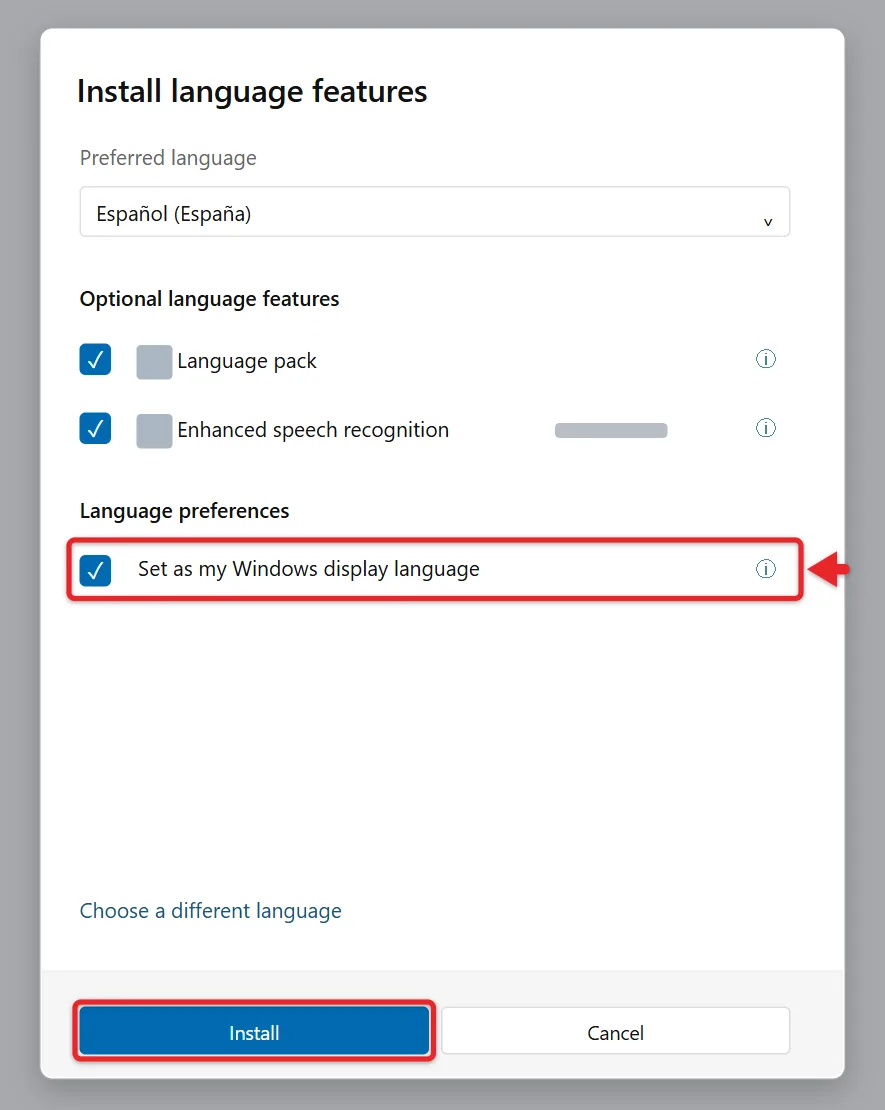
- Select Install. Progress appears next to the language in the Preferred languages list.
- When the download finishes, select Sign out and sign back in. If no Sign out button appears, sign out from the Start menu’s power or account options.
When you sign back in, Settings, the Start menu, File Explorer and most built-in apps show the new language. Windows also moves that language to the top of your Preferred languages list.
If Windows key + I does not respond in step 1, there are other ways to open Settings on Windows 11. You can also press Windows key + R, type ms-settings:regionlanguage, and press Enter to jump straight to Language & region. For more help with step 7, read about signing out of Windows 11.
Switch Back to a Language You Already Installed
- Open Settings > Time & language > Language & region.
- Open the Windows display language menu at the top.
- Pick the language, then select Sign out and sign back in.
Microsoft’s language settings guide notes that switching the display language can also switch your keyboard layout, so if your password doesn’t work at sign-in, use the eye icon in the password box to check what you’re typing. You can also change the layout from the input language button in the corner of the sign-in screen.
Change the Language for Store Apps and Websites
Microsoft Store apps and websites use the first supported language in your Preferred languages list, which can be different from the Windows display language.
- Open Settings > Time & language > Language & region.
- Under Preferred languages, drag the language you want to the top of the list.
- Close Settings. Your Windows display language stays the same.
Apps that have their own language setting may ignore this list. Microsoft Office uses its own Office language packs, which you download separately.
Switch Between Keyboard Languages Quickly
If you type in more than one language, you don’t need Settings to switch keyboards.
- Hold the Windows key and press the Spacebar to open the keyboard list.
- Keep holding the Windows key and press Spacebar again to move through the list.
- Let go on the keyboard you want.
You can also click the language abbreviation, such as ENG, next to the clock on the taskbar, or press Alt + Shift. If pressing Windows key + Space does nothing, only one keyboard is installed.
To add a keyboard without adding a new display language, select the three dots (…) next to a language in Language & region, select Language options, and select Add a keyboard next to Installed keyboards. For more keyboard options, read about changing the keyboard layout in Windows 11.
Add Speech and Typing Features Later
If you skipped the optional features during install, you can add them afterward.
- In Language & region, select the three dots (…) next to the language and select Language options.
- Under Language features, select Download next to the feature you want, such as speech recognition or handwriting.
Not every language offers speech features. Microsoft’s steps have you set the language as your display language before you download its speech features.
Change the Language of the Sign-In Screen
The steps above change the language for your account only. The welcome screen, system accounts and accounts created later keep the old language until you copy your settings to them. You need an administrator account, and your own account must already use the language you want to copy.
- Open Settings > Time & language > Language & region.
- Under Related settings, select Administrative language settings. The Region window opens on the Administrative tab.
- Select Copy settings.
- Check Welcome screen and system accounts and New user accounts.
- Select OK, then restart the PC.
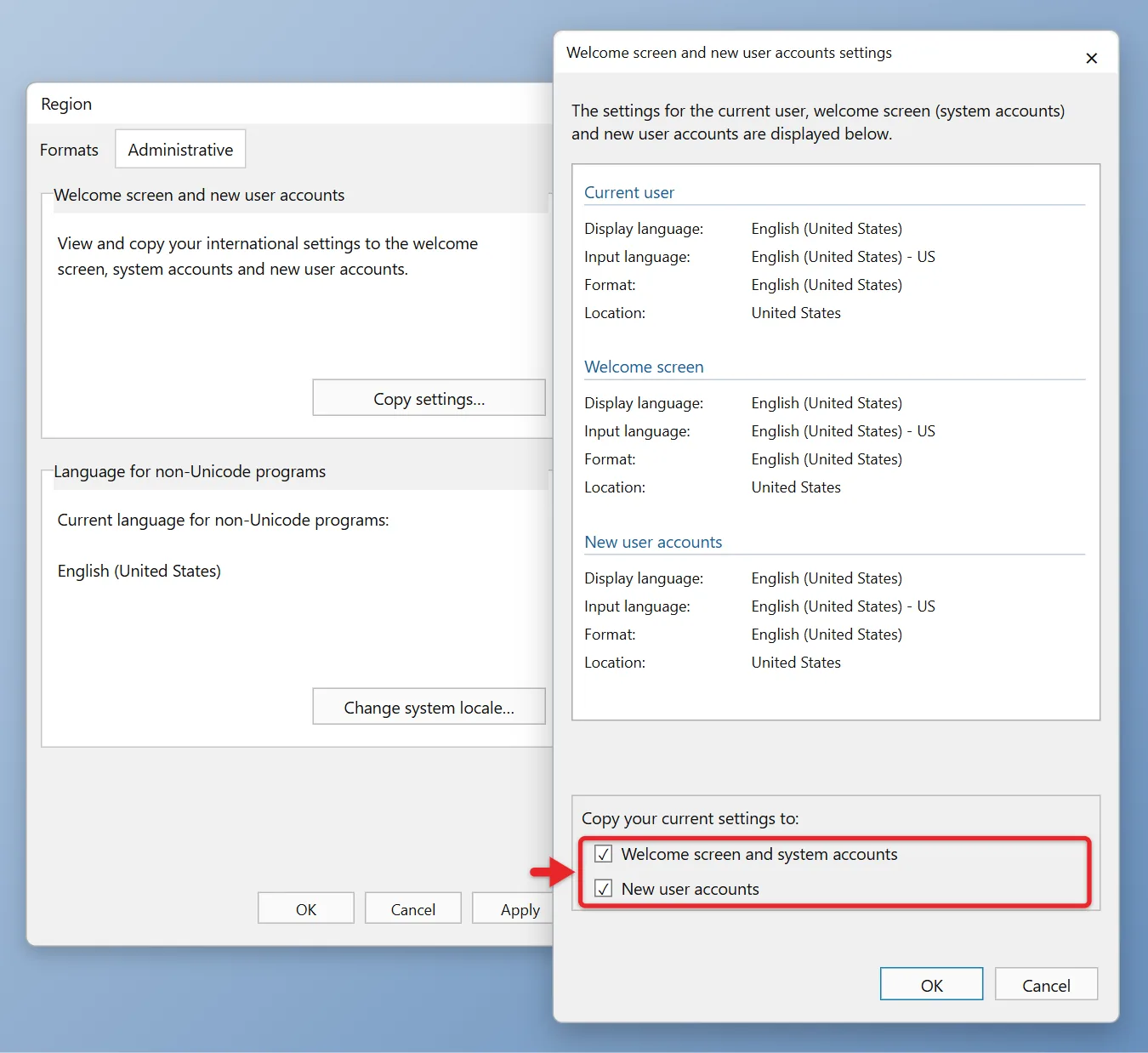
This copies all of your regional settings, including date and time formats, not only the display language. The same tab has Change system locale, which sets the language older non-Unicode programs use. Leave it alone unless an older app shows garbled characters.
Change the Region and Formats
The display language doesn’t change date, time, or currency formats. To change those, go to the Region section on the same page and set Country or region and Regional format. Windows and apps such as the Microsoft Store can use Country or region to show local content, so pick the country where you live.
If the clock itself is wrong, here is how to change the date and time in Windows 11.
To switch only the clock style, set a 12-hour clock in Windows 11. Dates have their own setting: change the date format in Windows 11.
If you’d rather see 21:30 than 9:30 PM, here’s how to set 24-hour time in Windows 11.
Keep the Change on One PC Only
If you sign in with a Microsoft account, Windows can back up your language preferences and apply them to other PCs you sign in to. To stop that, open Settings > Accounts > Windows backup, expand Remember my preferences, and uncheck Language preferences and dictionary, as described in Microsoft’s Windows Backup guide.
Remove a Language You Don’t Need
- Open Settings > Time & language > Language & region.
- Select the three dots (…) next to the language.
- Select Remove, then select Yes to confirm.
If Remove is grayed out, that language is your current Windows display language. Switch the display language first, sign out and back in, then remove it. Removing a language also removes its keyboards.
Troubleshooting
- “Only one language pack allowed” or “Your Windows license supports only one display language”: your PC runs Windows 11 Home Single Language. See the first FAQ below.
- The language isn’t in the list: some languages need a base language installed first. Microsoft’s language packs list shows the base language each one requires, such as English (United States).
- The install stalls: check your internet connection, restart the PC, and try again.
- Some screens still show the old language: restart instead of only signing out, and check whether that screen is the sign-in screen, which needs the Copy settings steps above.
- The language bar is missing from the taskbar: open Settings > Time & language > Typing > Advanced keyboard settings and check the language bar options. The taskbar button appears only when more than one keyboard is installed.
Frequently Asked Questions
Why can’t I change the display language?
Some PCs come with Windows 11 Home Single Language, which allows only one display language. Check the edition in Settings > System > About under Windows specifications. Microsoft’s page on checking whether Windows supports multiple languages says the fix is upgrading to Windows 11 Home or Pro, which is a paid upgrade.
Does this change my keyboard?
Adding a language also adds its keyboard. To add or remove layouts, change the keyboard layout.
Will apps change language too?
Most built-in apps follow the Windows display language. Other apps and websites may use their own language settings.
Why do some menus still show the old language?
Some languages aren’t fully translated in Windows. For those, Microsoft says a few items show in the next fully translated language in your Preferred languages list.
Will changing the language affect my files?
No. Your documents, photos and installed programs stay the same. Only the words Windows shows in its interface change, plus the keyboard if you switch it.
If you also dictate text, the article on voice typing in Windows 11 explains how voice typing follows your input language.

Matthew Burleigh is the founder, head writer, and editor of Solve Your Tech, which he launched in 2012. He has written technology tutorials since 2008 and worked in IT since 2003, including small-business support, IT management, and consulting. He holds Bachelor’s and Master’s degrees in Computer Science from Arizona State University.
Matthew writes practical guides for Windows, iPhone and iPad, Microsoft Office, Outlook, Google apps, and Android. Solve Your Tech’s guides are checked step by step against the device or app maker’s own documentation and tested on his own devices whenever he has the hardware or software, with clear steps, sources, and update dates.
Read more about Matthew and how Solve Your Tech writes and updates its guides, or report a correction.