This post contains affiliate links. As an Amazon Associate, solveyourtech.com earns from qualifying purchases, at no extra cost to you.
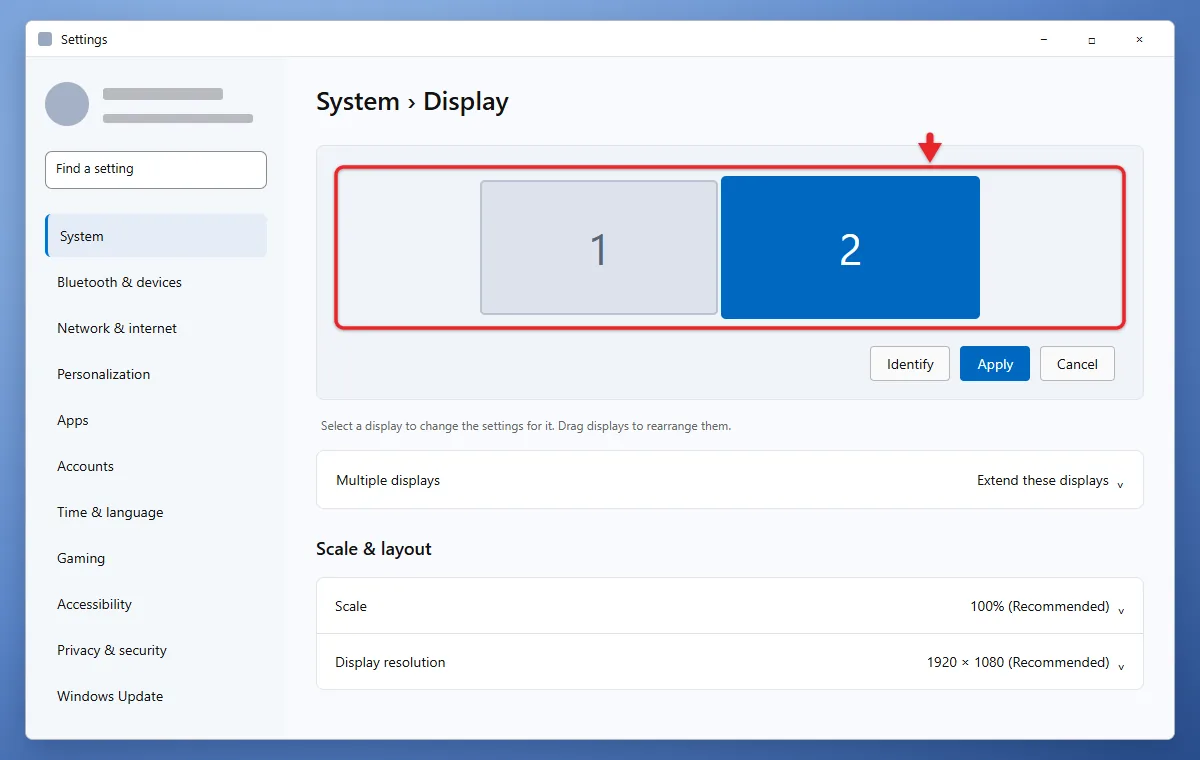
To set up multiple monitors on Windows 11 or Windows 10, plug each monitor into your PC, then go to Settings > System > Display. Drag the numbered boxes to match how your screens sit on your desk, click Apply, and press Windows + P to choose Extend.
Extend lets you move windows from one screen to the other. These steps follow Microsoft’s multiple monitors guide.
Windows 10: the same Settings > System > Display route and Windows + P modes apply. Windows 10 reached end of support in October 2025, so the labels here follow Windows 11.
How to Set Up Multiple Monitors in Windows 11 or 10
- Connect each monitor to your PC or dock with the right cable, such as HDMI, DisplayPort, or USB-C, and turn the monitors on.
- Click Start > Settings > System > Display.
- Click Identify to see which number belongs to which screen. Windows assigns these numbers itself. Find out whether you can change monitor identity numbers in Windows 11.
- Drag the numbered boxes so they match where the monitors are on your desk, then click Apply.
- Press Windows + P and choose Extend. To move a window between screens and center it, follow the steps to center a window in Windows 11.
- Move your mouse across the screens to make sure it travels the way you expect.
Before you buy a cable, look at the ports on your PC and your monitor and get a cable that fits both ends. Your PC or dock’s spec sheet also says how many external monitors it can run. An HDMI cable works for most monitors. For a DisplayPort monitor on a USB-C laptop, use a USB-C to DisplayPort adapter. If your laptop has only one USB-C port, a hub like the Anker 5-in-1 USB-C hub adds HDMI and USB ports. Its single HDMI port runs one extra screen.
A smart TV or projector can also work as an extra screen without a cable once you connect to a wireless display in Windows.
Choose What Shows on Each Screen
Press Windows + P to pick a mode:
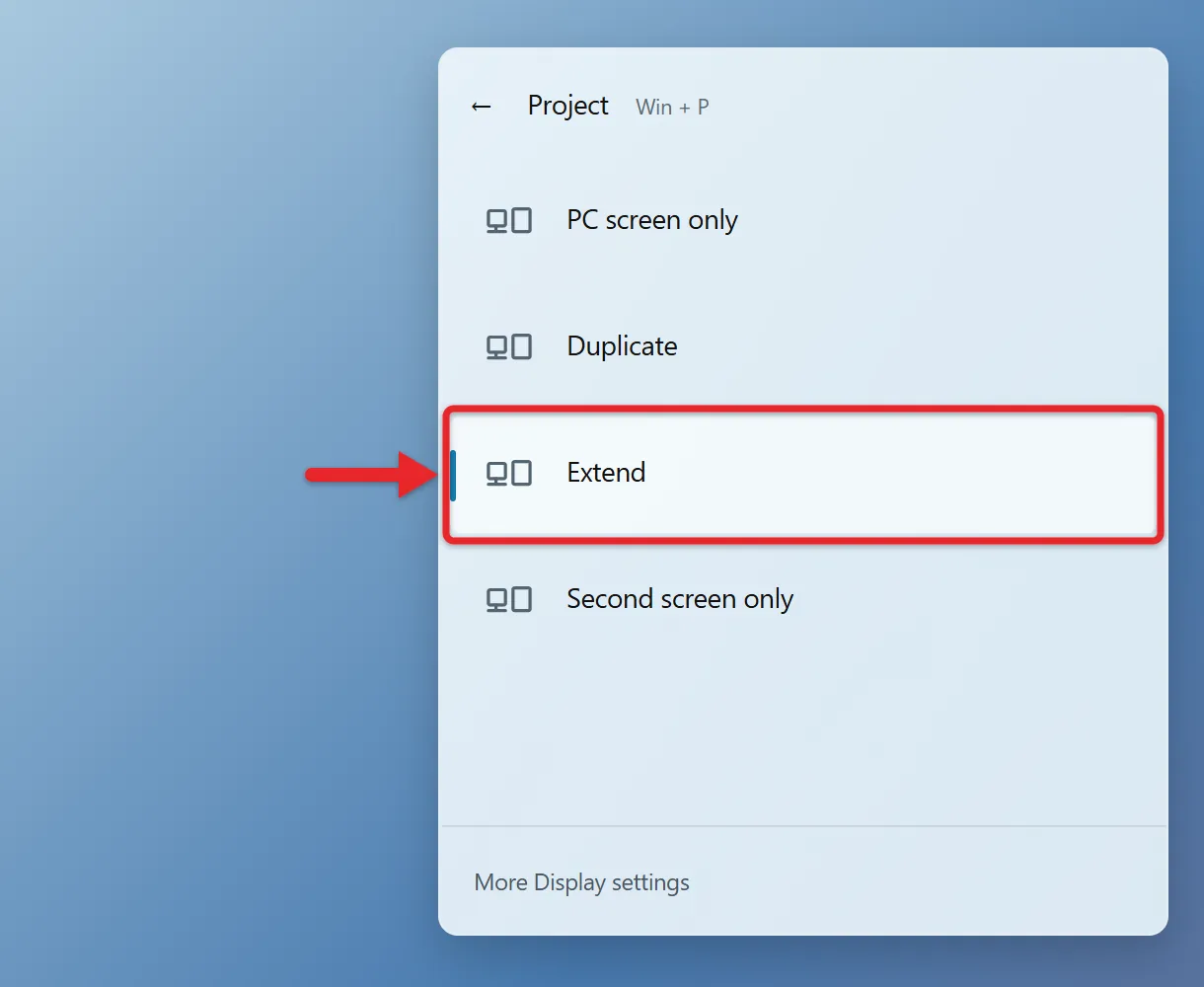
- PC screen only: Show everything on the main PC screen. The second monitor goes blank but stays powered on.
- Duplicate: Show the same thing on every display.
- Extend: Spread your desktop across all displays. Learn more about how to extend your display.
- Second screen only: Show everything on the second monitor and turn off the picture on the main screen. Laptop users pick this to work on the external monitor alone.
To close a laptop and keep working on the monitor, here is how to keep a Windows 11 laptop on with the lid closed.
Stop Mirroring and Fix Mouse Direction
For different content on each screen, press Windows + P and choose Extend. Choose Duplicate to mirror again. If you use a display splitter, it copies one signal to both screens. Microsoft’s external monitor troubleshooting guide explains that a splitter can’t create separate extended screens.
If the mouse leaves the screen on the wrong side, open Settings > System > Display, select Identify, drag the numbered boxes to match where the screens sit, and select Apply. Move the pointer across to check. This changes the layout, not which screen is the main display.
If a window ends up stranded past the edge of a screen, here’s how to move an off-screen window in Windows 11.
Hide the Taskbar on a Second Monitor
- Right-click an empty part of the taskbar and open Taskbar settings.
- Expand Taskbar behaviors.
- Clear Show my taskbar on all displays; select it again to restore the additional taskbars.
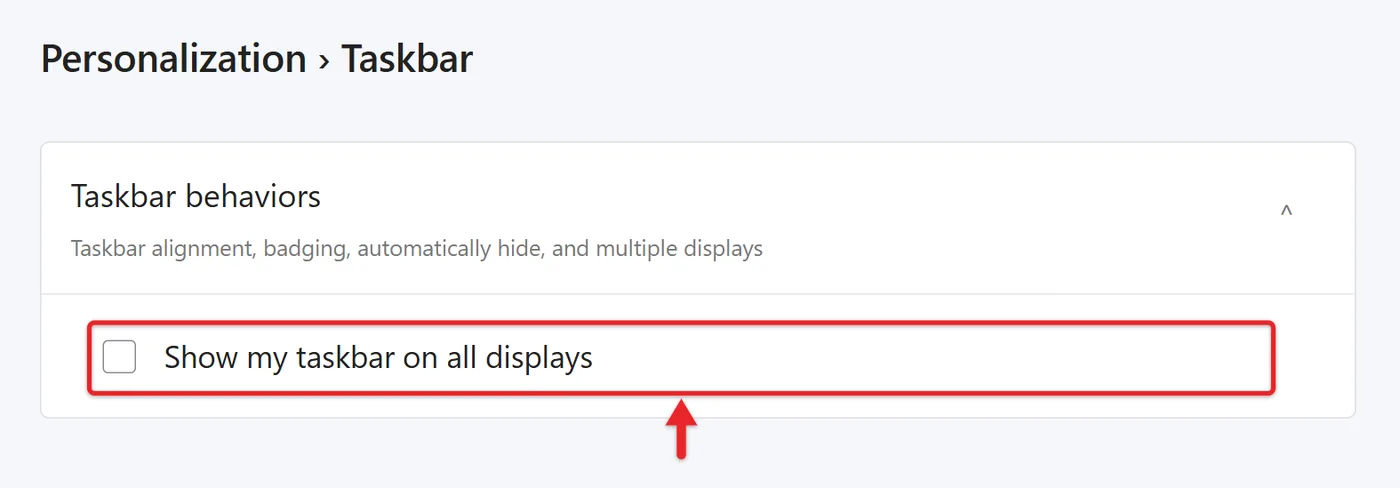
Microsoft documents these controls in its taskbar guide. Automatically hide the taskbar is a separate option that hides it until you move to the screen edge. To turn it on, follow the steps for hiding the taskbar in Windows 11.
What If Windows Doesn’t Detect a Monitor?
- Check that the cable is firmly connected at both ends and the monitor is on the right input. For a laptop and TV, follow the steps for using HDMI on a Windows 11 laptop.
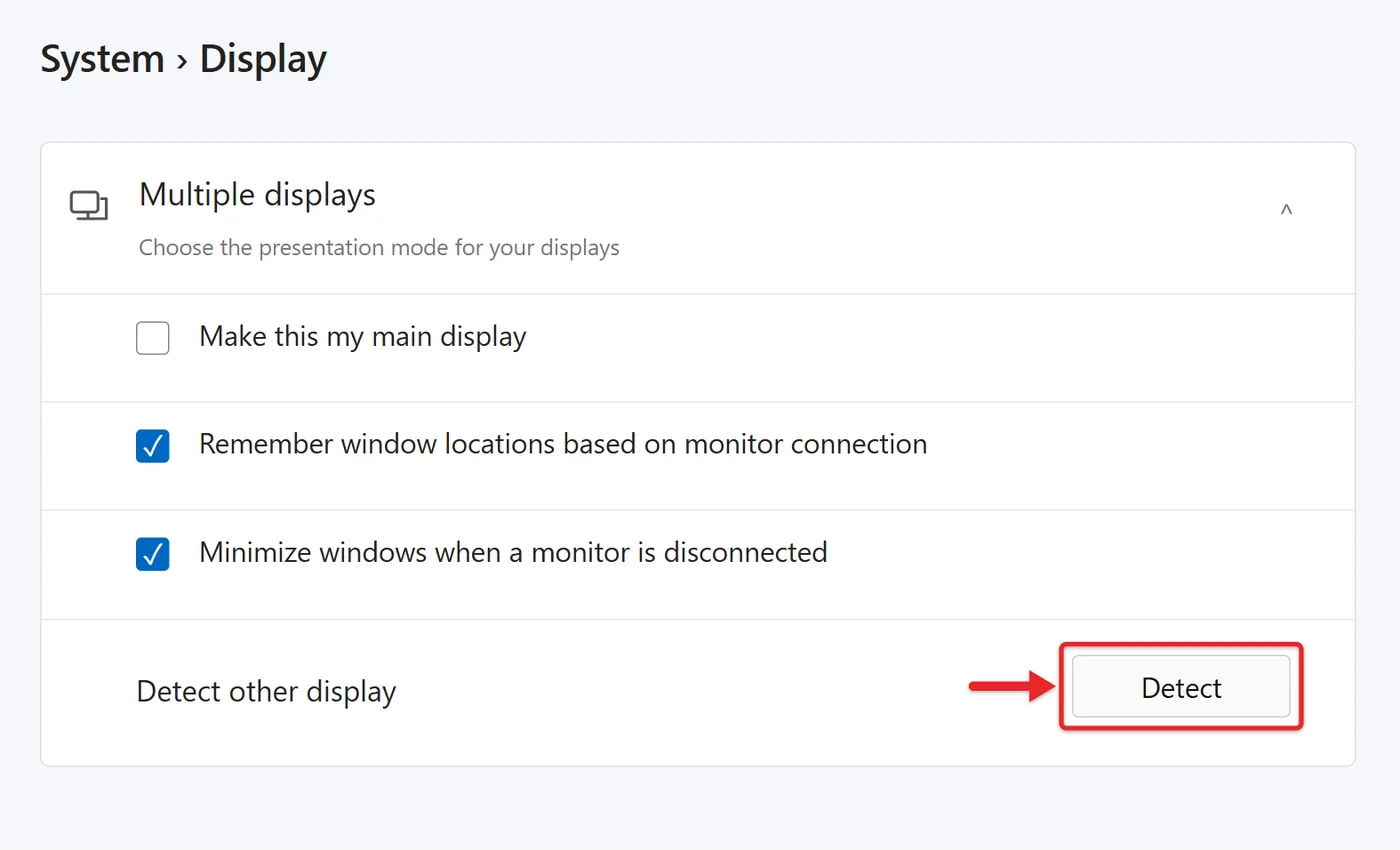
- Go to Settings > System > Display > Multiple displays and click Detect.
- Install updates, including display drivers: on Windows 11, go to Settings > Windows Update, select Check for updates, and restart when asked.
On Windows 10, Windows Update is at Settings > Update & Security > Windows Update.
Using a wireless display adapter? Press Windows + K and select it.
Other Settings to Check
- The screen that shows the taskbar and new windows is whichever one you set as the main display.
- Each screen can also get its own picture when you set a different background for each monitor.
- Text or apps that look too big on one screen can be fixed when you adjust the scale on a second monitor.
- On Windows 11, under Multiple displays, you can turn Remember window locations based on monitor connection on or off. This lets Windows put your windows back when you re-dock a laptop.
For a blurry or stretched picture, set the resolution for each monitor after selecting its numbered box. Start with the recommended option and check the whole picture before keeping the change; use Scale separately for text size.
To stretch one wide picture across every screen, use the Span option when you resize your desktop background.
If a screen shows the desktop sideways or upside down instead, here’s how to fix an upside-down screen in Windows 11.
Frequently Asked Questions
Can I use two different monitor brands?
Yes. Windows lets you set the resolution and scale for each monitor on its own in Display settings.
Brightness works differently on external screens, and there are a few ways to change brightness on a second monitor.
My screen looks stretched or too big after connecting a monitor. What do I do?
Check the resolution and scale for that screen. Here is how to get your screen back to normal size.

Matthew Burleigh is the founder, head writer, and editor of Solve Your Tech, which he launched in 2012. He has written technology tutorials since 2008 and worked in IT since 2003, including small-business support, IT management, and consulting. He holds Bachelor’s and Master’s degrees in Computer Science from Arizona State University.
Matthew writes practical guides for Windows, iPhone and iPad, Microsoft Office, Outlook, Google apps, and Android. Solve Your Tech’s guides are checked step by step against the device or app maker’s own documentation and tested on his own devices whenever he has the hardware or software, with clear steps, sources, and update dates.
Read more about Matthew and how Solve Your Tech writes and updates its guides, or report a correction.