To enable macros for one Excel file, open the workbook and click Enable Content on the yellow Security Warning bar. To change the setting for every file, go to File > Options > Trust Center > Trust Center Settings > Macro Settings. Only enable macros in files from people you trust, because a macro can run harmful code. This guide covers Excel for Microsoft 365, Excel 2024, 2021, 2019 and 2016 on Windows, Excel for Mac, and Excel for the web.
The steps come from Microsoft’s Enable or disable macros in Microsoft 365 files article and its macro security settings page for Excel.
Security Warning: Read This Before You Enable Anything
A macro is a small program stored inside a workbook. It can do useful work, but it can also install malware. Excel turns macros off by default for that reason.
- Enable macros only when you know who made the file and what the macros do.
- You do not need macros to view or edit a workbook. Microsoft says so directly. If you only want to read the data, leave them off.
- Be extra careful with email attachments and downloads. If a file you did not expect asks you to enable macros, do not do it. Microsoft’s advice is that you should probably delete a file like that.
- Do not choose the setting that enables all macros. It lets every macro in every file run with no warning.
If the file arrived by email and something feels off, start with our guide to checking and opening email attachments safely.
What You Need
- The Excel desktop app for Windows or Mac. Excel for the web cannot run VBA macros.
- A workbook that contains macros, usually a file ending in .xlsm, .xlsb or .xls.
- Permission to change the setting. On a work or school computer, your IT department may lock it.
Not sure which Excel you have? See how to check your Excel version.
How to Enable Macros for One File (Windows)
- Open the workbook in Excel. A yellow Security Warning bar appears under the ribbon and says macros have been disabled.
- Click Enable Content on that bar.
- If a Security Warning box asks whether to make the file a trusted document, click Yes.
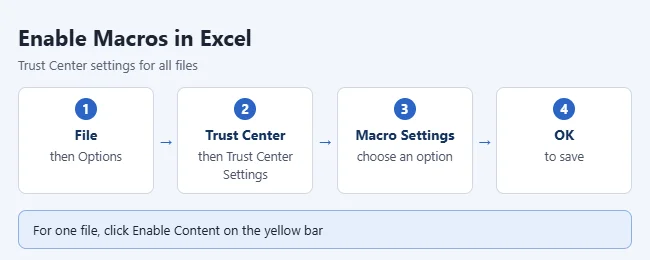
Macros are now on for this workbook. Excel treats it as a trusted document, so it opens without the yellow bar next time.
If you closed the bar by mistake, click File > Info. The same Security Warning appears there with an Enable Content button. Choose Enable All Content. You can also close the workbook and open it again to bring the bar back.
How to Change Macro Settings for All Files (Trust Center)
Use this when you want a different default for every workbook. The change applies to Excel only, not to Word or other Office apps.
- Click the File tab, then Options.
- Click Trust Center, then Trust Center Settings.
- Click Macro Settings in the left pane.
- Select the option you want.
- Click OK, then OK again to close Excel Options.
| Setting | What it does |
|---|---|
| Disable VBA macros without notification | Macros never run and you see no warning. Files in a trusted location can still run macros. |
| Disable VBA macros with notification | The default. Macros are off, but the Security Warning bar lets you turn them on file by file. Best for most people. |
| Disable VBA macros except digitally signed macros | Macros signed by a publisher you trust run. Unsigned macros stay off. |
| Enable VBA macros (not recommended; potentially dangerous code can run) | Every macro runs without asking. This leaves your computer open to malicious code. |
The same screen has two check boxes. Enable Excel 4.0 macros when VBA macros are enabled controls an older macro type. Trust access to the VBA project object model is for developers and is off by default. Leave both alone unless you know you need them.
If the Developer tab is on your ribbon, Developer > Macro Security opens the same screen. To add the tab on Windows, go to File > Options > Customize Ribbon and check Developer under Main Tabs. On a Mac, see how to enable the Developer tab in Excel for Mac.
Fix: “Microsoft Has Blocked Macros” (Red Security Risk Banner)
Sometimes you get a red banner instead of the yellow bar. It says Microsoft has blocked macros from running because the source of the file is untrusted, and it has no Enable Content button. Windows marks files that come from the internet or an email attachment, and Excel blocks macros in those files and in files opened from a network share it does not trust. Microsoft explains the change in its guide to blocked internet macros.
Unblock a file only if you are sure it is safe. Microsoft’s steps for a single file are in A potentially dangerous macro has been blocked.
- Close the workbook. If it is an email attachment, save it to your computer first.
- Open File Explorer and go to the folder where the file is saved.
- Right-click the file and choose Properties.
- On the General tab, check Unblock at the bottom, then click OK.
- Open the file again. Click Enable Content if the yellow bar appears.
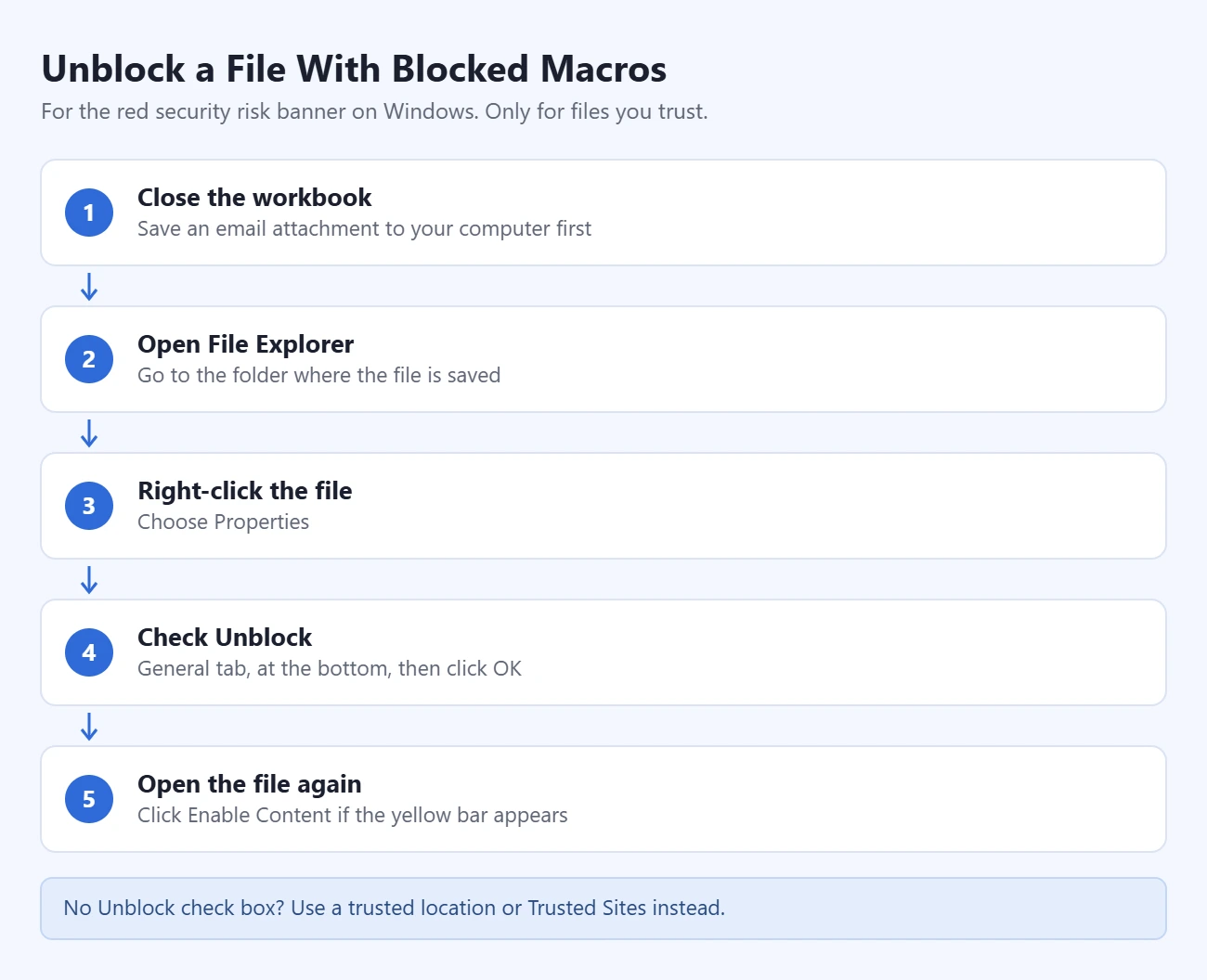
No Unblock check box? Microsoft lists other options:
- Email attachment: save it to your OneDrive before you open it, or save it to your hard drive and unblock it there.
- File on a network share or website you trust: open Internet Options in Windows, click the Security tab, select Trusted Sites, click Sites, enter the address and click Add. For a network share or an address that starts with http://, first uncheck Require server verification (https:) for all sites in this zone.
- Folder on your computer: make it a trusted location, as shown in the next section.
If the banner says your administrator has restricted macros, your organization set the block. Only your IT department can change the policy. Microsoft’s suggestion is to upload the file to OneDrive or another location your IT administrator has approved.
Use a Trusted Location Instead
If you open the same macro workbooks often, keep them in a trusted location. Excel does not run Trust Center checks on files in that folder, so their macros run with no warning.
- Click File > Options.
- Click Trust Center, then Trust Center Settings.
- Click Trusted Locations in the left pane.
- Click Add new location.
- Click Browse, pick the folder, and click OK until every window is closed.
Choose a small folder that you use only for workbooks you trust. Do not pick Downloads or your whole Documents folder, because every file saved there would skip the security checks. To take a folder off the list later, select it on the same screen and click Remove. Microsoft documents this in Add, remove, or change a trusted location.
How to Enable Macros in Excel for Mac
These steps apply to Excel for Microsoft 365 for Mac, Excel 2024 for Mac and Excel 2021 for Mac. They follow Microsoft’s macro instructions for Mac.
With the default setting, Excel for Mac warns you each time you open a workbook that contains macros. Choose to enable the macros in that prompt to turn them on for that file. To change the default:
- Open Excel.
- Click Excel in the menu bar, then Preferences.
- Click Security (the lock icon). Some versions label it Security & Privacy.
- Select Disable all macros with notification to be asked each time.
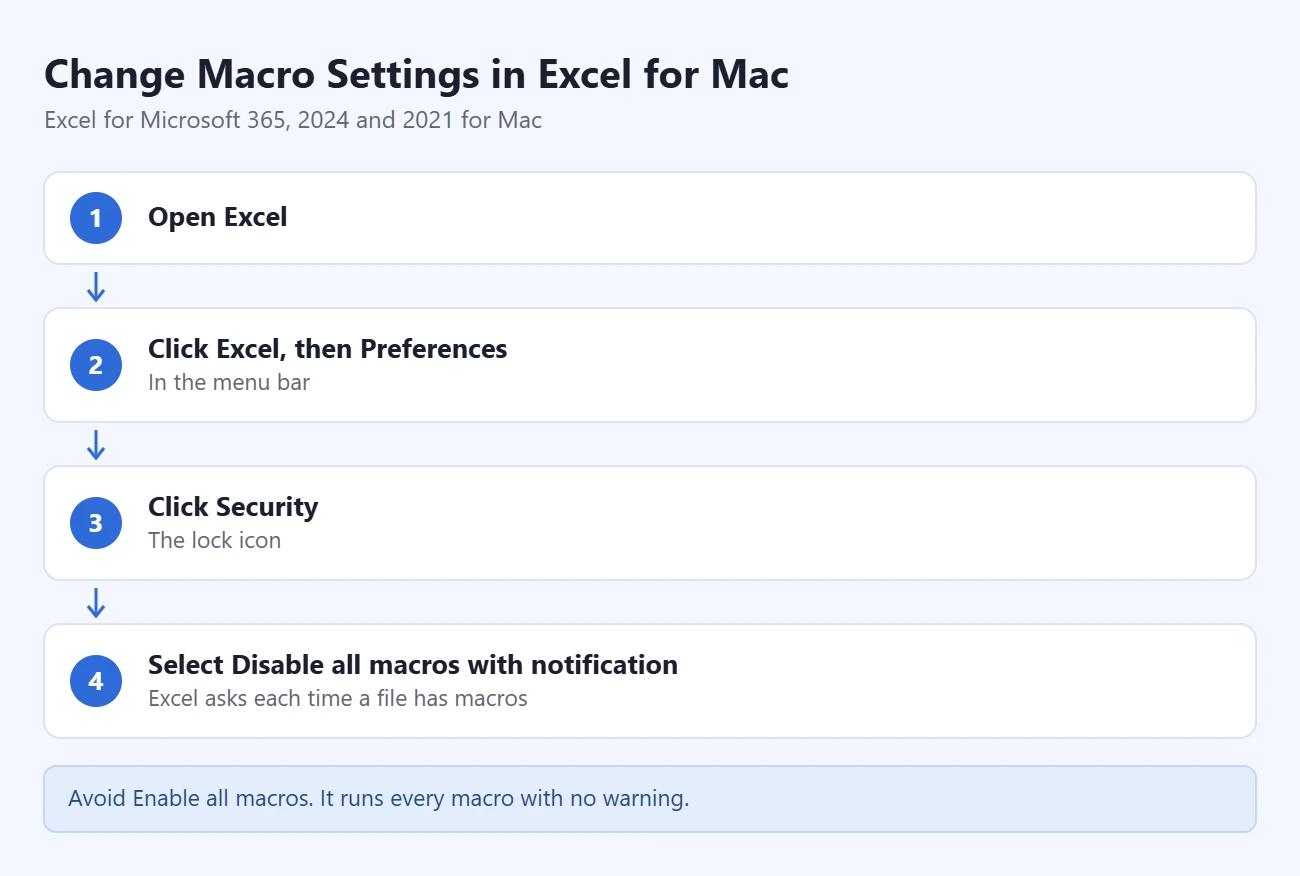
The other two choices are Disable all macros without notification, which blocks macros silently, and Enable all macros. Microsoft warns that the last one lets all macros, good and bad, run with no further warning. Avoid it.
Excel for the Web Cannot Run Macros
There is no macro setting to turn on in a browser. Microsoft states that you can’t create, run or edit VBA macros in Excel for the web. You can open and edit a workbook that contains macros, and the macros stay in the file. To run them, click Open in Desktop App above the ribbon and use the steps for Windows or Mac.
How to Confirm It Worked, and How to Undo It
On Windows, press Alt + F8, or click View > Macros > View Macros. Select a macro and click Run. If it runs with no warning, macros are enabled for that file.
To undo your changes:
- Macro setting: return to Trust Center > Macro Settings and choose Disable VBA macros with notification. On a Mac, choose Disable all macros with notification.
- Trusted documents: go to File > Options > Trust Center > Trust Center Settings > Trusted Documents and click Clear. This clears the whole list, so every file asks again.
- Trusted location: select the folder under Trusted Locations and click Remove.
Troubleshooting
- There is no yellow bar. The workbook may have no macros, it may already be trusted, or it may sit in a trusted location. If your setting is Disable VBA macros without notification, switch to the “with notification” option.
- The banner is red and has no Enable Content button. The file is marked as coming from the internet. Use the Unblock steps above.
- The Macro Settings options are greyed out. Your organization controls them through a policy. Ask your IT administrator.
- Excel asks every time you open the file. Microsoft says a file cannot become a trusted document when it opens from a temporary folder, such as an attachment opened straight from an email, or when it is a template. Save the workbook to a normal folder first.
- The macros are gone. The workbook was saved as .xlsx, which cannot store VBA code. Go back to the original macro-enabled copy.
Frequently Asked Questions
Why can’t I see the Enable Content button?
The file is probably blocked because it came from the internet or email, which shows a red banner with no button. Unblock it in the file’s Properties if you trust it. On a work computer, your administrator may also have turned macros off.
Is it safe to enable macros in Excel?
It is safe only when you trust the source and know what the macros do. Macros from a coworker’s well-known workbook are a normal use. Macros in an unexpected attachment are a common way to spread malware, so leave those off.
How do I save a file so it keeps its macros?
Click File > Save As and choose Excel Macro-Enabled Workbook (.xlsm) as the file type. A regular .xlsx workbook cannot store VBA macro code. On a Mac you can also change the default save type in Excel for Mac to .xlsm.
Do macro settings in Excel change Word or PowerPoint?
No. Microsoft notes that a Trust Center macro setting changes only the app you are using. Set it again in each app if you need to.
Can I run macros in Excel on a phone, tablet or browser?
Excel for the web cannot run VBA macros. Microsoft’s macro instructions cover the Windows and Mac desktop apps only, so plan to use a computer.
How do I turn macros off again?
Go to File > Options > Trust Center > Trust Center Settings > Macro Settings and choose Disable VBA macros with notification. Then clear the Trusted Documents list so files you already enabled ask again.
Next Step
Leave the default setting in place and enable macros one trusted file at a time. If you use the same macro workbooks every day, move them into one trusted folder so you never need to enable all macros.

Matthew Burleigh is the founder, head writer, and editor of Solve Your Tech, which he launched in 2012. He has written technology tutorials since 2008 and worked in IT since 2003, including small-business support, IT management, and consulting. He holds Bachelor’s and Master’s degrees in Computer Science from Arizona State University.
Matthew writes practical guides for Windows, iPhone and iPad, Microsoft Office, Outlook, Google apps, and Android. Solve Your Tech’s guides are checked step by step against the device or app maker’s own documentation and tested on his own devices whenever he has the hardware or software, with clear steps, sources, and update dates.
Read more about Matthew and how Solve Your Tech writes and updates its guides, or report a correction.