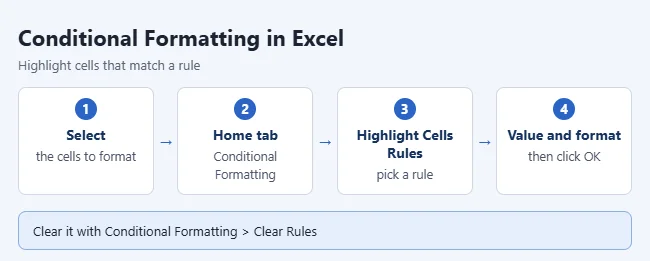
To use conditional formatting in Excel, select your cells, click Conditional Formatting on the Home tab, choose Highlight Cells Rules, pick a rule like Greater Than, enter a value, and choose a format. Excel then colors any cell that matches, and updates the colors when the values change. This guide covers the built-in rules, formula rules, whole-row highlighting, and how to edit, reorder, copy, and clear rules in Excel for Windows, Mac, and the web.
Steps come from Microsoft’s Use conditional formatting to highlight information in Excel article.
What You Need
- Windows: Excel for Microsoft 365, Excel 2024, 2021, 2019, or 2016. The main steps below use these versions.
- Mac: Excel for Microsoft 365 for Mac, Excel 2024 for Mac, or Excel 2021 for Mac. The menu names match, but the rule window is different. See the Mac section.
- Web: Excel for the web in a browser. See the web section for what to expect.
- A worksheet you can edit. If the sheet is protected, the formatting commands may be unavailable.
How to Highlight Cells With a Rule
- Select the cells you want to format. Leave out the header row.
- On the Home tab, click Conditional Formatting. It is in the Styles group.
- Point to Highlight Cells Rules and pick a rule, like Greater Than, Text that Contains, or A Date Occurring. A small dialog box opens.
- Enter the value to compare against and choose a format from the list. The cells change color as a preview while the box is open.
- Click OK.
To confirm it worked, type a new value into one of the cells. The color should turn on or off as soon as the value crosses the limit you set. If you don’t like the result, press Ctrl+Z to undo the rule.
The Built-In Rule Types
Every preset is on the same Conditional Formatting menu. Pick the one that fits your question.
| Menu option | What it does | Good for |
|---|---|---|
| Highlight Cells Rules | Colors cells that are greater than, less than, between, or equal to a value, contain certain text, fall on certain dates, or are duplicates. | Flagging values over a limit or finding a word |
| Top/Bottom Rules | Colors the top or bottom items or percent, or values above or below average. | Finding best and worst results |
| Data Bars | Adds a bar inside each cell. A longer bar means a larger value. | Comparing sizes at a glance |
| Color Scales | Shades cells with two or three colors from low to high, like a heat map. | Seeing how values are spread out |
| Icon Sets | Adds arrows, traffic lights, or other icons that sort values into three to five groups. | Showing status or direction |
A few details are worth knowing:
- Top/Bottom Rules: The menu says Top 10 Items and Bottom 10%, but you can change the number in the dialog box.
- Duplicate Values: This rule is under Highlight Cells Rules. You can switch it to Unique in the dialog box. It is handy before you remove duplicates in Excel.
- Icon Sets: The icon size follows the font size in the cell. Microsoft notes that you may need to widen the column to fit the icon.
- Blank cells: There is no menu preset for blanks. Click Conditional Formatting > New Rule, choose Format only cells that contain, and pick Blanks from the list.
For a quick preview in Excel for Windows, select your data and press Ctrl+Q to open Quick Analysis. Hover over each option on the Formatting tab to see it on your data. The options change with your data. Text gives you choices like Text, Duplicate, and Unique. Numbers give you Data Bars, Colors, Icon Sets, Greater, and Top 10%.
How to Use a Formula for Your Own Rule
A formula rule lets you format cells based on a test you write yourself. The formula must start with an equal sign and return TRUE or FALSE. Excel applies the format wherever the answer is TRUE.
The examples below use this sample data. The headers are in row 1 and the data is in cells A2 through C7.
| Order (A) | Region (B) | Amount (C) |
|---|---|---|
| 1001 | East | 850 |
| 1002 | West | 1,400 |
| 1003 | East | 2,100 |
| 1004 | South | 640 |
| 1005 | West | 990 |
| 1006 | East | 1,250 |
- Select the cells to format. For the sample, select C2 through C7.
- On the Home tab, click Conditional Formatting > New Rule.
- Choose Use a formula to determine which cells to format.
- In the Format values where this formula is true box, type
=C2>1000. - Click Format, choose a fill color, and click OK.
- Click OK again to apply the rule.
 New Rule; choose Use a formula to determine which cells to format; type =C2>1000; click Format, choose a fill color, and click OK; click OK again” class=”wp-image-163219″ style=”width:650px;height:auto”/>
In the sample, the amounts 1,400, 2,100, and 1,250 get the fill color. The other three stay plain.
Write the formula for the first cell in your selection. Here that is C2. Excel adjusts the reference for every other cell in the range, the same way it does when you copy a formula down a column.
How to Highlight a Whole Row
To color the full row instead of one cell, change two things. Select every column in the data, and lock the column letter in the formula with a dollar sign.
- Select all the data rows. For the sample, select A2 through C7.
- Click Conditional Formatting > New Rule.
- Choose Use a formula to determine which cells to format.
- Type
=$C2>1000. - Click Format, choose a fill color, and click OK twice.
The dollar sign in $C2 locks the column, so every cell in the row checks column C. The row number has no dollar sign, so it still changes from row to row. In the sample, the rows for orders 1002, 1003, and 1006 are highlighted from column A to column C.
More Formula Examples
These formulas all work with the sample data above. Select A2 through C7 first unless the table says otherwise.
| Goal | Formula | Result in the sample |
|---|---|---|
| Both tests must be true | =AND($B2="East",$C2>1000) | Orders 1003 and 1006 |
| Either test can be true | =OR($B2="South",$C2>2000) | Orders 1003 and 1004 |
| Compare to a limit typed in cell F1 | =$C2>$F$1 | Changes when you change F1 |
| Find repeated regions (select B2 through B7) | =COUNTIF($B$2:$B$7,B2)>1 | Every East and West cell |
| Shade every other row | =MOD(ROW(),2)=1 | Rows 3, 5, and 7 |
You don’t need to wrap these tests in IF. A comparison like $C2>1000 already returns TRUE or FALSE. If you still prefer IF, that method is explained in using IF formulas to color cells in Excel.
Putting the limit in its own cell, like $F$1, lets you change the limit later without editing the rule. Both dollar signs keep every row pointed at the same cell.
How to Edit Rules and Change Their Order
- On the Home tab, click Conditional Formatting > Manage Rules. The Conditional Formatting Rules Manager opens.
- Open the Show formatting rules for list and choose This Worksheet to see every rule on the sheet.
- Select a rule and click Edit Rule to change its condition or format.
- To change which cells a rule covers, edit the range in its Applies to box.
- Use the Move Up and Move Down arrows to change the order.
- Click OK to save your changes.
 Manage Rules; choose This Worksheet; select a rule and click Edit Rule; edit the range in the Applies to box; use the Move Up and Move Down arrows; click OK” class=”wp-image-163220″ style=”width:650px;height:auto”/>
The Rules Manager also has Duplicate Rule, which copies a rule so you can edit the copy, and Delete Rule, which removes only the rule you selected.
Why rule order matters
Excel checks rules from the top of the list to the bottom. A new rule goes to the top. When two rules are true for the same cell, this is what happens:
- The formats don’t conflict: Both apply. If one rule makes the text bold and another makes it red, the cell is bold and red.
- The formats conflict: The rule higher in the list wins. If one rule sets a red fill and another sets a green fill, the cell gets the fill from the higher rule.
Check the Stop If True box next to a rule when you want Excel to skip all the rules below it for any cell that rule matches.
Conditional formatting also beats manual formatting. If you fill a cell yellow by hand and a rule fills it red, you see red while the rule is true. Your manual color is still there and comes back if you delete the rule. For plain fills that never change, color the cells by hand in Excel.
How to Copy Conditional Formatting to Other Cells
- Click a cell that has the conditional formatting you want to copy.
- On the Home tab, click Format Painter. The pointer turns into a paintbrush.
- Drag across the cells you want to format.
Double-click Format Painter to keep the paintbrush on for several ranges. Press Esc when you are done.
Format Painter copies all of the cell’s formatting, not only the rule. Copying this way also creates a new rule for the new cells. If the rule uses a formula, open Manage Rules afterward and check that the cell references still point to the right place.
When the new cells sit right next to the old ones, it is often cleaner to open Manage Rules and widen the range in the Applies to box instead.
How to Remove Conditional Formatting
Clearing rules deletes them. You can press Ctrl+Z right away to bring them back. After you close the workbook, you would need to build them again. Clearing rules never changes your data or manual formatting.
- Remove from some cells: Select them, then click Conditional Formatting > Clear Rules > Clear Rules from Selected Cells.
- Remove from the whole sheet: Click Conditional Formatting > Clear Rules > Clear Rules from Entire Sheet.
- Remove one rule only: Click Conditional Formatting > Manage Rules, select the rule, and click Delete Rule.
- Quick Analysis: In Excel for Windows, select the cells, click the Quick Analysis button at the lower-right corner of the selection, and click Clear Format.
Not sure which cells have rules? Click Find & Select on the Home tab and choose Conditional Formatting. Excel selects every cell on the sheet that has a rule.
Conditional Formatting in Excel for Mac
Excel for Mac has the same Conditional Formatting menu on the Home tab, with Highlight Cells Rules, Top/Bottom Rules, Data Bars, Color Scales, Icon Sets, New Rule, Clear Rules, and Manage Rules. The formula rule takes a different path. These steps follow Microsoft’s page on how to use a formula to apply conditional formatting in Excel for Mac.
- Select the cells you want to format.
- On the Home tab, click Conditional Formatting > New Rule.
- In the Style box, click Classic.
- In the box under Classic, change the selection to Use a formula to determine which cells to format.
- Type your formula in the next box, like
=$C2>1000. - In the Format with box, pick a preset or choose the custom format option to set your own font and fill.
- Click OK until the dialog boxes are closed.
Other differences on a Mac:
- Edit a rule: Select a cell in the range, click Conditional Formatting > Manage Rules, select the rule, and click Edit Rule.
- Copy formatting: Select the formatted cell, click Format (the paintbrush) on the Home tab, and then select the cells to format.
- Find formatted cells: Click the Edit menu, then Find > Go To, click Special, and select Conditional formats.
- Shortcuts: Use Command+Z to undo. The Ctrl+Q Quick Analysis shortcut in this guide is from Microsoft’s Windows steps.
Conditional Formatting in Excel for the Web
Excel for the web also has Conditional Formatting on the Home tab. Rules that you create in the desktop app keep working when you open the workbook in a browser, and they update as values change.
The layout is not the same as on Windows. The dialog boxes named in this guide, such as the Conditional Formatting Rules Manager, belong to the desktop app. The web app shows its rule settings in its own layout, and that layout can change as Microsoft updates it. Microsoft’s article linked at the top of this guide has a separate Web tab with the current steps.
If you can’t find an option in the browser, open the workbook in the desktop app, make the change there, and save. The result shows in the browser the next time you open the file.
Troubleshooting
- Nothing gets highlighted: Check that your numbers are stored as numbers, not text. Text that looks like a number does not pass a Greater Than test the way a number does.
- The wrong rows are highlighted: The formula was probably written for a different row than the first row you selected. Open Manage Rules and compare the formula with the first cell in the Applies to range.
- Only one cell in each row is colored: Add a dollar sign before the column letter, as in
$C2, and make sure the Applies to range covers every column. - Cells with errors are skipped: Formulas that return an error don’t get the formatting. Wrap those formulas in IFERROR so they return a value.
- A rule seems to be ignored: A higher rule may be winning, or a rule above it has Stop If True checked. Move your rule up in Manage Rules.
- You don’t see your rule in Manage Rules: Change Show formatting rules for from Current Selection to This Worksheet.
- Excel rejects a formula that points to another file: Conditional formatting can’t use references to another workbook. Copy the values you need into the same workbook first.
- Conditional Formatting is grayed out: The sheet may be protected. Go to the Review tab and click Unprotect Sheet if you have the password. Also check that you are not still typing in a cell.
- A PivotTable won’t take a rule: In the Values area of a PivotTable you can format by number only, not by text or date, and not by unique or duplicate values.
Frequently Asked Questions
Why isn’t my conditional formatting working?
Check that your numbers are stored as numbers, not text. Microsoft also notes that cells with formula errors are skipped, so wrap those formulas in IFERROR. For formula rules, make sure the formula is written for the first cell in the selected range.
Can I use conditional formatting with a drop-down list?
Yes. Rules work on any cell value, including ones picked from a drop-down list in Excel. A Text that Contains rule works well for that.
Does conditional formatting change my data?
No. It only changes how cells look. The values stay the same, and removing a rule does not remove any data.
Can I apply more than one rule to the same cells?
Yes. Add each rule the same way. Excel checks them from top to bottom in Manage Rules. Formats that don’t conflict are combined, and the higher rule wins when they do conflict.
Can a rule look at a cell on another sheet?
Yes, for another sheet in the same workbook. Use a reference like =Sheet2!$A$1 in a formula rule. A rule can’t refer to a different workbook.
Can I count or sort the cells that were highlighted?
You can sort cells by their color or icon from the right-click menu. To count them, it is more reliable to count the condition behind the rule than the color. Both approaches are shown in counting colored cells in Excel.
How do I highlight an entire row based on one cell?
Select all the columns in your data, create a formula rule, and lock the column with a dollar sign, as in =$C2>1000. Every cell in the row then checks column C.
Next Step
Start with one Highlight Cells Rule on a single column. Once that works, try the whole-row formula on the same data, and then open Manage Rules to see how the two rules stack.

Matthew Burleigh is the founder, head writer, and editor of Solve Your Tech, which he launched in 2012. He has written technology tutorials since 2008 and worked in IT since 2003, including small-business support, IT management, and consulting. He holds Bachelor’s and Master’s degrees in Computer Science from Arizona State University.
Matthew writes practical guides for Windows, iPhone and iPad, Microsoft Office, Outlook, Google apps, and Android. Solve Your Tech’s guides are checked step by step against the device or app maker’s own documentation and tested on his own devices whenever he has the hardware or software, with clear steps, sources, and update dates.
Read more about Matthew and how Solve Your Tech writes and updates its guides, or report a correction.