To remove duplicates in Excel, select your data, go to the Data tab, and click Remove Duplicates. Choose the columns to check, then click OK. Excel deletes the repeated rows and tells you how many it removed. The deletion is permanent once you save, so make a copy of your data first.
If you want to see the duplicates before deleting anything, highlight them with conditional formatting. If you want to keep your original list untouched, use the UNIQUE function to build a clean copy.
How to Remove Duplicate Rows in Excel
These steps follow Microsoft’s guide to finding and removing duplicates and work in Excel for Microsoft 365, Excel 2021, and Excel 2019.
- Select any cell in your data, or select the exact range you want to check.
- Click the Data tab.
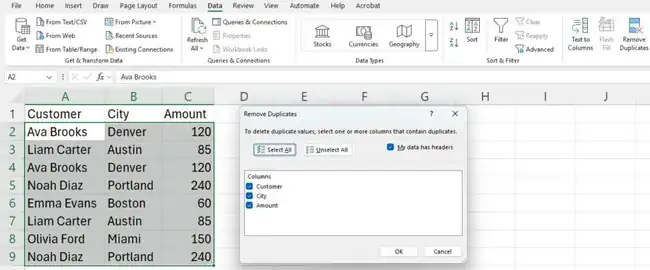
- Click Remove Duplicates in the Data Tools group.
- Leave My data has headers checked if the first row has column names.
- Check the columns Excel should compare. Keep every column checked to remove only rows that match completely.
- Click OK.
Excel shows a message with the number of duplicates it removed and how many unique values remain.
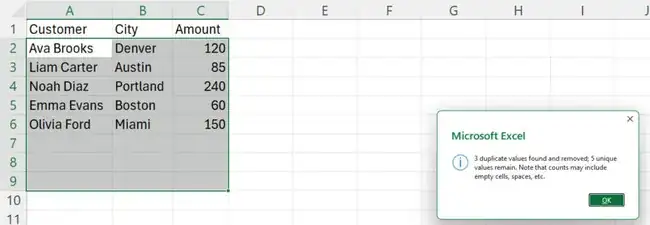
Excel keeps the first time a row appears and deletes the later copies. If you change your mind, press Ctrl + Z right away to undo.
Which Columns Should You Check?
- All columns: removes a row only when every value matches another row. This is the safest choice.
- One column, such as Email: keeps one row per email address, even if other details differ. Use this carefully, because Excel keeps the first row it finds and deletes the rest.
Highlight Duplicates Before You Delete Them
- Select the cells to check.
- Go to Home > Conditional Formatting > Highlight Cells Rules > Duplicate Values.
- Pick a color and click OK.
Every repeated value is now colored, so you can review the list and decide what to delete. To clear the colors later, choose Conditional Formatting > Clear Rules.
Keep the Original List With the UNIQUE Function
In Excel for Microsoft 365 and Excel 2021 or later, type =UNIQUE(A2:C9) in an empty cell, replacing the range with your own. Excel lists each row once and leaves your original data alone. The results update when the original data changes.
Why Excel Missed Some Duplicates
- Extra spaces: “Ava Brooks” and “Ava Brooks ” look the same but aren’t. Clean them with
=TRIM(A2). - Numbers stored as text: a number with a green triangle in the corner won’t match the same number stored as a value.
- Subtotals or outlines: Microsoft recommends removing these before you use Remove Duplicates.
Frequently Asked Questions
Does Remove Duplicates delete the whole row?
It deletes the duplicate rows inside the range you selected. Data outside that range isn’t touched, which is why it helps to select the full table.
Can I remove duplicates in Google Sheets?
Yes. In Google Sheets, select your data and choose Data > Data cleanup > Remove duplicates.
What else can I do to tidy up a list?
You can combine first and last names into one cell or add a drop-down list so people pick values instead of typing them, which prevents new duplicates.

Matthew Burleigh has been writing tech tutorials since 2008. His writing has appeared on dozens of different websites and been read hundreds of millions of times.
After receiving his Bachelor’s and Master’s degrees in Computer Science he spent several years working in IT management for small businesses. However, he now works full time writing content online and creating websites.
His main writing topics include iPhones, Microsoft Office, Google Apps, Android, and Photoshop, but he has also written about many other tech topics as well.