To create a pivot table in Excel, select your data, click Insert > PivotTable, choose New Worksheet, and click OK. Then check the fields you want in the PivotTable Fields pane. Excel adds up your numbers by category automatically, so you can see totals without writing formulas. This guide covers Excel for Microsoft 365, Excel 2024, 2021, 2019, and 2016 on Windows, with notes for Mac and Excel for the web.
Steps come from Microsoft’s Create a PivotTable to analyze worksheet data article. Microsoft spells the feature “PivotTable.” It is the same thing as a pivot table.
What You Need Before You Start
A pivot table is only as good as the list behind it. Microsoft says the source data should be clean and tabular: organized in columns, with a single header row of unique, non-blank labels. Check these points first.
- One header row. Every column needs its own name in the first row. A blank header stops Excel from building the pivot table.
- Unique headers. Do not use the same name twice, such as two columns called “Total.”
- No merged cells. Unmerge header cells and data cells before you begin.
- No blank rows or columns inside the data. Excel can stop selecting at the gap and leave part of your list out.
- One type of data per column. Keep dates in the date column and numbers in the number column. Microsoft warns against mixing data types in fields you plan to total.
- One record per row. Each row should be one sale, one order, or one entry. Do not include your own subtotal rows. The pivot table makes the totals.
Two quick cleanups help a lot. First, clear out repeated records with Remove Duplicates so nothing is counted twice. Second, make spellings consistent. “East” and “east ” with a trailing space show up as two separate rows in a pivot table. If people type into the list by hand, you can add a drop-down list to the column so every entry matches.
If the list came from another program, clean it before you summarize it. For example, a table copied from Word into Excel often has numbers stored as text and extra spaces.
Turn the list into an Excel table first
Microsoft recommends formatting your data as an Excel table before you build the pivot table. A table grows when you add rows, so the pivot table picks up new records the next time you refresh. This step is optional, but it prevents the most common pivot table problem.
- Click any cell in your data.
- Click Home > Format as Table and pick a style. On Windows you can press Ctrl+T instead.
- In the Create Table box, check that the range is right and that the headers box is checked.
- Click OK.
How to Create a Pivot Table
These steps are for Excel on Windows. Nothing here changes your original data. The pivot table is a separate summary.
- Select the cells with your data, including the header row. If your data is an Excel table or has no gaps, you can click a single cell inside it instead.
- Click Insert > PivotTable. The Create PivotTable box opens with your table or range already filled in. The keyboard route is Alt+N, then V, then T.
- Check the range. It should cover every column and row you want to summarize.
- Choose New Worksheet, or choose Existing Worksheet and pick the cell where the pivot table should start. A new worksheet is the safer choice because nothing can be in the way.
- Leave Add this data to the Data Model unchecked for a simple summary of one list. Microsoft says that option adds the range to the workbook’s Data Model, which is meant for combining several tables or very large data.
- Click OK. Excel shows an empty pivot table on the sheet and the PivotTable Fields pane on the right.
- In the PivotTable Fields pane, check the fields you want to add. Each checked field appears in the pivot table right away.
- Drag a field from one area to another at the bottom of the pane if Excel put it somewhere you did not want.
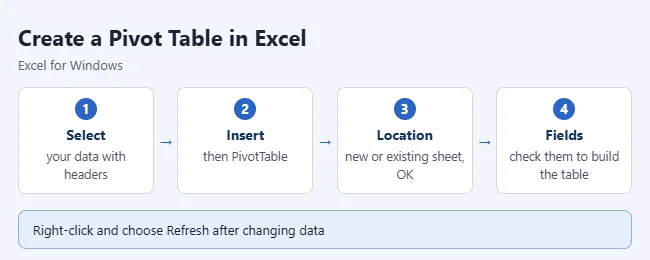
You will know it worked when the sheet shows a list of categories with totals beside them and a Grand Total at the bottom. Click any cell in the pivot table and two extra ribbon tabs appear: PivotTable Analyze and Design. Excel 2016 and 2019 label the first tab Analyze.
A Worked Example
Here is a small sales list you can type into a blank sheet to follow along. Put the headers in row 1, starting in cell A1.
| Date | Region | Product | Units | Sales |
|---|---|---|---|---|
| 1/5/2026 | East | Notebook | 10 | 50 |
| 1/12/2026 | West | Pen | 20 | 40 |
| 1/20/2026 | East | Pen | 15 | 30 |
| 2/3/2026 | West | Notebook | 8 | 40 |
| 2/10/2026 | East | Notebook | 12 | 60 |
| 2/18/2026 | West | Pen | 25 | 50 |
| 3/4/2026 | East | Pen | 30 | 60 |
| 3/15/2026 | West | Notebook | 6 | 30 |
The goal is to see sales for each region, split by product.
- Click any cell in the list, then click Insert > PivotTable.
- Confirm the range is A1 through E9, keep New Worksheet selected, and click OK.
- In the PivotTable Fields pane, check Region. Region is text, so Excel puts it in Rows. East and West appear down the left side.
- Check Sales. Sales is a number, so Excel puts it in Values as Sum of Sales. You now see one total per region.
- Drag Product from the field list into the Columns area. If you check its box instead, Excel treats it as text and stacks it under Region in Rows. Dragging it to Columns spreads the products across the top.
The finished pivot table looks like this:
| Sum of Sales | Notebook | Pen | Grand Total |
|---|---|---|---|
| East | 110 | 90 | 200 |
| West | 70 | 90 | 160 |
| Grand Total | 180 | 180 | 360 |
Eight rows became a nine-number summary, and you did not write a formula. The same steps work on eight thousand rows.
Now try a few changes to see why it is called a pivot table:
- Drag Product from Columns to Rows, under Region. The layout turns into a list with each product indented under its region.
- Drag Region to Filters. A drop-down appears above the pivot table. Pick East and every number changes to East only.
- Check Units. A second value, Sum of Units, appears beside Sum of Sales. The grand total for units is 126.
- Uncheck a field to remove it. You can also drag it out of its area, or click the arrow next to it and choose Remove Field.
How the Four Areas Work
The bottom of the PivotTable Fields pane has four boxes. Where a field sits decides where it shows up in the pivot table. The descriptions below follow Microsoft’s Field List guide.
- Rows: Categories listed down the left as row labels, like product names. Text fields go here by default.
- Columns: Categories across the top as column labels, like months. Date and time hierarchies often land here.
- Values: The numbers being summed or counted. Number fields go here by default.
- Filters: A filter above the pivot table that lets you show only part of the data, like one region.
Drag a field from one area to another to change the layout. You can put more than one field in an area. The order matters: the field at the top of the Rows box is the outer group, and the one below it is nested inside.
A good starting pattern is one field in Rows and one number in Values. Add a field to Columns only when it has a short list of items. A field with hundreds of different items in Columns makes a pivot table that is too wide to read.
How to Change Sum to Count or Average
Excel sums number fields by default. It counts fields that hold anything other than numbers. You can switch to a different calculation at any time.
- In the Values area, click the arrow next to the field and choose Value Field Settings.
- Under Summarize Values By, pick Sum, Count, Average, Max, or another option.
- Click OK.
You can also right-click any number in the pivot table and point to Summarize Values By for the same choices.
In the worked example, changing Sum of Sales to Average shows 50 for East and 40 for West. Changing it to Count shows 4 for each region, because each has four rows.
Microsoft’s summary function reference lists these choices:
| Function | What it shows |
|---|---|
| Sum | The total of the values. Default for numbers. |
| Count | How many values there are, including text. Default for anything that is not a number. |
| Average | The average of the values. |
| Max | The largest value. |
| Min | The smallest value. |
| Product | The values multiplied together. |
| Count Numbers | How many values are numbers. |
| StDev, StDevp, Var, Varp | Standard deviation and variance, for a sample or a whole population. |
| Distinct Count | How many unique values there are. Works only when the pivot table uses the Data Model. |
If numbers show as a count instead of a sum, Excel may be reading some cells as text. Fix the source data so the column holds only numbers, then refresh.
Show a percentage instead of a total
- Open Value Field Settings for the field.
- Click the Show Values As tab.
- Pick an option such as % of Grand Total, then click OK.
Microsoft notes you can add the same field to Values twice. That lets you show the total in one column and the percentage in the next.
Format the numbers
Open Value Field Settings and click Number Format at the bottom. Pick Currency, Number, or another format. This formats the whole field, so the format applies to new numbers that appear later.
How to Refresh a Pivot Table
In most versions of Excel, pivot tables don’t update on their own. After you change the source data, right-click anywhere in the pivot table and click Refresh. On Windows you can also press Alt+F5. To update several at once, go to PivotTable Analyze > the arrow under Refresh > Refresh All.
To refresh every time the file opens:
- Right-click the pivot table and choose PivotTable Options.
- Click the Data tab.
- Check Refresh data when opening the file, then click OK.
Microsoft’s Refresh PivotTable data page also describes an Auto Refresh button in the Data group of the PivotTable Analyze tab. It refreshes pivot tables automatically when they use data in the same workbook. Microsoft currently lists it as available to people in the Microsoft 365 Insider program, so you may not have it. If the button is missing, refresh by hand.
If column widths keep changing when you refresh, open PivotTable Options, click the Layout & Format tab, and look at the Autofit column widths on update and Preserve cell formatting on update boxes.
How to Use Recommended PivotTables
Not sure where to start? Insert > Recommended PivotTables shows ready-made layouts based on your data.
- Click any cell in your data.
- Click Insert > Recommended PivotTables.
- Look through the suggested layouts. Each one is a preview built from your own columns.
- Pick the layout that is closest to what you want and confirm it. Excel builds the pivot table for you.
The suggestions appear in a dialog box or a side pane, depending on your version of Excel. Either way, the result is a normal pivot table. You can keep changing it in the PivotTable Fields pane. The suggestions are a starting point, so check that the fields and the calculation are the ones you need.
How to Group Dates by Month, Quarter, or Year
A list with a date on every row makes a long pivot table if each day gets its own line. Grouping rolls the days up into months, quarters, or years. These steps follow Microsoft’s Group or ungroup data in a PivotTable page, which covers Excel for Microsoft 365 on Windows and Mac and Excel 2016 through 2024.
Excel may do part of this for you. Microsoft says time grouping detects date fields and groups them automatically when you add them to a pivot table. If you see months or years instead of single days, that is why.
- Add your date field to Rows or Columns.
- Right-click one of the dates in the pivot table and select Group.
- In the Grouping box, check the Starting at and Ending at dates and edit them if needed.
- Under By, select a time period, such as Months.
- Select OK.
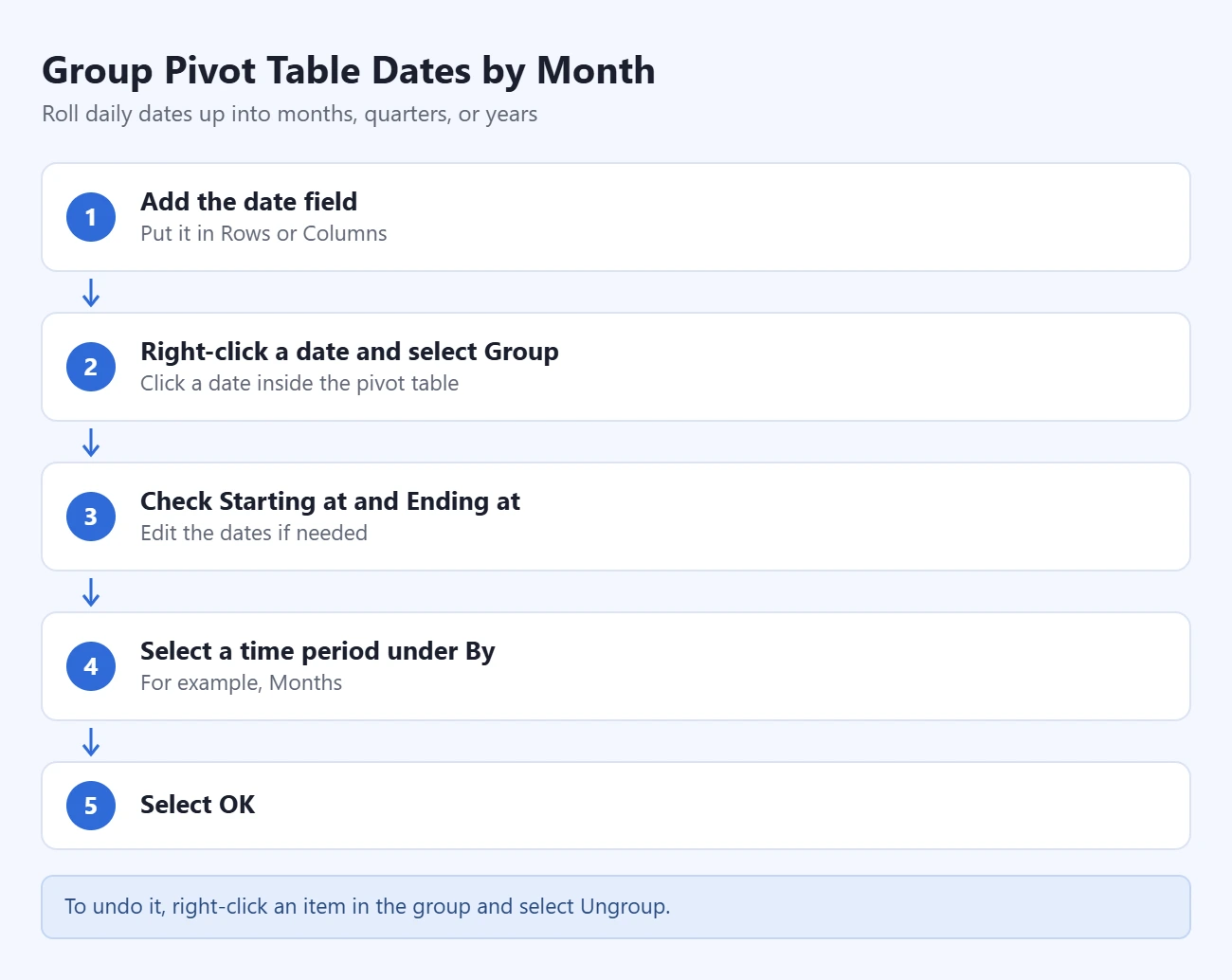
In the worked example, putting Date in Rows and grouping by Months gives three lines: Jan 120, Feb 150, and Mar 90. They add up to the same 360.
If your dates cover more than one year, select both Months and Years under By. Otherwise January of one year and January of the next are added together.
Grouping works on numbers too. Right-click a number in Rows, select Group, and enter the size of each group under By. You can also group items you pick yourself: hold Ctrl, select two or more items, right-click, and select Group.
To undo any of this, right-click an item in the group and select Ungroup.
Common Problems and Fixes
Excel says the field name is not valid
If Excel refuses to create the pivot table and shows a message that starts with “The PivotTable field name is not valid,” a header is the cause. Look across row 1 of your data for an empty header cell, including one above a column you thought was unused. Merged header cells cause the same thing, because only the first cell of a merged block holds the text. Type a name in every header cell, unmerge any merged cells, and try again.
New rows or columns don’t show up after a refresh
Refresh only rereads the range the pivot table was built on. If you added rows below that range, or columns to the right of it, they are outside it. Point the pivot table at the bigger range. These steps are from Microsoft’s Change the source data for a PivotTable page for Windows.
- Click anywhere in the pivot table.
- On the PivotTable Analyze tab, in the Data group, click Change Data Source.
- With Select a table or range chosen, enter the new range in the Table/Range box. You can drag over the cells on the sheet instead of typing.
- Click OK. The pivot table updates to use the new range.
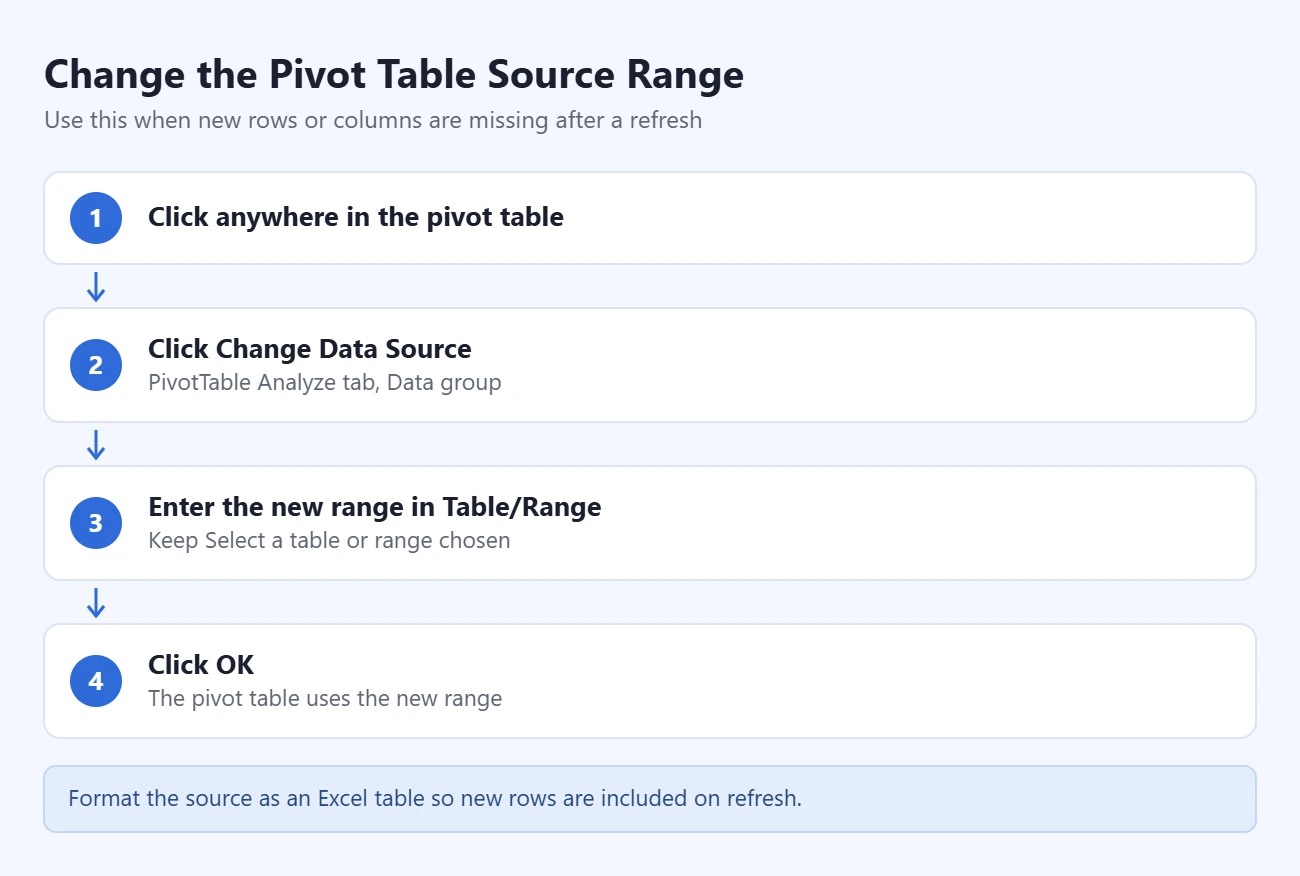
To stop this from happening again, format the source list as an Excel table and enter the table’s name in the Table/Range box. After that, new rows are part of the table, and a refresh is enough.
Two limits to know about. Microsoft says a pivot table based on the workbook Data Model cannot have its data source changed. And if the source changed a lot, such as having more or fewer columns, Microsoft suggests creating a new pivot table instead.
The PivotTable Fields pane disappeared
The pane hides whenever you click a cell outside the pivot table. Click inside the pivot table to bring it back. If it still does not show, go to PivotTable Analyze > Field List in the Show group, or right-click the pivot table and select Show Field List.
The PivotTable Analyze and Design tabs are missing
Those tabs only appear while a cell in the pivot table is selected. Click the pivot table and they come back.
Numbers are counted instead of added
Excel uses Count for any field that is not all numbers. One text entry, such as “n/a” or a number typed with a stray letter, is enough. Find and fix those cells in the source, refresh, and then set the field to Sum in Value Field Settings.
You can’t change the calculation
Microsoft notes that for some kinds of source data, such as OLAP data, and for calculated fields, you can’t change the summary function. Distinct Count is also unavailable unless the pivot table was added to the Data Model when it was created.
The same category appears twice
The source spells it two ways. Extra spaces, different punctuation, and typos all create separate items. Correct the entries in the source data and refresh.
Dates won’t group
Grouping by time period needs real dates. If the column has blank cells or dates stored as text, fix them in the source data and refresh before you try Group again.
You can’t type in or delete part of the pivot table
Excel blocks direct edits to keep the summary consistent with the data. Change the layout through the field list, filters, and Value Field Settings instead. To change a number, change it in the source data and refresh.
Some cells are empty
A blank cell means no rows match that combination. To show a zero instead, right-click the pivot table, choose PivotTable Options, click the Layout & Format tab, check For empty cells show, and type 0.
How to Delete a Pivot Table
Deleting a pivot table removes only the summary. Your source data stays where it is. Any layout and settings you chose for the pivot table are gone, so you would have to build it again.
- Right-click any cell in the pivot table.
- Select Delete PivotTable.
If you don’t see that command, click in the pivot table, press Ctrl+A to select all of it, and press Delete. If the pivot table sits on its own worksheet, you can delete that sheet instead. Press Ctrl+Z right away if you delete one by mistake.
Windows, Mac, and Web Differences
Microsoft says pivot tables work a little differently depending on the platform. The idea is the same everywhere: pick the data, insert the pivot table from the Insert tab, and arrange fields in the four areas. The differences are mostly in where the options sit and in which advanced features exist.
| Feature | Windows | Mac | Excel for the web |
|---|---|---|---|
| Create a pivot table from a range or table | Yes | Yes | Yes |
| Data Model | Yes | Not supported | Can view; needs the desktop app to create |
| External data connections | Yes | Varies by source | Can view, but can’t create new ones |
| Auto Refresh button | Microsoft 365 Insider builds | Not listed by Microsoft | Not listed by Microsoft |
| Chart from a pivot table | Insert > PivotChart | Insert tab, then a chart button | Insert tab, Insert Chart menu |
Excel for Mac
The Windows steps in this guide carry over to Excel for Microsoft 365 for Mac, Excel 2024 for Mac, and Excel 2021 for Mac, with small differences in the dialog boxes. The main limit is the Data Model. Microsoft states that Data Models are not supported in Excel for Mac, so features that depend on it, such as Distinct Count, are not available there. Keyboard shortcuts also differ. The Alt key sequences in this guide are for Windows only.
Excel for the web
Microsoft’s service description confirms you can insert pivot tables in Excel for the web and use them to calculate, summarize, and analyze data. You start the same way, from the Insert tab. The options for the source and the destination are worded a little differently from the Windows dialog box. You can’t create external data connections or Power Pivot data models in the browser. For those, open the workbook in the desktop app.
For the exact button names on your platform, open Microsoft’s article linked at the top of this page and choose the Web, macOS, or iOS tab.
Frequently Asked Questions
What is a pivot table used for?
It summarizes large lists. For example, it can turn thousands of sales rows into a total per product and month. You choose which categories to group by and which numbers to total, count, or average.
Does a pivot table change my original data?
No. A pivot table is a separate summary that reads from your data. Moving fields, filtering, grouping, or deleting the pivot table leaves the source list untouched.
Can I make a chart from a pivot table?
Yes. On Windows, click inside the pivot table, then choose PivotTable Analyze > PivotChart, or Insert > PivotChart. Pick a chart type and click OK. The chart changes whenever the pivot table does. If you only need a simple chart of a few totals, you can also make a pie chart in Excel from a plain range.
Why is my pivot table not showing new data?
Right-click it and choose Refresh. If new rows are outside the original range, change the source with PivotTable Analyze > Change Data Source. Formatting the source as an Excel table avoids the problem, because the table expands as you add rows.
Should I put the pivot table on a new worksheet or an existing one?
A new worksheet is the simplest choice. A pivot table grows and shrinks as you change it, and it needs empty cells around it. Use an existing worksheet only when you have clear space and want the summary beside something else.
Do I need to check “Add this data to the Data Model”?
Not for a basic summary of one list. The Data Model is for building one pivot table from several related tables or from very large data. It also unlocks Distinct Count. Keep in mind that you cannot change the data source of a Data Model pivot table later.
Can I have more than one pivot table from the same data?
Yes. Repeat the Insert > PivotTable steps with the same source and choose a different location. Refresh All updates all of them together.
How do I sort or filter a pivot table?
Click the arrow on the Row Labels or Column Labels cell to sort or filter those items. You can also right-click a value and use the Sort menu. To filter the whole pivot table by a field that is not shown in the layout, drag that field to the Filters area.
Next Step
Build the worked example once, then repeat the steps on your own list. Start with one field in Rows and one number in Values, and add more only when you need them. If the totals look wrong, check the source data first. Most pivot table problems start there.

Matthew Burleigh is the founder, head writer, and editor of Solve Your Tech, which he launched in 2012. He has written technology tutorials since 2008 and worked in IT since 2003, including small-business support, IT management, and consulting. He holds Bachelor’s and Master’s degrees in Computer Science from Arizona State University.
Matthew writes practical guides for Windows, iPhone and iPad, Microsoft Office, Outlook, Google apps, and Android. Solve Your Tech’s guides are checked step by step against the device or app maker’s own documentation and tested on his own devices whenever he has the hardware or software, with clear steps, sources, and update dates.
Read more about Matthew and how Solve Your Tech writes and updates its guides, or report a correction.