To download Google Chrome on Windows 11, open Microsoft Edge, go to google.com/chrome, select Download Chrome, and open the downloaded installer. Chrome installs and opens automatically. It’s free, and it takes a minute or two on most connections.
This guide covers the download and install steps, the messages Edge and Windows may show, making Chrome your default browser, the offline installer, installing from the command line, and fixes when Chrome won’t install. Google says Chrome needs Windows 10 or later on Intel and AMD PCs, or Windows 11 on ARM PCs.
Download and Install Chrome
- Open Microsoft Edge from the taskbar or Start menu.
- Type google.com/chrome in the address bar and press Enter. Use Google’s own site, not a download site or an ad. Expected result: the Chrome page shows a Download Chrome button for Windows 11/10.
- Select Download Chrome. Edge may show a message suggesting you keep using Edge; you can close it and continue. Expected result: a file named ChromeSetup.exe downloads.
- Open the file from Edge’s downloads list (the arrow icon at the top right) or from your Downloads folder.
- If Windows asks “Do you want to allow this app to make changes to your device?”, select Yes.
- Wait for Chrome to install. Expected result: a Chrome window opens when it’s done.
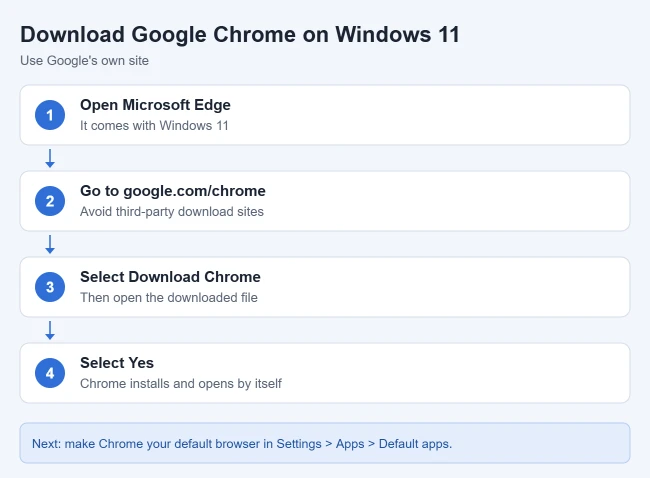
These steps match Google’s download and install guide. If Windows blocks the installer with a Microsoft Store message, check whether the PC is in S mode or has an app-source restriction, as explained below. For S mode, see how to exit S mode in Windows 11 first.
Install Chrome on a PC That Is in S Mode
First check Settings > System > Activation for the Windows edition and S mode status. A message about Microsoft Store apps alone does not prove the PC is in S mode: standard Windows can also restrict app sources. Microsoft’s app recommendation settings explains the separate Apps > Advanced app settings > Choose where to get apps control. Follow your organization’s policy on a managed PC.
If the PC is in S mode and you decide to leave it, the switch is free and permanent. You cannot turn S mode back on afterward. Use Microsoft’s Switching out of S mode page to open the correct Microsoft Store page, then select Get and wait for confirmation. The Activation page may also offer the S mode Store link. Do not buy a Pro upgrade to perform this free switch.
After the switch succeeds, use the download steps above: visit google.com/chrome in Edge, download ChromeSetup.exe, open it, and complete the installer prompts. Confirm Chrome opens and can load a website. Google’s Chrome installation guide covers the installer. If you prefer to retain S mode, continue using Edge to access Google and other websites.
Set Up Chrome the First Time
- Sign in: sign in with your Google account to bring over bookmarks, passwords, and history from Chrome on other devices. To move bookmarks as a file instead, see how to export Chrome bookmarks.
- Import from Edge: Google notes you can import settings from another browser you used before.
- Pin it: right-click the Chrome icon on the taskbar and select Pin to taskbar.
Make Chrome Your Default Browser
When Chrome opens, it may offer a Set as default button. Otherwise go to Settings > Apps > Default apps, search for Google Chrome, and select Set default. Our guide on how to change the default browser in Windows 11 covers it step by step.
Other Ways to Install Chrome
Offline installer
The standard installer downloads Chrome as it runs. If that fails, Google offers a full installer you can download on one computer and copy to another. On Google’s Chrome download page, go to Other Platforms under Chrome Family, choose your version of Windows, and run the downloaded file on the PC that needs Chrome.
Command line with winget
If you prefer the command line, open Terminal and run the command below. Windows Package Manager downloads Chrome from Google and installs it.
winget install Google.ChromeIf Chrome Won’t Download or Install
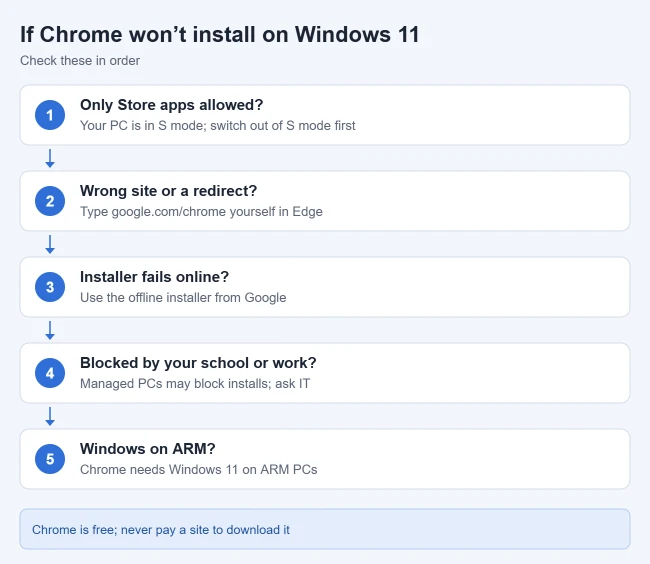
- “Only apps from the Microsoft Store” message: check the Windows edition for S mode and check app-source restrictions before changing anything. A Microsoft Q&A advisor discusses S mode in this thread. Switching out of S mode is free but one-way.
- You’re sent to a different site: type the address yourself instead of clicking an ad. If a redirect keeps happening, a Microsoft Q&A advisor suggests using Google’s offline installer. It’s also worth running a Windows Security scan for unwanted software.
- The installer fails partway: restart the PC, check your internet connection, and try the offline installer.
- A work or school PC blocks it: your organization may control which apps you can install. Ask your IT team.
- Chrome says your system isn’t supported: check that you’re on Windows 10 or later, or Windows 11 on an ARM PC.
Frequently Asked Questions
Is Chrome free?
Yes. Chrome is free to download from Google. Never pay a third-party site for it.
What is the Chrome installer file called?
The file Google’s site downloads is usually named ChromeSetup.exe. You’ll find it in your Downloads folder, and you can delete it after Chrome is installed.
Can I keep Edge after installing Chrome?
Yes. Edge is part of Windows 11 and stays installed. You can use both browsers.
Is there a Google app for Windows?
Chrome is the main one. Google also offers the Google app for desktop for Windows 10 and later, a search box with Google Lens and AI Mode that opens with Alt + Space. In September 2026 Google also released a Gemini desktop app for Windows. Gmail, Drive, and other services run in the browser, and some can be installed as apps. See how to put a Gmail icon on your desktop or pin Gmail to the Windows 11 taskbar.
Can I use Google in Edge instead?
Yes. See how to set Google as the default search engine in Edge. If you stick with Chrome and use another password manager, see how to stop Chrome from offering to save passwords.
Having trouble loading Google? See what to do when Google is not working.

Matthew Burleigh is the founder, head writer, and editor of Solve Your Tech, which he launched in 2012. He has written technology tutorials since 2008 and worked in IT since 2003, including small-business support, IT management, and consulting. He holds Bachelor’s and Master’s degrees in Computer Science from Arizona State University.
Matthew writes practical guides for Windows, iPhone and iPad, Microsoft Office, Outlook, Google apps, and Android. Solve Your Tech’s guides are tested on current devices or checked against official product documentation, with clear steps, sources, and update dates.
Read more about Matthew and how Solve Your Tech writes and updates its guides, or report a correction.