To update Google Chrome on a computer, click the three-dot More menu, go to Help > About Google Chrome, and click Relaunch if an update is ready. On a phone or tablet, update Chrome from the Play Store (Android) or the App Store (iPhone and iPad). Chrome checks for updates as soon as the About page opens. If you don’t see Relaunch, you already have the latest version.
The steps come from Google’s Update Google Chrome help page, which has separate tabs for computers, Android, and iPhone and iPad.
What You Need
Chrome only updates on systems Google still supports. As of October 2026, Google lists these minimums:
| Device | Minimum version | Where updates come from |
|---|---|---|
| Windows PC | Windows 10 or later (Windows 11 or later on ARM processors) | Chrome itself |
| Mac | macOS 13 Ventura or later | Chrome itself |
| Linux | 64-bit Ubuntu 18.04, Debian 10, openSUSE 15.5, or Fedora 39, or later | Your package manager |
| Android | Android 10 or later | Play Store |
| iPhone or iPad | iOS 17 or later | App Store |
| Chromebook | Any supported model | The ChromeOS system update |
You also need an internet connection. Save any work in open tabs before you start, because a computer update restarts the browser.
How to Update Chrome on a Computer
These steps apply to Chrome on Windows and Mac.
- Open Chrome.
- Click the More button (three dots) at the top right.
- Click Help > About Google Chrome. A settings page opens and Chrome starts checking for updates.
- Wait while Chrome checks for and downloads updates.
- Click Relaunch. Chrome closes and opens again on the new version.
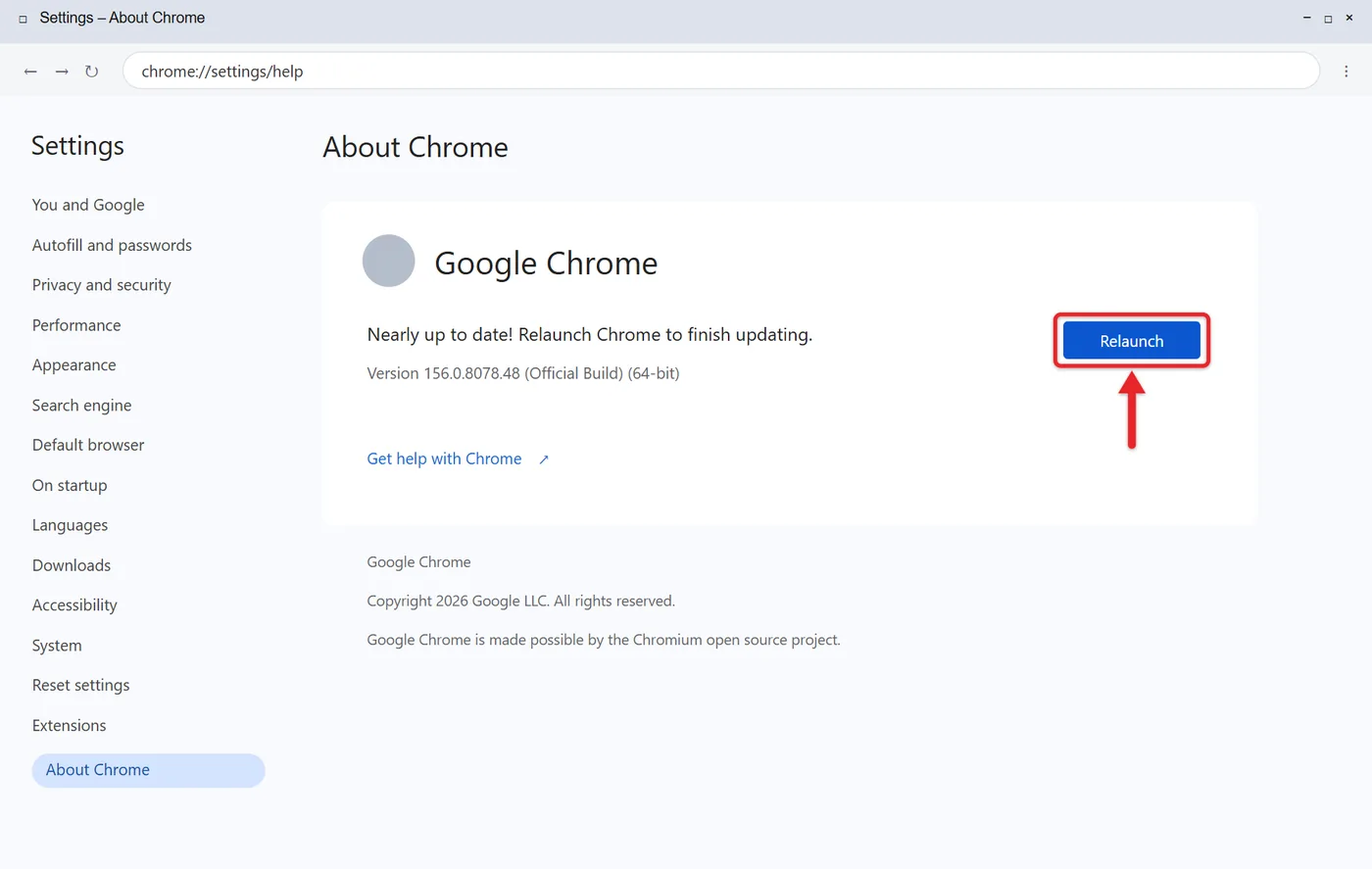
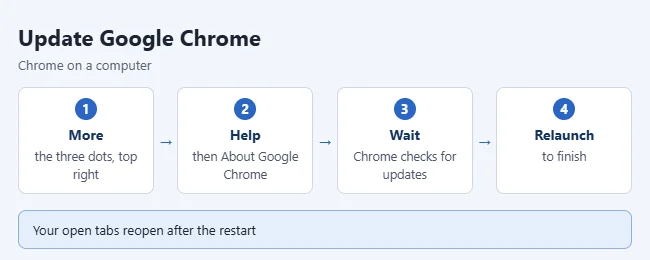
Chrome reopens your tabs and windows after it restarts. Incognito windows don’t reopen. If you pick Not now, the update installs the next time you restart Chrome.
How to Update Chrome on Linux
Chrome on Linux doesn’t update itself from the About page. Google’s instruction is to use your package manager. Update Chrome the same way you update your other software, such as your distribution’s software updater or its command-line package tool. The exact tool and command depend on your distribution. Close and reopen Chrome afterward so the new version loads.
How to Update Chrome on Android
These steps apply to phones and tablets with Android 10 or later.
- Open the Play Store app.
- Tap your profile icon at the top right.
- Tap Manage apps & device.
- Under Updates available, find Chrome.
- Tap Update next to Chrome.
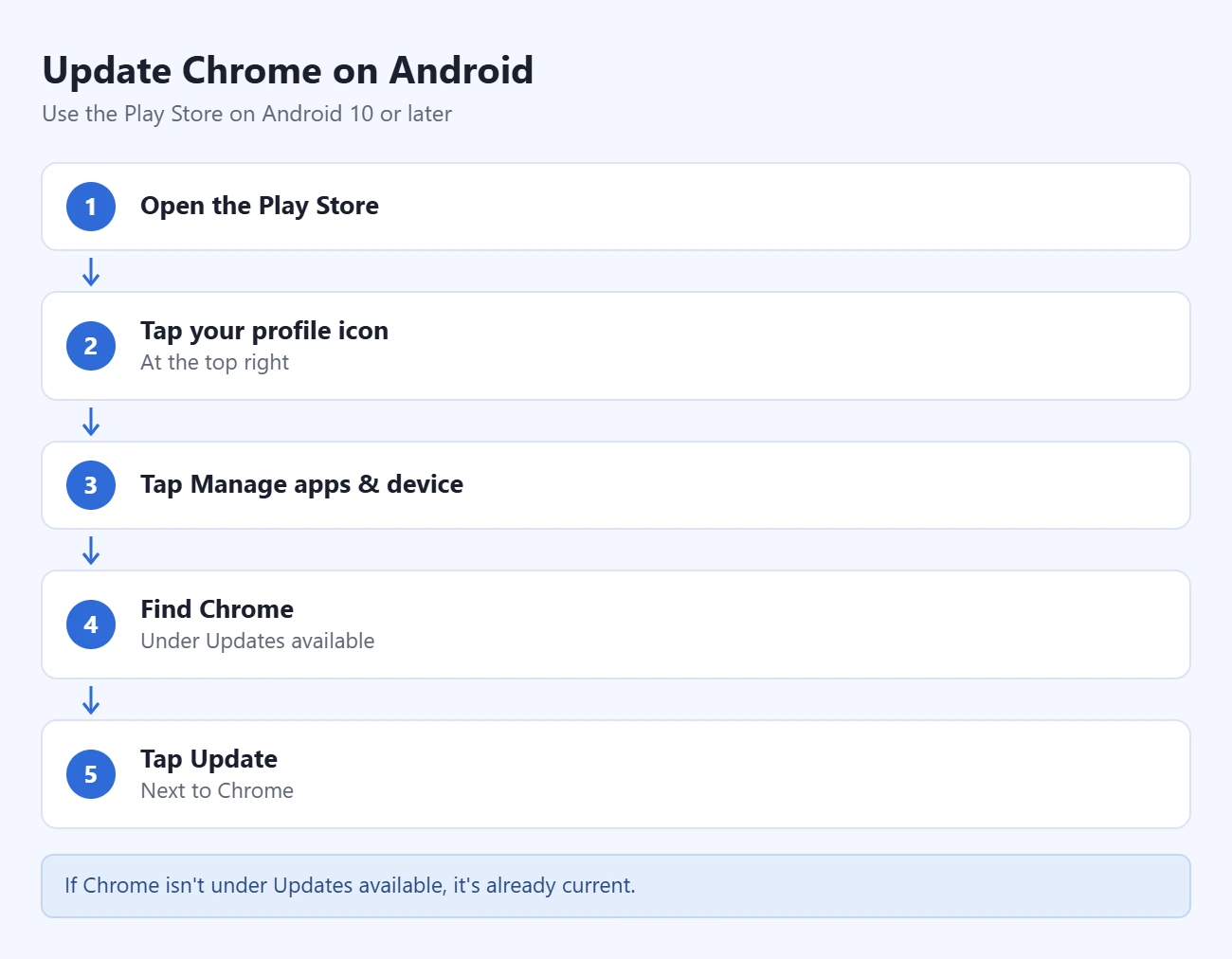
If Chrome isn’t under Updates available, it’s already current. You can also search the Play Store for Chrome and tap Update if that button appears on the app’s page.
How to Update Chrome on iPhone or iPad
These steps apply to devices with iOS 17 or later.
- Open the App Store.
- Tap your profile picture at the top right.
- Scroll down to Available Updates and look for Chrome.
- If Chrome is listed, tap Update.
- If prompted, enter your Apple ID password.
If Chrome isn’t in the list, no update is waiting. Updating won’t change which browser opens your links. If you want that, you can make Chrome the default browser on your iPhone.
Does Chrome Update Automatically?
Yes. Google says Chrome normally updates in the background when you close and reopen it. If you leave Chrome open for days, the update waits. Closing all Chrome windows and reopening them applies it.
- Windows: Close every Chrome window and tab, then open Chrome again.
- Mac: In About Google Chrome, you can click Automatically update Chrome for all users if Chrome is in your Applications folder.
- Chromebook: Chrome updates with the ChromeOS system update.
- Linux: Use your package manager. Chrome doesn’t update itself.
- Android: Chrome updates automatically based on your Play Store settings.
- iPhone or iPad: Chrome updates automatically based on your App Store settings.
What the Update Indicator Means
If you haven’t closed Chrome on your computer for a while, a pending update notice can appear at the top right of the window, next to your profile picture. It means a new version has already downloaded and is waiting for a restart.
- Click the three dots to the right of the update message.
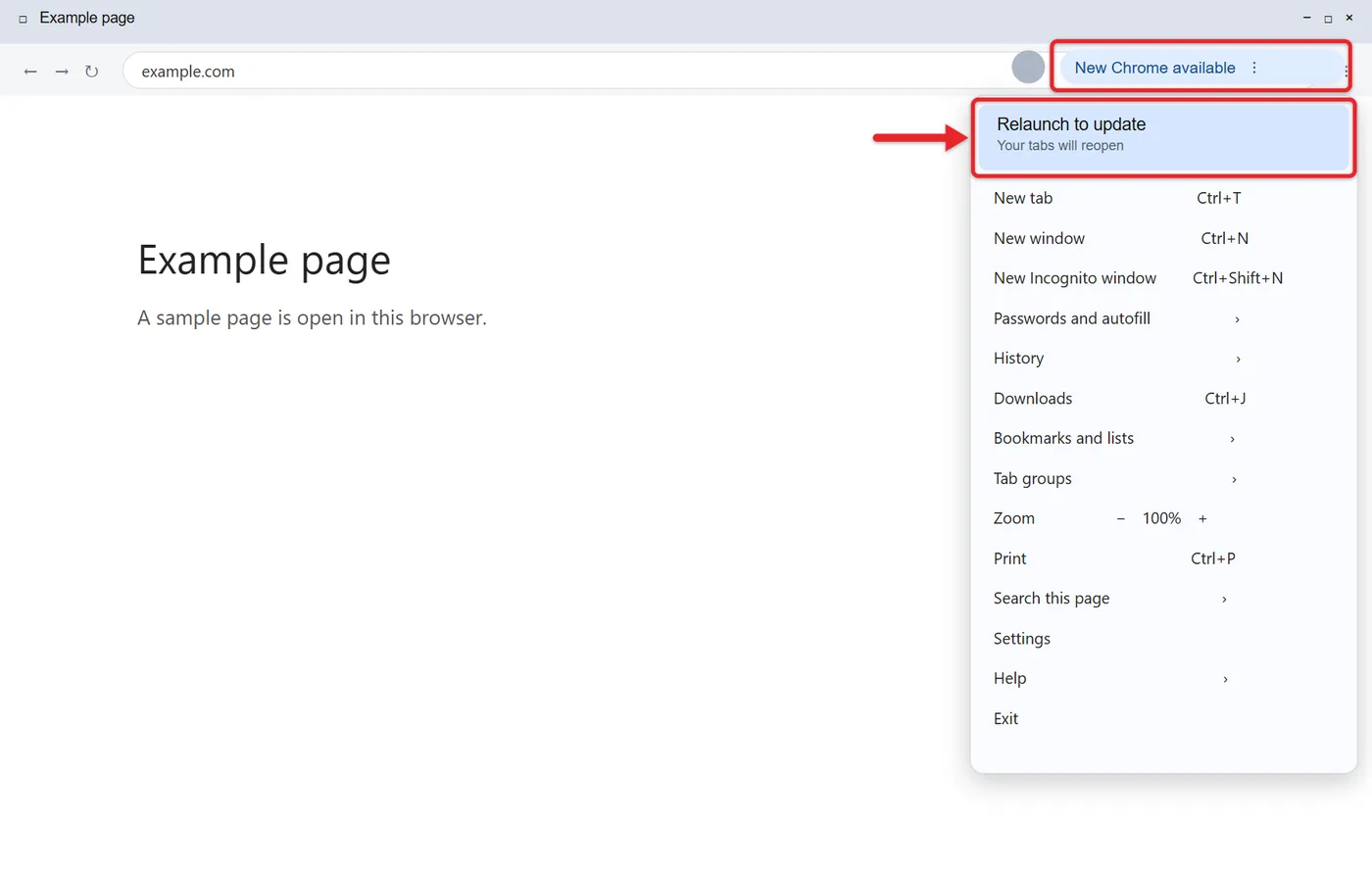
- Select the first item in the menu. It’s the update option.
- Let Chrome restart.
The indicator’s color and wording have changed across Chrome versions, and Google’s current help pages don’t define specific colors. Whatever color you see, treat it the same way: an update is waiting, and the longer it waits, the longer you go without the latest security fixes. No indicator at all usually means you’re up to date. The About Google Chrome page is the way to be sure.
How to Check Your Chrome Version
- Computer: Click More > Help > About Google Chrome. The version is the series of numbers under the Google Chrome heading.
- Android: Open Chrome, tap More > Settings > About Chrome.
- iPhone or iPad: Open Chrome, tap More > Settings > Google Chrome. This label can vary by app version.
To confirm an update worked on a computer, open About Google Chrome again. The Relaunch button should be gone.
If Chrome Won’t Update
Google’s Fix Chrome update problems and failed updates page covers messages such as “Update server not available,” “Update check failed to start,” and “Download failed.” Try these fixes in order.
- Restart your computer. Then open About Google Chrome and try again.
- Check the system requirements. Compare your system with the table above. Chrome stops updating on versions Google no longer supports.
- Check your security software. Make sure your antivirus, firewall, or parental controls aren’t blocking
tools.google.comordl.google.com. - Turn off compatibility mode (Windows). If Chrome says your version of Windows isn’t supported even though it meets the requirements, right-click the Chrome icon, click Properties > Compatibility, and uncheck Run this program in compatibility mode for.
- Check for unwanted software. Remove programs you don’t recognize. On a Mac, look in Finder > Applications.
- Reinstall Chrome. Uninstall it, then download it again from Google.
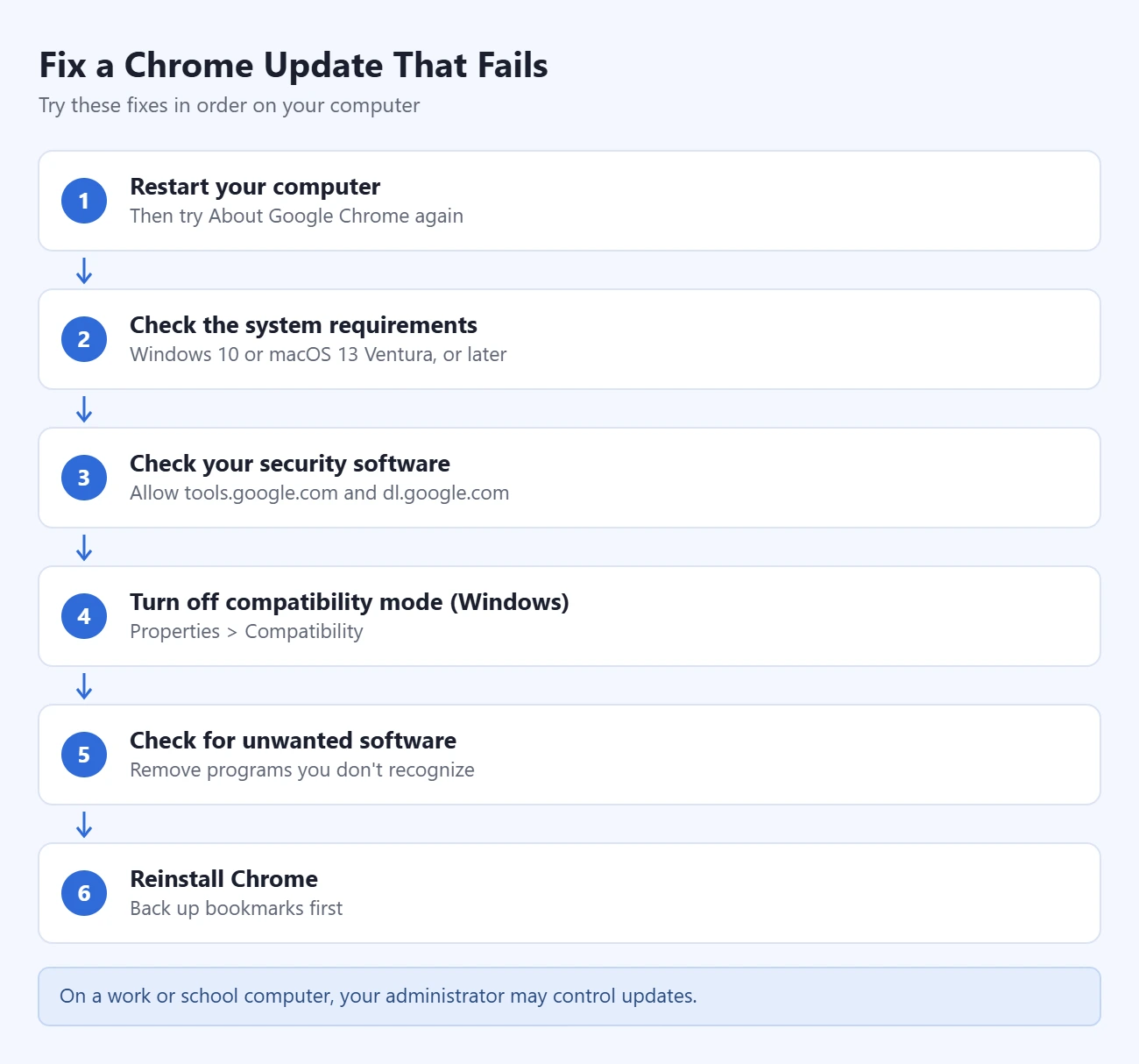
Warning: Uninstalling Chrome can remove bookmarks, history, and other data stored only on that computer, depending on the options you choose. Before you uninstall, turn on sync with your Google Account or export your Chrome bookmarks to a file.
For the reinstall on a PC, follow our guide to download Google Chrome on Windows 11. If the regular installer fails on Windows, Google suggests its standalone installer. On a Mac, Google suggests downloading Google Software Update again.
If Chrome updates fine but its settings seem stuck, you can reset Chrome to its default settings.
If Your Organization Manages Chrome
On a work or school computer, an administrator may control when Chrome updates. The message “Update failed: Updates are disabled by administrator” is the clearest sign. To check:
- Open Chrome and click More at the top right.
- Look at the bottom of the menu. If you see Managed by your organization, your browser is managed.
- For details, type
chrome://managementin the address bar and press Enter.
You can’t override this yourself. Ask your IT department or whoever has administrator rights on the computer. Google explains more on its managed Chrome browser page. A managed browser may also show a recurring message telling you to relaunch within a set time.
Frequently Asked Questions
How do I check which version of Chrome I have?
On a computer, go to More > Help > About Google Chrome. The version number is under the Google Chrome heading. On Android, go to More > Settings > About Chrome.
Will updating Chrome delete my bookmarks or passwords?
No. Updates keep your bookmarks, history, passwords, and extensions. Only uninstalling Chrome puts local data at risk.
Why should I keep Chrome updated?
Updates include security fixes. Google recommends checking regularly so you’re protected against new threats.
Why don’t I see a Relaunch button?
On a computer, no Relaunch button on the About Google Chrome page means Chrome is already on the latest version. On Linux, your package manager handles updates instead.
Do my tabs come back after Chrome relaunches?
Yes. Chrome reopens your regular tabs and windows. Incognito windows don’t reopen, and unsaved text in web forms may be lost, so finish or save your work first.
Can I update Chrome on an old version of Windows or macOS?
No. Chrome needs Windows 10 or later, or macOS 13 Ventura or later. On an older system, Chrome keeps working but stops getting updates until you upgrade the operating system.
How do I update Chrome on a Chromebook?
You don’t update it separately. Chrome is part of ChromeOS, so installing the ChromeOS system update also updates the browser.
Is it safe to download Chrome updates from other websites?
No. Get Chrome only from Chrome itself, google.com/chrome, the Play Store, or the App Store.
Next Step
Open About Google Chrome now and see whether a Relaunch button is waiting. After that, closing and reopening Chrome every few days is enough to keep it current.

Matthew Burleigh is the founder, head writer, and editor of Solve Your Tech, which he launched in 2012. He has written technology tutorials since 2008 and worked in IT since 2003, including small-business support, IT management, and consulting. He holds Bachelor’s and Master’s degrees in Computer Science from Arizona State University.
Matthew writes practical guides for Windows, iPhone and iPad, Microsoft Office, Outlook, Google apps, and Android. Solve Your Tech’s guides are checked step by step against the device or app maker’s own documentation and tested on his own devices whenever he has the hardware or software, with clear steps, sources, and update dates.
Read more about Matthew and how Solve Your Tech writes and updates its guides, or report a correction.