This post contains affiliate links. As an Amazon Associate, solveyourtech.com earns from qualifying purchases, at no extra cost to you.
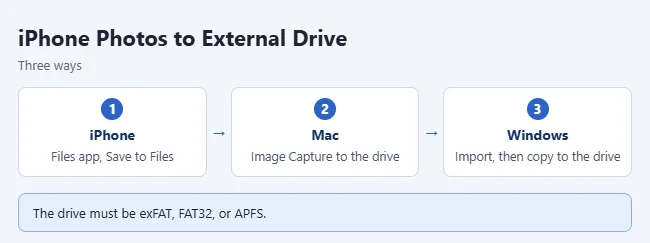
To back up iPhone photos to an external drive, plug a USB-C flash drive or SSD into your iPhone (Lightning iPhones need Apple’s camera adapter). Open Photos, select the pictures, tap the Share button, tap Save to Files, pick the drive, and tap Save. You can also import the photos to a Mac or PC first and then copy them to the drive.
Drive requirements and adapter details come from Apple’s Connect external storage devices to iPhone and Transfer photos from your iPhone or iPad guides.
What you need
- A drive the iPhone can read. Apple says it must have a single partition formatted as APFS, macOS Extended, exFAT, FAT32, or FAT. Most new drives use exFAT and work right away.
- The right connector. iPhone 15 and later use USB-C. Older iPhones need the Lightning to USB Camera Adapter or Lightning to USB 3 Camera Adapter.
- Power for hard drives. Apple notes that external hard drives often need their own power source. Flash drives and most portable SSDs don’t.
Good options: the SanDisk Ultra Dual Drive Go (USB-C and USB-A) for smaller libraries, or a Samsung T7 portable SSD for large photo and video collections.
Method 1: Save photos to the drive from your iPhone
- Plug the drive into your iPhone’s charging port.
- Open the Photos app and tap Select.
- Tap the photos and videos you want to back up.
- Tap the Share button, then tap Save to Files.
- Under Locations, tap your drive, pick a folder, and tap Save.
- Open the Files app, tap Browse, and tap the drive to check that the copies are there.

For more detail, see how to transfer photos from iPad to a flash drive. The steps are almost the same on iPhone.
Method 2: Use a Mac
- Connect the iPhone to your Mac with a USB cable, and tap Trust on the iPhone if asked.
- Plug in your external drive.
- Open Image Capture and select your iPhone.
- Choose a folder on the external drive as the import location.
- Click Import All, or select photos and click Import.
Method 3: Use a Windows PC
- Install the Apple Devices app from the Microsoft Store.
- Connect the iPhone, unlock it, and tap Trust or Allow.
- Import the photos with the Windows Photos app.
- Copy the imported folder to your external drive in File Explorer.
Apple suggests setting your iPhone camera to Most Compatible (Settings > Camera > Formats) if Windows has trouble opening your photos.
Important: iCloud Photos and “Optimize Storage”
If you use iCloud Photos with Optimize iPhone Storage, your phone may only keep smaller versions. Apple says to download the full-resolution originals to the iPhone before you import to a PC. The same applies to any backup, so let the originals download first.
Frequently asked questions
Why doesn’t my drive show up in the Files app?
Check the format. Drives formatted as NTFS won’t work. Reformat as exFAT on a computer, which erases the drive. Also try a powered hub for a hard drive.
Can I back up my whole iPhone to an external drive?
Apple’s full backups save to your computer’s internal drive through the Finder or the Apple Devices app. Backing up photos to an external drive, as shown here, is the easiest way to keep extra copies. If old device backups are filling your Mac, see how to free up space on a MacBook Air.
Does this delete the photos from my iPhone?
No. Save to Files makes a copy. Delete photos from the iPhone only after you’ve checked the backup.
Related: how to back up an iPhone to iCloud and how to back up Windows 11 to an external drive.

Matthew Burleigh has been writing tech tutorials since 2008. His writing has appeared on dozens of different websites and been read hundreds of millions of times.
After receiving his Bachelor’s and Master’s degrees in Computer Science he spent several years working in IT management for small businesses. However, he now works full time writing content online and creating websites.
His main writing topics include iPhones, Microsoft Office, Google Apps, Android, and Photoshop, but he has also written about many other tech topics as well.