To uninstall a program on Windows 11, open Settings > Apps > Installed apps, select the three dots next to the program, and select Uninstall. Confirm, then follow any steps the program’s own uninstaller shows.
These steps are for Windows 11 Home and Pro, including versions 24H2 and 25H2. A short Windows 10 section is near the end. You need an administrator account to remove most desktop programs; a standard account gets a User Account Control prompt asking for an administrator’s password.
Which Method Should You Use?
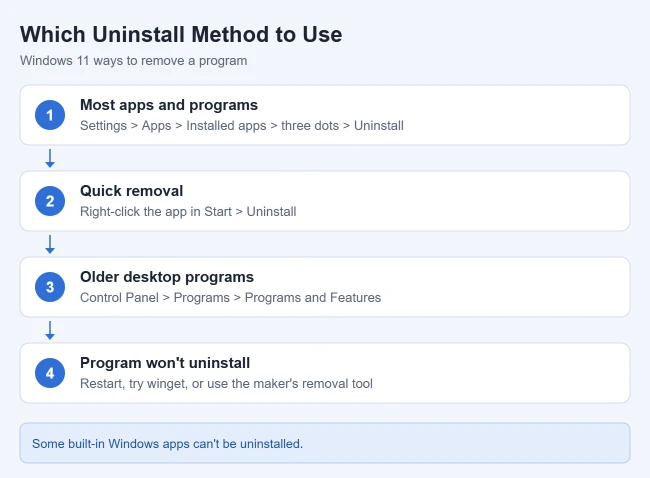
Microsoft lists three built-in ways to remove software: Settings, the Start menu, and Control Panel. Settings handles both Microsoft Store apps and desktop programs, so start there. Use the Start menu when the app is already in front of you, Control Panel for an older program that Settings can’t remove, and the winget command if you’re comfortable typing commands or want to remove several programs in a row.
Uninstall From Settings
- Press Windows key + I to open Settings.
- Select Apps, then Installed apps. The list shows each app with its size and install date where available.
- Search for the program, or change Sort by to Size (large to small) to find the biggest ones.
- Select the three dots (More) next to it and choose Uninstall.
- Select Uninstall again to confirm. Store apps disappear from the list within seconds. Desktop programs may open their own uninstaller, so follow its prompts and approve the User Account Control prompt if it appears.
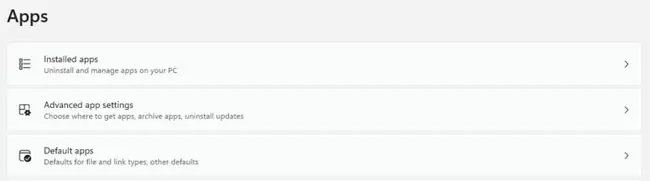
These steps match Microsoft’s uninstall guide, which also notes that some apps built into Windows can’t be uninstalled, and suggests trying a repair first if a program just isn’t working right. When you only want an app off your desktop, you can remove it from the desktop without deleting it.
Read each uninstaller screen before you select Next. Some ask whether to keep your settings, saved projects or downloaded content. Keeping them makes a later reinstall easier; removing them frees more space.
Uninstall From the Start Menu
- Select Start, then All apps, and find the app. You can also type its name.
- Right-click it and select Uninstall. Store apps ask you to confirm. Many desktop programs open Programs and Features in Control Panel instead.
- If Control Panel opens, select the program there and select Uninstall.
Uninstall From Control Panel
Some apps can’t be uninstalled from Settings. Use Control Panel for those. It only lists traditional desktop programs, not Store apps.
- Open Control Panel.
- Select Programs > Programs and Features. If you see icons instead, set View by to Large icons and select Programs and Features.
- Right-click the program and select Uninstall or Uninstall/Change, then follow the prompts. The program disappears from the list when it’s done.
Uninstall With a Command (winget)
winget is the Windows Package Manager, a command-line tool built into current Windows 11. It can remove programs even if you didn’t install them with winget.
- Right-click Start and select Terminal (Admin).
- Type
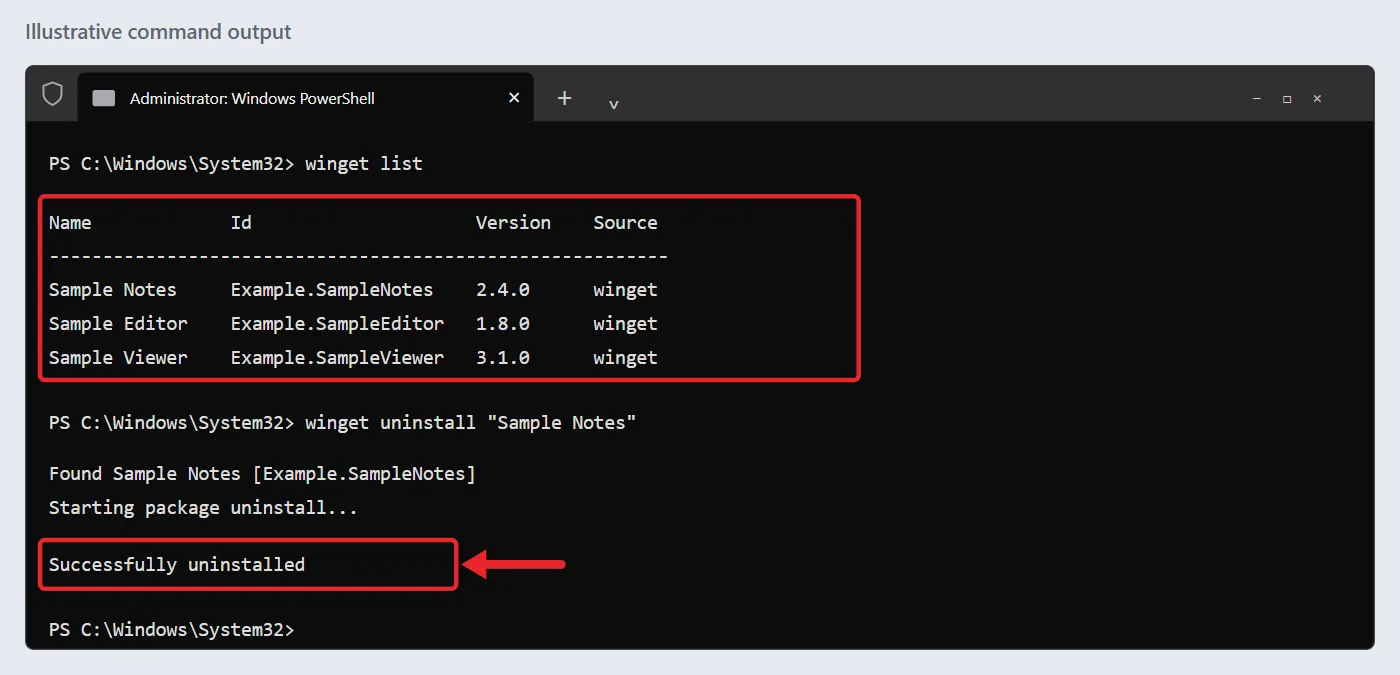
winget listand press Enter to see installed programs with their exact names and IDs.
- Type
winget uninstall "App Name", using the name from the list, and press Enter. winget runs the program’s uninstaller and reports when it’s finished.
If more than one program matches, winget lists them and asks you to be more specific. Use the ID instead, for example winget uninstall --id "Exact.App.Id" --exact. Every option is listed in the winget uninstall reference. Older guides suggest the wmic product command, but Microsoft has removed WMIC from supported Windows 11 versions, so use winget instead.
Remove Xbox, Teams, Google Drive, or Another Unwanted App
For the Xbox app, Microsoft Teams, or Google Drive for desktop, close the app, save any local work, then use Settings > Apps > Installed apps. Search for the app’s name, open its three-dot menu, select Uninstall, and follow the prompts. Check that it’s gone from the list. Removing an app doesn’t close your online account or cancel a subscription. Don’t remove Gaming Services or other supporting apps just because you’re removing Xbox.
If Xbox app games won’t start after you reinstall the Xbox app, install Gaming Services on Windows 11 again.
Reinstalling is also one step when you fix Roblox not launching on Windows 11.
Before removing Google Drive, make sure your cloud files have finished syncing and keep a separate copy of any files you need offline.
If you’re removing antivirus software, check afterward that Windows Security shows Microsoft Defender Antivirus or another antivirus as active, so the PC isn’t left unprotected.
For unwanted preinstalled apps, remove only ones you recognize and don’t need. Some built-in components and apps managed by your organization can’t be removed. Traditional desktop programs can also be removed from Control Panel with the steps above.
Removing unused apps is one of several ways to fix a slow computer in Windows 11.
The Microsoft Copilot app is one you can remove this way. For what it leaves behind in Office and Edge, read about disabling Copilot in Windows 11.
Some bundled tools also add a browser extension that stays behind. The steps for removing McAfee WebAdvisor from Windows 11 show how to clear both parts.
If a preinstalled McAfee trial keeps interrupting you, learn how to stop McAfee pop-ups on Windows 11 before you decide to remove it.
On an older Dell computer, the Dell Dock launcher is a common one to clear out, and we cover how to remove the Dell Dock in Windows 11 or 10.
If a Program Won’t Uninstall
Save your work and back up any files stored inside the app. Then try these in order:
- Restart and retry. Close the app, restart Windows, and try Settings or Control Panel again. A running updater or tray icon can lock files until you restart. Write down any error message.
- Repair, then uninstall. In Settings > Apps > Installed apps, open the app’s three-dot menu, select Advanced options, then Repair. Desktop programs may offer Repair or Change in Control Panel instead. See Microsoft’s app repair instructions. Skip Reset unless you’re fine losing the app’s data and settings.
- Follow Microsoft’s install and uninstall fixes. Microsoft’s guide to problems that block programs from being installed or removed covers incomplete installs and damaged app data, and Windows may suggest troubleshooting steps when a removal fails.
- Use the publisher’s removal tool. For a broken uninstaller, check the publisher’s support site for removal steps or a removal utility. Security suites, VPNs and device software often need one. Download it only from the publisher’s own site.
- Run the program’s own uninstaller. If the program is missing from both lists, open its folder in C:\Program Files or C:\Program Files (x86) and look for a file named uninstall or unins000. Double-click it and follow the prompts. Don’t delete the folder by hand instead, because that leaves services and installer records behind.
- Try a clean boot. If other software may be interfering, follow Microsoft’s clean-boot steps, retry the uninstall, then restore normal startup.
- Use winget with the exact ID. If
winget uninstallfinds several matches, runwinget uninstall --id "Exact.App.Id" --exact --interactivewith the ID fromwinget list. - Reinstall, then uninstall. As a last resort, install the same version again from the publisher, then remove it with the steps above. A fresh install can restore a missing uninstaller.
A grayed-out Uninstall option usually means a protected Windows component or a policy set by your organization. On a work PC, ask your IT administrator.
If the app looks suspicious, start with a Windows Security scan. For one stubborn app, use the publisher’s support route before considering a Windows reset, which affects much more than that application.
If an unknown app keeps showing ads or alerts, the steps for stopping pop-ups on Windows 11 help you trace where they come from.
Some security, VPN and network tools also add their own certificates to Windows. The steps for removing certificates from Windows 11 show how to back one up before deleting it.
After You Uninstall
- Restart if asked. Some programs finish removing files after a restart.
- Confirm it’s gone: check that the program no longer appears in Settings > Apps > Installed apps, or run
winget list --name "App Name"and look for no match. - Check what still runs: open Task Manager and look at Startup apps for an updater or helper from the same publisher.
- Leftover folders: uninstallers can leave settings or empty folders behind in Program Files or your user folder. Check for saved data before deleting anything there.
- Further cleanup: use the publisher’s documented cleanup steps when needed. A third-party registry or leftover scan is not required for ordinary removal, and deleting registry keys by hand can break other programs.
- Check your space: find out what’s taking up space on your PC.
Uninstall an App or Unwanted Program in Windows 10
Windows 10 reached end of support on October 14, 2025, but these steps still work. Open Settings > Apps > Apps & features, find the app, select it, and choose Uninstall. Confirm, then follow the app’s own removal wizard if one opens. Back up any files stored inside the app first, and restart if asked. Microsoft’s uninstall guide covers Windows 10 as well as 11.
Frequently Asked Questions
Why is the Uninstall button grayed out?
Some built-in Windows apps can’t be removed. On work PCs, an administrator may also block uninstalling.
Does uninstalling delete my files?
Files saved separately often remain, but app-local data and settings can be removed. Export important work and read the uninstaller’s data-removal options first.
Can I uninstall several programs at once?
Settings and Control Panel remove one program at a time. winget can take more than one ID in a single command, such as winget uninstall App.One App.Two, but check each ID with winget list first.
Can I reinstall a program later?
Yes. Reinstall Store apps from Library in the Microsoft Store and desktop programs from the maker’s website. You may need your license key for paid software.
For example, you can reinstall TurboTax Desktop on Windows 11 with the license code saved in your Intuit account.
Should I uninstall programs that start with Windows?
Only if you don’t use them. To keep a program but stop it from launching, change startup programs in Windows 11.
To see which programs are running right now, check what apps are running in the background in Windows 11.
How do I remove Microsoft Edge?
Follow the steps for removing Edge from Windows 11.
Not sure what’s on your PC? You can find installed apps and programs in Windows 11.

Matthew Burleigh is the founder, head writer, and editor of Solve Your Tech, which he launched in 2012. He has written technology tutorials since 2008 and worked in IT since 2003, including small-business support, IT management, and consulting. He holds Bachelor’s and Master’s degrees in Computer Science from Arizona State University.
Matthew writes practical guides for Windows, iPhone and iPad, Microsoft Office, Outlook, Google apps, and Android. Solve Your Tech’s guides are checked step by step against the device or app maker’s own documentation and tested on his own devices whenever he has the hardware or software, with clear steps, sources, and update dates.
Read more about Matthew and how Solve Your Tech writes and updates its guides, or report a correction.