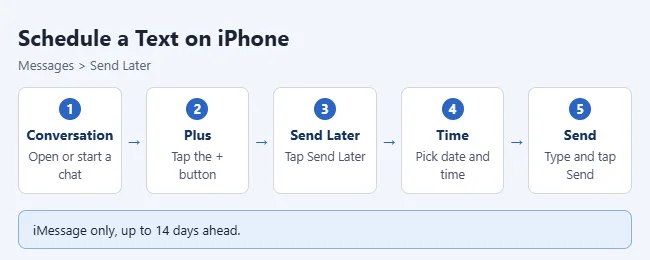
To schedule a text on iPhone, open a conversation in Messages, tap the plus (+) button, tap Send Later, pick a date and time, type your message, and tap Send. The message sits in the conversation with a dashed outline until it goes out. You can schedule up to 14 days ahead, and only in iMessage conversations. These steps apply to iOS 18, iOS 26, and iOS 27.
The steps come from Apple’s Schedule a text message on iPhone to send later guide.
What You Need
- iOS 18 or later. Send Later arrived in iOS 18. Apple’s guide lists the same steps for iOS 18, iOS 26, and iOS 27. Older versions don’t have it.
- iMessage. Apple says you must be using iMessage. That means a blue-bubble conversation. Green-bubble texts sent as SMS, MMS, or RCS can’t be scheduled with Send Later.
- An internet connection to set up the message, and again if you want to reschedule, edit, or delete it.
- A send time within 14 days. Apple doesn’t let you schedule further out.
Your recipient can use any device that receives your iMessages, and they won’t know the message was scheduled. If you aren’t sure which kind of conversation you’re in, see what blue and green text messages mean.
How to Schedule a Text Message on iPhone
- Open the Messages app.
- Open the conversation you want, or start a new one.
- Tap the plus (+) button next to the text field, then tap Send Later.
- Tap the time to open the scheduler, then choose the date and time. The border of the text field turns into a dashed line, and the send time appears above it.
- Type your message, then tap the Send arrow. The message appears in the conversation with a dashed line around it.
You don’t need to keep your iPhone on. Apple says the message is delivered even if all your devices are offline at the send time.
How to Confirm a Text Is Scheduled
Look at the conversation. A scheduled message has a dashed outline, and the date and time it will send appear above it. When it goes out, the dashed line disappears and the bubble turns a solid color like any other sent message.
If you can’t find it, scroll to the bottom of the conversation. Apple notes that scheduled messages may appear below messages you’ve already sent.
Apple says scheduled messages are encrypted and stored on its servers only until they’re sent. After that, they’re removed from the servers.
How to Edit, Reschedule, or Cancel a Scheduled Text
You can change a scheduled message any time before it sends. You need to be online. Deleting a scheduled message cancels it, and it won’t be delivered, so make sure you’ve picked the right one before you tap Delete.
- Edit the text: Touch and hold the message bubble, tap Edit, make your changes, then confirm to resend with your edits or cancel to go back to the original.
- Reschedule: Tap Edit beside the date above the scheduled message, tap Edit Time, choose a new time, then tap away from the scheduler to save it.
- Send now: Tap Edit beside the date above the scheduled message, then tap Send Message.
- Cancel: Touch and hold the message bubble, then tap Delete.
Once a scheduled message has been sent, these options are gone. It’s a normal iMessage at that point. Apple lets you undo a sent iMessage for up to 2 minutes and edit it up to five times within 15 minutes. The steps are in Apple’s Unsend or edit messages on iPhone guide.
How to Schedule a Message on a Mac
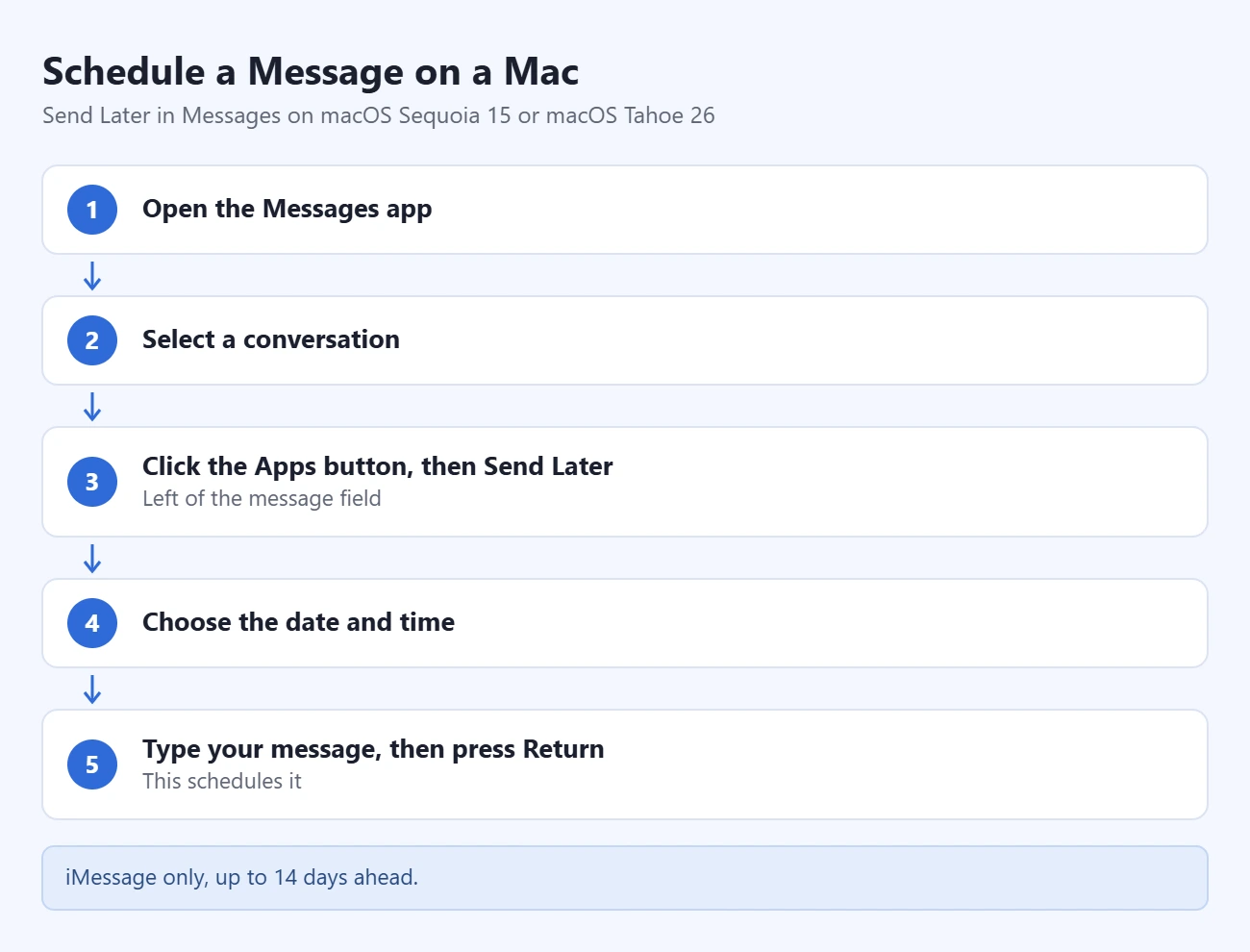
Send Later also works in Messages on a Mac with macOS Sequoia 15 or macOS Tahoe 26. The same rules apply: iMessage only, up to 14 days ahead, and you must be online. These steps come from Apple’s Schedule a message on Mac to send later guide.
- Open the Messages app on your Mac.
- Select a conversation.
- Click the Apps button to the left of the message field, then click Send Later.
- Choose the date and time you want.
- Type your message, then press Return to schedule it.
To change it later, click Edit above the scheduled message. Choose Edit Time to reschedule, Send Message to send it right away, or Delete Message to cancel it. To change the wording, Control-click the message and choose Edit.
How to Schedule a Message on an iPad
On an iPad with iPadOS 18 or later, the steps match the iPhone. Open a conversation in Messages, tap the plus (+) button, tap Send Later, choose a time, type your message, and send it. Apple covers it in Schedule a text message on iPad to send later.
What About Green-Bubble Texts and Repeating Messages?
Send Later has two limits. It only works with iMessage, and each scheduled message sends once.
The Shortcuts app is the usual alternative. You can build a shortcut that sends a message and attach a Time of Day trigger to it so it runs on a schedule. Apple lists Time of Day among the triggers that can run without asking you first.
The exact screens depend on your iOS version, and the Shortcuts app changed in iOS 27, so follow Apple’s Add automations to Shortcuts on iPhone or iPad guide for your version. Apple’s promise that a message is delivered even when your devices are offline is made for Send Later, not for Shortcuts, so test an automation with a message to yourself before you rely on it.
For a one-time text more than 14 days away, the simple option is a reminder on that date to send it yourself.
Troubleshooting: Send Later Is Missing or Won’t Work
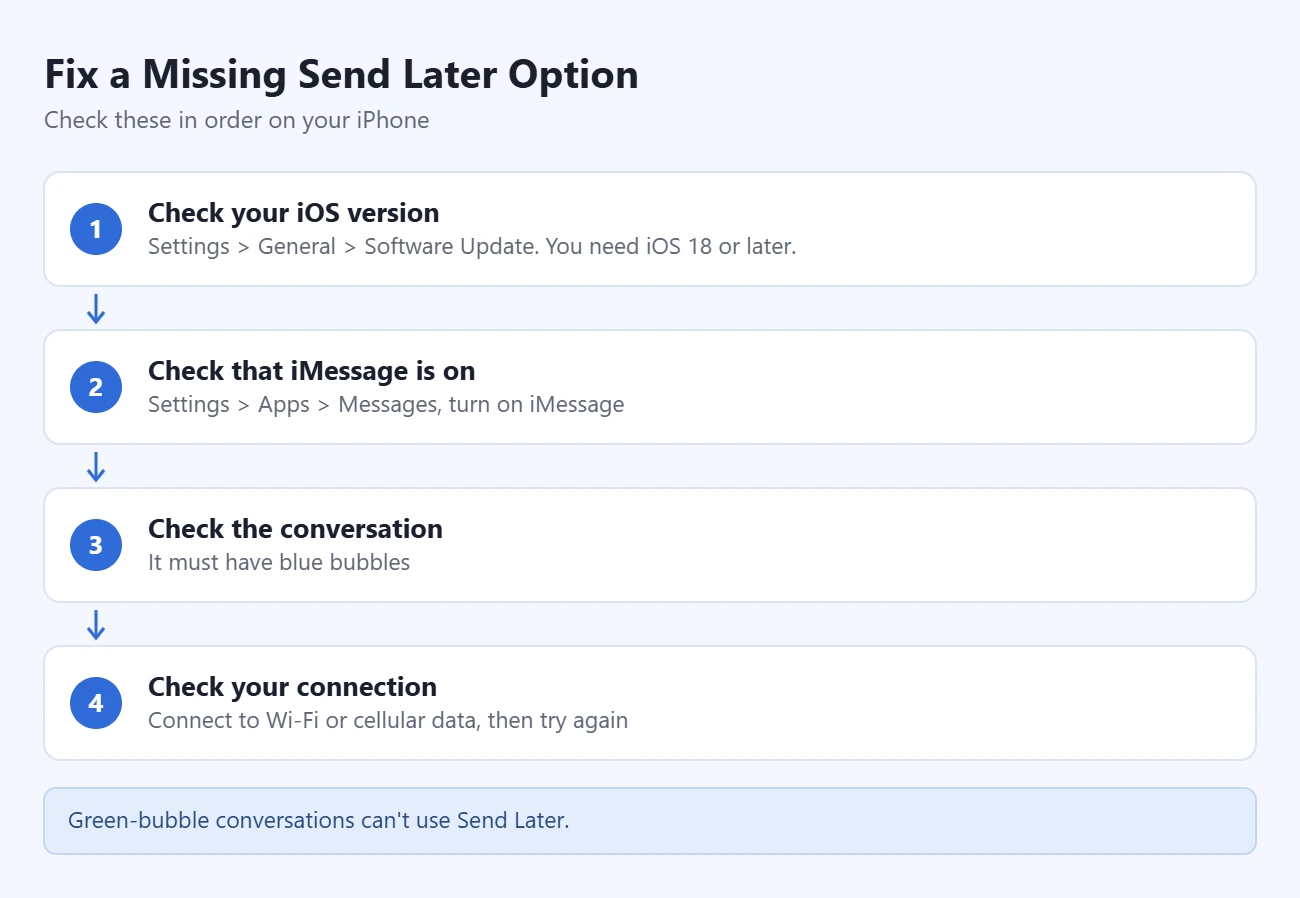
If you tap the plus (+) button and don’t see Send Later, check these in order.
- Check your iOS version. Open Settings > General > Software Update. You need iOS 18 or later.
- Check that iMessage is on. Open Settings > Apps > Messages and turn on iMessage.
- Check the conversation. It must be an iMessage conversation with blue bubbles. Green-bubble conversations can’t use Send Later.
- Check your connection. Connect to Wi-Fi or cellular data, then try again.
If iMessage is off or stuck activating, see how to turn on iMessage on iPhone.
A few other problems come up:
- You can’t pick the date you want. The scheduler stops at 14 days. Choose an earlier date or use a reminder instead.
- You can’t find the scheduled message. Scroll to the bottom of the conversation. It may sit below newer sent messages.
- You can’t edit, reschedule, or delete it. Apple requires you to be online for all three. Reconnect and try again.
- The message already went out. You can’t cancel it now. If it’s been less than 2 minutes, touch and hold the bubble and tap Undo Send.
Frequently Asked Questions
Which iOS version added scheduled texts?
iOS 18. Send Later is also in iOS 26 and iOS 27 with the same steps. On a Mac it needs macOS Sequoia 15 or later, and on an iPad it needs iPadOS 18 or later.
Can I schedule a text more than 14 days out?
No. Apple limits scheduled messages to 14 days into the future. For anything further away, set a reminder to send it yourself.
Can I schedule a text to an Android phone?
Not with Send Later. Apple says you must be using iMessage, and messages to Android phones go out as green-bubble SMS, MMS, or RCS texts.
Will the other person know my text was scheduled?
No. Apple says the recipient won’t know the message was scheduled. It arrives like any other message.
Does my iPhone need to be on when the text sends?
No. Apple says a scheduled message is delivered even if all your devices are offline. You only need a connection to schedule it, or to reschedule, edit, or delete it.
Can I schedule a text that repeats every week?
Not with Send Later. Each scheduled message sends once. A Shortcuts automation with a Time of Day trigger is the alternative for repeating messages.
How will I know a scheduled text was delivered?
When it sends, the dashed outline disappears and the bubble turns solid. From there it behaves like a regular iMessage. See what Delivered means on iPhone for the status labels under it.
Can I unsend a text I already sent?
Yes, if it was an iMessage and you act within 2 minutes. Touch and hold the bubble and tap Undo Send. To pass a message along to someone else instead, see how to forward a text message on iPhone.
Next Step
Schedule a test message to yourself or a family member a few minutes ahead. Watch the dashed outline turn solid, and you’ll know how it looks before you use it for something that matters.

Matthew Burleigh is the founder, head writer, and editor of Solve Your Tech, which he launched in 2012. He has written technology tutorials since 2008 and worked in IT since 2003, including small-business support, IT management, and consulting. He holds Bachelor’s and Master’s degrees in Computer Science from Arizona State University.
Matthew writes practical guides for Windows, iPhone and iPad, Microsoft Office, Outlook, Google apps, and Android. Solve Your Tech’s guides are tested on current devices or checked against official product documentation, with clear steps, sources, and update dates.
Read more about Matthew and how Solve Your Tech writes and updates its guides, or report a correction.