This post contains affiliate links. As an Amazon Associate, solveyourtech.com earns from qualifying purchases, at no extra cost to you.
Roku sells three streaming sticks, and the right one depends on your TV. Get the Roku Streaming Stick for a 1080p HD TV, the Roku Streaming Stick Plus for most 4K TVs, and the Roku Streaming Stick 4K if your TV supports Dolby Vision or sits far from your Wi-Fi router. All three run the same Roku software and include the same voice remote with TV power and volume buttons.
This guide covers the current US lineup: models 3840R, 3830R, and 3820R2. The specs come from Roku’s player comparison page and its product and support pages, checked in October 2026. It replaces our old review of the 2014 Roku Streaming Stick (model 3500R), which Roku no longer sells.
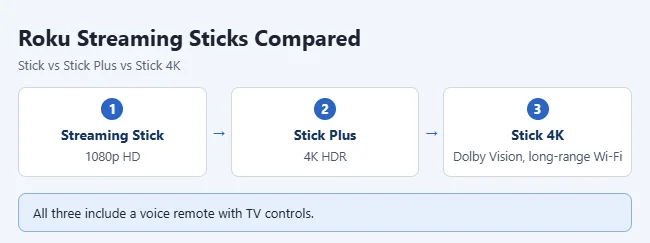
Roku streaming sticks side by side
The three sticks are the same size and plug straight into an HDMI port. The differences are picture quality, Wi-Fi hardware, and what is in the box.
| Streaming Stick | Streaming Stick Plus | Streaming Stick 4K | |
|---|---|---|---|
| Model number | 3840R | 3830R | 3820R2 |
| Top resolution | 1080p HD | 4K (2160p) at up to 60fps | 4K (2160p) at up to 60fps |
| HDR formats | None | HDR10, HDR10+, HLG | Dolby Vision, HDR10, HDR10+, HLG |
| Wi-Fi | Dual-band (2.4 GHz and 5 GHz) | Dual-band (2.4 GHz and 5 GHz) | 802.11ac dual-band MIMO with a long-range receiver |
| Ethernet port | No | No | No |
| Power cable in the box | USB-C to USB-A cable | USB-C to USB-A cable | USB cable with long-range Wi-Fi receiver, plus a power adapter |
| Typical power use when streaming | About 2.2W | About 2.5W | Under 3.5W |
| Remote | Voice remote with TV power, volume, and mute | Voice remote with TV power, volume, and mute | Voice remote with TV power, volume, and mute |
| AirPlay, HomeKit, Alexa, Google Home | Yes | Yes | Yes |
| Best for | HD TVs | Most 4K TVs | Dolby Vision TVs or weak Wi-Fi |
Roku lists the same audio support for all three: stereo over HDMI, plus pass-through of DTS and Dolby-encoded audio to a TV or sound system that can decode it. None of them has a USB port for playing your own video files.
Which Roku stick should you get?
- You have a 1080p TV: Roku Streaming Stick. A 4K model will not look sharper on an HD screen, because the TV sets the limit. The Roku picks a resolution during setup, and you can change the display type on a Roku later.
- You have a 4K TV: Roku Streaming Stick Plus. It adds 4K and HDR10+ and still runs from the TV’s USB port.
- Your 4K TV supports Dolby Vision, or the TV is far from the router: Roku Streaming Stick 4K. It is the only stick with Dolby Vision and the long-range Wi-Fi receiver.
Need an Ethernet port, a USB port, or Dolby Atmos? Roku lists those on the Roku Ultra, not on the sticks. See our full guide to which Roku to buy for the rest of the lineup. Buying a stick as a present? Our small tech gift ideas list has more picks.

Prices change often and Roku runs frequent sales, so check the current price before you decide. If the Stick Plus and Stick 4K are only a few dollars apart and you have a 4K TV, the Stick 4K is the safer pick because it does everything the Plus does.
What to check before you buy
Five things decide which stick fits. You can check most of them in your TV’s manual or on the labels next to its ports.
- TV resolution. 4K means 3840 x 2160 pixels, four times the detail of 1080p. A 4K stick works on an HD TV, but it only outputs what the TV can show.
- HDR and Dolby Vision support. HDR (high dynamic range) adds brighter highlights and a wider range of color. Dolby Vision is one HDR format. You only see it when the TV, the stick, and the show or movie all support it.
- The HDMI port. For 4K and HDR, Roku requires an HDMI input that supports HDCP 2.2, a copy-protection standard. Roku notes that some older 4K TVs support it on only one input, so plug the stick into that port.
- Your Wi-Fi. All three sticks connect over Wi-Fi. Roku says 4K streaming can need up to 25 Mbps. If the TV is several rooms from the router, the Stick 4K’s long-range receiver is the reason to pay more.
- Power. Check whether your TV has a free USB port. If it does not, or the port is weak, you need a 5V 1A USB power adapter and a wall outlet.

Also check the model number when you shop. Roku has reused the Streaming Stick name for years, and older models with similar names, such as the Streaming Stick+ (model 3810), are different products. The current ones are 3840R, 3830R, and 3820R2.
Power: TV USB port or wall outlet
Roku’s support site says all Roku Streaming Sticks support USB power. The Streaming Stick and Stick Plus are built to run from the TV and come with only a USB cable. The Stick 4K draws a little more power and comes with a power adapter as well.
- TV USB port: no wall outlet and no visible cord. The stick loses power when the TV turns off, so it has to start up again each time you turn the TV on. Roku describes this startup as generally fast.
- Wall outlet: Roku calls this the most reliable option. The stick stays powered when the TV is off, so it is ready sooner.
Use the USB cable that came with the stick. On the Stick 4K, that cable contains the long-range Wi-Fi receiver, so another cable will not do the same job.
How to set up a Roku streaming stick
You need a TV with an HDMI port, your Wi-Fi network name and password, and a phone or computer to verify your email. These steps follow Roku’s setup instructions for the Streaming Stick and Streaming Stick Plus.
Warning: Roku does not charge an activation fee. If a website or caller asks you to pay to activate your Roku, it is a scam.
- Plug the stick into an HDMI port on your TV. For a 4K stick, use a port that supports HDCP 2.2.
- Connect power. Plug the included USB cable into the stick and into a USB port on the TV. For the Stick 4K, you can use the included power adapter and a wall outlet instead.
- Turn on the TV and switch to the HDMI input the stick is plugged into. You should see the Roku logo.
- Follow the on-screen steps to pair the remote. Its two AAA batteries are already installed.
- Choose a language, select Wireless, pick your home network, and enter the Wi-Fi password.
- Wait while the stick checks for and installs software updates.
- Select Set Display Type so the Roku matches its resolution to your TV.
- Optional: follow the prompts to set up the remote’s TV power and volume buttons. Roku says these work with most TVs, and on some models only volume works.
- Sign in to your Roku account or create a free one, then verify your email on your phone or computer.

Result: Your Roku stick shows the Home screen, and you can add streaming apps and start watching. For more detail on each screen, see how to set up a Roku.

How to confirm you are getting the right picture
After setup, check what the Roku detected.
- Press Home on the Roku remote.
- Select Settings.
- Select Display type. A check mark shows the current setting.
The automatic setting suits most TVs. If you pick a display type the TV cannot show, the screen goes black and the Roku returns to the previous setting after 20 seconds, so trying one is safe.
To check Wi-Fi, go to Settings > Network > About and look at Signal strength. Then select Check connection to test the signal and download speed.
Troubleshooting
- Flashing red light or a low-power message: the TV’s USB port is not supplying enough power. Roku’s low-power help page says to unplug the stick for 10 seconds, use the original cable, try another USB port, or switch to a 5V 1A adapter in a wall outlet.
- The stick restarts every time the TV turns on: that is normal when it runs from the TV’s USB port. Use a wall outlet to keep it powered.
- A 4K TV only shows 1080p: move the stick to an HDMI input that supports HDCP 2.2, and make sure the app and your plan offer 4K. Anything between the stick and the TV, such as a soundbar or receiver, must support HDCP 2.2 too.
- No HDR or Dolby Vision: Roku notes that many TVs leave HDR off by default, often per HDMI input. Look in the TV’s picture or input settings for an enhanced HDMI or UHD color option, and update the TV’s software.
- Buffering or a weak signal: a TV can block Wi-Fi when the stick sits behind it. Roku suggests moving the router closer, using the 5 GHz network, or using an HDMI extender to move the stick out from behind the TV.
- The stick does not fit the HDMI port: Roku’s setup page offers a free HDMI extender cable for this.
- The remote will not control TV power or volume: not every TV is supported. You can run the remote setup again from Settings.
Frequently asked questions
Can I power a Roku stick from the TV’s USB port?
Yes. Roku says all its Streaming Sticks support USB power, and the Streaming Stick and Stick Plus are designed to run from the TV with the included USB-C cable. Some TV ports do not supply enough power. If you see a low-power warning, use a 5V 1A adapter in a wall outlet. The Stick 4K includes one in the box.
What is the difference between the Roku Streaming Stick Plus and the Streaming Stick 4K?
Both stream in 4K with HDR10, HDR10+, and HLG. The Streaming Stick 4K adds Dolby Vision and a long-range Wi-Fi receiver built into its USB cable, and it comes with a power adapter. The Stick Plus comes with a USB cable only.
Will a Roku Streaming Stick 4K work on a 1080p TV?
Yes. Roku says it works with any TV that has an HDMI port and streams at the resolution the TV supports, up to 1080p on an HD TV. You will not see 4K, HDR, or Dolby Vision until you connect it to a TV that supports them.
Do Roku streaming sticks have an Ethernet port?
No. All three connect over Wi-Fi. Roku’s setup page for the Streaming Stick and Stick Plus mentions that a compatible Ethernet adapter may be used, but it does not name one. If you need a built-in Ethernet port, Roku lists it on the Roku Ultra.
Can I use Bluetooth headphones with a Roku stick?
Roku lists Bluetooth Headphone Mode for the Streaming Stick and Streaming Stick Plus. Go to Settings > Remotes & devices > Wireless headphones, select your headphones, and select Connect. Roku’s Stick 4K page does not list this feature. On any Roku, you can listen through headphones connected to your phone with the Roku mobile app.
Is the old Roku Streaming Stick 3500R still worth using?
It is an HD-only model from 2014 that Roku no longer sells. If it still does what you need, there is no rule against using it, but a current stick adds a voice remote with TV controls, and the Plus and 4K models add 4K and HDR.
Does a Roku stick need a cable subscription?
No. You only need an internet connection and a free Roku account. Many apps are free, including The Roku Channel, and you can add paid services like Netflix if you want them. See which video and music services are available on Roku and other devices.
Next step
Check your TV’s resolution and whether it supports Dolby Vision, then pick the stick that matches. Once it arrives, the setup steps above get you to the Home screen. If the remote’s TV buttons do not work afterward, see how to reprogram a Roku remote.

Matthew Burleigh has been writing tech tutorials since 2008. His writing has appeared on dozens of different websites and been read hundreds of millions of times.
After receiving his Bachelor’s and Master’s degrees in Computer Science he spent several years working in IT management for small businesses. However, he now works full time writing content online and creating websites.
His main writing topics include iPhones, Microsoft Office, Google Apps, Android, and Photoshop, but he has also written about many other tech topics as well.