To use NameDrop, unlock your iPhone, hold its display a few centimeters from the top of the other person’s iPhone (or their Apple Watch), wait until NameDrop appears on both screens, then tap Share to swap contact cards or Receive Only to just get theirs. NameDrop needs iOS 17.1 or later on both iPhones (watchOS 10.1 or later on a watch). The steps below follow Apple’s current iPhone User Guide for iOS 27 and also apply to iOS 17, 18 and 26.
NameDrop is part of AirDrop. It uses the same “bring the phones together” gesture that can also send a photo or start a SharePlay session, so this guide covers those too, plus how to control exactly what you hand over and how to switch the whole thing off.
What You Need Before You Try It
- Software on both devices: iOS 17.1 or later on each iPhone. Any iPhone that can run iOS 17 or later can use it. Check your version in Settings > General > About. If the other person is on an older version, NameDrop won’t start on either phone.
- Apple Watch (optional): Apple Watch SE (2nd generation), Apple Watch Series 7 or later, or any Apple Watch Ultra, running watchOS 10.1 or later.
- Wi-Fi and Bluetooth turned on: NameDrop rides on AirDrop, and AirDrop needs both radios. You don’t have to be connected to a Wi-Fi network, but Wi-Fi itself has to be on.
- The setting left on: NameDrop is on by default. It is controlled by the Bringing Devices Together switch in Settings > General > AirDrop (Apple’s iPhone guide labels it “Bring Devices Together”).
- Both phones unlocked: A locked or sleeping phone won’t respond to the gesture.
NameDrop doesn’t work with iPad, Mac or Android phones. For those, send your card from the Contacts app instead, as described in our guide to sharing contacts on iPhone.
Check Your Contact Card First
NameDrop sends information from My Card, the contact card at the top of your contacts list that holds your own details. If that card has an old email address or a photo you’d rather not share, fix it before you meet anyone.
- Open the Contacts app.
- Tap My Card at the top, then tap Edit.
- Correct your name, phone numbers and email addresses. Delete any you never want offered.
- Tap your contact photo to pick a style, then tap Customize to edit your avatar and Contact Poster. The Contact Poster is the large, full-screen image of you that shows up during NameDrop and when you call someone.
- Tap Done to save.
If you don’t see My Card, create a contact with your own details, touch and hold it in the list, and tap Make this My Card. More editing options are in our article on how to edit a contact on iPhone.
Both people do the same thing at the same time. Before you start, go to the Home Screen or Lock Screen. If a photo, web page or song is open, the phone may offer to AirDrop or SharePlay that instead of starting NameDrop.
- Unlock your iPhone and ask the other person to unlock theirs.
- Hold the display of your iPhone a few centimeters from the top of the other iPhone. Lining up the top edges, near the front cameras, works best. You can also rest one phone on top of the other.
- Keep holding them there. A glow spreads from the top of both screens and the phones vibrate. Wait until NameDrop, with your Contact Poster, appears on both screens.
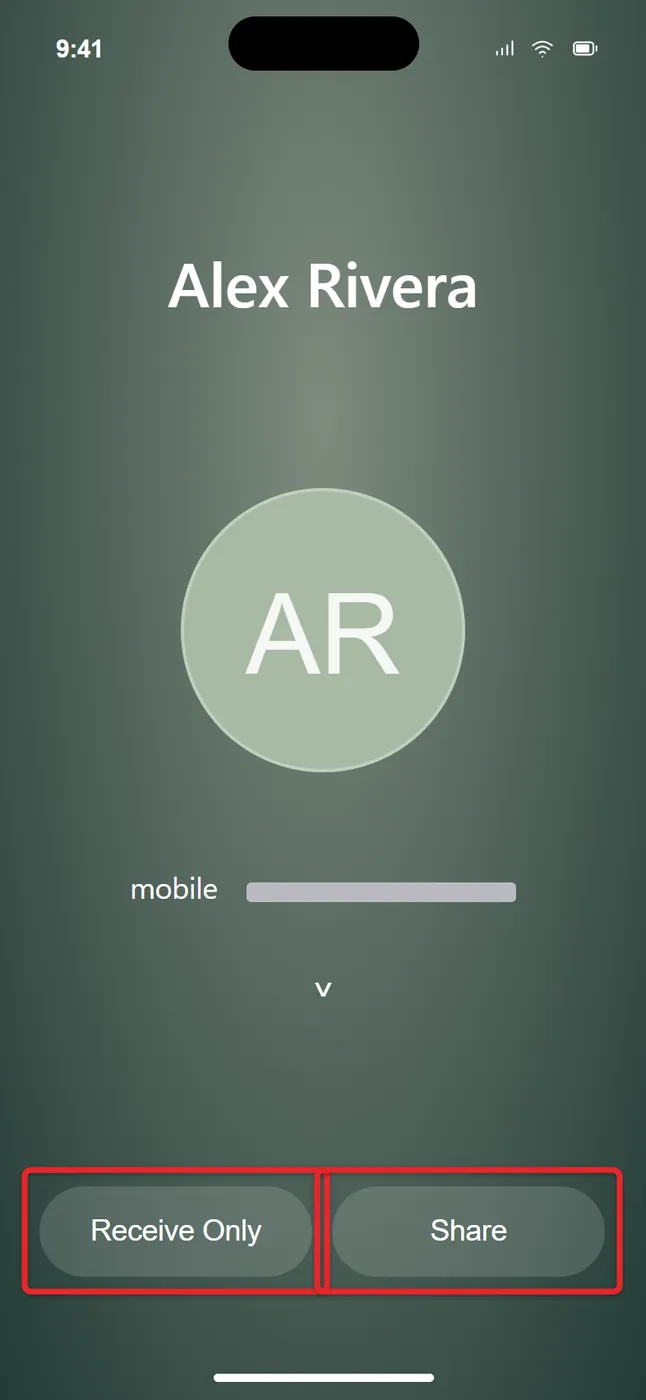
- Optional: tap the small arrow next to your phone number or email to choose which fields to send (see the next section).
- Tap Share to send your card and receive theirs, or Receive Only to get their card without sending yours.
- When the transfer finishes, the other person’s card opens on your iPhone. Tap Edit to add a note or nickname, or tap Done to keep it as is. The card is saved in Contacts and the Phone app.
Once the NameDrop screen is up, you can pull the phones a little apart to tap your choice. To cancel, move the phones well away from each other or lock your iPhone before the transfer completes. Apple’s own steps are in Use NameDrop on iPhone to share your contact info.
Share or Receive Only: Which One to Tap
| You tap | They tap | What happens |
|---|---|---|
| Share | Share | You swap cards. Each of you gets a new contact. |
| Receive Only | Share | You get their card. Yours stays private. |
| Share | Receive Only | They get your card. You get nothing back. |
| Receive Only | Receive Only | Nothing is exchanged, because nobody offered a card. |
Receive Only is handy when you’re collecting a contractor’s or a new coworker’s number and don’t need them to have yours.
By default NameDrop offers your name, your Contact Poster and the phone number or email shown under your name. If your card holds several numbers, such as a personal cell and a work line, you can pick which ones go out.
- When the NameDrop screen appears, tap the arrow next to the phone number or email under your name.
- Check the fields you want to include and uncheck the rest.
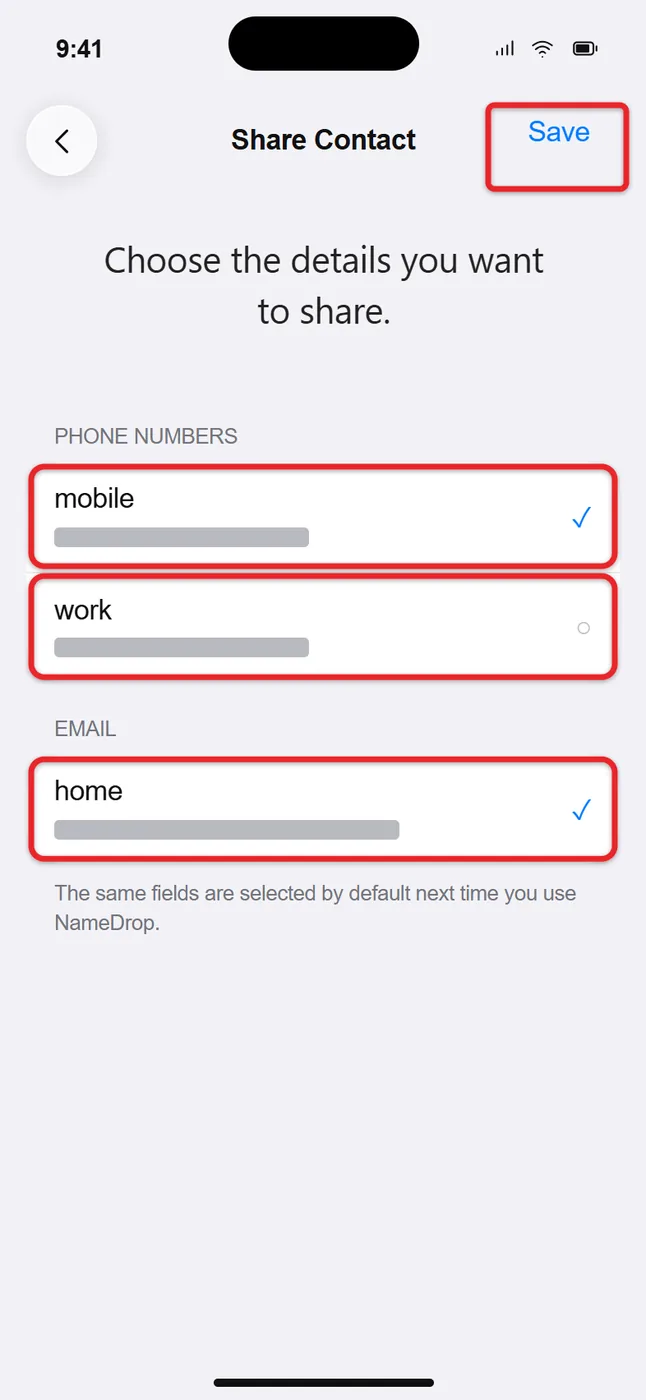
- Tap Save, then tap Share.
Your iPhone remembers those choices and selects the same fields next time, so check them again before sharing with someone in a different setting. According to Apple’s personal safety guide, NameDrop sends only your name, the numbers or emails you pick, and your Contact Poster. Your home address, birthday and other card details aren’t sent, and your pronouns aren’t included by default.
To control whether your updated name and poster also reach people automatically over Messages and calls, open My Card, tap Edit, tap your photo, and set Name & Photo Sharing to Contacts Only or Always Ask. Our guide to turning Name and Photo Sharing on or off walks through that switch.
Use NameDrop With an Apple Watch
The watch version works the same way but shows a smaller screen, so there’s less to review before you confirm.
- iPhone and Apple Watch: Hold the watch display a few centimeters from the top of the other person’s iPhone (or hold your iPhone near their watch). Wait until NameDrop appears on both screens, then choose to share and receive or to receive only.
- Two Apple Watches: Open the Contacts app on your watch, tap your picture in the top-right corner, tap Share, then bring your watch close to the other watch.
A glow appears and the watch vibrates when the connection starts. Keep the devices close until the exchange finishes, or move them apart to cancel. Apple lists the details in Use NameDrop on Apple Watch to share contact information.
The gesture does more than swap contacts. What happens depends on what’s open on your screen when the phones meet.
- Photos, files and links: Open the photo, document or web page, then bring your iPhone close to the other person’s iPhone. Your phone offers to send it over AirDrop. Apple notes this works when you’re near someone in your contacts, on supported models with iOS 17 or later. The other person accepts it as they would any AirDrop. If you leave Wi-Fi and Bluetooth range during a large transfer, the transfer continues over the internet.
- SharePlay: Start playing a song or video in an app that supports SharePlay, such as Music, then bring the iPhones together. Your phone offers to start SharePlay so you can listen, watch or play together while you’re near each other. Apple announced this with iOS 17 as a way to share music, a movie or a game in person. The other person may need the same app, and any subscription it requires.
For other ways to send files, including picking a recipient from the Share sheet, see how to AirDrop from an iPhone. If people see a confusing name when you send something, you can change your AirDrop name.
How to Turn Off NameDrop
NameDrop never sends anything until both phones are unlocked and someone taps a choice, so leaving it on isn’t a privacy risk. If you keep triggering it by accident, though, you can switch it off.
- Open Settings.
- Tap General, then AirDrop.
- Turn off Bringing Devices Together.
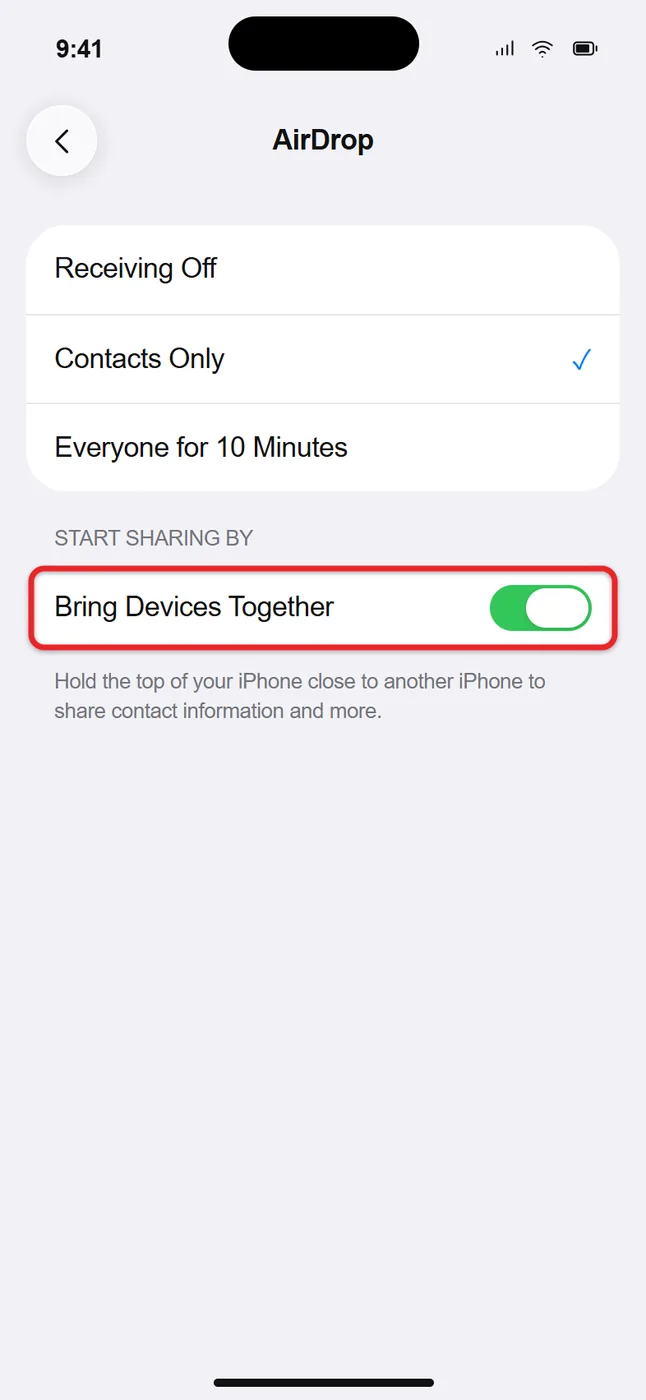
This turns off proximity sharing of photos and files and starting SharePlay by touch, not just NameDrop. Regular AirDrop from the Share button keeps working, based on your separate Receiving setting. Turn the switch back on any time to restore the gesture.
NameDrop Not Working? Try These Fixes
- Nothing happens at all: Confirm both phones run iOS 17.1 or later (Settings > General > Software Update) and that Bringing Devices Together is on for both.
- The glow starts, then stops: Open Control Center and make sure the Wi-Fi and Bluetooth icons are blue on both phones. Turn off Personal Hotspot, which blocks AirDrop.
- A photo or song shows up instead: Close the app and go to the Home Screen, then try again.
- The phones aren’t lined up: Bring the top edges together rather than laying the phones side by side. If it still doesn’t trigger, pull the phones about three feet apart and bring them together again slowly.
- It still won’t connect: Turn Airplane Mode on and off, then restart both iPhones. As a last resort, reset network settings, which also erases saved Wi-Fi passwords and Bluetooth pairings.
- A contact didn’t update: NameDrop only adds new contact information. It won’t update a card you already have saved for that person, so edit the existing card by hand.
Some guides suggest setting AirDrop receiving to Everyone for 10 Minutes. Apple’s NameDrop instructions don’t list that as a requirement, but it’s harmless to try if the steps above fail. It switches back by itself after 10 minutes.
Common NameDrop Questions
Can someone grab my contact info just by walking past me?
No. Your phone has to be unlocked and held right next to theirs, and you have to tap Share yourself. Locking your phone or moving away cancels the exchange.
Do I need to be on Wi-Fi for NameDrop to work?
NameDrop finds the other device over Bluetooth and Wi-Fi, the same way AirDrop does, so both radios must be turned on. You don’t have to join a Wi-Fi network first; the exchange happens between the two nearby devices.
Can I use NameDrop to send a friend’s contact to someone else?
No. NameDrop shares only your own card. To pass along someone else’s details, open their card in Contacts and use Share Contact.
How do I remove a contact I received by mistake?
Open the contact in the Contacts app, tap Edit, scroll to the bottom and tap Delete Contact.
Does it work if only one person has an iPhone?
Only if the other device is a supported Apple Watch. For an Android phone, text or email your card from the Contacts app instead.
Next time you meet someone with an iPhone, take ten seconds first to open My Card and make sure the number you want to give out is the one checked.

Matthew Burleigh is the founder, head writer, and editor of Solve Your Tech, which he launched in 2012. He has written technology tutorials since 2008 and worked in IT since 2003, including small-business support, IT management, and consulting. He holds Bachelor’s and Master’s degrees in Computer Science from Arizona State University.
Matthew writes practical guides for Windows, iPhone and iPad, Microsoft Office, Outlook, Google apps, and Android. Solve Your Tech’s guides are checked step by step against the device or app maker’s own documentation and tested on his own devices whenever he has the hardware or software, with clear steps, sources, and update dates.
Read more about Matthew and how Solve Your Tech writes and updates its guides, or report a correction.