This post contains affiliate links. As an Amazon Associate, solveyourtech.com earns from qualifying purchases, at no extra cost to you.
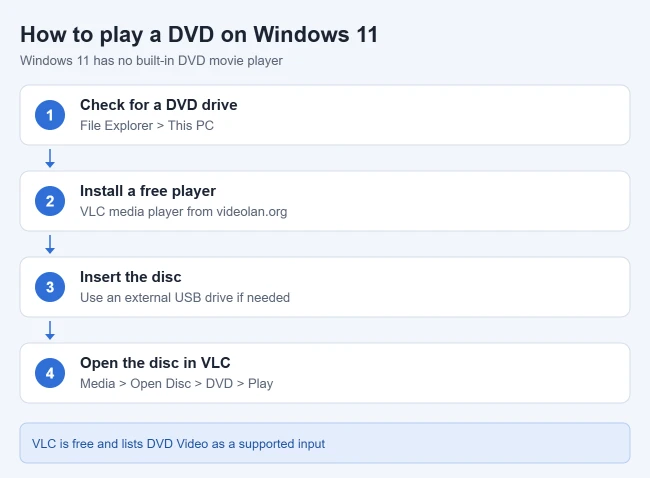
Windows 11 can’t play DVD movies on its own. Install a free player such as VLC media player, insert the disc, and in VLC choose Media > Open Disc, then Play. You also need a DVD drive. Many newer laptops don’t have one, so you may need an external USB drive.
This guide covers commercial and home-made DVD-Video discs on a Windows 11 PC, with a short section for Windows 10. Blu-ray discs need different hardware and software, covered briefly in the FAQ.
Why Windows 11 Doesn’t Play DVDs
Windows 11 doesn’t include DVD movie playback. The Media Player app that comes with Windows 11 doesn’t play DVD movies, and Microsoft says DVD playback isn’t included in Windows Media Player Legacy either, which is an optional feature on some editions. Some guides still tell you to add Windows Media Player Legacy from Settings > System > Optional features to watch DVDs. That installs the old player, but it still won’t play a movie disc.
If you insert a movie disc, File Explorer may only show a VIDEO_TS folder of files. That’s normal: the drive works, but Windows has no app to play the movie.
What You Need
- A DVD drive. Open File Explorer and select This PC. A DVD drive shows up under Devices and drives. Not sure where to look? Find your drives in This PC.
- An external drive if your PC has none. A USB DVD drive such as the ASUS ZenDrive V1M plugs into a USB port, and Windows sets it up on its own. Make sure it reads DVDs, not just CDs. Plug it straight into the PC, and keep a laptop on its charger, because slim drives draw their power from the USB port.
- A DVD player app. VLC is free and open source, and VideoLAN’s feature list includes DVD Video as a supported input. VideoLAN’s download page says VLC runs on every version of Windows up to the latest Windows 11, and it offers an ARM64 build for PCs with Arm processors.
You don’t need an internet connection to watch the disc once VLC is installed.
Play a DVD With VLC
- Download VLC from the official site, videolan.org, and install it. VLC is also listed in the Microsoft Store. VLC media player appears in the Start menu.
- Insert the DVD. If File Explorer or an AutoPlay prompt opens, close it. The disc is ready in the drive.
- Open VLC and select Media > Open Disc. The Open Media window opens on the Disc tab.
- Under Disc Selection, choose DVD, and make sure your DVD drive is selected under Disc device. VLC knows which drive to read.
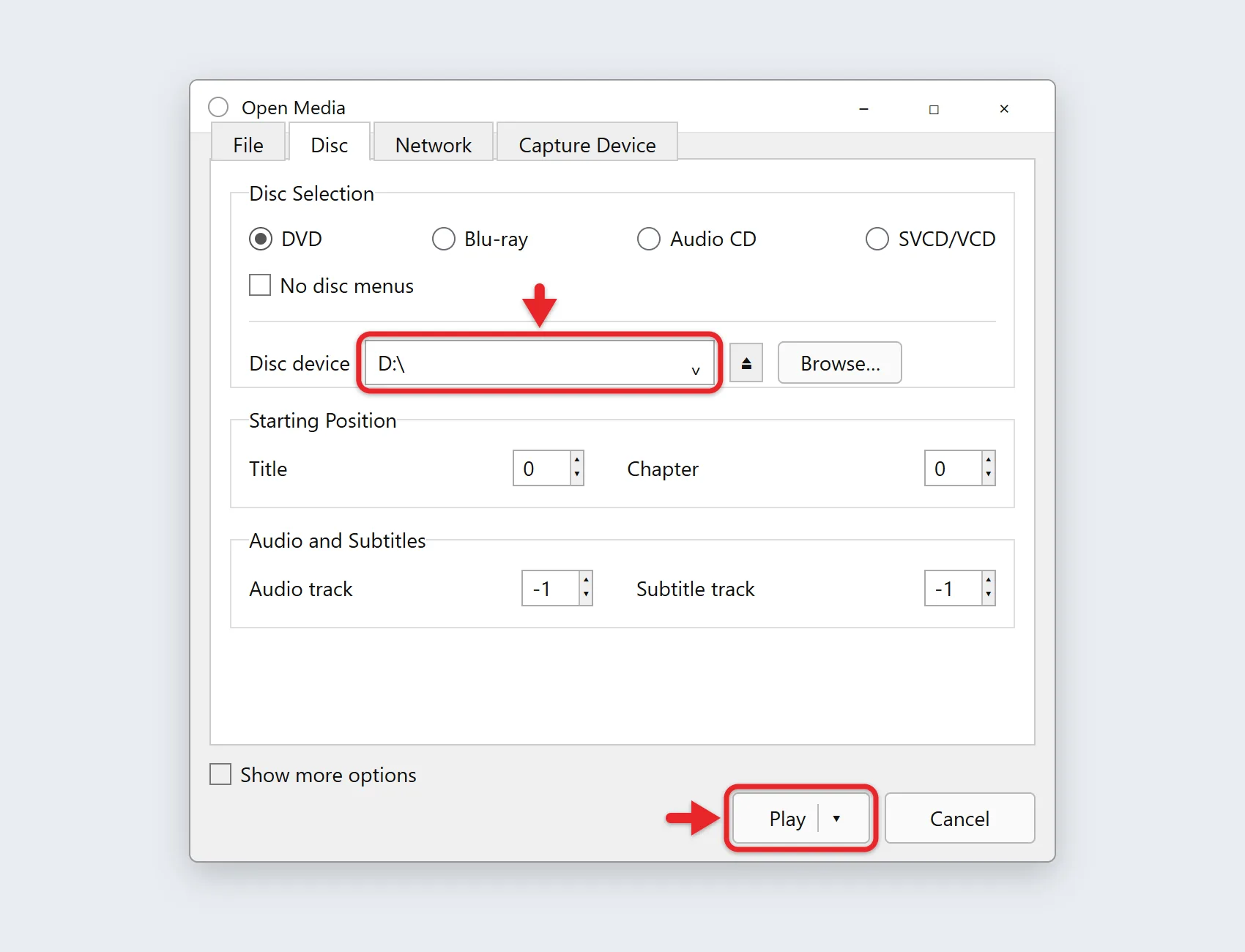
- Select Play. The DVD’s menu or the movie starts.
Use the Playback menu for chapters and titles, and the Audio and Subtitle menus to switch languages. To watch full screen, double-click the video or press F. Press Esc to leave full screen. For other apps, here’s how to go full screen on Windows 11.
To check that it worked, let the movie run past the opening menu and skip to a later chapter from Playback > Chapter. If the picture, sound and chapter skips all work, the disc and drive are fine.
Play a disc straight from File Explorer
Once VLC is installed, you can also right-click the DVD drive in File Explorer, choose Open with, and pick VLC.
Skip a DVD menu that freezes or crashes
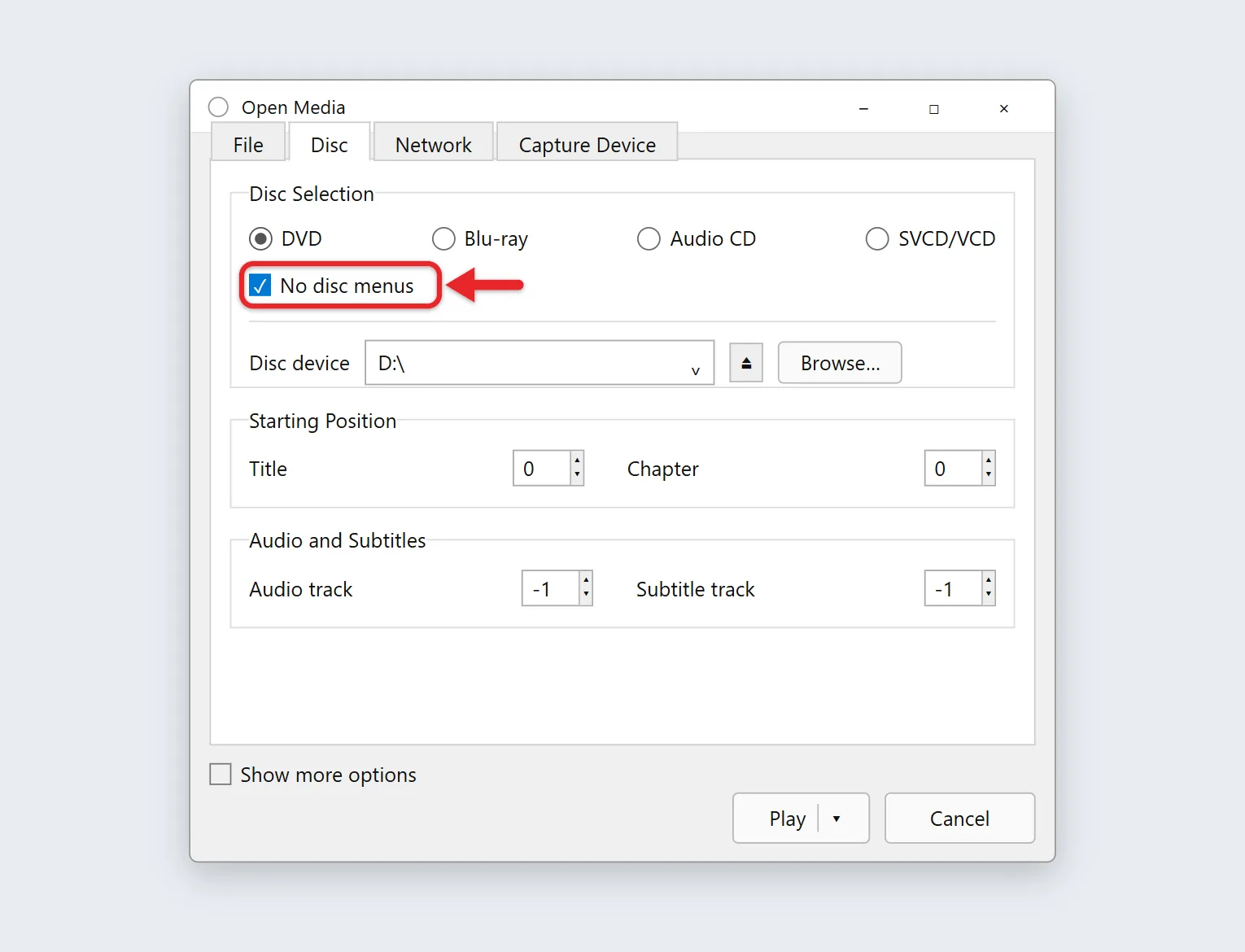
Some discs have menus that VLC can’t handle. VideoLAN’s Windows FAQ suggests opening the disc again from Media > Open Disc and checking No disc menus before you select Play. VLC then starts the main movie directly, and you change chapters from the Playback menu instead of the disc’s menu.
What to Do With DVD BUP, IFO, and VIDEO_TS Files
A .BUP file is a backup of a DVD’s .IFO navigation information. It is not a standalone movie; the video and audio are normally in the accompanying .VOB files. Keep the DVD’s VIDEO_TS folder and its files together rather than renaming a BUP file to MP4.
For a DVD folder already on your PC, open VLC and select Media > Open Disc > DVD. Use the disc-device field or Browse control to point to the folder containing the DVD files, then select Play. VideoLAN’s Windows FAQ documents opening a DVD folder this way and also opening VIDEO_TS.IFO with Open File.
Opening a single .VOB file usually plays some video, but without the disc’s menus and chapter list, so use the folder method when you can.
If you have only a BUP file and none of the corresponding DVD video files, there is no movie in that file to play or convert. Recover the intact DVD folder from your own original disc or backup. A damaged or incomplete folder may still fail to play.
Other Ways to Play a DVD
- Microsoft Store players: a Store search for “DVD player” lists several third-party apps, some free and some paid. Read the reviews, the price and any subscription terms, and the system requirements before you install one. Microsoft has sold its own Windows DVD Player app in the past, but it didn’t appear in a Store search when we looked, and Microsoft’s older DVD playback help articles have been retired.
- Software from your PC or drive maker: some PCs and external drives come with a player. Check the box or the maker’s support site.
- A TV DVD player: if you only need to watch the movie, a standalone player connected to a TV avoids software issues entirely.
Which to pick: VLC suits most people because it’s free and also plays ordinary video files. A paid Store player is worth a look only if you want a simpler, disc-only screen or VLC can’t handle a particular disc.
If the DVD Won’t Play
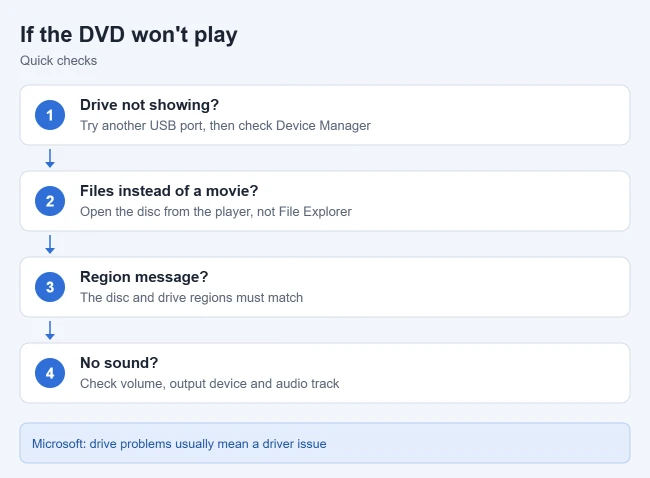
A quick way to narrow it down: try a second disc, and if you can, try the same disc in another drive or PC. If other discs play, the problem is that disc. If no disc plays, look at the drive and its connection first, because changing player apps won’t fix a drive that Windows can’t see.
The drive doesn’t show up
- Unplug an external drive and plug it into a different USB port, ideally on the PC itself rather than a hub. Windows detects the drive again if the port or hub was the problem.
- Right-click Start, select Device Manager, and expand DVD/CD-ROM drives. You see whether Windows lists the drive and whether it has a yellow warning icon.
- If it shows a warning, right-click the drive, select Uninstall device, confirm, and restart the PC. Windows reinstalls the driver automatically after the restart.
Microsoft’s drive not recognized guide explains that a missing drive usually means a driver or configuration problem, and lists further steps, including checking that the drive is enabled in the BIOS. Its last method edits the registry, so back up the registry first or ask someone experienced to help.
The disc spins but nothing plays
- Open the disc from VLC’s Media > Open Disc instead of relying on AutoPlay.
- Check that it’s a DVD-Video disc. A data DVD with video files needs Media > Open File instead.
- Close other apps that might be using the drive, such as a burning program, then eject and reinsert the disc.
- Try another disc. If other discs work, clean the problem disc with a soft cloth, wiping from the center outward.
Playback stutters or freezes
If the same scene freezes every time on one disc only, the disc is usually scratched or dirty, not a software problem. If every disc stutters, close other apps and plug in a laptop. VideoLAN’s FAQ also suggests raising the disc buffer: in VLC, select Tools > Preferences, set Show settings to All, choose Input / Codecs, and increase Disc caching (ms), then select Save and restart playback.
You get a region error
Commercial DVDs are coded for a region, and DVD drives are set to a region too. In Device Manager, right-click your drive, choose Properties, and check the DVD Region tab if it’s shown. A missing tab doesn’t mean the drive is faulty. Drives usually allow only a few region changes before the last one becomes permanent, so change it only if you need to.
There’s no sound
Check the Windows volume, VLC’s volume and mute button, and your output device under Settings > System > Sound. In VLC, open Audio > Audio Track and pick another track, since some discs have several.
Play a DVD on Windows 10
The VLC disc-playback steps above also apply to Windows 10. VideoLAN’s Windows download page lists supported Windows versions. Install the desktop VLC application, insert the disc and choose Media > Open Disc > DVD. Select the correct DVD drive, choose Play and check picture and sound.
A laptop without a DVD drive needs a compatible external drive; inserting a disc does not by itself install a DVD player. Use Open File for an ordinary video file rather than Open Disc. Microsoft ended support for Windows 10 on October 14, 2025, so the PC no longer gets security updates unless it’s enrolled in Extended Security Updates.
Frequently Asked Questions
Can Windows Media Player play DVDs on Windows 11?
No. DVD playback isn’t included in Windows Media Player Legacy, and the newer Media Player app doesn’t play DVD movies.
Is VLC safe?
Download it only from videolan.org or the Microsoft Store. VideoLAN says VLC is free, with no spyware, ads or user tracking.
Can I play Blu-ray discs?
You need a Blu-ray drive and Blu-ray playback software. A DVD drive can’t read Blu-ray discs, and commercial Blu-ray movies usually need paid software.
Do I need a codec pack?
Not with VLC, which includes its own decoders. Avoid codec packs from unfamiliar sites, since they change system-wide settings and rarely fix a disc problem.
Need to make your own disc? Here’s how to burn an ISO file to a disc with ImgBurn, or how to burn multiple copies of the same disc for free.

Matthew Burleigh is the founder, head writer, and editor of Solve Your Tech, which he launched in 2012. He has written technology tutorials since 2008 and worked in IT since 2003, including small-business support, IT management, and consulting. He holds Bachelor’s and Master’s degrees in Computer Science from Arizona State University.
Matthew writes practical guides for Windows, iPhone and iPad, Microsoft Office, Outlook, Google apps, and Android. Solve Your Tech’s guides are checked step by step against the device or app maker’s own documentation and tested on his own devices whenever he has the hardware or software, with clear steps, sources, and update dates.
Read more about Matthew and how Solve Your Tech writes and updates its guides, or report a correction.