To use Universal Control, turn on “Allow your pointer and keyboard to move between any nearby Mac or iPad” in System Settings > Displays > Advanced on your Mac, turn on Cursor and Keyboard in Settings > General > AirPlay & Continuity on your iPad, then push the Mac pointer past the screen edge toward the iPad.
This applies to macOS Monterey 12.4 or later and iPadOS 15.4 or later, including current releases.
What Universal Control Does (and What It Doesn’t)
Universal Control lets the keyboard, mouse or trackpad attached to one Mac control up to two other nearby Macs or iPads. Each device keeps its own screen, its own apps and its own operating system. The Mac pointer slides off one screen and onto the next, and whatever you type goes to the device the pointer is on.
Check Your Devices Before You Start
Apple lists these requirements on its Universal Control support page:
- One Mac, plus up to two more Macs or iPads. A setup always needs a Mac in it.
- macOS Monterey 12.4 or later on every Mac, and iPadOS 15.4 or later on every iPad.
- The same Apple Account signed in on every device, with two-factor authentication turned on. Two people’s devices can’t share a keyboard this way.
- Bluetooth, Wi-Fi and Handoff turned on on every device.
- Distance: the devices must be within 10 meters (30 feet) of each other.
- No connection sharing: the iPad can’t be sharing its cellular connection (Personal Hotspot), and the Mac can’t be sharing its internet connection.
If any radio is off, fix that first. Here’s how to turn Bluetooth on for your iPad, and you can check the Wi-Fi side from Settings > Wi-Fi. If you’re not sure both devices use the same account, compare the name and email at the top of Settings on the iPad with the one in System Settings on the Mac, or look up which Apple Account a device is signed in with.
Supported Macs and iPads
To check your model on a Mac, choose Apple menu > About This Mac. On an iPad, go to Settings > General > About and look at Model Name.
| Device | Supported models |
|---|---|
| Mac | iMac and iMac Pro from 2017 or later, iMac (Retina 5K, 27-inch, Late 2015), and all other Mac models from 2016 or later except MacBook Air (13-inch, 2017) |
| iPad | Every iPad Pro, iPad (6th generation) or later, iPad Air (3rd generation) or later, iPad mini (5th generation) or later |
The Cursor and Keyboard switch on the iPad only appears on models that support Universal Control. If your iPad doesn’t show it, either the model isn’t supported or its iPadOS is older than 15.4.
Turn On Universal Control on Your Mac
On macOS Ventura 13 and later, the settings live behind an Advanced button. On macOS Monterey there’s no Advanced button, so the options appear in Displays preferences itself.
- Choose Apple menu > System Settings (on Monterey, it’s called System Preferences).
- Click Displays.
- On macOS Ventura 13 or later, click the Advanced button at the bottom of the window.
- Turn on “Allow your pointer and keyboard to move between any nearby Mac or iPad.”
- Leave the two related options turned on for now: “Push through the edge of a display to connect a nearby Mac or iPad” and “Automatically reconnect to any nearby Mac or iPad.”
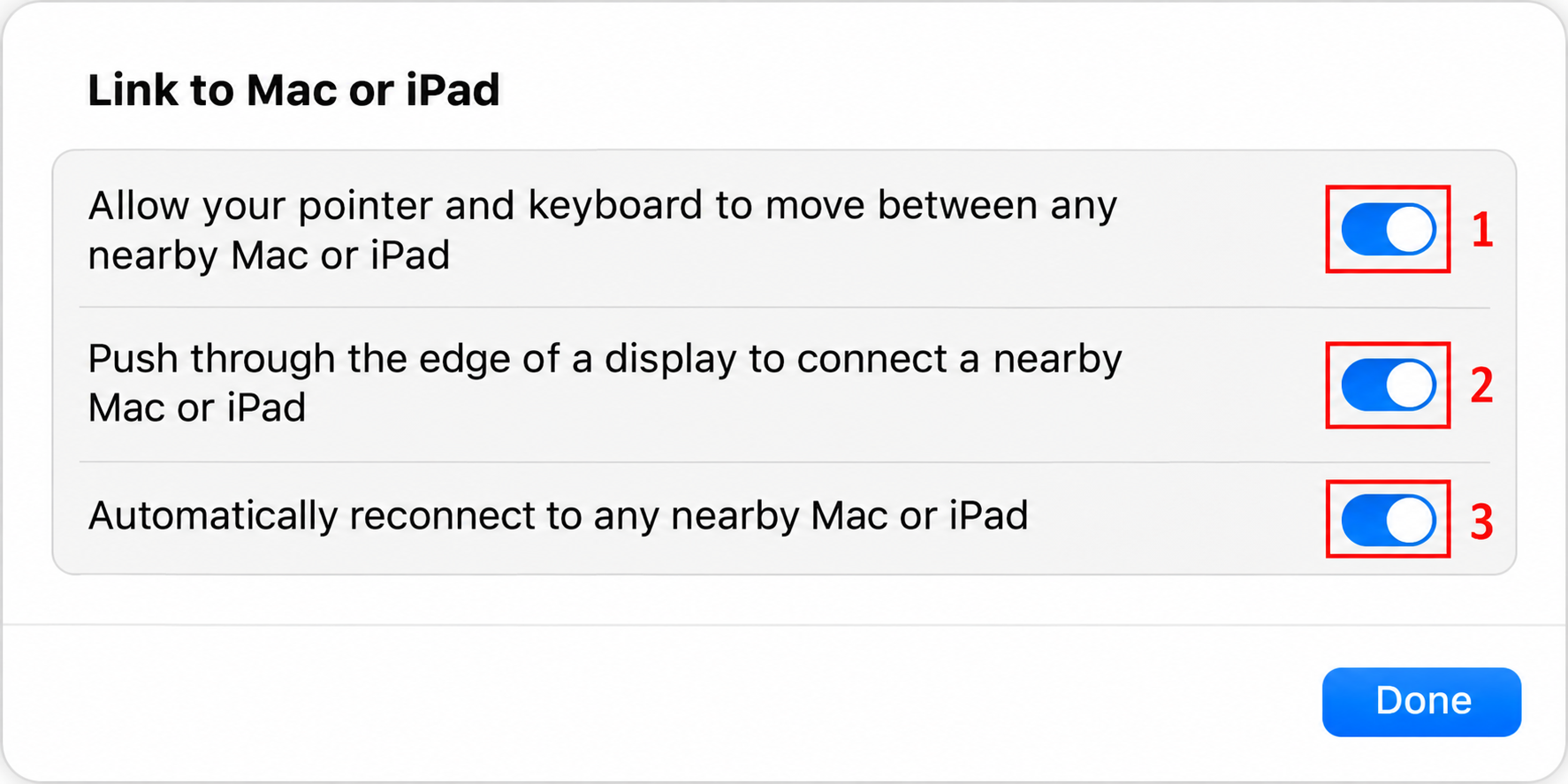
Keeping both on while you set up means fewer variables if something doesn’t work. The Disconnect section below explains when to turn them off.
Turn On Cursor and Keyboard on Your iPad
If the iPad is out of date, install the update first so it meets the iPadOS 15.4 minimum. This walkthrough shows how to check for and install an iPad software update.
- Open the Settings app on the iPad.
- Tap General.
- Tap AirPlay & Continuity. On older versions of iPadOS, this menu is called AirPlay & Handoff.
- Turn on Cursor and Keyboard.
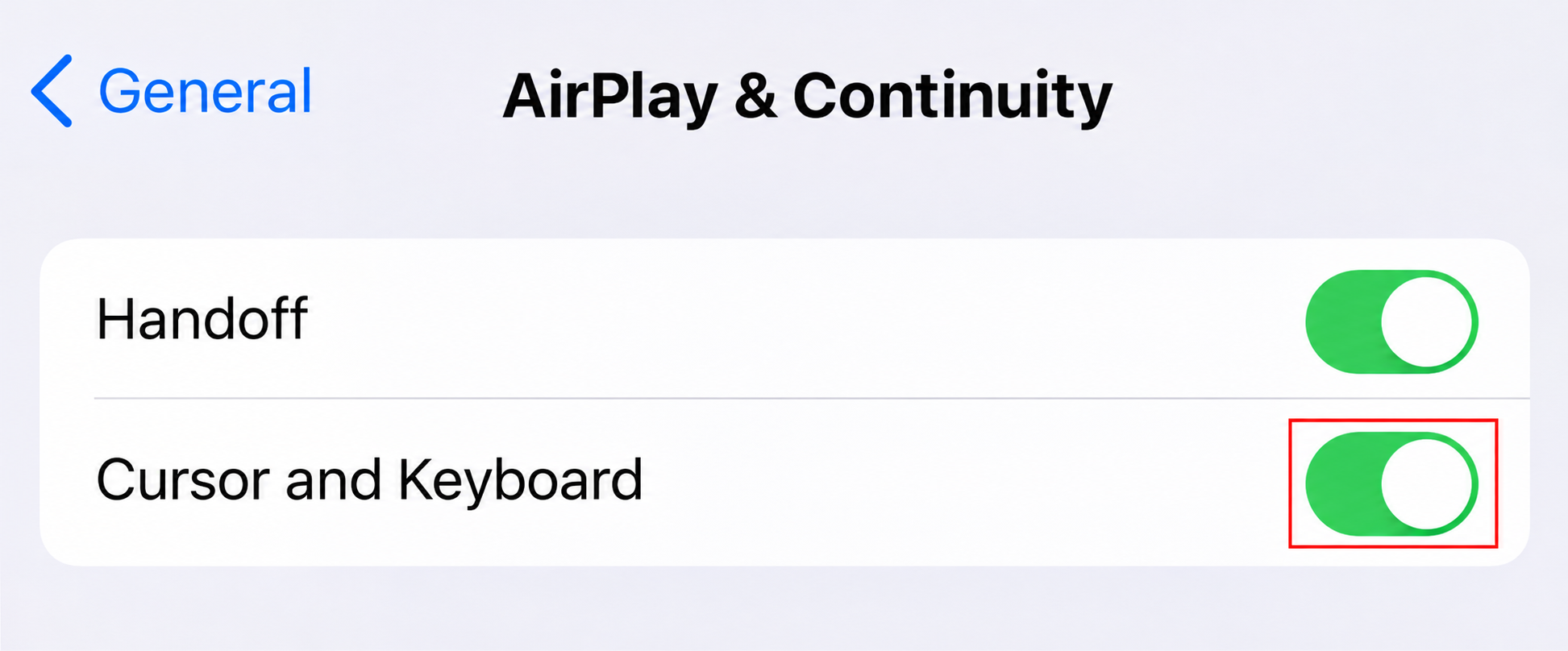
While you’re in that menu, make sure Handoff is on too, since Universal Control depends on it. If you have a second iPad or another Mac, repeat the matching steps on that device.
Connect the iPad by Pushing the Pointer Across
Once both switches are on, you connect by moving the pointer. There’s no pairing screen.
- Place the iPad near the Mac, ideally right beside it.
- Make sure both devices are awake and past the Lock Screen.
- Using the Mac’s mouse or trackpad, move the pointer past the left or right edge of the Mac screen, toward the iPad. This works even if the iPad is sitting below the Mac display; you’ll fix the direction later.
- Watch the edge of the iPad screen. It shows the pointer starting to push through.
- Keep pushing until the pointer appears fully on the iPad.
When it works, the pointer turns into a small round dot on the iPad. Your Mac keyboard now types into whatever iPad app is in front.
If pushing the pointer doesn’t work, you can connect from a menu instead. On macOS Ventura or later, open System Settings > Displays, click the add display (+) pop-up menu near the upper right, and choose your iPad under Link Keyboard and Mouse. On Monterey, click Add Display in the lower left of Displays preferences and pick the iPad. You can also click Display in Control Center on the Mac and choose the iPad from there.
Arrange Your Displays So the Pointer Goes the Right Way
By default, your Mac guesses where the iPad sits. If the iPad is actually on the left but the Mac thinks it’s on the right, you’ll keep pushing the pointer off the wrong edge. Arranging the displays fixes that.
- On your main Mac, choose Apple menu > System Settings.
- Click Displays.
- On macOS Ventura 13 or later, click Arrange.
- Drag the iPad’s picture to match where the tablet really sits: left of the Mac display, right of it, or below it. Another Mac’s display can also go above.
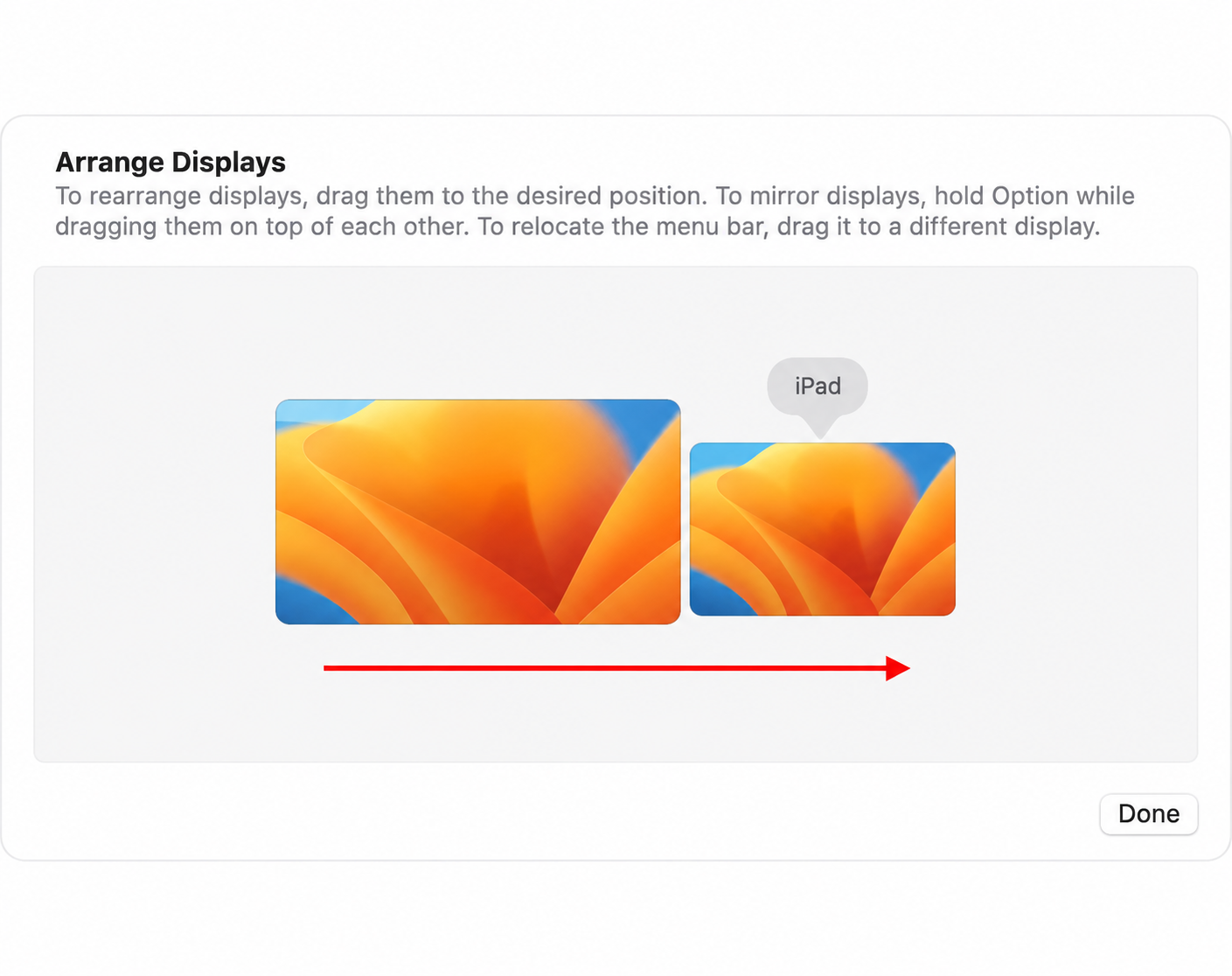
Once the picture matches your desk, the pointer leaves the Mac screen on the side that faces the iPad.
Working on the iPad With Your Mac’s Keyboard and Trackpad
The iPad treats the Mac pointer like your fingertip. A click works like a tap, and click and hold works like touch and hold. Most iPad trackpad gestures also work. A few moves are handy to learn:
| To do this on the iPad | Do this with the Mac pointer |
|---|---|
| Open the Dock | Move the pointer past the bottom of the screen |
| Go to the Home Screen | In an app, move past the bottom edge once to show the Dock, then again |
| Open the App Switcher | On the Home Screen, move past the bottom edge, then past it again |
| Open Control Center | Click the status icons in the upper right |
| Open Notification Center | Click the time and date in the upper left, or move past the top edge (unless the iPad sits below another display) |
| Search | On the Home Screen, scroll down |
Typing follows the pointer. Click into a text field on the iPad and the Mac keyboard types there. If you’d rather use the iPad’s on-screen keyboard for a moment, tap or click the keyboard icon on the iPad screen, and you can go back to the physical keyboard at any time.
Drag, Drop and Copy Between Devices
You can drag items with the mouse or trackpad from one device to another, as long as the place you drop them can accept that kind of item.
For example, open a Messages conversation on the iPad, then drag a photo from a Finder window on the Mac across the screen edge and drop it into the message field. The same idea works for files. Drag them into the Files app on the iPad, and they’re available to any iPad app that supports them. Drawings go the other way: sketch in an iPad app with Apple Pencil, then drag the result into Keynote on the Mac.
If you see a prohibitory symbol (a circle with a line through it) next to the item while dragging, that spot can’t accept it. Open an app that can take the item, or try copy and paste instead: press Command-C on one device, move the pointer to the other device, click where the item should go, and press Command-V.
Universal Control, Sidecar or iPhone Mirroring: Which One You Want
Apple has several features that sound alike. This table matches each one to the job it does.
| You want to | Use | What you see |
|---|---|---|
| Control a Mac and an iPad with one keyboard and trackpad, each running its own apps | Universal Control | Two separate screens, one pointer that moves between them |
| Use the iPad as an extra Mac screen, or mirror the Mac desktop on it | Sidecar | Mac windows on the iPad |
| Use your Mac to work with your iPhone | iPhone Mirroring | Your iPhone screen in a window on the Mac |
If you want more room for Mac windows, choose Sidecar. Universal Control never moves Mac windows onto the iPad.
Disconnect or Stop Auto-Reconnecting
You don’t need to turn the feature off to take a break from it. Any of these will disconnect a device:
- Put the iPad to sleep. Press its top button. This disconnects just that device.
- Use Control Center on the Mac. Click Display, then choose the connected iPad or Mac under Link Keyboard and Mouse to unlink it. The add display (+) pop-up menu in Displays settings does the same.
- Disconnect everything at once by pressing Control-Option-Command-Delete on the Mac keyboard.
If your Mac keeps linking to the iPad when you don’t want it to, go back to System Settings > Displays > Advanced and turn off “Automatically reconnect to any nearby Mac or iPad.” You can still connect by hand from Control Center or Displays settings. Turning off “Push through the edge of a display” works the same way: the pointer stops at the edge, but the Control Center route still works.
To turn Universal Control off completely, turn off the main “Allow your pointer and keyboard to move” setting on the Mac, or Cursor and Keyboard on the iPad.
When the Pointer Won’t Cross Over
Work down this list in order. The early checks are the quickest, and they cover most failures.
- Wake both devices. Put both to sleep, then wake them and get past the Lock Screen.
- Move them closer. Apple suggests keeping the devices within about 1 meter (3 feet) when you’re troubleshooting.
- Recheck the requirements. Both devices need the same Apple Account with two-factor authentication, Bluetooth, Wi-Fi and Handoff turned on, and no Personal Hotspot or Internet Sharing. If the iPad isn’t on a network, here’s how to join a Wi-Fi network on the iPad.
- Use the menu instead of the edge. Choose the iPad from the add display (+) menu in Displays settings (Ventura or later) or Add Display (Monterey). If the iPad isn’t listed there, the problem is the connection, not the arrangement.
- Check the arrangement. Make sure the iPad’s picture in Displays > Arrange is on the side where the tablet actually sits.
- Update both devices to the latest software available for them.
- Reset the feature. Turn off Universal Control on each device, restart each device, then turn it back on.
- Check security software. A VPN or third-party security app on either device can block the connection, and the Mac firewall must not be set to block all incoming connections.
Universal Control Questions
Can I Use Universal Control With an iPhone?
No. Universal Control works between Macs and iPads. To work with an iPhone from a Mac, Apple points you to iPhone Mirroring instead, which shows the phone’s screen in a window on the Mac.
Can I Use an iPad’s Keyboard to Control the Mac?
Apple says that once devices are connected, you can use the keyboard, mouse or trackpad of any connected device to work across all of them. So a Magic Keyboard attached to the iPad can move the pointer onto the Mac too.

Matthew Burleigh is the founder, head writer, and editor of Solve Your Tech, which he launched in 2012. He has written technology tutorials since 2008 and worked in IT since 2003, including small-business support, IT management, and consulting. He holds Bachelor’s and Master’s degrees in Computer Science from Arizona State University.
Matthew writes practical guides for Windows, iPhone and iPad, Microsoft Office, Outlook, Google apps, and Android. Solve Your Tech’s guides are checked step by step against the device or app maker’s own documentation and tested on his own devices whenever he has the hardware or software, with clear steps, sources, and update dates.
Read more about Matthew and how Solve Your Tech writes and updates its guides, or report a correction.