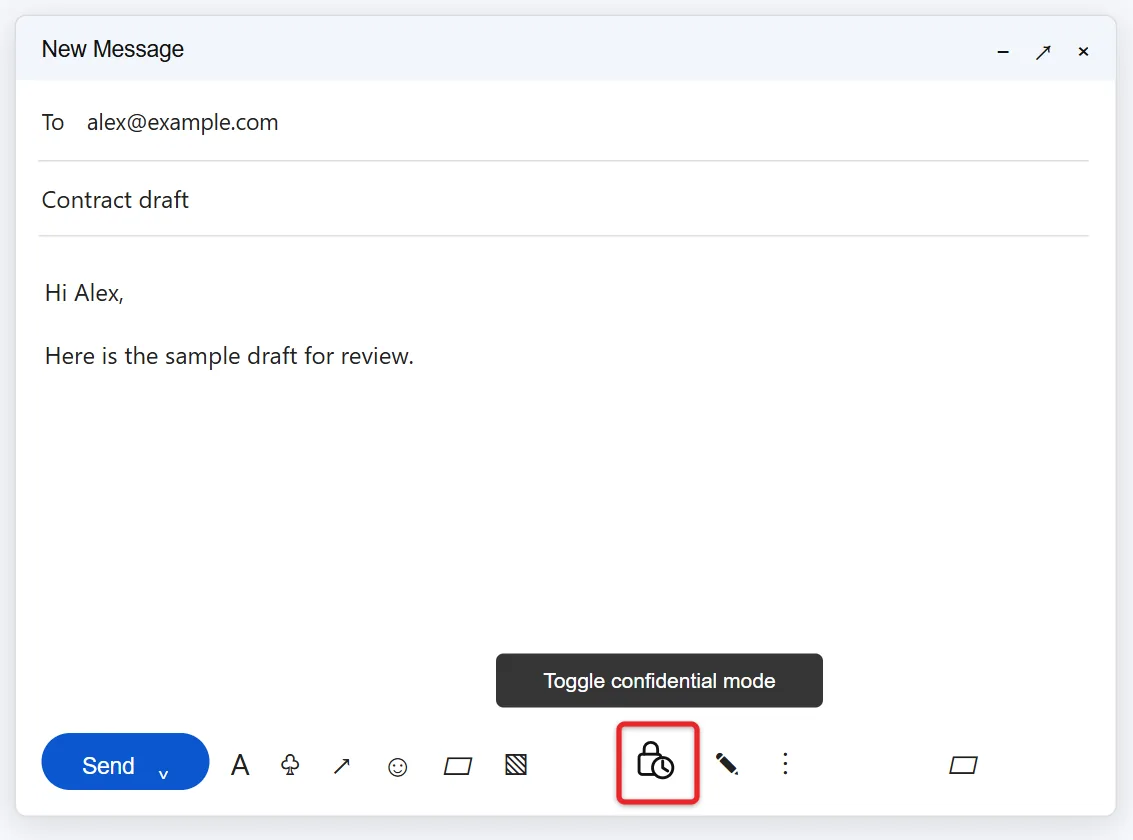
To send a confidential email in Gmail, click Compose, click the lock-and-clock icon (Toggle confidential mode) at the bottom of the new message, pick an expiration date, choose No SMS passcode or SMS passcode, click Save, and then send the email as usual. In the Gmail app, tap Compose, tap the three-dot More menu, tap Confidential mode, turn on the switch, and tap Save.
These steps cover Gmail in a web browser on a computer and the Gmail app for Android, iPhone, and iPad, for both personal Gmail accounts and work or school Google accounts. They follow Google’s Send and open confidential emails help page. Further down you’ll find what your recipient sees, how to cut off access early, and what confidential mode can’t protect.
What Confidential Mode Does (and Doesn’t Do)
Confidential mode is a set of access controls you attach to one email. It is built into every Gmail account at no extra cost, and nothing needs to be installed. When it’s on, you can:
- Set an expiration date. After that date, the recipient can no longer open the message or its attachments.
- Remove access at any time. You can cut someone off before the expiration date arrives.
- Turn off forwarding, copying, printing, and downloading. The recipient doesn’t get those options for the message text or the attachments.
- Require a passcode. You can have Google text a one-time code to the recipient’s phone before the email opens.
It helps to know how this works behind the scenes. Google’s admin documentation explains that Gmail strips the body and attachments out of the recipient’s copy and replaces them with a link to the content, which stays on Google’s servers. Only the subject line and that link actually travel to the other person’s mail server. That’s why you can pull access back later: the recipient never had a real copy.
That design also explains the limits. Confidential mode stops accidental sharing, not determined copying. A recipient can still take a screenshot or a photo of the screen, and Google warns that someone with malicious software may still be able to copy or download the content. It is also not end-to-end encryption, a point covered in more detail below. Treat it as a “please don’t pass this around” lock, not a vault.
How to Send a Confidential Email on a Computer
Use these steps in Gmail in any web browser, such as Chrome, Edge, Safari, or Firefox.
- Go to Gmail and sign in.
- Click Compose at the top left. A New Message window opens.
- Add the recipient, a subject, and your message. You can also attach files now. Keep sensitive details out of the subject line, because the subject is not protected.
- At the bottom of the window, next to the formatting and attachment buttons, click Toggle confidential mode. The icon shows a padlock with a small clock. If your window is narrow and you don’t see it, click More options (the three dots) to find it.
- In the Confidential mode box, open the Set expiration menu and choose how long the email stays available. The menu offers 1 day, 1 week, 1 month, 3 months, or 5 years, and the exact end date appears beside your choice.
- Under Require passcode, choose No SMS passcode or SMS passcode. The next section explains the difference.
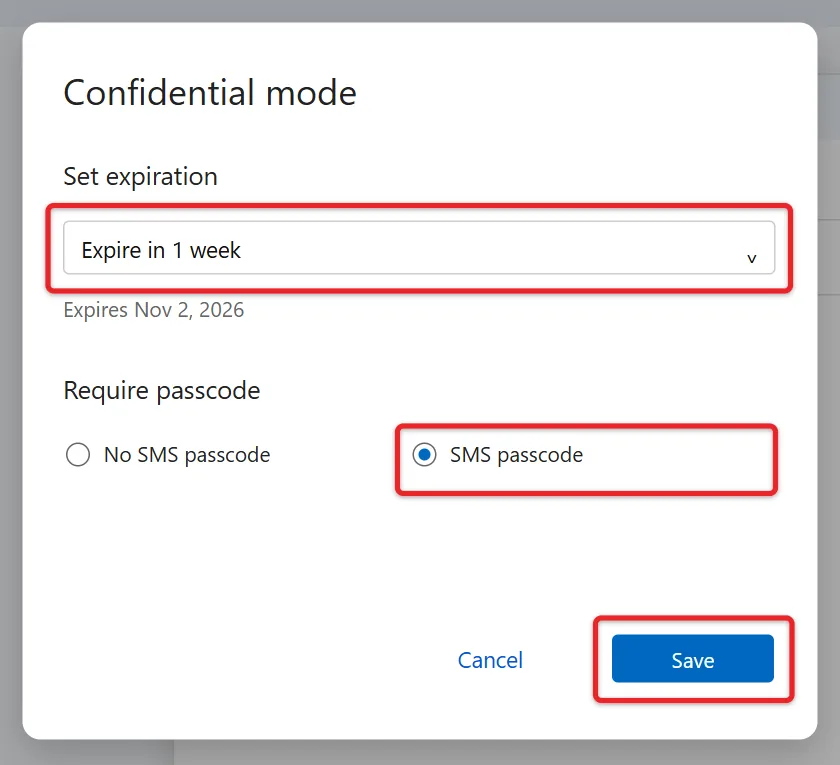
- Click Save. A gray notice appears at the bottom of your draft showing that the content expires on the date you picked.
- Click Send. If you chose SMS passcode, Gmail asks you to confirm each recipient’s phone number first. Pick the country code, type the number, and click Send again.
To change the settings before you send, click Edit in the notice at the bottom of the draft. To turn confidential mode off completely, click the Toggle confidential mode icon again.
No SMS passcode vs. SMS passcode
The passcode setting decides how much proof the recipient needs before the email opens. It applies to the message text and every attachment.
- No SMS passcode (called Standard in the Gmail app): Recipients who use Gmail open the email directly, the same way they open anything else. Recipients on Outlook, Yahoo, Apple iCloud, or another service get a separate email with a passcode.
- SMS passcode: Every recipient gets the code by text message, whether or not they use Gmail. This is the stronger choice, because someone who gets into the recipient’s inbox still needs their phone. You must know each recipient’s mobile number, and Google warns not to enter your own.
SMS passcodes only work for phone numbers in North America, South America, Europe, Australia, India, Korea, and Japan. If your recipient’s number is somewhere else, use No SMS passcode instead. Double-check the number before you click Send. A wrong digit means the code goes to a stranger, or to nobody, and your recipient is locked out.
How to Turn On Confidential Mode in the Gmail App
The Gmail app for Android and the Gmail app for iPhone and iPad use nearly the same steps. The main differences are the shape of the More icon and where the Save button sits. If you read Gmail in Apple’s Mail app instead of the Gmail app, confidential mode isn’t available there, so install the free Gmail app from the App Store.
On an Android phone or tablet
- Open the Gmail app and tap Compose (the pencil button at the bottom right).
- Tap More (three vertical dots) at the top right, then tap Confidential mode.
- Turn on the Confidential mode switch.
- Choose an expiration time and pick Standard or SMS passcode.
- Tap Save.
- Write your email and tap Send (the paper airplane). If you chose SMS passcode, enter each recipient’s phone number when the app asks.
On an iPhone or iPad
- Open the Gmail app and tap Compose at the bottom right.
- Tap More options (three horizontal dots) at the top right, then tap Confidential mode.
- Turn on the Confidential mode switch.
- Under Set expiration, tap the menu and pick a timeframe.
- Under Require passcode, choose Standard or SMS passcode.
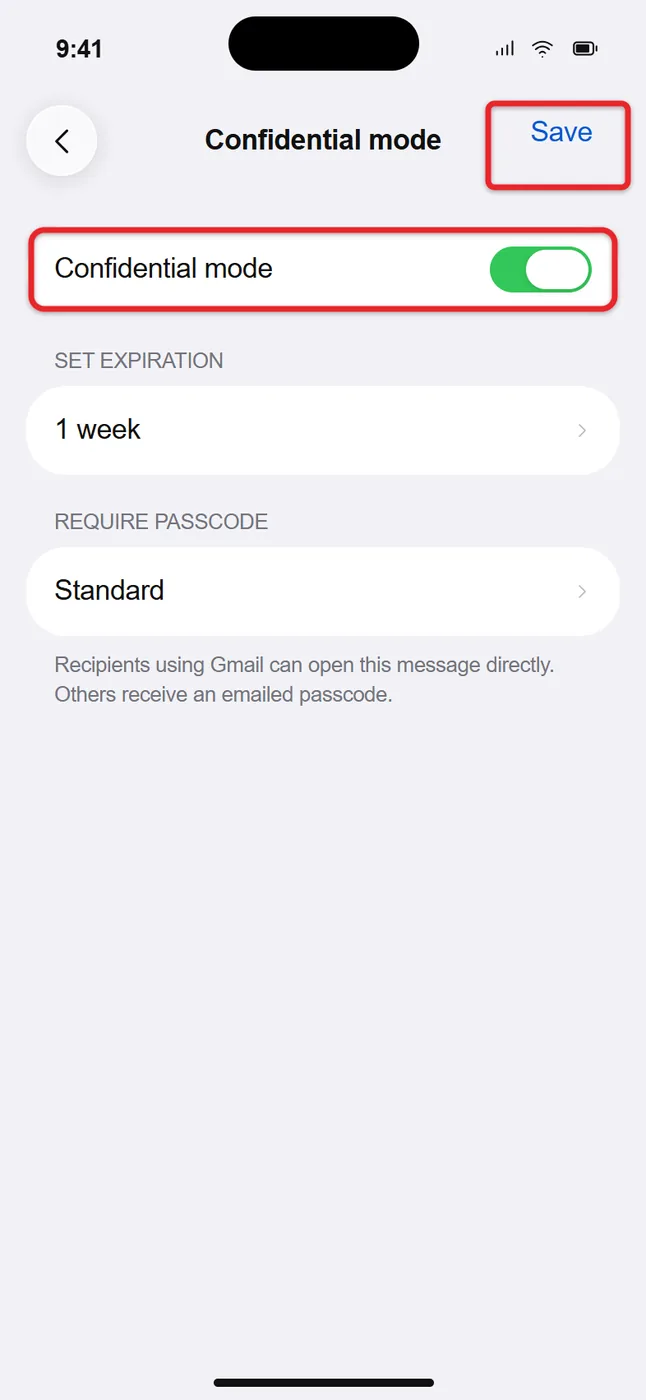
- Tap Save at the top right.
- Finish the email and tap Send.
On either app, a notice at the bottom of the draft confirms that confidential mode is on. Tap Edit there if you want to change the expiration or passcode before sending. These steps match the current Gmail app on iOS 27 and recent Android versions; if your menu looks different, update the Gmail app from the App Store or Google Play.
Remove Access Before the Expiration Date
Sent the wrong attachment, or the deal fell through? You can shut off access to a confidential email at any time, even after the person has read it. This only works for emails sent with confidential mode turned on. For a regular email, your only option is the few seconds Gmail gives you to undo a sent email in Gmail.
On a computer:
- Open Gmail and click Sent in the left panel.
- Open the confidential email.
- Click Remove access in the gray confidential mode box below the message.
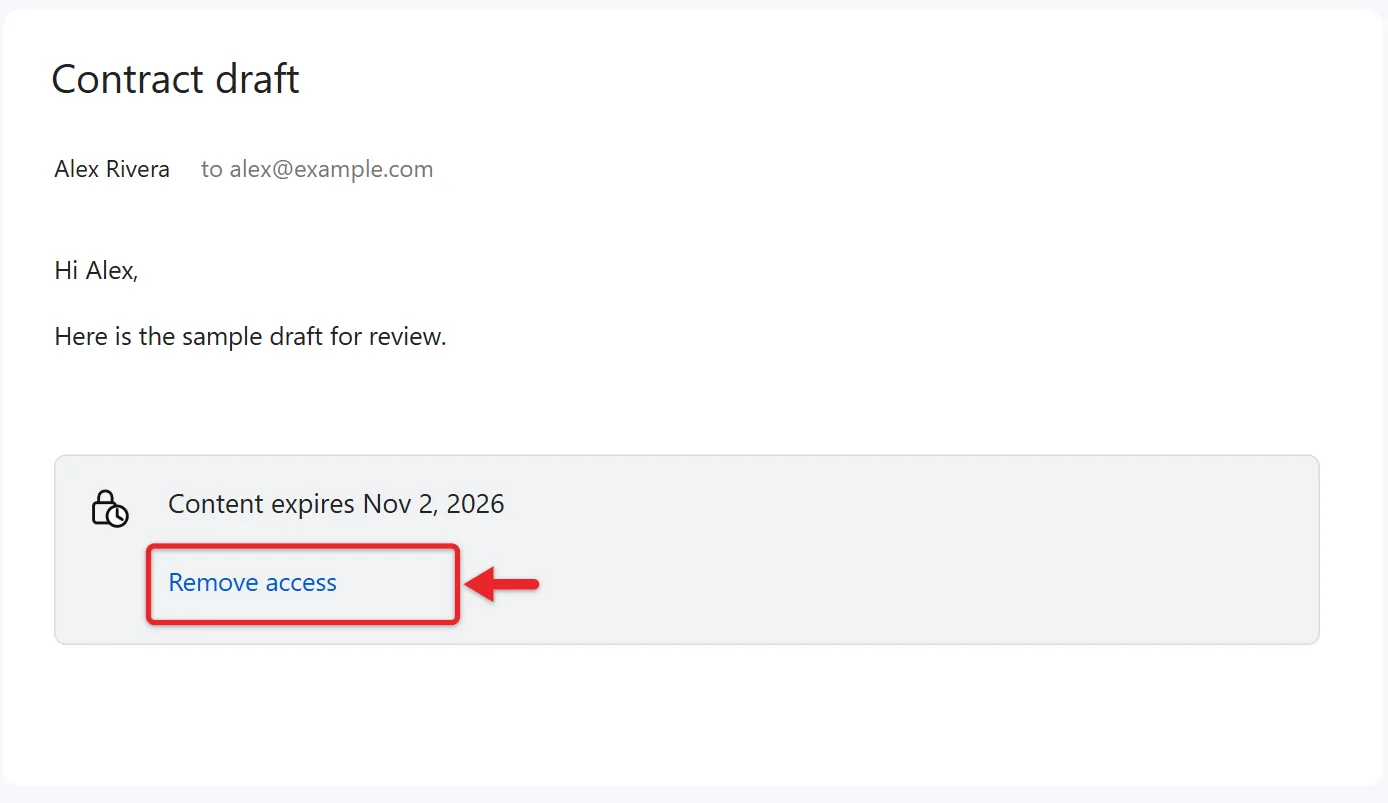
In the Gmail app: tap Menu (three lines) at the top left, tap Sent, open the email, and tap Remove access at the bottom of the screen.
The recipient keeps the email in their inbox, but the body and attachments no longer load. When they try to open it, they see that the email has expired. Google’s help pages don’t describe a way to undo this, so if you change your mind, send a new confidential email. Keep in mind that removing access can’t erase anything the person already photographed or wrote down.
What the Recipient Sees
Confidential emails work with any email address, not only Gmail. The experience depends on what the recipient uses.
- Gmail on the web or the Gmail app: The email appears in the inbox like any other, with a note that it’s confidential and when it expires. Forwarding, printing, copying, and attachment downloads are turned off.
- Outlook, Yahoo, Apple Mail, or another email service: The message contains only the subject and a link labeled View the email. The actual content opens in a web browser after the recipient gets a passcode.
- A Gmail address read in another app, such as Outlook or Apple Mail: The recipient also sees the link and signs in with their Google Account to view the content.
It’s a good idea to warn people outside Gmail that a confidential email is coming. A message that contains only a link and a request for a code can look like phishing, and some people will delete it without clicking.
How to Open a Confidential Email Someone Sent You
If you use Gmail:
- Open the email from your inbox.
- If the sender didn’t require an SMS passcode, the message opens right away.
- If a passcode is required, click or tap Send passcode, check your phone for the text message, type the code into Gmail, and select Submit.
If you use another email service:
- Open the email and select View the email. A Google page opens in your browser.
- Select Send passcode.
- Look for the code in a text message or in a new email, depending on how the sender set it up.
- Enter the code and select Submit. The message and any attachments appear in the browser window.
You can read the email and preview attachments until the expiration date or until the sender removes access. Copy, paste, download, print, and forward are turned off, so if you need to keep something, ask the sender to share it another way. If you see “Email has expired,” the date passed, the sender removed access, or they deleted the message. Contact the sender and ask for more time or a new copy. If the email won’t open at all, make sure you’re signed in to the Google Account that matches the address it was sent to.
Limitations to Know Before You Rely on It
- Screenshots and photos still work. Nothing stops a recipient from capturing the screen or pointing a second phone at it.
- It is not end-to-end encryption. Google stores the content on its servers and can technically access it. Gmail uses standard TLS encryption to protect messages in transit, but that is the same protection regular Gmail messages get.
- Attachments can be viewed but not downloaded. That’s great for a contract you only want read, but frustrating for a form the person has to fill out and return. For files someone needs to edit, a shared Google Drive link with view or edit permissions is often the better choice.
- The subject line isn’t protected. It travels with the link in a normal email, so keep account numbers, names, and other details out of it.
- You can’t schedule it. Google’s admin documentation notes that confidential messages can’t be scheduled for later sending, so Schedule send won’t be offered.
- The passcode is only as safe as the phone number. SMS codes go to whatever number you type, and they only work in the regions listed above.
- It doesn’t follow the email into other systems. Some work archiving tools and other email programs show only the link, which can cause trouble for records your company is required to keep.
For things like passwords or bank details, confidential mode is better than a plain email but still not ideal. The safest habit is to send the sensitive piece another way, such as reading it over the phone, and change any password that was ever shared by email.
Work and School Accounts: When the Option Is Missing
If you use Gmail through an employer or school (a Google Workspace account) and the lock-and-clock icon isn’t there, your administrator has probably turned confidential mode off. Google lets administrators enable or disable it for the whole organization or only for certain groups, from Apps > Google Workspace > Gmail > User settings in the Admin console. Changes can take up to 24 hours to reach everyone, as described in Google’s confidential mode guide for administrators.
Administrators can also set rules that hold or block incoming confidential emails, so a message sent to a company address might not arrive. If you’re the sender and get a bounce, ask the recipient to check with their IT team or give you a personal address. If you’re the employee, ask IT whether your organization offers another secure option, such as client-side encryption.
If the icon is missing on a personal account, check that you’re in a new message, reply, or forward window rather than the inbox, widen the browser window, and try a different browser. In the app, update Gmail to the latest version.
Confidential Mode vs. Client-Side Encryption
People often confuse confidential mode with real encryption because both come up under “secure email” in Gmail. They solve different problems. Confidential mode controls what the recipient can do with a message. Client-side encryption (Google labels it Additional encryption) scrambles the message in your browser before Google ever stores it, so the content can’t be read without keys your organization manages. Google’s Gmail client-side encryption page states that Google never accesses the private keys or the decrypted content.
| Feature | Confidential mode | Client-side encryption |
|---|---|---|
| Who can use it | Any Gmail account, unless a Workspace admin turns it off | Only certain Workspace editions (Enterprise Plus, Education Plus, Education Standard, Frontline Plus), set up by an admin |
| What it protects | Blocks forwarding, copying, printing, and downloading; adds expiration and passcodes | Encrypts the body, inline images, and attachments before they reach Google |
| Can Google read it? | Yes, the content sits on Google’s servers | No, according to Google |
| Revoke after sending | Yes, with Remove access | No |
| How to turn it on | Lock-and-clock icon at the bottom of a new message | Message security icon at the top right of a new message, then Turn on under Additional encryption |
You can’t use both on one email. Google lists confidential mode among the features that aren’t available once additional encryption is on, and switching additional encryption on while drafting deletes your current draft and starts a new one, so choose before you write. The subject line, recipients, and timestamps aren’t encrypted with either method. Gmail’s lock icon next to the recipients shows which level of encryption a message will get; Google’s Check your email security page explains each icon.
If you also send sensitive mail from a Microsoft account, Outlook takes a different approach with its Encrypt and Do Not Forward options. Here’s how to encrypt an email in Outlook.
Common Questions About Gmail Confidential Mode
Can I pick a custom expiration date?
No. The menu only offers set lengths, from 1 day up to 5 years. If you need access to end on a specific day, pick the next longest option and use Remove access on that day.
Will the recipient know I removed access?
Google’s help pages don’t mention any alert to the recipient. They find out the next time they try to open the email, when the content no longer loads and an expired message appears instead.
Does confidential mode tell me if the email was opened?
No. Confidential mode has no read receipts or view tracking. Read receipts are a separate feature that only some work and school accounts have.
Can the recipient reply to a confidential email?
Yes. Google disables forwarding, copying, printing, and downloading, but not replying. Their reply is a regular email unless they turn on confidential mode for it too, so ask them to do that if the reply will contain sensitive details.
Does my email signature still show up?
Yes. Your signature is part of the message body, so it’s protected along with everything else and disappears for the recipient when access ends. If you haven’t set one up, here’s how to create a signature in Gmail.
I keep getting confidential emails I don’t want. Can I stop them?
Treat them like any unwanted mail. Be extra careful with unexpected “View the email” links from strangers, since scammers copy that look. For a real sender you no longer want to hear from, you can block someone’s email address in Gmail.
Try it first with a test message to your own second address, or to a friend on a different email service, so you know exactly what your recipients will see before you send something that matters.

Matthew Burleigh is the founder, head writer, and editor of Solve Your Tech, which he launched in 2012. He has written technology tutorials since 2008 and worked in IT since 2003, including small-business support, IT management, and consulting. He holds Bachelor’s and Master’s degrees in Computer Science from Arizona State University.
Matthew writes practical guides for Windows, iPhone and iPad, Microsoft Office, Outlook, Google apps, and Android. Solve Your Tech’s guides are checked step by step against the device or app maker’s own documentation and tested on his own devices whenever he has the hardware or software, with clear steps, sources, and update dates.
Read more about Matthew and how Solve Your Tech writes and updates its guides, or report a correction.