To make a tab group in Google Chrome, right-click a tab, choose Add tab to group > New group, type a name, pick a color, and press Enter. Drag more tabs into the colored group, and click the group’s label any time you want to fold those tabs out of the way.
These steps follow the current desktop release of Chrome for Windows, Mac, Linux and ChromeOS (Chrome 156, with Chrome 157 starting to roll out in late October 2026) and the current Chrome apps for Android and iPhone or iPad. The phone apps use different menus, so they get their own sections further down.
What a tab group actually does
A tab group is a set of tabs that Chrome keeps together under one colored label on the tab strip (the row of tabs across the top of the window). The label sits to the left of the group’s tabs and shows either the name you typed or, if you skipped the name, just a colored circle. Every tab in the group gets a thin line in the same color, so you can see where one group ends and the next begins.
Grouping is mostly about clutter. Thirty open tabs spread across a work project, a trip and some shopping can shrink to three labels. Groups can also be saved and reopened later, and when Chrome sync is on, they follow you to your other computers and phones.
You don’t need to turn anything on first. Tab groups are built into Chrome. If a menu option below is missing, your copy of Chrome is probably out of date, and our guide on how to update Google Chrome walks through the fix.
Create a tab group on your computer
- Open Chrome and open the pages you want to group, for example a few recipe sites for this week’s meals.
- Right-click one of those tabs. On a Mac without a right-click button, hold Control and click the tab.
- Point to Add tab to group, then select New group. If you have no groups yet, the menu may show Add tab to new group instead.
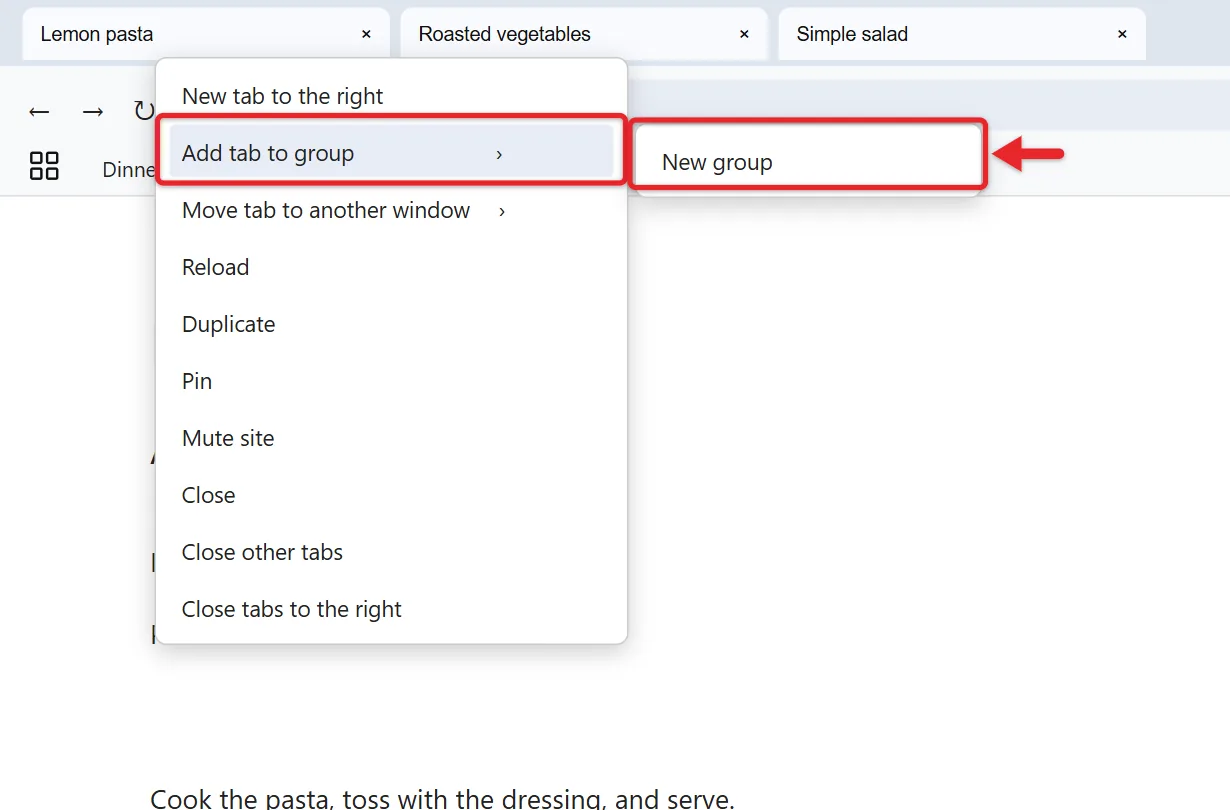
- A small box opens next to the tab. Type a short name such as Dinner.
- Click one of the colored circles in the same box to choose a color.
- Press Enter or click anywhere outside the box. The tab now has a colored label to its left.
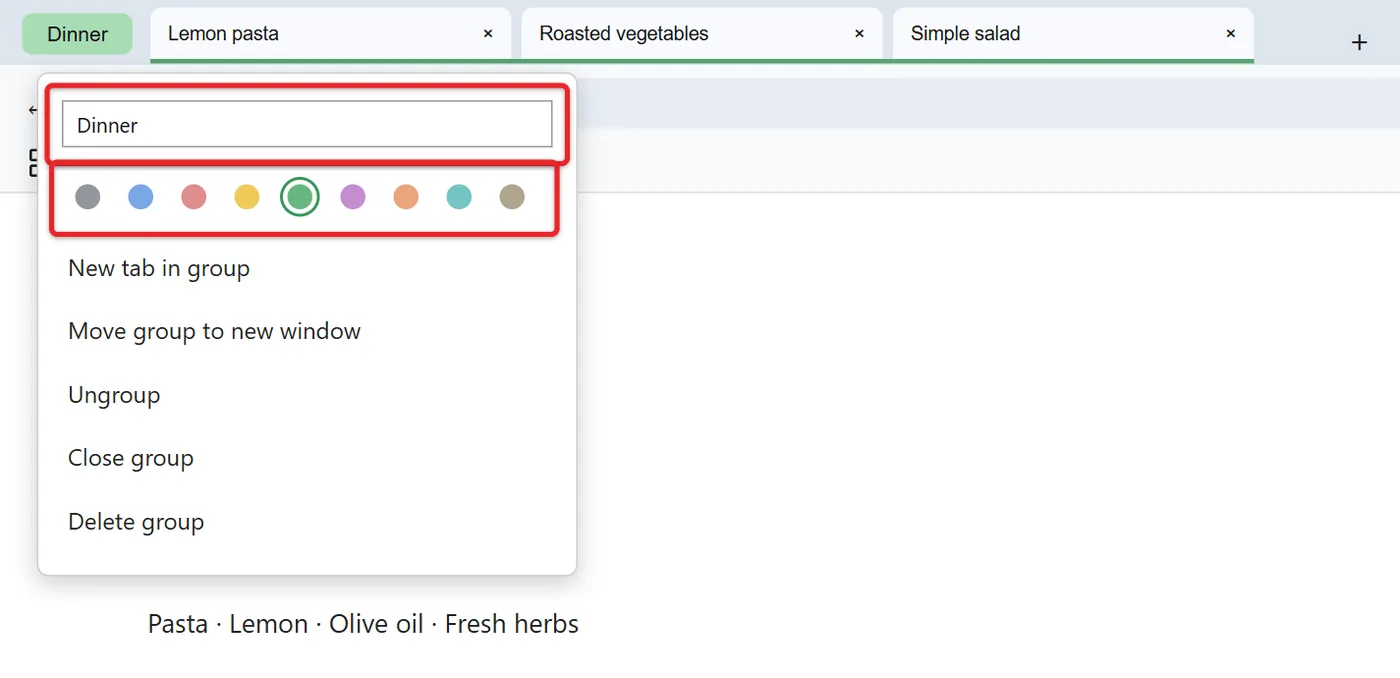
Naming is optional, but an unnamed group is just a colored dot, and once you have three or four of them they are hard to tell apart. Short names leave more room for the tabs themselves. Some people use a single emoji as the whole name.
Group several tabs in one move
Chrome lets you highlight more than one tab before you open the right-click menu:
- Specific tabs: hold Ctrl (Command on a Mac) and click each tab you want.
- A run of tabs side by side: click the first tab, hold Shift, and click the last one.
Then right-click any highlighted tab and choose Add tabs to group > New group. All of them land in the same group at once. The same highlighted selection also works for moving, pinning, muting or closing tabs together.
Name it, recolor it, and collapse it
Right-click the group’s label (the name or colored circle at its left edge) to reopen the edit box. From there you can:
- Rename the group by typing over the old name.
- Pick a new color. Chrome offers nine: grey, blue, red, yellow, green, pink, purple, cyan and orange.
- Choose New tab in group to open a blank tab that already belongs to the group.
- Reach Move group to new window, Ungroup, Close group and Delete group, which are covered below.
To collapse a group, click its label once with the left mouse button. The tabs disappear from the strip and only the label stays visible. Click the label again to expand it. Collapsing does not close or reload anything. The pages stay open in the background, so a video or a half-filled form in a collapsed tab is still there when you expand it. Hovering over a collapsed label shows a quick preview of the tabs inside.
A tip for color choices: give each color a fixed meaning across all your groups, such as blue for work and green for personal. After a week or so you stop reading the names and just look for the color.
Add, remove and rearrange tabs
- Add a tab: drag it into the group until the group’s color surrounds it, then let go. Or right-click the tab, choose Add tab to group, and pick the group by name.
- Remove a tab but keep it open: right-click the tab and select Remove from group. Dragging it out past the end of the group works too.
- Remove a tab and close it: click the tab’s X as usual. The rest of the group stays put.
- Move a tab to a different group: drag it into the other group, or use Add tab to group and pick the new name.
- Reorder whole groups: drag a group’s label left or right along the tab strip. All of its tabs move with it.
Chrome has no way to put one group inside another, and there is no merge button. To combine two groups, drag the tabs from one into the other and then delete or ungroup the empty one.
Move a group into its own window
When one project takes over your screen, give it a window of its own. Right-click the group’s label and select Move group to new window. Chrome opens a new window holding just that group, still named and colored.
If you would rather send tabs to a window that’s already open, highlight them with Ctrl-click, right-click one of them, and choose Move tabs to another window. Only windows using the same Chrome profile appear in that list. Chrome also lets you name a window (right-click the empty space beside the tabs and pick Name window), which helps when you switch between windows with Alt + Tab.
Save a group and open it again later
In current Chrome, closing a group is how you save it. There’s no separate save switch anymore. Older guides that tell you to turn on a “Tab Groups Save” flag in chrome://flags describe a test version of this feature that has since been built in.
- Right-click the group’s label.
- Select Close group. The tabs close, and Chrome keeps the group with its name, color and pages.
- To bring it back, click the grid icon at the left of the bookmarks bar and choose the group name, or open the three-dot More menu at the top right, choose Tab groups, and pick the group.
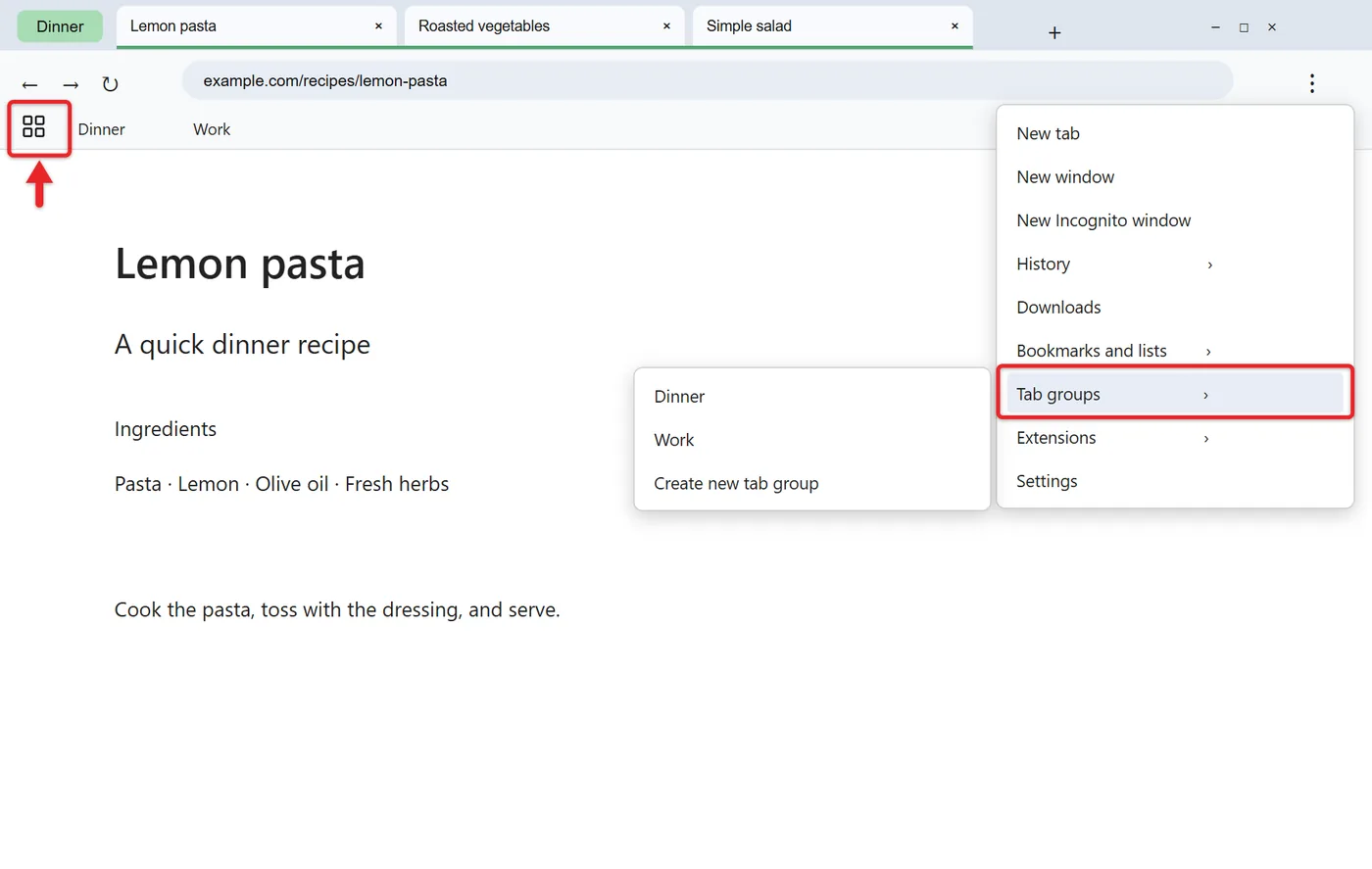
When you reopen a saved group, every page in it loads again. If the grid icon isn’t on your bookmarks bar, go to More > Settings > Appearance and look for these switches:
- Show tab groups in bookmarks bar puts your saved groups on the bar.
- Automatically pin new tab groups to the bookmarks bar adds each new group there by itself, including groups you create on your other devices.
- Show saved tab groups puts back the tab groups button if you unpinned it.
If the bookmarks bar itself is hidden, press Ctrl + Shift + B (Command + Shift + B on a Mac) to show it.
How sync fits in
Google’s Manage tabs in Chrome help page says that when your browsing history and tabs sync with your Google Account, changes to tab groups are saved and synced across your devices automatically. So a group you close on your laptop can be reopened from Chrome on your phone, and the reverse.
Groups belong to a Chrome profile, the same way bookmarks do. A group made in a work profile won’t show up in your personal one. If you juggle several people or accounts on one computer, our guide on adding a new user profile in Google Chrome explains how profiles keep that data apart.
One more distinction: saved tab groups are not bookmarks. They don’t appear in the Bookmark Manager and aren’t included when you export bookmarks. If a set of pages really matters, also press Ctrl + Shift + D (Command + Shift + D on a Mac) to bookmark all open tabs into a folder. Our article on where Chrome bookmarks are stored covers how to back that folder up.
Close, ungroup or delete: pick the right one
These three options sit next to each other in the group menu, and choosing the wrong one is the most common way people lose a group. Read this before you click.
| Option | What happens to the tabs | What happens to the group |
|---|---|---|
| Close group | They close | Saved, ready to reopen from the bookmarks bar or More > Tab groups |
| Ungroup | They stay open as ordinary tabs | Deleted on this device and on every device signed in to the same Google Account |
| Delete group | They close | Deleted on this device and on every device signed in to the same Google Account |
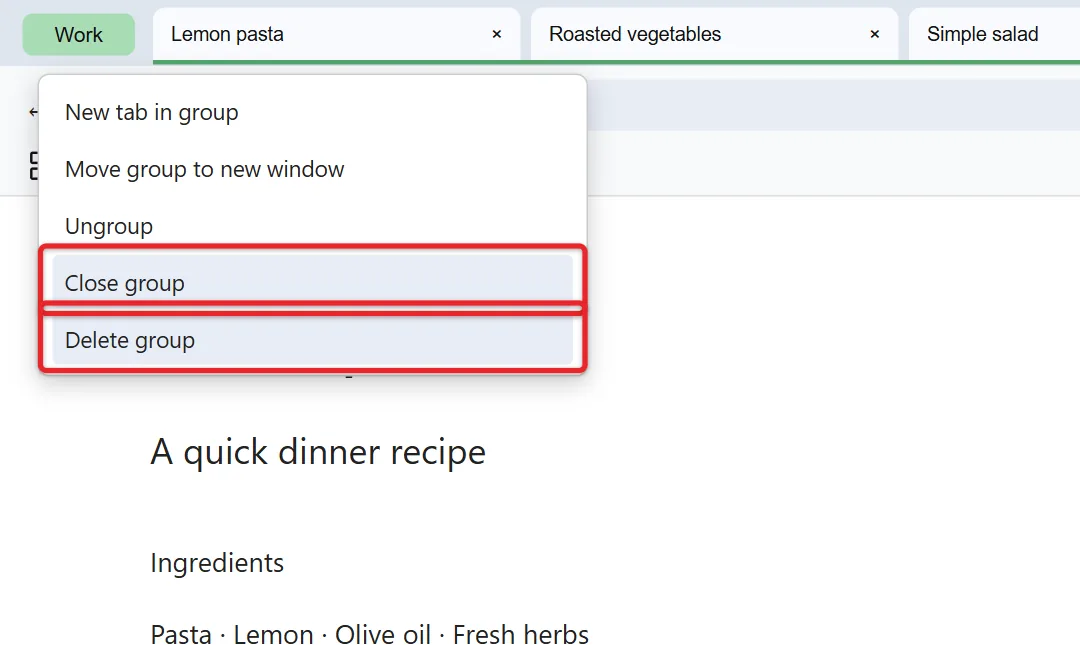
Both Ungroup and Delete group ask you to confirm first. You can also delete a saved group without reopening it: click the grid icon on the bookmarks bar, choose the group, and select Delete group, or right-click it in More > Tab groups.
If you delete a group by mistake, press Ctrl + Shift + T (Command + Shift + T on a Mac) right away. That shortcut reopens recently closed tabs, which can bring the pages back even though the saved group itself is gone. Our guide to reopening a closed tab in Chrome lists the other ways to find recently closed pages, including History.
Keyboard tips for tab groups
Chrome has no single shortcut that creates a group, but Google’s page on using tab groups with your keyboard shows how to reach every group command without a mouse. On Windows:
- Press F6 until focus moves to the tab strip.
- Press Tab or Shift + Tab to land on the tab you want.
- Press the Menu key (the key with a small list icon, often near the right Ctrl key) to open the tab menu. Shift + F10 does the same job on keyboards without that key.
- Use the arrow keys to reach Add tab to new group, press Enter, type a name, and press Enter again.
| Task | Windows and Linux | Mac |
|---|---|---|
| Collapse or expand a group (focus on its label) | Space or Enter | Space or Enter |
| Move the focused tab or group left or right | Ctrl + Left or Right arrow | Ctrl + Left or Right arrow |
| Search all open tabs, including grouped ones | Ctrl + Shift + A | Command + Shift + A |
| Reopen recently closed tabs | Ctrl + Shift + T | Command + Shift + T |
| Bookmark all open tabs into a folder | Ctrl + Shift + D | Command + Shift + D |
| Jump to tab 1 through 8 by position | Ctrl + 1 to 8 | Command + 1 to 8 |
On ChromeOS, Google lists Ctrl + Tab to move to the tabs, Ctrl + Back or Ctrl + Forward to pick one, and Search (or Launcher) + Shift + Increase volume to open the menu. On a Mac, keyboard-only access to the group menu goes through VoiceOver.
Tab groups in Chrome for Android
On Android, groups live in the tab switcher (tap the square tab-count icon next to the address bar). A group appears there as a single card.
- Open the tab switcher.
- Touch and hold a tab, drag it on top of another tab, and let go.
- Type a name, tap a color, and tap Done.
Other ways to build and manage groups on Android:
- Group several tabs: touch and hold a tab (or tap More), tap Select tabs, check the tabs, then tap More > Group tabs.
- Open a link straight into a group: touch and hold the link and tap Open in new tab in group.
- Add the tab you’re viewing: tap More > Add tab to group and pick a group.
- Remove a tab: open the group, touch and hold the tab, and drag it to the Remove from group area at the bottom of the screen.
- Rename or recolor: open the group, tap its title to rename it, or tap the color dot to the left of the name.
- Close and reopen: touch and hold the group card and tap Close group. To reopen it, tap Tab groups in the switcher and choose the name.
Delete group and Ungroup tabs remove the group from all your synced devices, just as on a computer. Our guide to closing tabs on Android covers what happens to groups when you clear everything at once. If groups from your computer keep appearing on your phone and you’d rather they didn’t, go to Settings > Tabs and tab groups and turn off Automatically open tab groups from other devices.
Tab groups in Chrome for iPhone and iPad
- Tap the tab-count icon to open the tab grid.
- Touch and hold a tab and tap Add Tab to New Group.
- Enter a name, choose a color if you like, and tap Create Group.
- Several tabs at once: in the tab grid, tap More, select the tabs, tap Add To…, then choose Add Tabs to New Group or Add Tabs to Group.
- Drag to combine: touch and hold an ungrouped tab and drag it onto another tab or into a group.
- Rename: touch and hold the group and tap Edit Group.
- Remove a tab: open the group, touch and hold the tab, tap Move to Tab Group, then Remove from Group.
- Close or delete: tap Close at the top right of an open group to save it, or touch and hold the group and tap Delete Group to remove it.
- Reopen: in the tab grid, look under Tab Groups and tap the name. The search button at the top left also finds groups by name.
The same Settings > Tabs and tab groups switch for groups from other devices exists on iPhone and iPad.
Can Chrome sort tabs into groups for you?
Chrome used to offer an AI feature called Tab organizer. It appeared as Organize tabs in the Tab Search menu (the small down arrow or magnifying glass at the edge of the tab strip) and suggested groups based on what your pages were about. It was never offered in every country or on every account, and as of late October 2026 Google’s help page for it just sends you back to the main Chrome Help page, so it may no longer be offered at all.
Open Tab Search with Ctrl + Shift + A and look for the option. If it’s there, select it, review the groups it suggests, and rename or reject them before accepting. If it isn’t, your copy of Chrome doesn’t include it, and manual grouping with Ctrl-click is the fastest way to sort a pile of tabs. Chrome’s newer AI Mode can answer questions about your open tabs, but it doesn’t create tab groups.
If your groups don’t behave as expected
- The group menu options are missing: update Chrome and restart it. On a work or school computer, your organization may manage Chrome and limit some features.
- A closed group isn’t on the bookmarks bar: turn on Show tab groups in bookmarks bar under Settings > Appearance, or use More > Tab groups, which lists every saved group.
- Groups don’t show up on your other device: confirm both devices are signed in to the same Google Account, that sync isn’t paused, and that you’re in the same Chrome profile.
- A group you ungrouped vanished from your phone too: that’s expected. Ungroup deletes the group on every synced device while leaving the tabs open on the one you used.
- Groups keep opening on your phone after you made them on a computer: that’s the Automatically open tab groups from other devices switch under Settings > Tabs and tab groups in the Android and iPhone apps. Turn it off if you only want groups on the device where you made them.
- Clicking the label hides your tabs: you collapsed the group. Click the label again to expand it.
Tab group questions, answered
Do tab groups survive closing Chrome completely?
If Chrome is set to continue where you left off (Settings > On startup), your open groups come back with your other tabs. Closed groups are saved separately and stay available from the Tab groups menu no matter how Chrome starts.
Can I share a tab group with someone else?
Google’s help pages describe sharing individual tabs, not whole groups. On Android you can select the tabs in a group and use Share tabs, which sends their links rather than the group itself. On a computer, bookmarking the tabs into a folder and sharing the links is the practical workaround.
Do tab groups slow Chrome down?
Collapsing a group hides tabs but doesn’t unload them, so a collapsed group uses about the same memory as the same tabs left open. Closing the group is what frees memory, and since a closed group is saved, it’s a low-risk way to lighten the load.
Do tab groups work with vertical tabs?
Yes. Right-click an empty part of the tab strip and choose Show Tabs Vertically. Groups then appear as labeled blocks in the side list, and the same right-click menu options apply.
Is there a limit on how many groups I can have?
Google doesn’t publish one. In practice the limit is how readable your tab strip and Tab groups menu stay. Deleting groups you no longer need keeps that menu short.
A good first step: pick the project you have the most tabs open for right now, Ctrl-click those tabs, and put them in one named group. Then close it at the end of the day and reopen it from the bookmarks bar tomorrow to see how saving works.

Matthew Burleigh is the founder, head writer, and editor of Solve Your Tech, which he launched in 2012. He has written technology tutorials since 2008 and worked in IT since 2003, including small-business support, IT management, and consulting. He holds Bachelor’s and Master’s degrees in Computer Science from Arizona State University.
Matthew writes practical guides for Windows, iPhone and iPad, Microsoft Office, Outlook, Google apps, and Android. Solve Your Tech’s guides are checked step by step against the device or app maker’s own documentation and tested on his own devices whenever he has the hardware or software, with clear steps, sources, and update dates.
Read more about Matthew and how Solve Your Tech writes and updates its guides, or report a correction.