To use Back Tap, open Settings > Accessibility > Touch > Back Tap, choose Double Tap or Triple Tap, and pick an action such as Screenshot or Flashlight. After that, tapping the back of your iPhone two or three times runs that action. Back Tap works on an iPhone 8 or later running iOS 14 or later, and these steps match the current Settings layout in iOS 26 and iOS 27.
There is no physical button involved. The iPhone’s motion sensors detect a quick pattern of taps on the back of the phone, usually near the Apple logo, and treat that pattern like a button press. Apple files it under Accessibility because it was built to help people who find buttons and swipes hard to use, but anyone can turn it on.
iPhones With Back Tap
- A supported iPhone. Apple lists the iPhone 8 or later. If you don’t know your model, go to Settings > General > About and look at Model Name.
- iOS 14 or later. Apple recommends the latest version of iOS. Check under Settings > General > Software Update.
- An iPhone, not an iPad. Back Tap is an iPhone setting. The iPad’s Touch settings don’t include it.
Two terms come up below. Double Tap means two quick taps on the back of the phone, and Triple Tap means three. Each one can hold a single action, so you can set up two different actions at most.
How to turn on Back Tap
- Open the Settings app and tap Accessibility.
- Under the Physical and Motor heading, tap Touch.
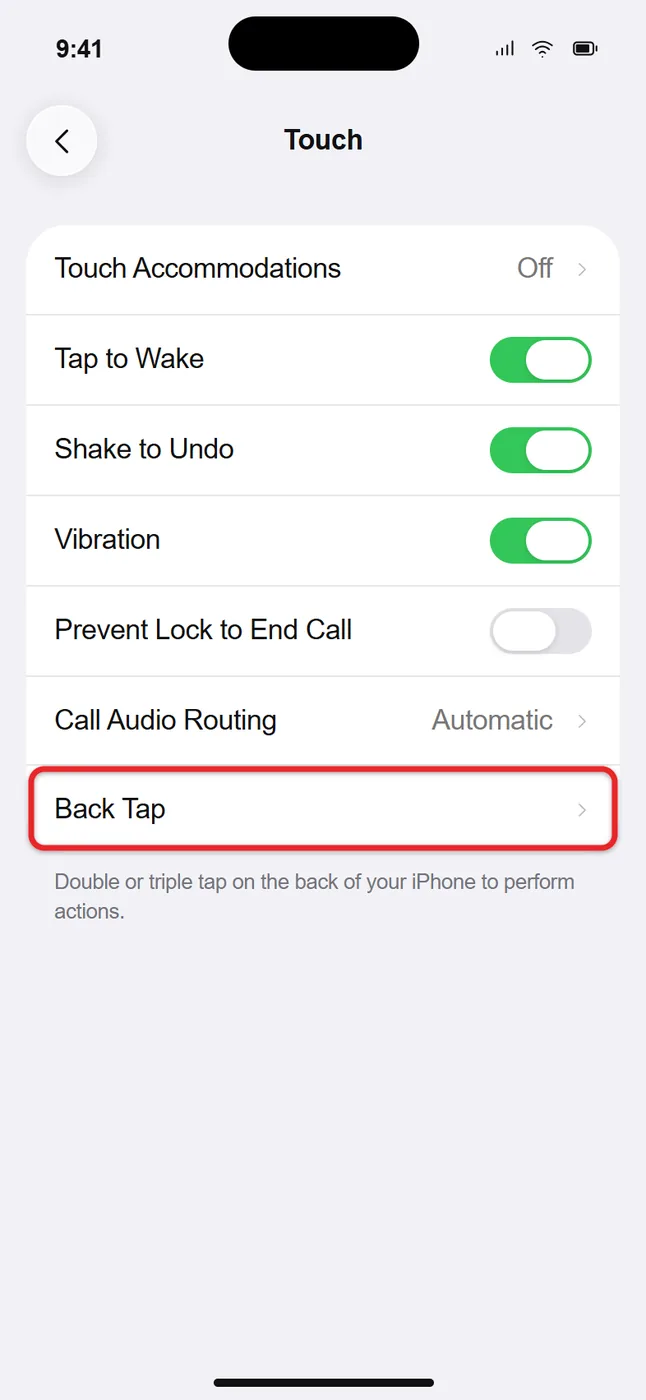
- Scroll to the bottom of the Touch screen and tap Back Tap. You’ll see Double Tap and Triple Tap, and both show None until you assign something.
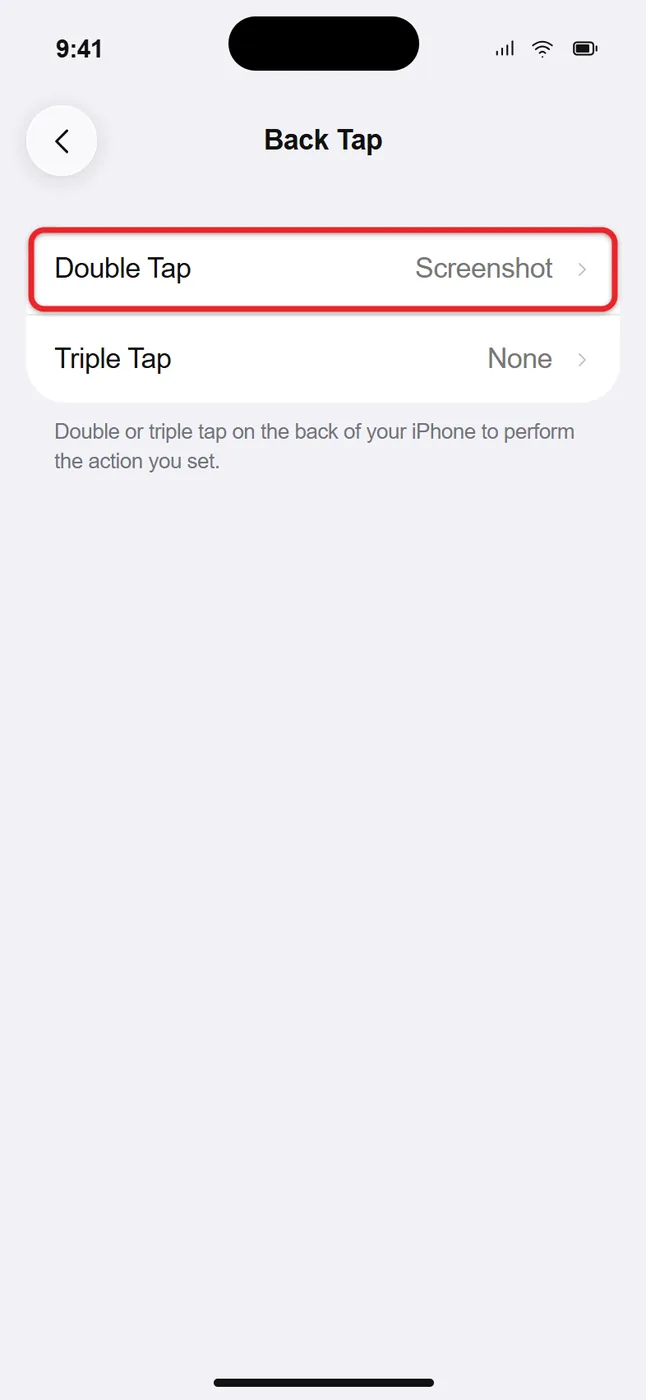
- Tap Double Tap (or Triple Tap).
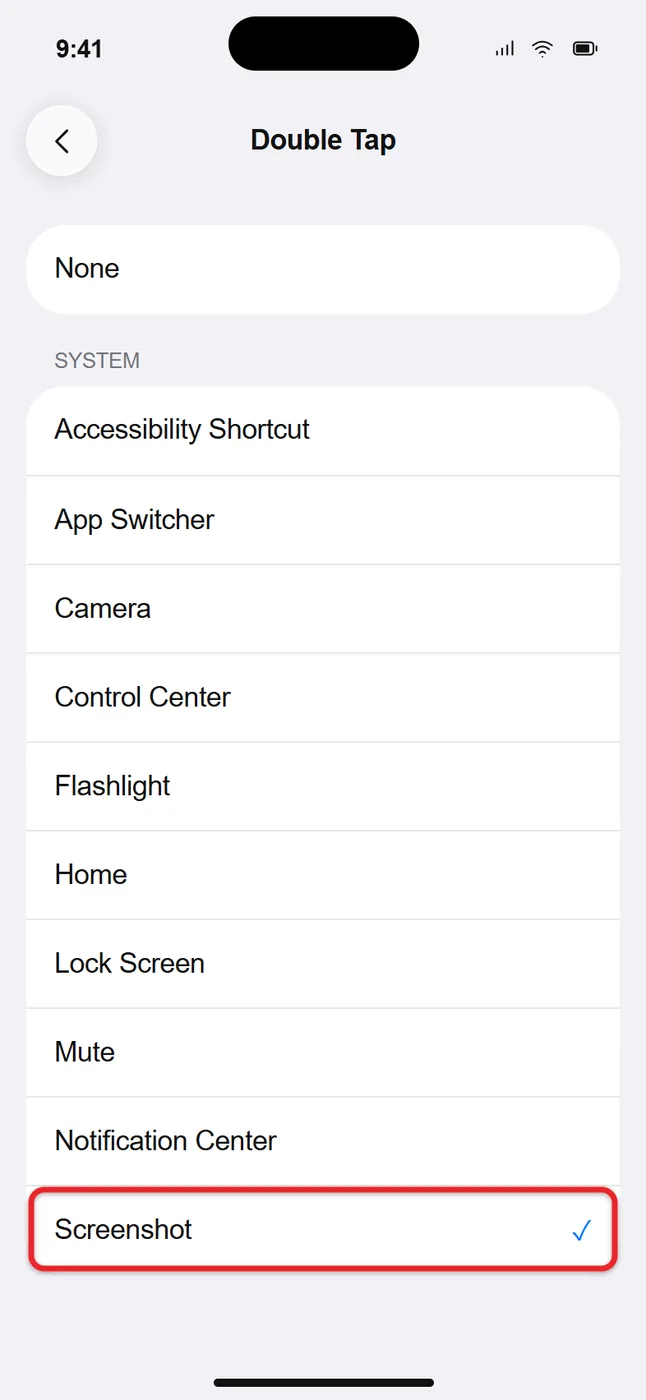
- Tap the action you want, for example Screenshot. A blue check mark appears next to it, and the setting saves right away. There is no Save button.
- Tap Back Tap in the top-left corner to return to the previous screen. The name of your action now shows next to Double Tap or Triple Tap.
- Test it: tap the back of the iPhone, near the Apple logo, two or three times in quick succession.
If the action runs, you’re done. Apple’s iPhone User Guide page on Back Tap shows the same Settings path, and its Use Back Tap on your iPhone article lists the model and iOS requirements.
Double Tap or Triple Tap: which to use
Double Tap is faster and easier to land, but it’s also easier to trigger by accident, such as when you set the phone down on a table or bump it in a pocket. Triple Tap takes a little more effort and fires less often by mistake.
A sensible split is to put the action you use constantly and don’t mind triggering by mistake on Double Tap, and to put anything disruptive on Triple Tap. A stray screenshot just means one photo to delete later. A stray Lock Screen, Siri, or VoiceOver activation interrupts what you were doing. VoiceOver changes how the whole touchscreen works, so it’s a better fit for Triple Tap.
You don’t have to use both. Many people set only Double Tap and leave Triple Tap on None.
Actions you can assign
The action list is split into groups. The exact items can change between iOS versions, so treat this table as a guide to what to look for rather than a complete list.
| Group | Examples | Good for |
|---|---|---|
| System | Screenshot, Flashlight, Camera, Control Center, Notification Center, Lock Screen, Lock Rotation, App Switcher, Home, Mute, Reachability, Siri, Spotlight, Volume Up, Volume Down | Replacing button presses and swipes you use every day |
| Accessibility | AssistiveTouch, VoiceOver, Magnifier, Zoom, Speak Screen, Color Filters, Smart Invert, Background Sounds | Switching an accessibility feature on and off without digging through Settings |
| Scroll Gestures | Scroll Up, Scroll Down | Reading long pages one-handed |
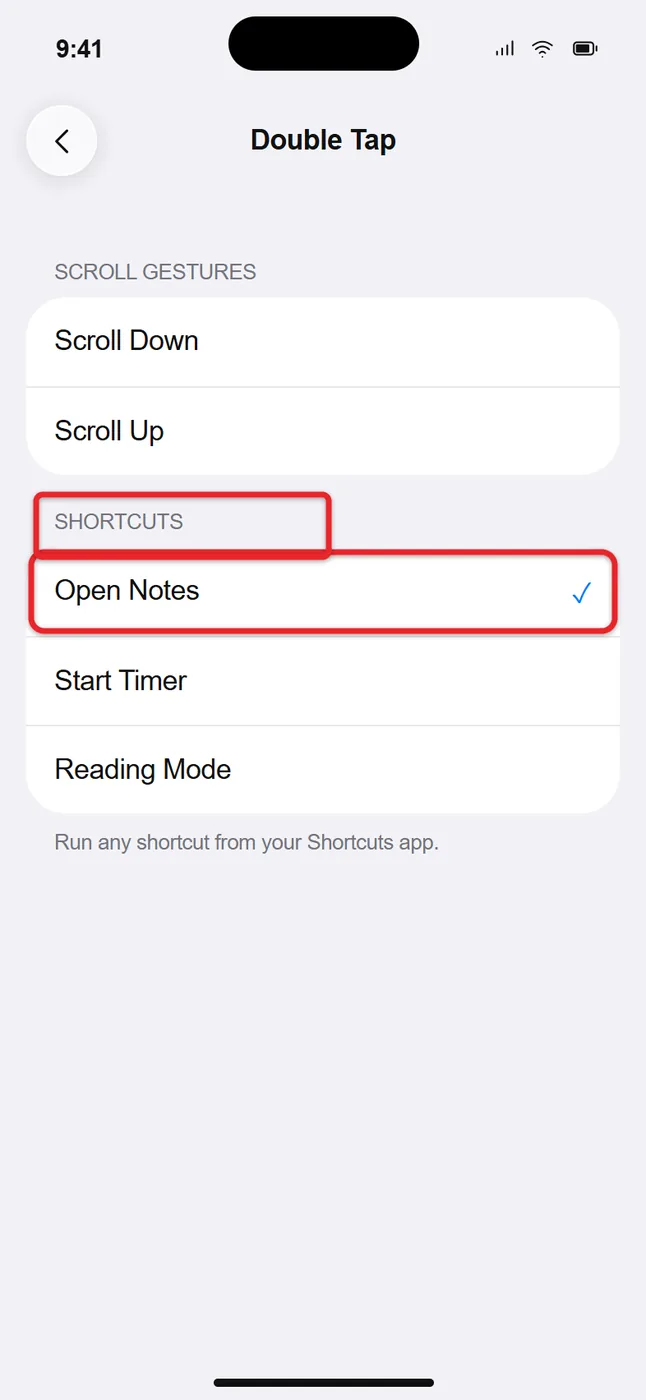
| Shortcuts | Any shortcut saved in the Shortcuts app | Opening a specific app or running several steps at once |
Some practical pairings:
- Screenshot is the most popular choice, and it’s a lifesaver if a side or volume button is broken. Back Tap is one of several options covered in the guide to taking a screenshot on iPhone without the power button.
- Flashlight toggles the light on and off, so the same taps that turned it on will also turn off the flashlight on your iPhone.
- Control Center saves the stretch to the top-right corner of a large phone. If you’d rather keep swiping, here’s how to use Control Center on iPhone, including from the Lock Screen.
- Reachability slides the top of the screen down to where your thumb can reach it. If the regular gesture feels awkward, see how to enable and use Reachability on iPhone.
Apple also mentions that you can assign the Accessibility Shortcut, which opens the same feature you’d normally get by triple-clicking the side button (or Home button). That’s handy if you’ve set the Accessibility Shortcut to something like AssistiveTouch or Magnifier and the button is hard to press.
Run a shortcut with Back Tap
The Shortcuts group is where Back Tap gets most flexible. A shortcut is a saved task in Apple’s Shortcuts app. It can be as simple as opening one app or as involved as several steps in a row, like turning on a Focus and starting a playlist.
- Create the shortcut first in the Shortcuts app, or add one from its Gallery tab. Give it a name you’ll recognize in a long list.
- Go to Settings > Accessibility > Touch > Back Tap.
- Tap Double Tap or Triple Tap.
- Scroll to the Shortcuts section at the bottom of the list and tap your shortcut so the check mark appears.
- Tap Back Tap at the top left, then tap the back of the phone to run the shortcut.
These steps follow Apple’s Run shortcuts by tapping the back of your iPhone page. If the Shortcuts section is missing from the list, you don’t have any shortcuts saved yet, or the Shortcuts app has been deleted. Reinstall it from the App Store and create one.
Keep in mind that a shortcut which opens an app or shows personal information may ask you to unlock the iPhone before it finishes.
Does Back Tap work through a case?
Usually, yes. Back Tap detects the jolt of each tap, not a touch on a sensor, so it often works through ordinary plastic and silicone cases. Thick or rugged cases soften the taps, and you may need to tap more firmly. Things that sit between your finger and the phone, such as a pop-out grip, a ring holder, a wallet, or a metal plate for a magnetic car mount, can stop it from registering at all.
If Back Tap works with the case off but not with it on, try tapping a bit higher on the back, near the center of the Apple logo area, and tap harder. If that still fails, the case is the problem, and Back Tap has no sensitivity setting to compensate.
How to turn off Back Tap
There’s no single on/off switch. Back Tap is off when both tap counts are set to None.
- Go to Settings > Accessibility > Touch > Back Tap.
- Tap Double Tap, then tap None at the top of the list.
- Tap Back Tap at the top left. If Triple Tap shows an action, tap it and choose None too.
When both rows read None, tapping the back of the phone does nothing. Your old choices aren’t saved, so you’ll pick them again if you turn Back Tap back on later.
Fixing Back Tap problems
It keeps going off by accident
Random screenshots in your Photos app, or the flashlight turning on in your pocket, are the most common complaints. iOS doesn’t offer a Back Tap sensitivity slider, so the fixes are about which action goes where:
- Move the action from Double Tap to Triple Tap, which needs a deliberate pattern.
- Notice when it happens. Setting the phone down hard, walking with it in a tight pocket, or tapping your fingers on the back while you read can all count as taps.
- Pick a harmless action for Double Tap. A stray scroll or Control Center opening is easy to ignore.
- If nothing helps, set both tap counts to None.
It doesn’t do anything
- Check the assignment. Go back to the Back Tap screen and confirm the row you’re using doesn’t say None. It’s easy to set Triple Tap and then test with two taps.
- Change your tapping. The taps need to be quick, evenly spaced, and firm. Slow or very light taps often aren’t recognized. Aim for the upper middle of the back.
- Take off the case or grip to rule it out, as covered above.
- Wake the screen. Back Tap is most reliable when the display is on. Some actions do little from a dark Lock Screen.
- Restart the iPhone. Turn it off and on again, which clears a stuck sensor or setting.
- Update iOS. Install any available update in Settings > General > Software Update.
- Check the shortcut. If a Shortcuts action does nothing, run the shortcut from the Shortcuts app. If it fails there too, the problem is the shortcut, not Back Tap.
There’s no Back Tap option under Touch
The option is the last item on the Touch screen, so scroll all the way down. If it still isn’t there, your iPhone is older than the iPhone 8 or hasn’t been updated to iOS 14 or later. On an iPhone 7 or earlier, AssistiveTouch is the closest alternative: it puts an on-screen button you can set to perform actions with a single tap, double tap, or long press.
Common questions about Back Tap
Can I assign more than one action to Double Tap?
No. Each tap count holds one action. To get several things from one gesture, build a shortcut that does them in order, then assign that shortcut.
Is there a single-tap option?
No. Back Tap offers only Double Tap and Triple Tap. A single tap would be set off by almost every bump.
How is Back Tap different from the Action button?
The Action button is a physical button on newer iPhones that you press and hold. Back Tap needs no button and works on any iPhone 8 or later. If your phone has both, you can use them for different actions.
Will Back Tap work if my iPhone is locked?
It can, but results are most reliable when the screen is awake. Simple system actions are the most likely to work from the Lock Screen, while an action that opens an app or personal information will still need Face ID, Touch ID, or your passcode before you see anything.
A good first setup is Screenshot on Double Tap and nothing on Triple Tap. Use it for a few days, then add a second action once you know how often you set it off by accident.

Matthew Burleigh is the founder, head writer, and editor of Solve Your Tech, which he launched in 2012. He has written technology tutorials since 2008 and worked in IT since 2003, including small-business support, IT management, and consulting. He holds Bachelor’s and Master’s degrees in Computer Science from Arizona State University.
Matthew writes practical guides for Windows, iPhone and iPad, Microsoft Office, Outlook, Google apps, and Android. Solve Your Tech’s guides are checked step by step against the device or app maker’s own documentation and tested on his own devices whenever he has the hardware or software, with clear steps, sources, and update dates.
Read more about Matthew and how Solve Your Tech writes and updates its guides, or report a correction.