To add page numbers in Word, go to Insert > Page Number, choose Top of Page or Bottom of Page, and click a style. Word puts an automatic number in the header or footer of every page, and you leave that area by selecting Close Header and Footer or pressing Esc. These steps are for Word for Microsoft 365 on Windows and Mac (Word 2024, 2021, 2019 and 2016 use the same menus), with a separate section for Word for the web.
A Word page number is a field, which is a small placeholder that Word fills in and recalculates. That’s why you only insert it once, and why the numbers keep up when you add or delete pages. Typing a “1” into the footer yourself gives you a 1 on every page, which is the most common page-number mistake.
- Insert page numbers in Word for Windows or Mac
- Word for the web
- Show “Page X of Y”
- Change the style, font or starting number
- Skip the number on the first page
- Start numbering on page 3 or later
- Roman numerals for front matter
- Remove page numbers
- Fix common page-number problems
Insert Page Numbers in Word for Windows or Mac
Desktop Word has the full set of page-number tools, so use it when you can. The ribbon labels are the same in Word for Microsoft 365 on Windows and on a Mac.
- Open the document and make sure you’re in Print Layout (View > Print Layout). Headers and footers don’t show in some other views, such as Web Layout.
- Select the Insert tab. In the Header & Footer group, select Page Number.
- Point to Top of Page or Bottom of Page. A gallery of designs opens. Plain Number 1, 2 and 3 put the number on the left, center or right.
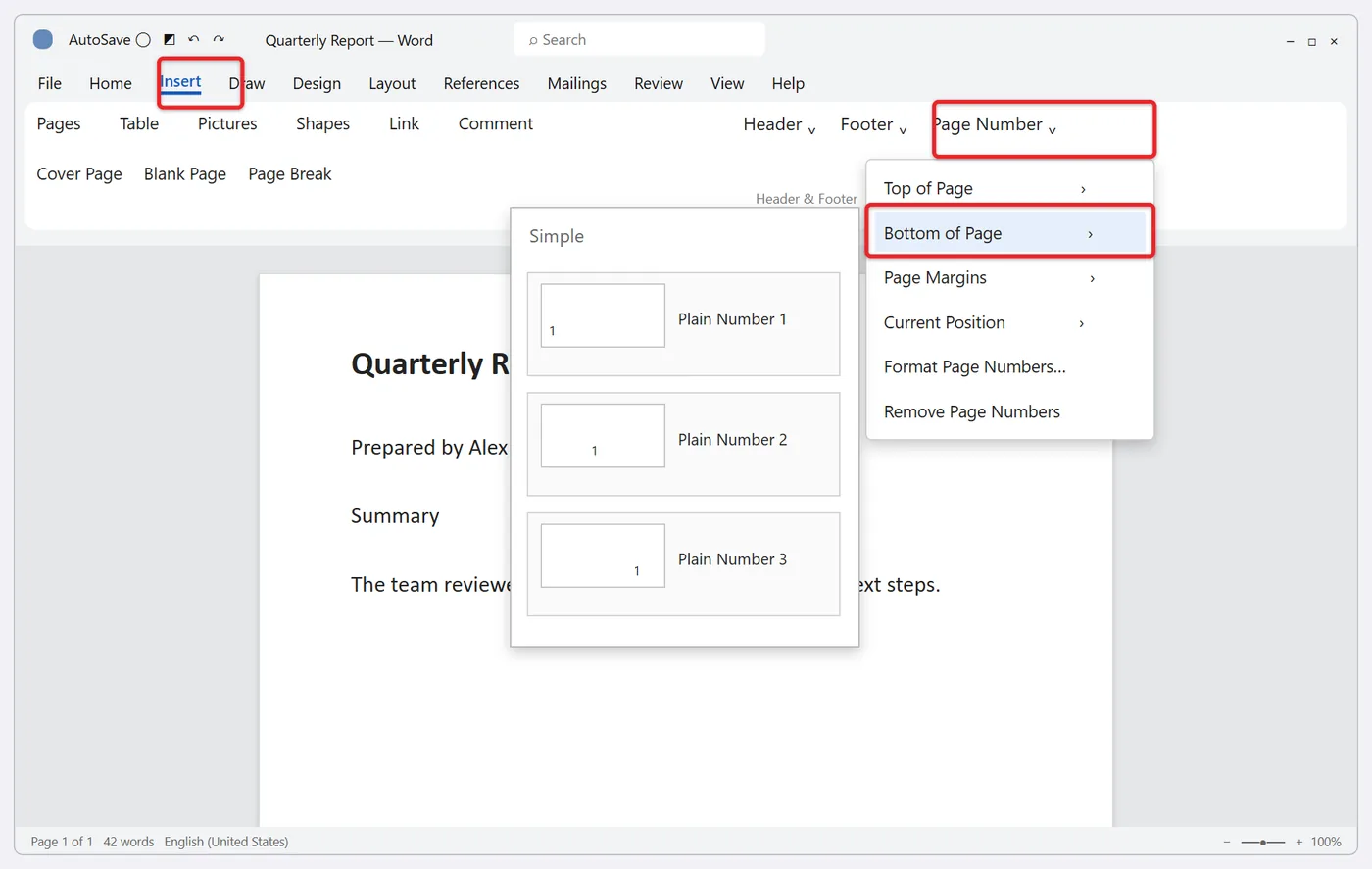
- Click a design. Word opens the header or footer, inserts the number and shows the Header & Footer tab on the ribbon.
- Select Close Header and Footer, press Esc, or double-click the main body of the page to go back to your text.
- Scroll through a few pages. Page 1 should show 1, page 2 should show 2, and so on. The numbers look a little faded while you edit the body; that’s normal and they print at full strength.
The Page Number menu also has Page Margins, which places the number in the side margin, and Current Position, which drops the number exactly where your cursor is. You’ll find Microsoft’s version of these steps in its Insert page numbers guide.
Add a number to a header or footer that already has text
Picking a Top of Page or Bottom of Page design can replace what’s already in that header or footer, such as a company name or document title. To keep that content:
- Double-click the header or footer to open it.
- Click exactly where the number should go, for example after the words “Quarterly Report” and a space.
- Select Insert > Page Number > Current Position and choose Plain Number.
- Close the header and footer.
On Windows, pressing Alt + Shift + P while the cursor is in the header or footer inserts a plain page-number field at that spot. If you need to nudge the number sideways afterward, click just before it and press Tab once for center or twice for right, as Microsoft describes in adding page numbers to a header or footer.
Add Page Numbers in Word for the Web
The browser version of Word, which you open from office.com or OneDrive, uses a simpler panel instead of the design gallery.
- If the document opens in viewing mode, select Edit Document > Edit in Word for the web (or switch the mode to Editing).
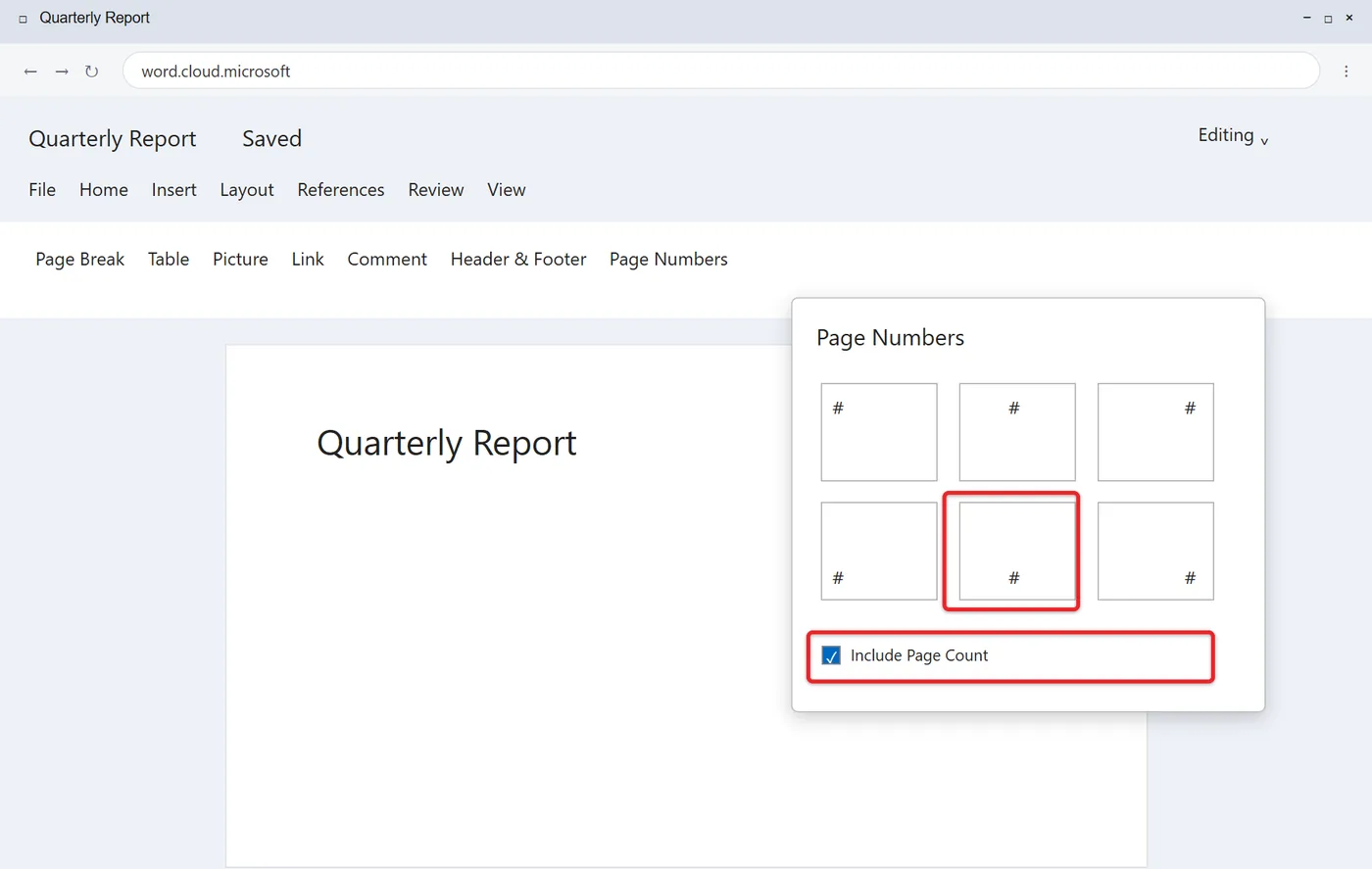
- Select Insert > Page Numbers.
- If you want “Page 2 of 10” style numbers, check Include Page Count first.
- Click one of the position boxes (top or bottom of the page, left, center or right).
- Click back in the document body when you’re done.
Microsoft’s own page numbering overview says the best place to work with page numbers is Word on a laptop or desktop computer. For anything with section breaks, roman numerals, or numbering that starts partway through, finish the job in desktop Word and then check the result in the browser.
Show “Page X of Y” (Page 3 of 12)
“Page X of Y” adds the total page count after the current number, which helps readers of printed handouts, contracts and forms know whether they have every sheet.
On Windows
- If the header or footer already has content, double-click it and click where the number belongs.
- Go to Insert > Page Number. Choose Current Position if you clicked into an existing header or footer, or Top of Page or Bottom of Page if you didn’t.
- Scroll down the gallery to the Page X of Y section and pick a design (for example, Bold Numbers 2).
- Close the header and footer.
On a Mac and in the browser
Microsoft’s Page X of Y instructions give a different route for Word for Mac: double-click the header or footer, select Header & Footer > Footer, and pick the Semaphore design, which includes the page count. In Word for the web, it’s the Include Page Count box described above.
One thing to know: the “Y” counts every page in the file, including a cover page you’ve hidden the number on. If your title page shouldn’t count toward the total, keep in mind that hiding its number doesn’t remove it from the count.
Change the Number Style, Font or Starting Number
Two different tools handle the look of a page number. The Format Page Numbers dialog controls what kind of number appears and where counting starts. The Home tab controls the font.
Open Format Page Numbers
- Double-click the header or footer that holds the number.
- Select Page Number > Format Page Numbers (on the Header & Footer tab or the Insert tab).
- Change any of these settings, then select OK:
- Number format: 1, 2, 3; -1-, -2-; a, b, c; A, B, C; i, ii, iii; or I, II, III.
- Include chapter number: adds a chapter prefix such as 2-1. This only works when your chapter headings use a numbered heading style.
- Continue from previous section or Start at: keep counting from the last section, or begin at any number you type.
Start at is handy when one document continues another. If chapter one ended on page 48, set chapter two’s file to start at 49.
Change the font, size or color
Double-click into the header or footer, select the number, and use the font controls on the Home tab. Some gallery designs make the number bold; press Ctrl + B (or Command + B on a Mac) to remove it. You only need to change one page, since every page in that section uses the same footer. If you want every new document to match, you can also set a default font in Word.
Skip the Page Number on the First Page
Title pages and cover letters usually don’t show a number. The Different First Page option gives page one its own, separate header and footer.
- Add page numbers to the document as usual.
- Double-click the header or footer on page 1.
- On the Header & Footer tab, check Different First Page. The area on page 1 is now labeled First Page Header or First Page Footer.
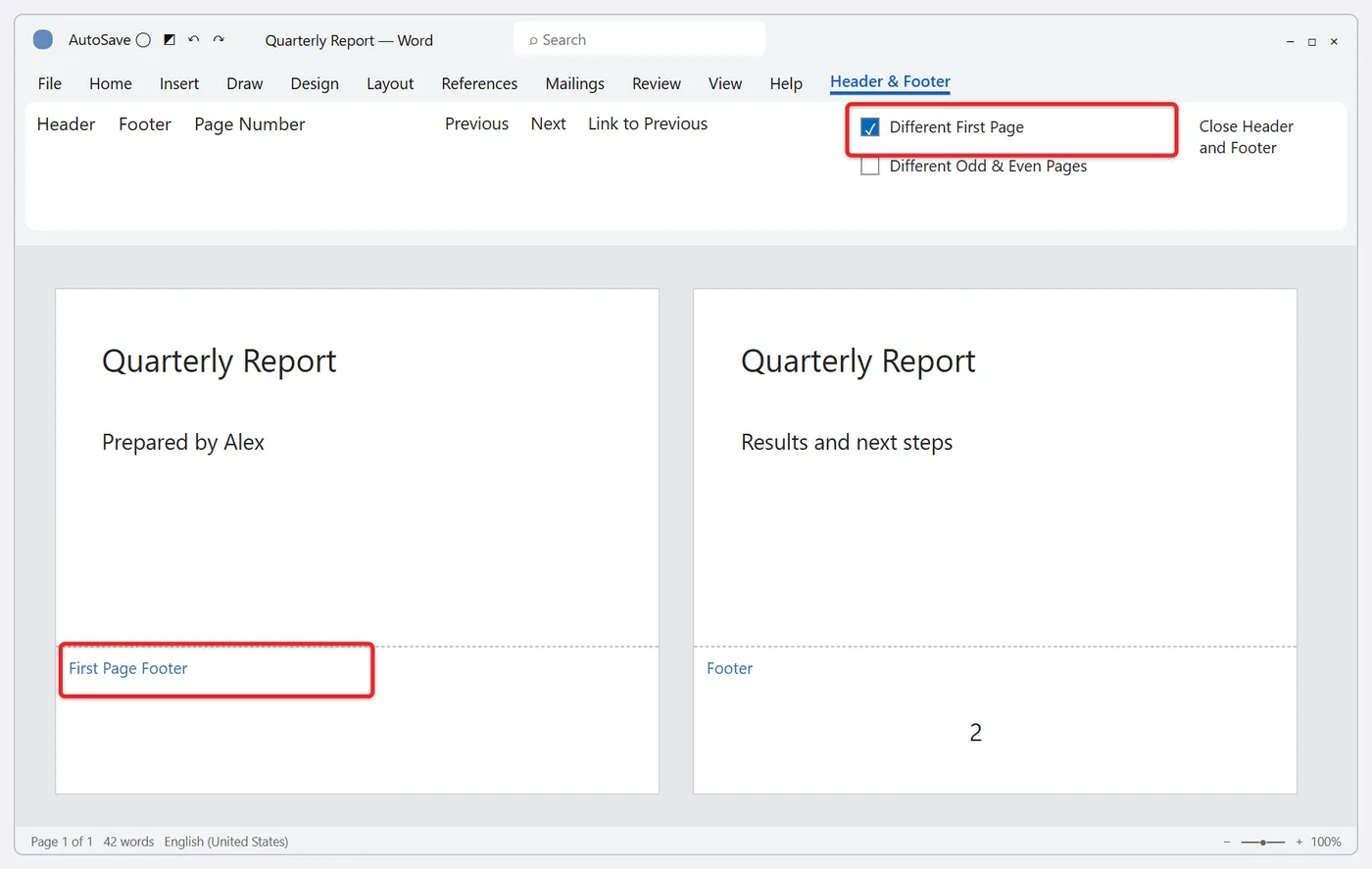
- If a number is still there, select it and press Delete. Pages 2 onward keep their numbers.
- Close the header and footer.
Page 2 will still say 2, because it’s the second page of the file. If you want the page after the cover to say 1, open Page Number > Format Page Numbers and set Start at to 0. The hidden cover becomes page 0 and the next page becomes 1. Microsoft documents this trick in Start page numbering later in your document.
Different First Page works per section, so in a document with sections it hides the number on the first page of whichever section you’re editing, not just page 1 of the file.
Start Page Numbering on Page 3 or Later
Reports often have a cover, then a table of contents, and the body should begin at page 1 on the third sheet. Different First Page can’t help here because it only affects one page. You need a section break, which splits the document into parts that can each have their own headers, footers and numbering.
Save a copy before you start if the document already has complicated headers. Then follow these steps:
- Turn on formatting marks with Home > Show/Hide ¶ so you can see the breaks you add.
- Click at the very start of the page where numbering should begin (the first line of page 3 in this example).
- Go to Layout > Breaks and choose Next Page under Section Breaks. If page 2 already ends with an ordinary page break, delete that page break so you don’t get an extra blank page.
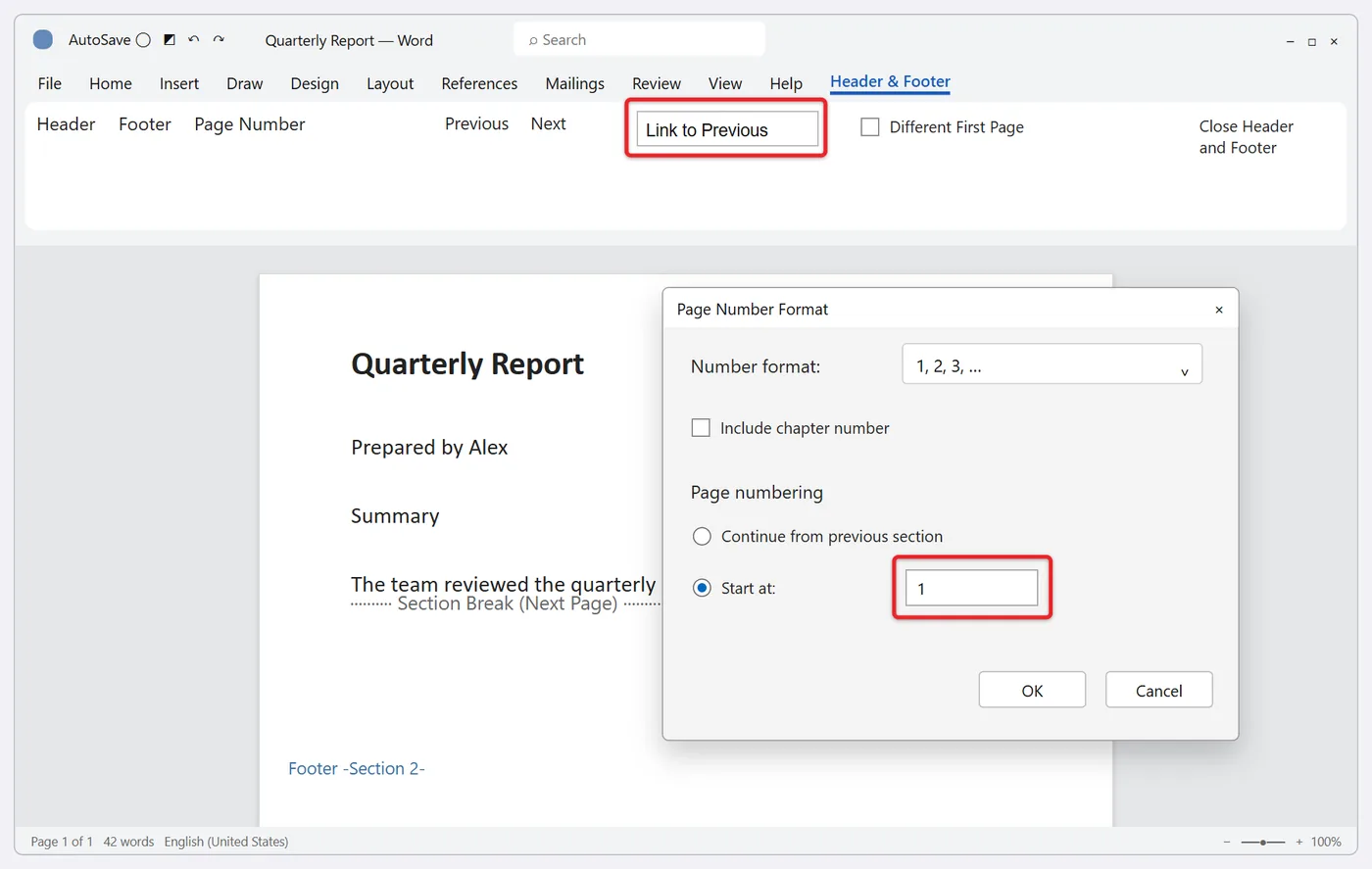
- Double-click the footer (or header) on the first page of the new section. It’s labeled Footer -Section 2-.
- On the Header & Footer tab, select Link to Previous so it’s turned off. The “Same as Previous” tag on the footer disappears. If Link to Previous is dimmed, the section break wasn’t created; repeat step 3.
- Insert the page number with Page Number if this section doesn’t have one yet.
- Select Page Number > Format Page Numbers, choose Start at, type 1, and select OK.
- Scroll up to section 1 (the cover and contents pages), click into its footer, select the number and press Delete. Because you unlinked the sections, section 2 keeps its numbers.
- Close the header and footer and check pages 1, 2, 3 and the last page.
Headers and footers are linked separately. If you put numbers in the header, turn off Link to Previous in the header too. The same section-break idea is what lets you make only one page landscape in Word, so if your document already has sections for orientation, check each section’s footer.
Use Roman Numerals for the Front Matter
Theses, books and long manuals often number the preface, acknowledgments and contents as i, ii, iii and then restart with 1 on the first chapter. This builds on the section steps above.
- Click at the start of the first chapter and add a Layout > Breaks > Next Page section break.
- Open the footer in the chapter section and turn off Link to Previous.
- Click into the footer of the front matter (section 1), select Page Number, and choose a location and style. If only the first page of the section changes, make sure Different First Page isn’t checked.
- Still in section 1, open Page Number > Format Page Numbers, set Number format to i, ii, iii, and select OK.
- Click into the chapter section’s footer, open Format Page Numbers again, keep 1, 2, 3, set Start at to 1, and select OK.
Microsoft walks through the same intro-and-body example in different page numbers in different sections. If the front matter includes a contents page, insert the table of contents after the numbering is set, then update it so its page numbers match.
Remove Page Numbers
- Go to Insert > Page Number.
- Select Remove Page Numbers at the bottom of the menu. In Word for the web, it’s Insert > Page Numbers > Remove Page Numbers.
On a Mac, Microsoft’s Remove page numbers page warns that this command can remove a whole header or footer you’ve set up. If yours has other text, open the footer, select just the number and press Delete instead. That manual method is also the fix on Windows when Remove Page Numbers is grayed out or leaves some numbers behind, which happens in documents with several sections or Different Odd & Even Pages turned on. Repeat it in each section that still shows a number.
Fix Common Page-Number Problems
Every page shows the same number
Click the number in the footer. A real page-number field turns gray when you click it (unless field shading is turned off in Word’s settings), while typed text doesn’t. If it’s typed, delete it and use Insert > Page Number instead. If it is a field and every page still shows 1, the document probably has a section break before each page and each section is set to Start at 1. Open Format Page Numbers in each section after the first and choose Continue from previous section.
You see { PAGE } instead of a number
Word is showing field codes rather than their results. On Windows, press Alt + F9 to switch the whole document back, or right-click the code and choose Toggle Field Codes. In Word for Mac, right-click the code and look for Toggle Field Codes. To refresh a number that looks out of date, click it and press F9; Microsoft’s fields guide notes that fields in headers and footers update separately from the body text. Opening Print Preview usually refreshes them as well.
Numbering restarts or jumps partway through
A section break is almost always the cause. Turn on Show/Hide ¶, find the “Section Break” line just before the page where the numbering goes wrong, open the footer just after it, and check Format Page Numbers. Choose Continue from previous section to keep counting, or Start at to restart on purpose. If you deleted a section break, the merged section takes the settings of the section that came after the break.
Page numbers don’t appear at all
Switch to View > Print Layout, since headers and footers are hidden in other views. Then check whether Different First Page or Different Odd & Even Pages is turned on, because each of those creates its own empty footer that needs a number. A picture or text box sitting over the footer can also cover it; move it out of the way. If the whole ribbon is missing and you can’t find the Insert tab, see how to restore a missing ribbon in Word.
Removing the number from one page removed it everywhere
Pages in the same section share one header and footer, so deleting the number on any page deletes it on all of them. Press Ctrl + Z to undo, then use Different First Page (for the first page of a section) or a section break with Link to Previous turned off (for any other page).
More Page-Number Questions
Can I put page numbers in the header instead of the footer?
Yes. Choose Top of Page instead of Bottom of Page from the Page Number menu. Academic styles such as APA and MLA put the number in the top-right corner, which is Top of Page > Plain Number 3. MLA also expects your last name before the number, so click just before the number in the header and type your name and a space.
Will my numbers stay correct when I add or delete pages?
Yes, as long as they were inserted with the Page Number command. Word recalculates the field every time the layout changes, whether you delete a page in Word or add new ones. A table of contents is different and needs a manual update.
Do page numbers carry over when I save as a PDF?
Yes. When you use File > Save As (or Export) and choose PDF, Word saves the numbers as they appear in Print Layout, so check them in Print Preview first. After conversion they’re ordinary text in the PDF and won’t change.
Can I add page numbers in the Word app on an iPhone or Android phone?
The mobile apps include a basic page-number option under the Insert menu while you’re editing, but their controls are limited and change with screen size. For section-based numbering or roman numerals, set the document up in desktop Word and just review it on your phone.
How do I number only the even or odd pages differently?
Open the header or footer and check Different Odd & Even Pages on the Header & Footer tab. Word then gives odd and even pages separate footers, so you insert a number on an odd page and again on an even page. Book-style layouts use this to keep numbers on the outside edges, for example right-aligned on odd pages and left-aligned on even ones.
Once the numbering looks right, open Print Preview (File > Print) and page through the first few sheets, any section boundaries, and the last page. That one check catches nearly every page-number surprise before the document goes out.

Matthew Burleigh is the founder, head writer, and editor of Solve Your Tech, which he launched in 2012. He has written technology tutorials since 2008 and worked in IT since 2003, including small-business support, IT management, and consulting. He holds Bachelor’s and Master’s degrees in Computer Science from Arizona State University.
Matthew writes practical guides for Windows, iPhone and iPad, Microsoft Office, Outlook, Google apps, and Android. Solve Your Tech’s guides are checked step by step against the device or app maker’s own documentation and tested on his own devices whenever he has the hardware or software, with clear steps, sources, and update dates.
Read more about Matthew and how Solve Your Tech writes and updates its guides, or report a correction.