To use Windows Sandbox in Windows 11, type “Turn Windows features on or off” in the taskbar search, check Windows Sandbox, click OK, and restart. Then open Windows Sandbox from the Start menu, copy a file on your PC, and paste it onto the sandbox desktop to open it safely. When you close the window, everything inside it is deleted. These steps apply to Windows 11 Pro, Enterprise, and Education (including the current 25H2 and 26H2 releases). Windows 11 Home doesn’t include the feature.
Windows Sandbox is a small, temporary copy of Windows that runs in a window on your desktop. It’s built into Windows, so there’s nothing to download or license, and it starts clean every time. That makes it a good place to try an unfamiliar installer, open an email attachment you’re unsure about, or test a settings change before you make it on your real PC.
Check that your PC can run Windows Sandbox
Microsoft’s Windows Sandbox installation page lists these requirements:
| Requirement | Minimum | Recommended |
|---|---|---|
| Windows edition | Pro, Enterprise, Education, or Pro Education/SE | Same (Home isn’t supported) |
| Processor type | 64-bit (AMD64), or Arm64 on Windows 11 version 22H2 and later | Same |
| Processor cores | 2 | 4 with hyper-threading |
| Memory (RAM) | 4 GB | 8 GB |
| Free disk space | 1 GB | 1 GB or more on an SSD |
| Virtualization | Turned on in the BIOS or UEFI firmware | Same |
To see your edition, open Settings, select System, then About, and look at the Edition line under Windows specifications. The same page shows your installed RAM.
To check virtualization, press Ctrl + Shift + Esc to open Task Manager, select Performance, then CPU. The details under the graph include a Virtualization line that reads Enabled or Disabled. If it says Disabled, follow the steps to turn on hardware virtualization in Windows 11 first. The firmware setting can be called Intel Virtualization Technology, Intel VT-x, AMD-V, or SVM Mode, depending on the PC maker.
If you’re running Windows 11 itself inside a virtual machine, the virtual machine needs nested virtualization turned on. On a Hyper-V host, Microsoft documents running Set-VMProcessor -VMName <VMName> -ExposeVirtualizationExtensions $true while that VM is turned off.
Turn on Windows Sandbox from Windows Features
Sandbox is off by default. This is the route Microsoft describes, and it works on every supported Windows 11 release.
- Click the search box or icon on the taskbar and type Turn Windows features on or off. Select the result with that name. (You can also press Windows key + R, type optionalfeatures, and press Enter.)
- In the Windows Features window, scroll near the bottom of the list and check the box next to Windows Sandbox.
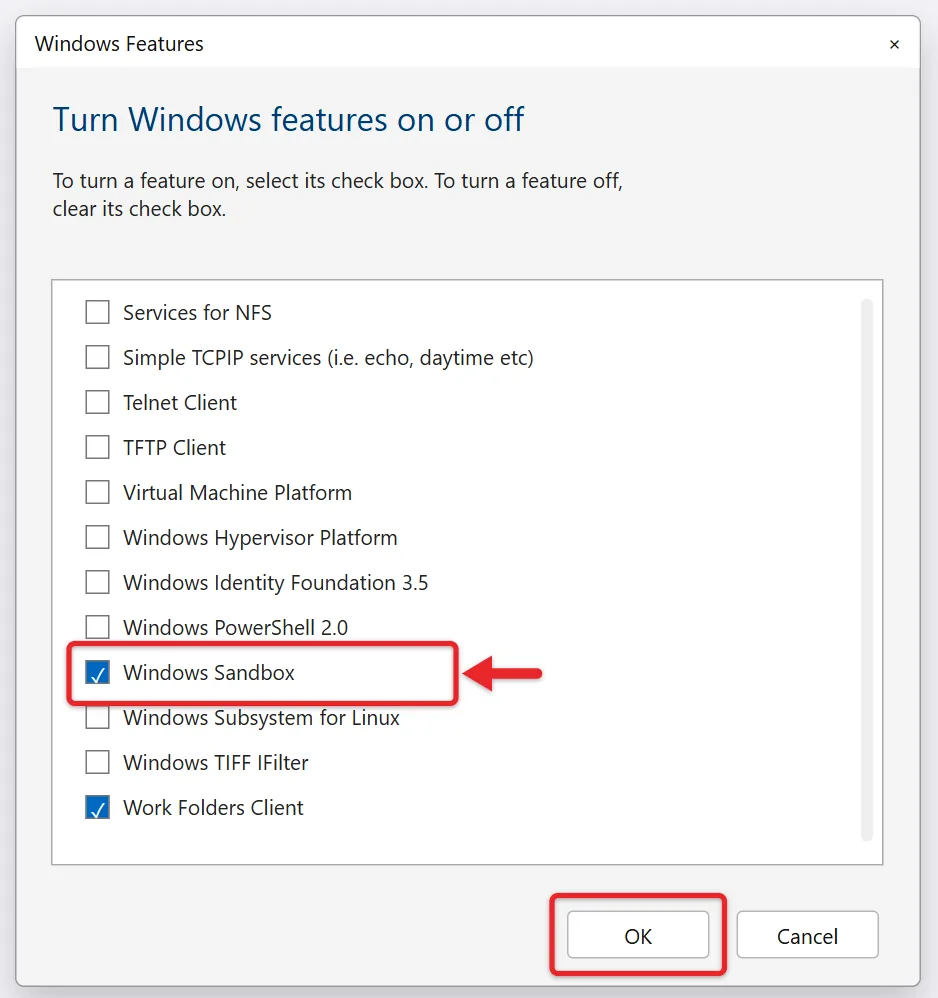
- Click OK. Windows spends a minute or so applying the change.
- Click Restart now when asked. Save any open work first, because the PC restarts right away.
After the restart, Windows Sandbox shows up in the Start menu’s All apps list. If the Windows Sandbox box isn’t in the list at all, or it’s grayed out, jump to the troubleshooting section below.
The same Windows Features window is reachable from Settings. Go to Settings > System > Optional features and select More Windows features under Related settings. Some newer builds also have a Virtual Workspaces section under Settings > System > Advanced. If yours shows a Windows Sandbox switch there, it does the same job.
Turn it on with PowerShell instead
This route is handy if you set up several PCs or prefer typing a command.
- Right-click the Start button and choose Terminal (Admin), then click Yes on the User Account Control prompt.
- Type this command and press Enter:
Enable-WindowsOptionalFeature -FeatureName "Containers-DisposableClientVM" -All -Online - When it asks to restart, type Y and press Enter.
“Containers-DisposableClientVM” is the internal name for Windows Sandbox. The Command Prompt version is dism /online /Enable-Feature /FeatureName:Containers-DisposableClientVM /All. Both need an administrator window, which our guide to running Command Prompt as admin walks through.
Open the sandbox and test a file
- Open the Start menu, type Windows Sandbox, and select it. A small loading window appears first, then a full Windows desktop opens inside a window. The first launch can take a little longer than later ones.
- On your real PC, open File Explorer and find the file you want to test, such as an installer named AlexTools-Setup.exe.
- Select the file and press Ctrl + C (or right-click it and choose Copy).
- Click inside the Sandbox window, right-click an empty spot on its desktop, and choose Paste (or press Ctrl + V). A copy of the file appears on the sandbox desktop.
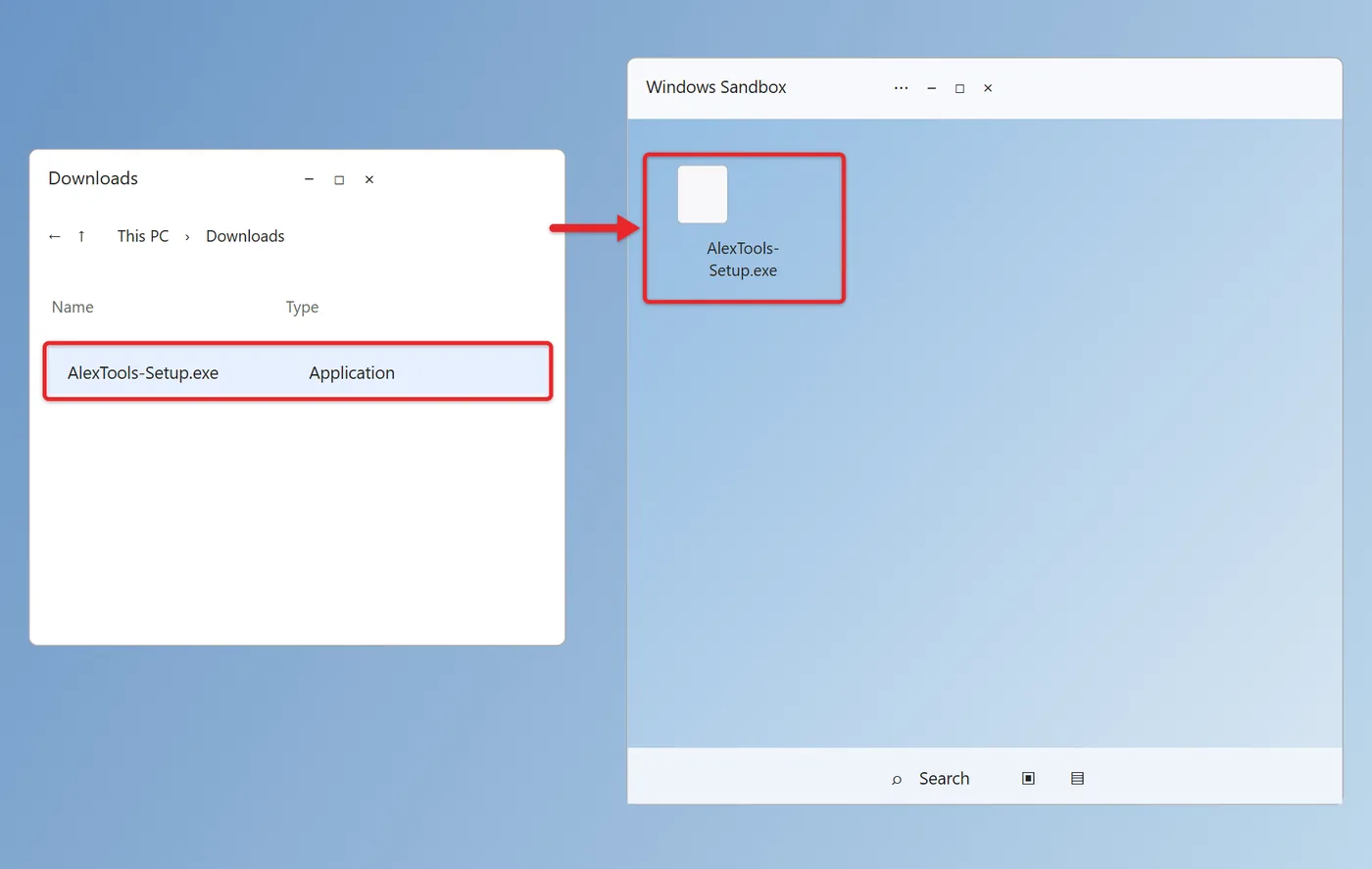
- Double-click the file inside the sandbox to run or open it. Anything it installs or changes stays inside the sandbox.
You’ll know you’re working in the sandbox because its taskbar, Start button, and desktop sit inside a separate window with its own title bar. Your own apps, files, and shortcuts aren’t there. The sandbox runs the same Windows build as your PC, so it looks familiar, but it starts as a fresh install every time.
You can also download a file from inside the sandbox. Open Microsoft Edge in the sandbox, visit the site, and download there. That keeps the download off your real PC entirely, which is safer than downloading on your PC and then copying it in.
A few things to expect inside the sandbox:
- Apps you installed on your PC aren’t there. You install what you need inside the sandbox each session.
- Some built-in apps are missing. Microsoft notes that starting with Windows 11 version 24H2, inbox Store apps such as Calculator, Photos, Notepad, and Terminal aren’t available, and the Microsoft Store itself can’t be used to download apps.
- Only one sandbox can run at a time. Opening Windows Sandbox again while one is running doesn’t start a second copy.
- Full screen: press Ctrl + Alt + Break (or Pause) to go in and out of full screen. Laptops without a Break key may need the Fn key for it.
The menu in the Sandbox title bar
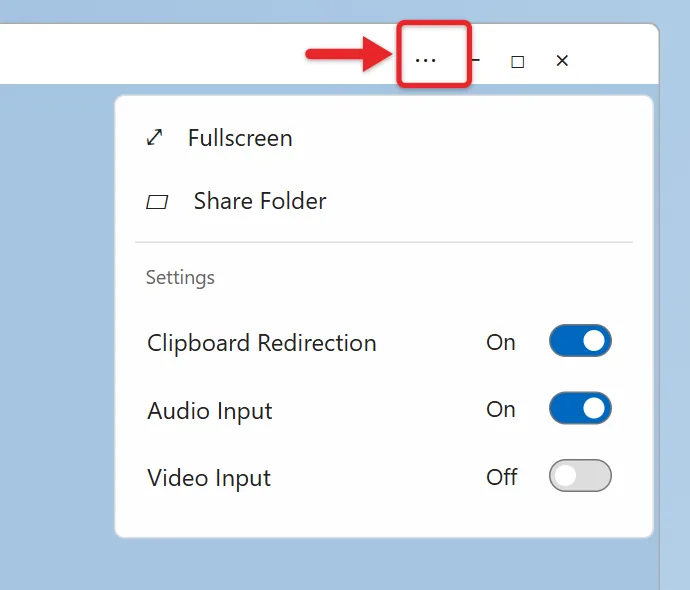
On Windows 11 version 24H2 and later, Windows Sandbox is updated through the Microsoft Store and has a menu (the … icon) in the top-right corner of its window. Microsoft’s Windows Sandbox versions page says this menu lets you turn clipboard sharing, audio input, and video input on or off, and share a folder from your PC, all while the sandbox is running. Older releases need a configuration file (covered below) for those changes.
What happens when you close the sandbox
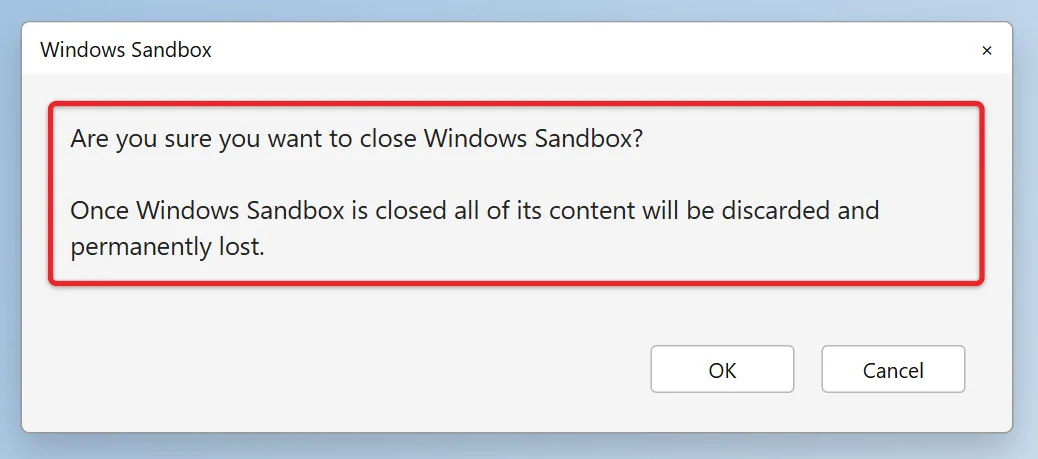
When you click the X in the Sandbox window, a message warns that everything inside will be discarded and permanently lost. Click OK (or Yes, depending on your version) and Windows deletes the whole session: installed programs, downloaded files, changed settings, and browser history. The next launch is a brand-new, clean copy.
Before you close it, copy out anything you want to keep. Select the file in the sandbox, press Ctrl + C, then paste it into a folder on your PC. Only do this with files you trust, such as a document you edited, not something you were testing because it looked suspicious.
Two exceptions are worth knowing:
- Restarting inside the sandbox keeps your work. Starting with Windows 11 version 22H2, Microsoft says data survives a restart that you start from within the sandbox (for example, an installer that asks to reboot). Closing the window still wipes everything.
- Shared folders that allow writing keep changes. If you share a folder from your PC and allow writing, anything the sandbox writes there stays on your PC after you close it. That’s useful for collecting results, but it also means the folder isn’t protected.
There’s no built-in way to save a sandbox session and reopen it later. If you need a test machine that keeps its apps and files, a full Hyper-V virtual machine is the better tool. Our guide on how to run a virtual machine on Windows 11 covers that setup.
Clipboard, internet, and how isolated it really is
By default, Windows Sandbox shares the clipboard with your PC (that’s how copy and paste works) and has internet access through your PC’s network connection. Microsoft points out that networking can expose untrusted apps to your internal network, meaning other devices on your home or office network. For a file you really don’t trust, Microsoft suggests turning networking off and sharing any folder as read-only.
You can turn off clipboard sharing from the title-bar menu on 24H2 and later. To turn off networking, start the sandbox with a configuration file, described next. Keep in mind that the sandbox protects your PC from what runs inside it, but it doesn’t stop a scam website from tricking you into typing a password. Don’t sign in to real accounts from inside it while testing something risky.
Set up the sandbox with a .wsb configuration file
A .wsb file is a short text file that tells Windows Sandbox how to start. Double-click the file and the sandbox opens with those settings. It’s a way to save a setup you use often, like “no internet, plus my Downloads test folder shared read-only.”
- Open Notepad on your PC.
- Paste this example, which turns off networking and shares a folder named C:\SandboxTest as read-only:
<Configuration>
<Networking>Disable</Networking>
<MappedFolders><MappedFolder>
<HostFolder>C:\SandboxTest</HostFolder>
<SandboxFolder>C:\Users\WDAGUtilityAccount\Desktop\SandboxTest</SandboxFolder>
<ReadOnly>true</ReadOnly>
</MappedFolder></MappedFolders>
</Configuration> - Create the C:\SandboxTest folder on your PC if it doesn’t exist. Microsoft notes that the sandbox fails to start if the host folder is missing.
- Choose File > Save as, and type the name with quotes, such as “NoInternet.wsb”. The quotes stop Notepad from saving it as NoInternet.wsb.txt.
- Close Windows Sandbox if it’s open, then double-click NoInternet.wsb. The sandbox opens with no internet and the shared folder on its desktop.
WDAGUtilityAccount is the name of the user account inside the sandbox, which is why it appears in the path. Map the folder to a subfolder of the desktop, as shown, rather than the desktop itself, because mapping straight to the desktop causes an “Access is denied” (0x80070005) error.
Microsoft’s .wsb configuration reference lists every option. The ones most people use:
| Setting | What it controls | Default |
|---|---|---|
| Networking | Internet and network access | On |
| ClipboardRedirection | Copy and paste between your PC and the sandbox | On |
| MappedFolders | Folders shared from your PC, each with a ReadOnly true or false | None; ReadOnly is false unless you set it |
| MemoryInMB | How much RAM the sandbox gets (values under 2048 are raised to 2048) | Set by Windows |
| vGPU | Use of your graphics card | On |
| AudioInput / VideoInput | Microphone / webcam access | On / Off |
| PrinterRedirection | Use of your PC’s printers | Off |
| LogonCommand | A command or script that runs when the sandbox starts | None |
Most settings accept Enable, Disable, or Default. On a work PC, settings controlled by your IT department’s Group Policy can’t be changed with a .wsb file, and the sandbox shows “The following settings are enforced by your IT administrator.”
The wsb command line (24H2 and later)
Windows 11 version 24H2 and later includes a wsb command-line tool for scripts and power users. In Terminal, wsb start launches a sandbox and returns its ID, wsb list shows running sandboxes, wsb share shares a folder, wsb exec runs a program inside it, wsb connect opens its window, wsb ip shows its IP address, and wsb stop shuts it down. Most commands need the ID from wsb list. The exec command can’t send a program’s output back to you. Typing wsb --version also tells you whether you have the newer Store-updated version of Sandbox.
When Windows Sandbox won’t install or open
Windows Sandbox isn’t in the Windows Features list
This almost always means the PC is running Windows 11 Home. Microsoft doesn’t support Sandbox on Home, and the workaround scripts found online aren’t supported by Microsoft. Your options are to upgrade to Pro (see how to get Windows 11 Pro) or use a free virtual machine app instead. If you already have Pro, Enterprise, or Education, check the processor and memory requirements in the table above.
The checkbox is grayed out or Sandbox fails to start
Check the Virtualization line in Task Manager. If it says Disabled, turn it on in your BIOS or UEFI settings. From Windows, go to Settings > System > Recovery, click Restart now next to Advanced startup, then choose Troubleshoot > Advanced options > UEFI Firmware Settings > Restart. Our guide to entering BIOS or UEFI settings has key shortcuts for common PC brands. Change only the virtualization setting, then save and exit.
“No hypervisor was found. Please enable hypervisor support.”
Windows Sandbox only runs on Microsoft’s own hypervisor. If firmware virtualization is on and you still see this, something has switched the Windows hypervisor off. That often happens after someone follows steps to disable Hyper-V in Windows 11 for a game or another virtualization app. Reversing that change, then restarting, usually brings Sandbox back.
Error codes you might see
- ERROR_FILE_NOT_FOUND (0x80070002): the .wsb file you’re opening isn’t at the path given. Check the file name and location, including a hidden .txt extension.
- E_INVALIDARG: the .wsb file has a mistake, such as a missing closing tag. Compare it against the example above.
- REGDB_E_IIDNOTREG: the Windows Sandbox feature probably isn’t turned on. Recheck Windows Features and restart.
- 0x80070005 Access is Denied: usually a folder mapped directly to the sandbox desktop. Map it to a new subfolder instead.
- WININET_E_NAME_NOT_RESOLVED or “Cannot upgrade to the latest version of Windows Sandbox”: on 24H2 and later, Sandbox tries to update itself from the Microsoft Store. Check your internet connection. The update keeps trying in the background, and Sandbox stays usable in the meantime. You can also finish it from Updates & downloads in the Microsoft Store.
- E_FAIL or E_UNEXPECTED during installation: on a work PC, Group Policy may block Sandbox, so ask your IT department. Otherwise, try again later.
How to turn Windows Sandbox off again
- Close Windows Sandbox if it’s open.
- Open Settings > System > Optional features and select More Windows features (or search for Turn Windows features on or off).
- Clear the Windows Sandbox checkbox and click OK.
- Restart when prompted.
From an administrator PowerShell window, Disable-WindowsOptionalFeature -FeatureName "Containers-DisposableClientVM" -Online does the same thing. Turning Sandbox off doesn’t affect Hyper-V, WSL, or your own files. You can turn it back on at any time.
Windows Sandbox questions
Is Windows Sandbox free?
Yes, if you have a supported edition. It’s included with Windows 11 Pro, Enterprise, Education, and Pro Education/SE licenses, and you don’t need a separate Windows license or activation for the sandbox copy.
Do I need to turn on Hyper-V to use Windows Sandbox?
No. You only need to check the Windows Sandbox box, which also works on PCs where the Hyper-V feature itself was never installed. Sandbox does run on Microsoft’s hypervisor, though, so it stops working if the hypervisor has been switched off or replaced by a third-party one.
Can I run a different version of Windows in the sandbox?
No. The sandbox always uses the same Windows build as your PC, which is what keeps it small and quick to start. For Windows 10, an older Windows 11 release, or Linux, use a virtual machine.
How much space and memory does it use?
Very little while it’s closed. Windows reuses your existing system files instead of storing a full second copy of Windows. While running, the sandbox adjusts its memory to what it needs. With a .wsb file you can set MemoryInMB to give it more for heavier apps.
Does antivirus still matter if I use the sandbox?
Yes. The sandbox keeps a test file away from your real system, but it doesn’t scan or clean anything. Keep Windows Security running on your PC, and delete a suspicious original file from your PC once you’ve decided not to use it.
Once Sandbox is on, try it with something harmless first, like downloading a free utility inside the sandbox’s Edge browser, so you know what a normal session looks like before you test anything risky.

Matthew Burleigh is the founder, head writer, and editor of Solve Your Tech, which he launched in 2012. He has written technology tutorials since 2008 and worked in IT since 2003, including small-business support, IT management, and consulting. He holds Bachelor’s and Master’s degrees in Computer Science from Arizona State University.
Matthew writes practical guides for Windows, iPhone and iPad, Microsoft Office, Outlook, Google apps, and Android. Solve Your Tech’s guides are checked step by step against the device or app maker’s own documentation and tested on his own devices whenever he has the hardware or software, with clear steps, sources, and update dates.
Read more about Matthew and how Solve Your Tech writes and updates its guides, or report a correction.