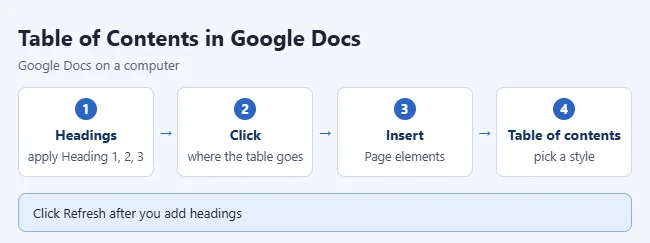
To make a table of contents in Google Docs, format your section titles as headings, click where you want the table, then choose Insert > Page elements > Table of contents and pick a style. Each entry links to its heading, so readers can jump straight to a section. These steps apply to Google Docs in a web browser on a computer in October 2026, with separate sections below for the iPhone, iPad, and Android apps.
The steps come from Google’s Add a title, heading, or table of contents in a document help page.
What You Need
- A computer with a web browser. The full feature set is only in the browser version of Google Docs.
- Edit access to the document. If you can only view or comment, you can’t insert or refresh a table of contents.
- Section titles formatted with heading styles. Bold or larger text does not count.
Step 1: Format Your Headings
Google Docs builds the table of contents from heading styles, not from the way text looks. Do this first.
- Select a section title in your document.
- Click Format > Paragraph styles, or click the style box in the toolbar that says Normal text.
- Choose Heading 1 for main sections. Use Heading 2 and Heading 3 for smaller sections inside them. Google Docs offers Heading 1 through Heading 6.
- Click Apply for that heading style if you used the Format menu. The text changes size to show the new style.
- Repeat for every section title you want listed.
A faster way is the keyboard. Click in the title and press Ctrl + Alt + 1 for Heading 1, Ctrl + Alt + 2 for Heading 2, and so on up to 6. On a Mac, press Command + Option + 1 through 6.
Don’t like how the headings look? Format one heading the way you want, select it, then click Format > Paragraph styles, point to that heading level, and click Update ‘Heading’ to match. Every heading of that level changes at once.
Step 2: Insert the Table of Contents
- Click where you want the table of contents. Most people put it near the top, after the title or the cover page.
- Click Insert > Page elements > Table of contents.

- Choose how you want the table to look. The table appears at your cursor with one line for each heading.
To confirm it worked, click an entry and follow the link. It should jump to that heading.
Which Style Should You Choose?
Google Docs offers three looks in the Table of contents menu.
| Style | What it shows | Best for |
|---|---|---|
| Page numbers | Heading titles with a page number at the right | Documents you will print |
| Dotted lines | Heading titles joined to page numbers by a row of dots | Reports and formal papers |
| Blue links | Heading titles as links, with no page numbers | Documents read on a screen |
The menu shows these as small pictures, so the exact names you see when you point at them can differ. Entries link to their headings in all three.
How to Update the Table of Contents
The table doesn’t update by itself. Refresh it after you add, rename, move, or delete headings, and again before you print or share.
- Make your changes to the headings in the document.
- Click anywhere in the table of contents.
- Click the Refresh button that appears beside the table. You can also right-click the table and choose Update table of contents.

Change the wording in the document, not in the table. Anything you type straight into the table can be replaced the next time you refresh.
How to Change Which Heading Levels Appear
You can hide deeper levels, such as Heading 3, without changing the document.
- Click the table of contents.
- To the left of the table, click More table of contents options.
- Click More options. A panel opens on the right.
- Select which headings to display.
- Change the format and the heading indents if you want.

The same panel is where you switch between page numbers, dotted lines, and links after the table is already in place. For fonts and colors, select the text in the table and use the toolbar as you would for any other text.
How to Delete the Table of Contents
Right-click the table and choose Delete table of contents. Your headings and text stay where they are. If you delete it by mistake, press Ctrl + Z (Command + Z on a Mac) to bring it back. A table of contents is not a regular grid table, so the steps for deleting a table in Google Docs don’t apply to it.
Table of Contents in Pageless Format
Pageless format removes page breaks, so the document scrolls as one long page. Google lists two limits that matter here:
- If your document is in pageless format, you can’t change the formatting of your table of contents.
- Pageless documents can’t have page numbers, headers, or footers.
For a pageless document, pick the links style. If you need page numbers or want to change the table’s formatting, switch back first: click File > Page setup, select Pages, and click OK. You can also click Format > Switch to Pages format. To number the pages themselves, see how to add page numbers in Google Docs.
Use the Document Outline or Tabs Instead
If the table of contents is only for getting around your own document, you may not need one. The outline is built from the same headings and updates on its own.
- Click View > Show outline, or click Show tabs & outlines at the top left of the document.
- Click a heading in the panel on the left to jump to it.
- To hide a heading from the outline, point to it and click Remove from outline.
Subtitles don’t appear in the outline. The outline also doesn’t print, so use a real table of contents for anything on paper.
For very long documents, tabs split the content into separate sections. Open the left panel and click Add tab. Each tab has its own outline, which you show with Tab options > Show outline. You can nest tabs up to three levels deep, and a document can hold up to 100 tabs.
Make a Table of Contents on iPhone or iPad
The Google Docs app for iPhone and iPad can insert a table of contents. Google says Print layout must be on, and the document must already have text with a heading or title style.
- Open the document in the Google Docs app and tap Edit.
- Tap where you want the table of contents.
- Tap Insert.
- Tap Table of contents.
- Choose how you want it to look.

To update it later, change your headings, tap the table of contents, and tap Update Table of Contents. To make a heading in the app, select the text, tap Format, tap Text, tap Style, and pick a heading. The More options panel for heading levels is described only for computers.
What the Android App Can and Cannot Do
Google states it plainly: you cannot insert a table of contents on Android. Here is what you can still do in the Android app:
- Apply headings: Select text, tap Format, tap Text, then Style, and choose Heading 1 through Heading 6. The table will pick these up when you insert it on a computer.
- Use the outline: Tap More, then Document outline. The outline opens at the bottom. Tap a heading to jump to it.
- Use tabs: Tap the tabs menu at the bottom to switch tabs or add one.
To add the table itself, open the document in a browser on a computer, or use an iPhone or iPad.
Troubleshooting
- The table is empty or a section is missing. That title is not a heading. Click it, check the style box in the toolbar, apply a heading style, then refresh the table.
- A heading has the right style but still doesn’t show. Its level may be turned off. Open More options and check which headings are set to display.
- Page numbers are wrong. Refresh the table. Page numbers only change when you refresh.
- You can’t change the formatting. The document is in pageless format. Switch to Pages format in File > Page setup.
- There is no Refresh button or Insert option. You probably have view or comment access. Ask the owner for edit access.
- Insert has no Table of contents on your phone. On Android, the option doesn’t exist. On iPhone or iPad, turn on Print layout and tap Edit first.
- A long heading wraps onto two lines. Shorten the heading in the document and refresh.
Frequently Asked Questions
Why is my table of contents empty?
Your section titles probably use bold or larger text instead of heading styles. Apply Heading 1, 2, or 3 to each title, then click the table and click Refresh.
Does the table of contents update automatically?
No. You have to click the table and click Refresh, or right-click it and choose Update table of contents. The document outline in the left panel does update on its own.
Can I add a table of contents on my phone?
On an iPhone or iPad, yes. Turn on Print layout, tap Edit, then tap Insert and Table of contents. On Android, Google says you cannot insert a table of contents, so use a computer for that step.
Can I show only Heading 1 and Heading 2?
Yes, on a computer. Click the table, click More table of contents options, then More options, and select which headings to display. Google says you can’t change the formatting of the table of contents while the document is in pageless format.
Do the links still work in a PDF?
The entries are links to headings inside the document. Google’s help page doesn’t say how they behave after export, so download the PDF with File > Download and click an entry to check before you send it.
How do I make a table of contents in Word instead?
Word uses a similar heading-based method, but the command is on the References tab. See how to insert a table of contents in Word.
Next Step
Apply heading styles to your section titles now, insert the table, and refresh it one last time before you share or print. For more detail on any setting, check Google’s guide to document outlines and its page on document tabs.

Matthew Burleigh is the founder, head writer, and editor of Solve Your Tech, which he launched in 2012. He has written technology tutorials since 2008 and worked in IT since 2003, including small-business support, IT management, and consulting. He holds Bachelor’s and Master’s degrees in Computer Science from Arizona State University.
Matthew writes practical guides for Windows, iPhone and iPad, Microsoft Office, Outlook, Google apps, and Android. Solve Your Tech’s guides are checked step by step against the device or app maker’s own documentation and tested on his own devices whenever he has the hardware or software, with clear steps, sources, and update dates.
Read more about Matthew and how Solve Your Tech writes and updates its guides, or report a correction.