To turn on Storage Sense in Windows 11, open Settings > System > Storage and set the Storage Sense switch to On. With its default settings, it cleans up temporary files and old Recycle Bin items when your drive runs low, and it leaves your Downloads folder and OneDrive files alone until you tell it otherwise. The steps below match current Windows 11 releases, including version 26H2, plus earlier supported versions such as 25H2 and 24H2.
Storage Sense is a built-in cleanup feature. Instead of remembering to clear junk files yourself, you set a few rules once, and Windows follows them on a schedule or whenever free space gets tight. It’s worth a few minutes to set those rules up properly, because two of them (Downloads and the Recycle Bin) can permanently delete files you might still want.
What to Know Before You Switch It On
- It only cleans your system drive. That’s the drive Windows is installed on, usually C:. A second internal drive, a USB stick, or an external drive isn’t touched.
- The settings belong to your account. If several people sign in to the same PC, each person turns Storage Sense on and sets their own rules.
- It needs you signed in and online. Microsoft’s support page says Storage Sense can’t run unless you’re signed in and online for more than 10 minutes. A laptop that spends most of its life asleep may rarely get a scheduled cleanup.
- It’s normally off. Storage Sense starts out turned off. If your PC hits low disk space and you’ve never touched the feature, Windows may switch it on to clear some temporary files and then show you a notification.
A couple of terms come up below. Temporary files are leftovers that apps and Windows create while they work, such as setup files and caches, which are safe to remove once they aren’t in use. Online-only describes a OneDrive file that still shows in File Explorer but isn’t stored on your PC; it downloads again when you open it.
Turn On Storage Sense
- Press Windows key + I to open Settings, or select Start and then Settings.
- Select System in the left column, then select Storage on the right. Windows takes a moment to measure the drive and fill in the usage bar. If a User Account Control box appears, select Yes to continue.
- Scroll to the Storage management section and find Storage Sense.
- Set the Storage Sense switch to On. The change applies right away; there’s no Save button.
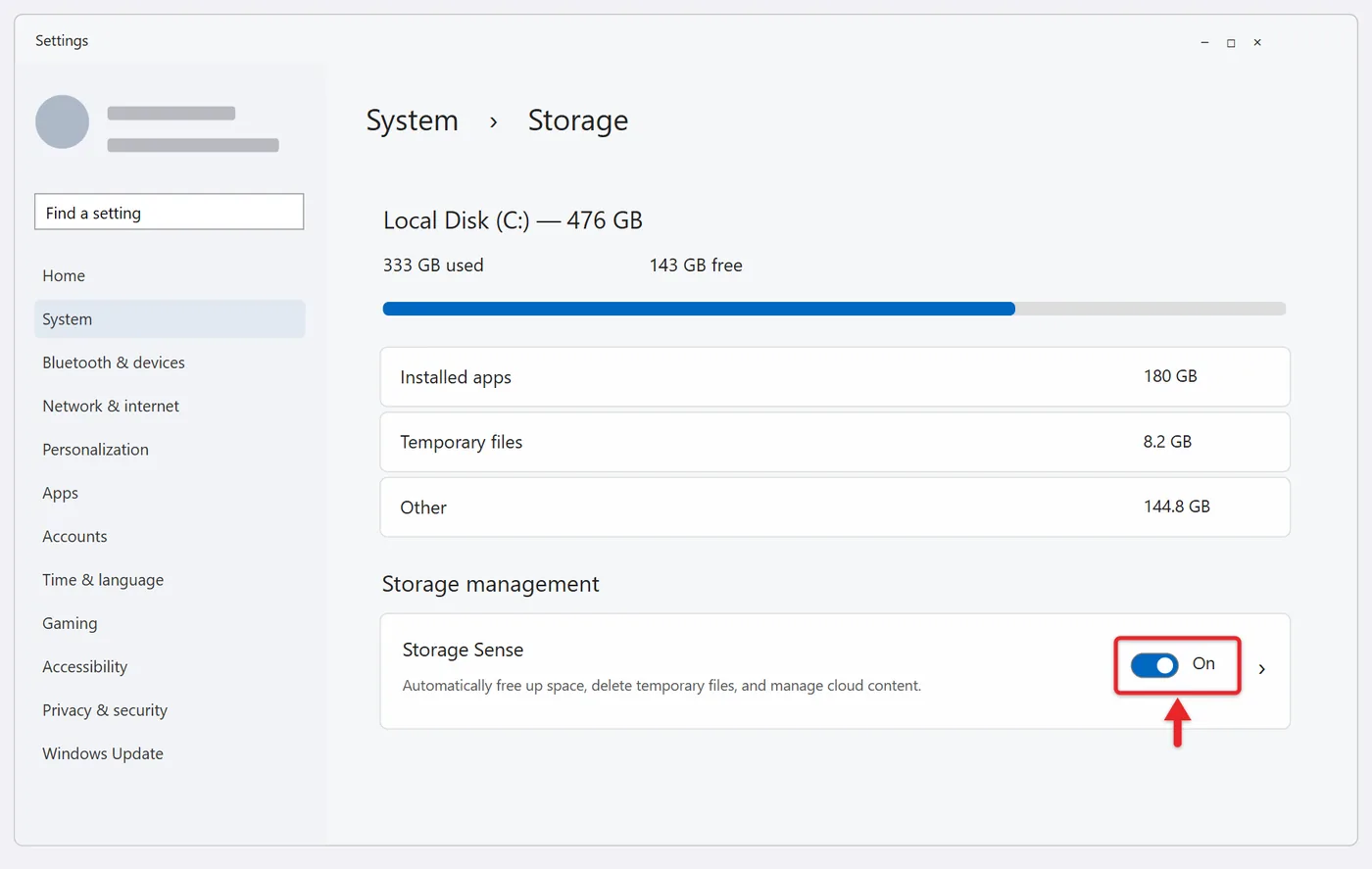
That’s all you need for basic automatic cleanup. Storage Sense will now wait until your drive is low on space, then remove unused temporary files and items that have sat in the Recycle Bin past the cutoff. To see or change exactly what it does, select the words Storage Sense (not the switch) to open its settings page.
Choose What Storage Sense Cleans
The Storage Sense page, at Settings > System > Storage > Storage Sense, holds every rule. The options are grouped under Cleanup of temporary files, Automatic User content cleanup, and Configure cleanup schedules. If Automatic User content cleanup is off on this page, turn it on; it’s the same switch you set on the Storage page.
Temporary files
Keep the box next to Keep Windows running smoothly by automatically cleaning up temporary system and app files checked if you want Storage Sense to clear temporary files each time it runs. This is the safest part of the feature and usually the reason to use it. Uncheck it only if an app you rely on needs its temporary files kept between sessions.
Set the schedule
Open the Run Storage Sense menu and pick one of four options:
- During low free disk space (the default): cleanup happens only when the drive is nearly full. Microsoft explains that you’re in a low disk state when the capacity bar on the Storage page turns red. The exact point depends on the size of your drive.
- Every day: a good fit for small drives (64 GB or 128 GB) that fill up quickly.
- Every week: a sensible middle ground for most laptops.
- Every month: enough for a desktop with plenty of free space.
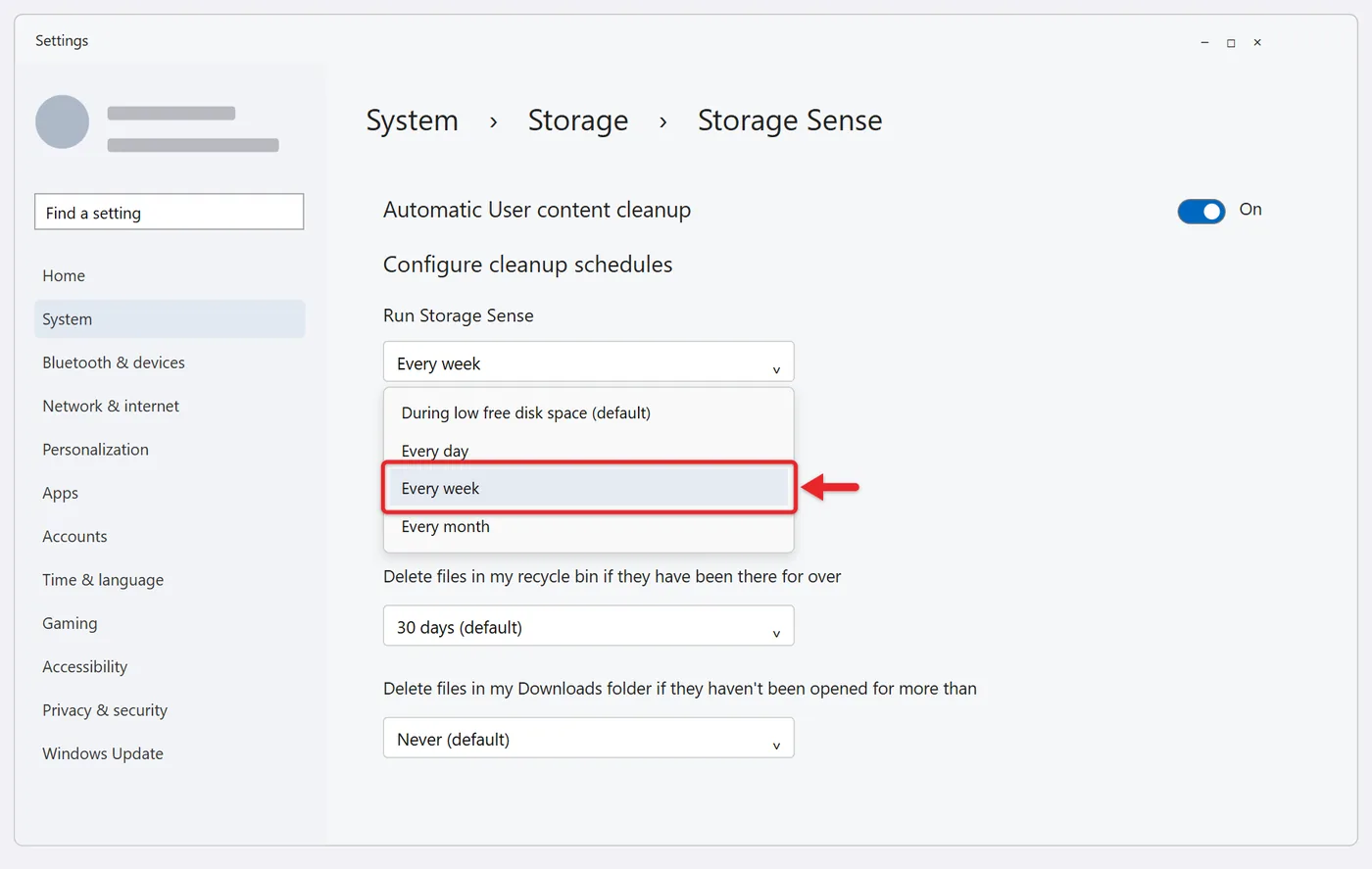
A schedule doesn’t change what gets deleted, only how often the rules are applied. If you have lots of room and just want a safety net, the default is fine.
Recycle Bin age
The menu labeled Delete files in my recycle bin if they have been there for over offers Never, 1 day, 14 days, 30 days, and 60 days, with 30 days selected by default. The clock starts when a file goes into the bin, not when you created it. So with 30 days chosen, a file you deleted yesterday stays recoverable for about a month.
Files removed this way are gone, just as if you’d emptied the bin by hand. If you tend to notice mistakes late, choose 60 days. If you’d rather decide yourself, choose Never and empty the Recycle Bin when you’re ready.
Downloads folder age
Warning: this is the setting most likely to cost you a file you wanted. Plan on any file it removes from Downloads being gone for good, not waiting in the Recycle Bin.
The menu labeled Delete files in my Downloads folder if they haven’t been opened for more than starts at Never, so nothing in Downloads is touched unless you pick a period. The other choices are 1, 14, 30, and 60 days. The rule looks at when a file was last opened, not when it was downloaded. Tax forms, receipts, and installers often sit unopened for months and would be removed. If you turn this on, move anything important out of Downloads first, and pick the longest period you can live with.
OneDrive files online-only
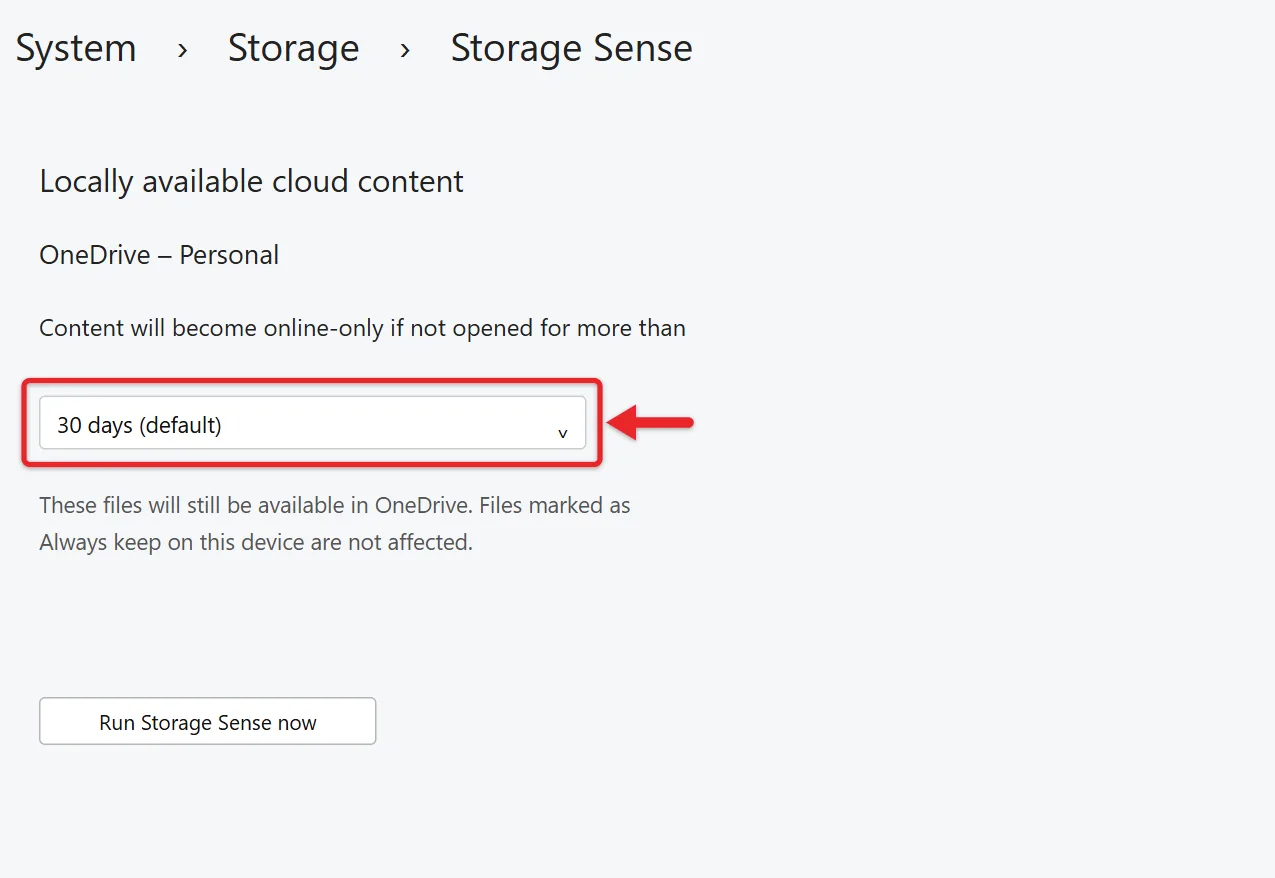
If you’re signed in to OneDrive, a section for your OneDrive account appears with the menu Content will become online-only if not opened for more than. You won’t see this section unless you’re signed in to a cloud account. Microsoft notes that starting with Windows 11 version 22H2, the default for OneDrive is 30 days, but check what your own menu shows.
This rule doesn’t delete anything. It removes the local copy of a file you haven’t opened in a while and keeps it in OneDrive, so it still appears in File Explorer with a cloud icon. Open it and it downloads again, as long as you’re connected to the internet and have the space. Any file or folder you’ve marked Always keep on this device (right-click it in File Explorer to find that option) is skipped. If you often work offline, on a plane for example, mark the files you need that way or set this menu to Never.
Run a Cleanup Right Now
You don’t have to wait for the schedule. After you set your rules:
- Go to Settings > System > Storage > Storage Sense.
- Scroll to the bottom of the page and select Run Storage Sense now.
- Wait for it to finish. When it’s done, the page shows how much space was freed under the button.
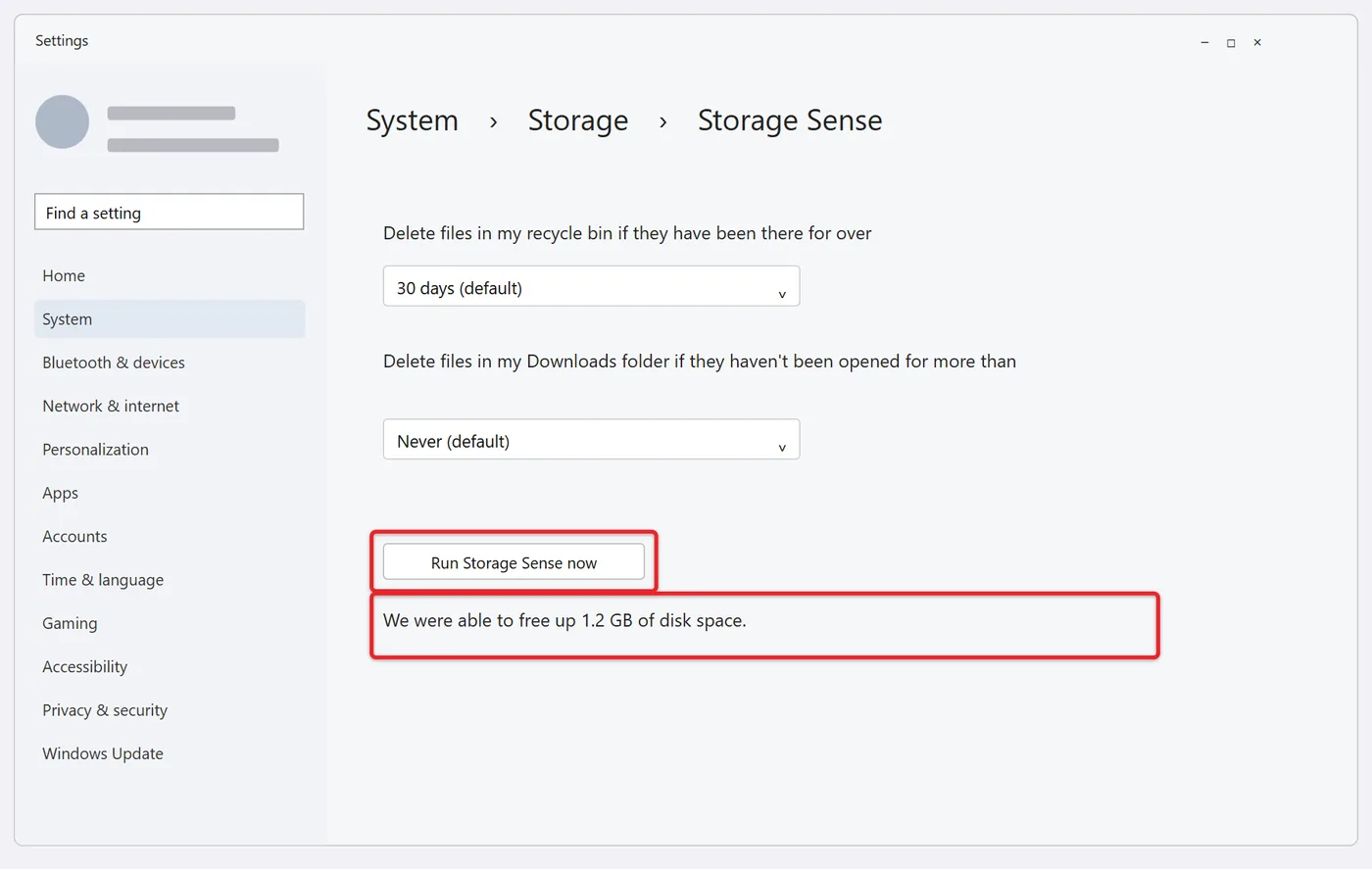
The button uses the rules currently on the page, including any Downloads or Recycle Bin periods. Double-check those menus before you select it. To confirm the result, go back one page to Storage and look at the usage bar, or open File Explorer and select This PC to see free space under Devices and drives.
Use Cleanup Recommendations for a Bigger One-Time Cleanup
Storage Sense is designed for routine upkeep. When you need a lot of space back at once, such as before a big Windows update, Cleanup recommendations is the better tool. It’s on the same Storage page:
- Open Settings > System > Storage and select Cleanup recommendations.
- Review each section: Temporary files, Large or unused files, Files synced to the cloud, and Unused apps. Windows shows how much space each item would free.
- Check only the items you’re sure about, then select that section’s Clean up button.
Unlike Storage Sense, nothing here happens on its own. You choose every item. A file Windows calls “unused” may still be one you need, so read the list carefully. For more control over individual categories, you can also delete temp files in Windows 11 from the Temporary files screen.
What Storage Sense Leaves Alone
Knowing the limits helps when you’re wondering why your drive is still full after a cleanup. Storage Sense doesn’t:
- Delete files in Documents, Desktop, Pictures, Music, or Videos.
- Touch your Downloads folder unless you’ve chosen a period other than Never.
- Uninstall apps. Unused apps are only suggested in Cleanup recommendations, and you decide.
- Delete anything from OneDrive itself. Online-only files stay in the cloud.
- Clean drives other than the system drive. For those, Microsoft points to Settings > System > Storage > Advanced storage settings > Storage used on other drives.
- Offer a setting for the previous Windows installation. After an upgrade, Windows keeps the old version for about 10 days so you can roll back. To remove it sooner, follow the steps to delete Windows.old in Windows 11.
If a cleanup didn’t free much, the space is probably going to apps, large personal files, or system files. You can see what’s taking up space on your PC by category from the same Storage page.
If the Switch Is Grayed Out or Says It’s Managed by Your Organization
A locked Storage Sense switch, often shown with a note that some settings are managed by your organization, means a policy controls the feature. Work and school PCs commonly have this, set by an IT department through Group Policy or Microsoft Intune. Microsoft’s policy documentation explains how the main Allow Storage Sense policy behaves:
- Enabled: Storage Sense is always on. You can’t turn it off, but you can still change how often it runs unless the cadence is locked too.
- Disabled: Storage Sense is off for the whole PC, and you can’t turn it on.
- Not configured: you control it in Settings as usual.
Separate policies can lock the temporary-files option, the schedule, and the Recycle Bin, Downloads, and OneDrive periods, which is why only some menus may be grayed out. On a work or school device, ask your IT team; don’t try to work around it. On your own PC, a policy may have been left behind by a tweaking tool or an old setup script. If you have Windows 11 Pro, open the Local Group Policy Editor (press Windows key + R, type gpedit.msc, and press Enter), go to Computer Configuration > Administrative Templates > System > Storage Sense, and set Allow Storage Sense back to Not Configured. Then restart the PC and check Settings again. Windows 11 Home doesn’t include that editor; there, the policy lives in the registry under HKEY_LOCAL_MACHINE\SOFTWARE\Policies\Microsoft\Windows\StorageSense, and changing the registry carries more risk, so back it up before you edit anything.
Microsoft’s Storage policy reference lists every Storage Sense policy and its allowed values.
Turn Storage Sense Off
- Open Settings > System > Storage.
- Under Storage management, set the Storage Sense switch to Off.
Automatic cleanups stop right away, and your other choices stay saved for the next time you turn it on. Turning it off doesn’t bring back anything that was already removed. If the reason you’re turning it off is that files disappeared from Downloads, set that menu to Never as well, in case Windows switches the feature back on during a low-space event. You can still clean up by hand at any time with Cleanup recommendations or Temporary files.
When Storage Sense Doesn’t Seem to Do Anything
- Nothing has happened since you turned it on. With the default schedule, cleanup waits for low disk space. Pick a daily, weekly, or monthly schedule, or select Run Storage Sense now.
- A scheduled run never seems to happen. Make sure the PC stays awake, signed in, and online for at least 10 minutes now and then.
- The OneDrive section is missing. It appears only while you’re signed in to OneDrive on the PC. Sign in from the OneDrive icon in the taskbar’s notification area, then reopen the Storage Sense page.
- Space freed was smaller than expected. Temporary files may not have been taking up much room to begin with. Check the Storage page categories to find what’s really filling the drive.
- Low disk space warnings keep coming back. Microsoft suggests these alerts appear because a nearly full drive hurts performance and can block system updates. Combine Storage Sense with Cleanup recommendations, uninstall apps you don’t use, or move large files to another drive.
Storage Sense Questions
Is it safe to leave Storage Sense on all the time?
Yes, with the default rules. Temporary files and month-old Recycle Bin items are things most people never miss. The risk comes from the Downloads rule, so leave it at Never unless you keep Downloads tidy.
Can I get back a file Storage Sense deleted?
Usually not from within Windows. Items cleared from the Recycle Bin are permanently deleted, and you shouldn’t count on finding removed Downloads files there either. Your options are a backup, such as File History or a OneDrive copy, or downloading the file again from where you first got it. Online-only OneDrive files aren’t deleted, so they just need to be opened to come back.
Is Storage Sense the same as Disk Cleanup?
No. Disk Cleanup is an older tool you open and run yourself, and it can work on any drive you select. Microsoft describes Storage Sense as the newer, automated option that does similar work on the system drive without you starting it.
Does Storage Sense work in Windows 10?
Yes. Microsoft’s guide covers both Windows 10 and Windows 11, and the feature lives under Settings > System > Storage in both. The page layout and some labels differ slightly in Windows 10.
Why did Windows turn Storage Sense on by itself?
Your drive ran low on space and the feature had never been set up on your account, so Windows enabled it to clear some temporary files and notified you. You can turn it off right away or after you’ve freed up space.
Once your rules are set, open the Storage page again in a week or two and compare the usage bar. If the drive is still close to full, a one-time pass through Cleanup recommendations is the next step. Microsoft’s Manage drive space with Storage Sense page has the official summary of these settings.

Matthew Burleigh is the founder, head writer, and editor of Solve Your Tech, which he launched in 2012. He has written technology tutorials since 2008 and worked in IT since 2003, including small-business support, IT management, and consulting. He holds Bachelor’s and Master’s degrees in Computer Science from Arizona State University.
Matthew writes practical guides for Windows, iPhone and iPad, Microsoft Office, Outlook, Google apps, and Android. Solve Your Tech’s guides are checked step by step against the device or app maker’s own documentation and tested on his own devices whenever he has the hardware or software, with clear steps, sources, and update dates.
Read more about Matthew and how Solve Your Tech writes and updates its guides, or report a correction.