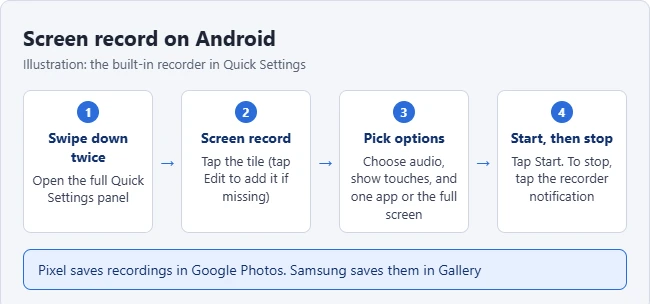
To screen record on Android, swipe down twice from the top of the screen and tap Screen record. Choose whether to record audio and show touches, pick one app or the entire screen, and tap Start. To stop, swipe down and tap the screen recorder notification. The video saves to your phone’s photo app.
The screen recorder is built into Android 11 and later, so you don’t need to install an app. If you don’t see the tile, you can add it to Quick Settings in a few seconds.
How to Record Your Screen on Android
These steps follow Google’s Android help page and work on Pixel, Samsung Galaxy, and most other phones.
- Swipe down twice from the top of the screen to open the full Quick Settings panel.
- Tap Screen record (Samsung calls it Screen recorder). You may need to swipe left to find it.
- Choose your options, such as recording audio and showing touches on the screen.
- Choose to record a single app or the entire screen, if your phone offers the choice.
- Tap Start. Recording begins after a short countdown.
- When you are done, swipe down from the top and tap the screen recorder notification to stop.
Add the Screen Record Tile if It’s Missing
- Swipe down twice to open Quick Settings.
- Tap the pencil icon or Edit (on Samsung, tap the three dots, then Edit buttons).
- Find Screen record and drag it into your active tiles.
- Tap Done or the back arrow.
How to Record With Sound
Before you tap Start, open the audio option and pick a source:
- Device audio (or Media sounds on Samsung) records sound from videos, games, and apps.
- Microphone records your voice.
- Device audio and microphone records both, which is useful for tutorials.
Some apps block recording. Streaming video apps often record as a black screen, and some banking apps block screen capture completely.
Where to Find Your Screen Recordings
- Pixel: open Google Photos and look in Collections > On this device > Movies.
- Samsung: open the Gallery app and look in the Screen recordings album.
- Other phones: check the Photos or Gallery app, or the Movies folder in your file manager.
To show the video on a bigger screen, you can screen mirror your Android phone to a TV.
Frequently Asked Questions
Is there a time limit on Android screen recordings?
Android doesn’t set a short limit, but long recordings use a lot of storage. Keep an eye on free space for recordings longer than a few minutes.
Why is my screen recording black?
The app you recorded blocks screen capture, which is common with streaming and banking apps. There is no setting to override it.
How do I screen record on other devices?
See how to screen record on an iPhone or how to screen record in Windows 11.

Matthew Burleigh has been writing tech tutorials since 2008. His writing has appeared on dozens of different websites and been read hundreds of millions of times.
After receiving his Bachelor’s and Master’s degrees in Computer Science he spent several years working in IT management for small businesses. However, he now works full time writing content online and creating websites.
His main writing topics include iPhones, Microsoft Office, Google Apps, Android, and Photoshop, but he has also written about many other tech topics as well.