To restore an iPhone from an iCloud backup, turn it on, follow the setup steps to the Transfer Your Apps & Data screen, tap From iCloud Backup, sign in, and choose a backup. To restore from a computer, connect the iPhone, open the Finder (Mac) or the Apple Devices app (Windows), and select Restore Backup. An iCloud restore only starts from the Hello screen, so an iPhone that is already set up has to be erased first.
The steps come from Apple’s Restore your iPhone, iPad, or iPod touch from a backup article. They are written for iPhones running iOS 26 and iOS 27. On older iOS versions the screen names can be worded a little differently.
What You Need
- A backup. It can be in iCloud or on a Mac or Windows PC. If you aren’t sure you have one, check before you do anything else (see below).
- Your Apple Account email or phone number and password. You sign in with the same account that made the backup.
- Wi-Fi and power for an iCloud restore. Apple’s help page for failed restores says you can’t restore from an iCloud backup over a cellular connection.
- A USB cable and the computer that holds the backup for a computer restore.
- The backup password if your computer backup is encrypted.
- Your iPhone passcode. You need it to erase the phone or to trust the computer.
Warning: a restore replaces what is on the iPhone with what is in the backup. Anything you added after the backup date is not in the backup. If the phone is already set up, an iCloud restore also means erasing it first. Read the erase section below before you start.
How to Restore an iPhone From an iCloud Backup
Use this method on a new iPhone, or on one you just erased.
- Turn on your iPhone. You should see the Hello screen. If the phone is already set up, you have to erase it first (see below).
- Follow the setup steps until you reach Transfer Your Apps & Data, then tap From iCloud Backup. You pick a language and join Wi-Fi on the way there.
- Sign in to your Apple Account.
- Pick a backup. Check the date and size of each one to choose the right one.
- Sign in again when asked to restore your apps and purchases.
- Stay on Wi-Fi and wait for the progress bar to appear and finish. How long it takes depends on the size of the backup and the speed of your network.
- Finish the remaining setup screens. You land on the Home Screen with your wallpaper and app layout in place.
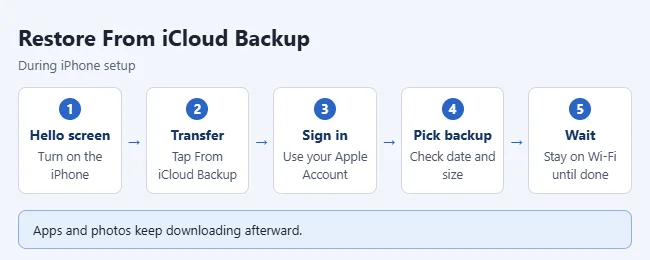
Apple says apps, photos, music, and other content keep restoring in the background, which can take hours or even days for large backups. Keep the phone on Wi-Fi and plugged in as often as you can until it is done.
If you bought apps or music with more than one Apple Account, the iPhone asks for each account’s password in turn. Enter each one. Apple suggests making a new backup after the restore finishes so you aren’t asked again next time.
How to Restore From a Backup on a Mac or Windows PC
These steps are for a Mac running macOS Catalina 10.15 or later and for a Windows PC with the Apple Devices app. The iPhone doesn’t have to be at the Hello screen for this method. The restore still replaces what is on the phone.
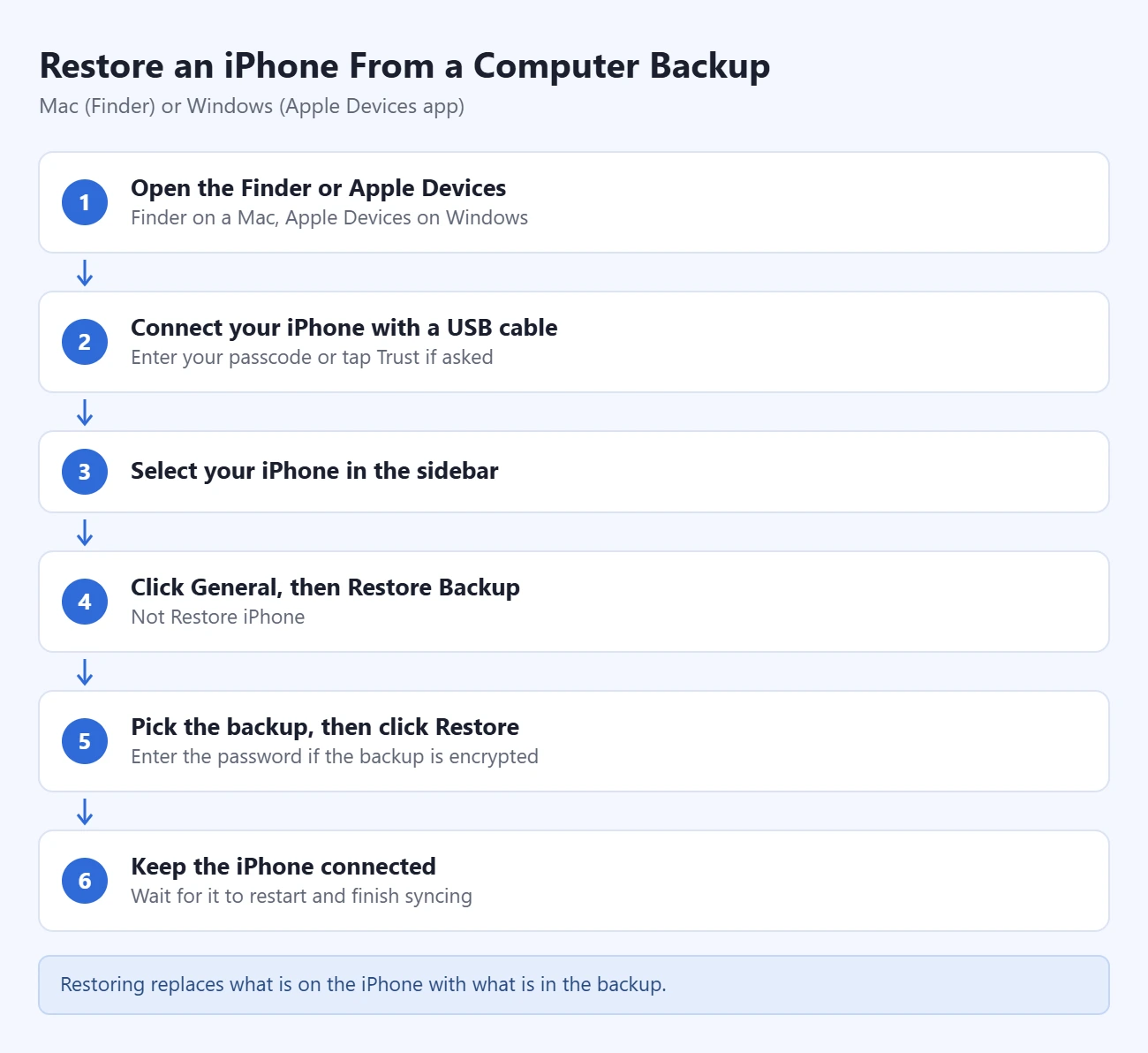
- Open the Finder on a Mac, or the Apple Devices app on Windows.
- Connect your iPhone with a USB cable. Enter your passcode or tap Trust on the iPhone if asked.
- Select your iPhone in the Finder sidebar or the Apple Devices sidebar.
- Click General, then click Restore Backup. Don’t choose Restore iPhone. That button erases the phone and reinstalls iOS instead.
- Pick the backup with the right date, then click Restore. Enter the password if the backup is encrypted.
- Keep the iPhone connected after it restarts and wait for it to finish syncing with the computer.
How to Restore With iTunes on an Older PC or Mac
Apple still documents iTunes for two cases: a Windows PC that doesn’t have the Apple Devices app, and a Mac running macOS Mojave or earlier.
- Open iTunes. Install the latest version first if it asks you to update.
- Connect your iPhone with a USB cable. Enter your passcode or tap Trust if asked.
- Select your iPhone when it appears in the iTunes window.
- Click Summary, then click Restore Backup.
- Pick the backup with the right date, then click Restore. Enter the password if the backup is encrypted.
- Keep the iPhone connected after it restarts and wait for it to sync.
How to Check That You Have a Recent Backup
Do this before you erase anything. If the backup is old or missing, make a new one first.
iCloud backup:
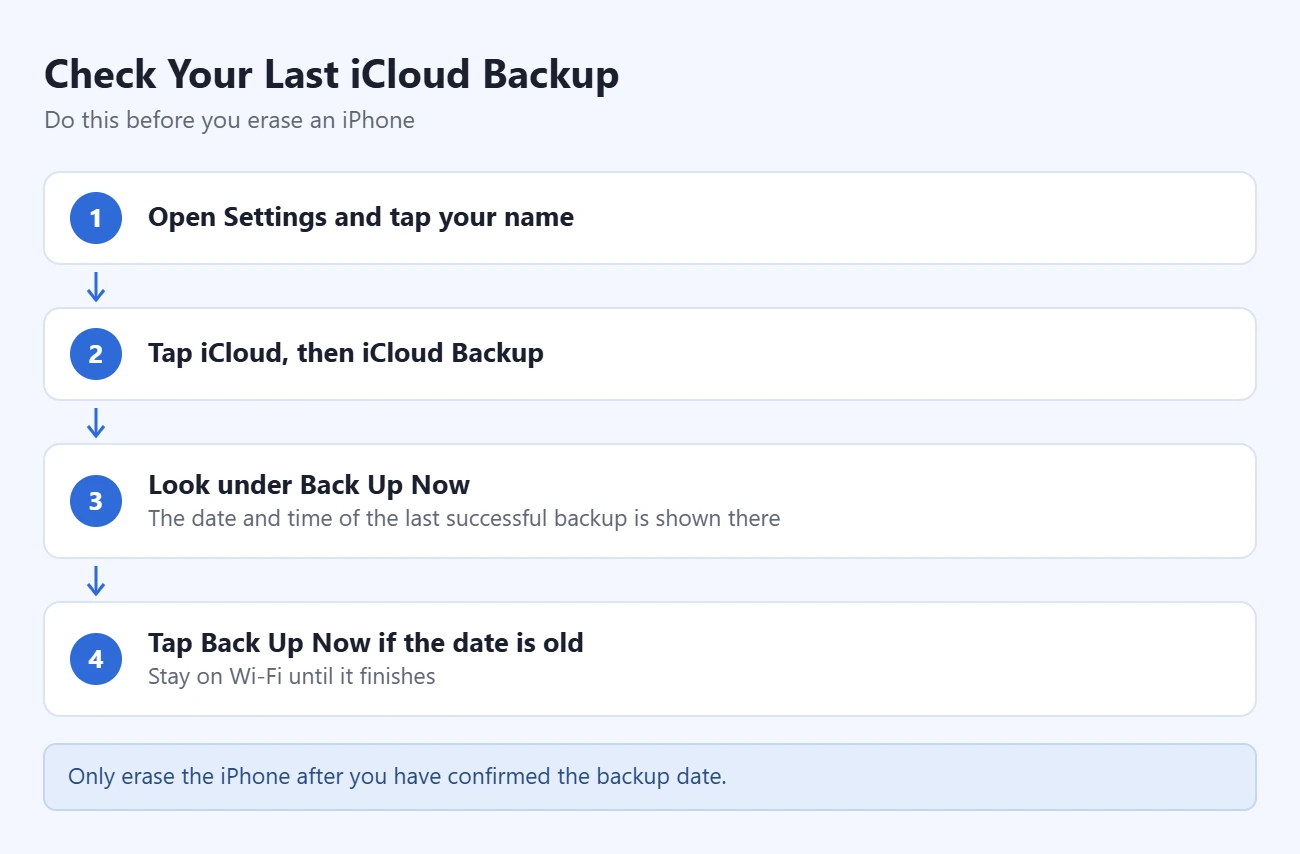
- Open Settings and tap your name.
- Tap iCloud, then tap iCloud Backup.
- Look under Back Up Now. The date and time of the last successful backup is shown there.
- If the date is old, connect to Wi-Fi and tap Back Up Now. Stay on Wi-Fi until it finishes.
To see every iCloud backup on your account, go to Settings > [your name] > iCloud > Storage (or Manage Account Storage) > Backups.
Computer backup: connect the iPhone, select it in the Finder or the Apple Devices app, and click General. The date and time of the last backup appears there. Click Manage Backups to see the full list. Apple says a lock icon next to a backup means it is encrypted.
If you have no backup yet, follow our guide on how to back up an iPhone to iCloud or a computer first. If iCloud says there isn’t enough room, you can make the iCloud backup smaller or buy more iCloud storage.
How to Erase an iPhone That’s Already Set Up
Warning: this deletes everything on the iPhone and cannot be undone. Photos, messages, apps, and settings that are not in a backup or synced to iCloud are gone for good. Only continue after you have confirmed the backup date above.
- Open Settings and tap General.
- Tap Transfer or Reset iPhone.
- Tap Erase All Content and Settings, then tap Continue.
- If you have an eSIM, choose to keep it or delete it. If you delete it, you have to contact your carrier to activate service again.
- Enter your iPhone passcode.
- If the iPhone starts a backup, let it finish.
- Enter your Apple Account password if asked, then confirm.
- Wait for the erase to finish. The Hello screen appears when it is done.
Now follow the iCloud steps at the top of this page. For more detail on the erase itself, see how to factory reset an iPhone. If you only want to fix a settings problem, one of the other iPhone reset options may do the job without erasing your data.
What a Backup Restores and What It Doesn’t
A backup is not a full copy of everything you see on the phone. Apple leaves out content that already syncs to iCloud, because that content comes back on its own when you sign in.
| Backup type | Includes | Doesn’t include |
|---|---|---|
| iCloud | Device settings, Home Screen and app layout, app data, purchased ringtones, Apple Watch backups, text messages and photos if you don’t sync them to iCloud | Anything already synced to iCloud (iCloud Photos, Messages in iCloud, iCloud Drive, synced Notes), Apple Mail data, Apple Pay information, Face ID or Touch ID settings, App Store content, offline maps |
| Computer | Most of the data and settings on the iPhone | iTunes and App Store content, content synced from your computer, data already in iCloud, Face ID or Touch ID settings, Apple Pay information, Apple Mail data, offline maps |
Two things follow from that:
- Apps are downloaded again from the App Store. The backup holds their data, not the apps themselves.
- Health, Activity, and Keychain data are only in a computer backup if it is encrypted. Apple says encrypted backups also hold saved passwords, Wi-Fi settings, website history, and call history. iCloud backups are always encrypted.
You set up Face ID or Touch ID and add your Apple Pay cards again after any restore. Apple also notes that some content won’t transfer when you restore a backup from a different type of device, such as an iPad backup on an iPhone.
If the iPhone Says It Needs a Newer Version of iOS
A backup made on a newer version of iOS can’t go onto an iPhone running an older version. During an iCloud restore, follow the on-screen steps to update, then continue. If you are restoring from a computer, Apple’s page on backups that need a newer version of iOS gives this workaround:
- On the Transfer Your Apps & Data screen, tap Don’t Transfer Apps & Data.
- Follow the remaining steps. You can skip Apple Account, Face ID or Touch ID, and passcode.
- When setup is complete, update the iPhone to the latest version of iOS.
- Let the update finish and wait for the iPhone to restart.
- Go to Settings > General > Transfer or Reset iPhone > Erase All Content and Settings. The phone has nothing on it yet, so nothing is lost.
- When the Hello screen appears, set up the iPhone again and restore your backup.
How to Confirm the Restore Worked
- Go to Settings > [your name] > iCloud > iCloud Backup. If you see a message that the iPhone is currently being restored, it is still downloading content. Give it more time on Wi-Fi.
- Open Photos, Messages, and a few apps you use often. Sign in to apps that ask for a password.
- After a computer restore, wait until the Finder, the Apple Devices app, or iTunes finishes syncing before you unplug the cable.
You can’t undo a restore. If you picked the wrong backup, erase the iPhone again and choose a different one. Do this soon. Apple says iCloud backups stay available for 180 days after you turn off or stop using iCloud Backup, and new backups can replace older ones.
Troubleshooting a Restore That Fails
The iCloud restore shows an error
Plug the iPhone into power and check the Wi-Fi connection. Then try again on a different Wi-Fi network. If you have more than one backup, try another one from the list. Apple’s If restore from iCloud backup failed page lists these same checks.
Your backup isn’t in the list
Make sure you signed in with the Apple Account that made the backup. A backup from another account won’t show up. Then try a different network. If you still have a device signed in to that account, check Settings > [your name] > iCloud > Storage (or Manage Account Storage) > Backups to confirm the backup exists.
You don’t see the Transfer Your Apps & Data screen
That screen only appears during setup. If the iPhone opens to the Home Screen, it is already set up. Erase it to get back to the Hello screen, or restore from a computer instead.
The computer doesn’t see the iPhone or shows an error
Update the Mac or PC, and install the latest Apple Devices app or iTunes. Unlock the iPhone and tap Trust. Restart the iPhone and the computer. On Windows, check that security software isn’t blocking the connection. Apple also says to make sure the iPhone has the latest version of iOS.
The computer says Find My must be turned off
If you see this message, go to Settings > [your name] > Find My > Find My iPhone on the phone, turn it off, and try again. Turn it back on after the restore. The exact wording of this prompt can vary by version.
The backup is corrupt or not compatible
Update the computer first. If the message says the iPhone’s software is too old, update the iPhone as described above. If neither helps, try an older backup or your iCloud backup.
You forgot the encrypted backup password
Apple is clear that you can’t restore an encrypted backup without its password. You can reset the password for future backups at Settings > General > Transfer or Reset iPhone > Reset > Reset All Settings, but that does not unlock the old backup. Use an iCloud backup instead if you have one.
Something is missing after the restore
First check whether the restore is still running, as described above. Messages in iCloud, iCloud Photos, and voice memos sync separately and download over Wi-Fi after the restore. Mail is not part of a backup. Your account settings come back and the messages download again from your mail provider.
Frequently Asked Questions
Can I restore an iCloud backup without erasing my iPhone?
No. The From iCloud Backup option only appears during setup, so an iPhone that is already set up has to be erased first. A computer backup can be restored without going through setup, but it still replaces what is on the phone.
Can I restore just my messages or photos?
No. A backup restores everything at once. Photos in iCloud Photos and messages in Messages in iCloud sync on their own when you sign in, even without a full restore.
How long does a restore take?
Apple doesn’t give a fixed time. It depends on the size of the backup and the speed of your Wi-Fi. You can use the phone once setup finishes, but apps and photos can keep downloading for hours or days.
I set up my iPhone as new. Can I still restore?
Yes, but Apple suggests erasing and restoring soon. New backups made after setting up as new can replace your older iCloud backup.
Can I restore a backup from a different iPhone?
Yes. That is how you move to a new phone when the old one is lost or broken. The new iPhone may need a software update first. If you still have the old phone, a direct transfer is often easier. See how to transfer data from iPhone to iPhone.
Do I need an app to recover data from a backup?
No. Restoring a backup uses only the iPhone’s own setup screens, the Finder, the Apple Devices app, or iTunes. All of them are free from Apple.
Why does my iPhone ask for my Apple Account password more than once?
You sign in once to see your backups and again to restore apps and purchases. You may be asked more times if purchases were made with different Apple Accounts.
Next Step
Once everything is back, go to Settings > [your name] > iCloud > iCloud Backup and make sure Back Up This iPhone is on. The iPhone then backs up on its own when it is locked, charging, and on Wi-Fi.

Matthew Burleigh is the founder, head writer, and editor of Solve Your Tech, which he launched in 2012. He has written technology tutorials since 2008 and worked in IT since 2003, including small-business support, IT management, and consulting. He holds Bachelor’s and Master’s degrees in Computer Science from Arizona State University.
Matthew writes practical guides for Windows, iPhone and iPad, Microsoft Office, Outlook, Google apps, and Android. Solve Your Tech’s guides are tested on current devices or checked against official product documentation, with clear steps, sources, and update dates.
Read more about Matthew and how Solve Your Tech writes and updates its guides, or report a correction.