To print a Word document without comments, go to File > Print, open the first list under Settings (it usually says Print All Pages), and uncheck Print Markup. The preview updates so you can confirm the comments are gone before you print. This hides comments in the printout only; they stay in the file.
This guide covers Word for Microsoft 365 and Word 2016–2024 on Windows. It shows the Print Markup method, the No Markup view, how to print tracked changes without comments, how to print only the comments, and how to remove comments before sharing a file. Steps follow Microsoft’s Print a document in Word page, checked in October 2026.
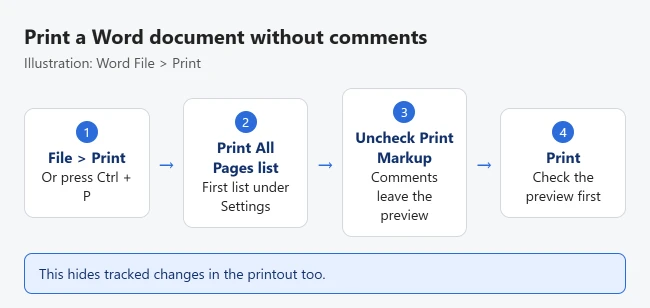
How to Print Without Comments
- Open the document and select File > Print, or press Ctrl + P. Result: the Print screen opens with a preview on the right.
- Under Settings, select the first list, which usually says Print All Pages. Result: a menu of print options appears.
- Select Print Markup to remove its check mark. Result: the comment balloons disappear from the preview.
- Check a page that had comments in the preview. Result: it should show only the document text.
- Select Print.
Microsoft’s print page describes the Print Markup option in this list, along with printing specific pages and color options. The same switch controls tracked changes, so turning it off also hides insertions and deletions in the printout. The comments aren’t deleted, only left off the page.
Another Way: Switch to No Markup First
Microsoft also suggests changing the view before you print:
- Select the Review tab. Result: the review tools appear.
- Open the Display for Review list in the Tracking group. It may say Simple Markup or All Markup. Result: the markup options appear.
- Choose No Markup. Result: comments and tracked changes disappear from the screen.
- Select File > Print and print. Switch back to All Markup afterward to see your comments again.
Print Tracked Changes but Not Comments
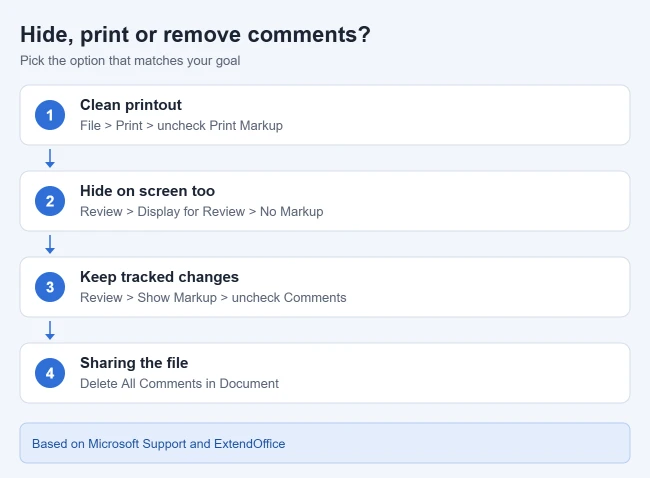
If you want the printout to show edits but not comments, you can hide only the comments:
- On the Review tab, select Show Markup. Result: a list of markup types appears.
- Uncheck Comments. Result: comments are hidden while tracked changes still show.
- Print the document with Print Markup turned on. Result: the printout shows changes without comment balloons.
Microsoft’s page uses the same Show Markup list the other way around: choose only Comments there when you want to print comments from one specific reviewer.
Print Only the Comments
In the same Print All Pages list, choose List of Markup to print a list of the comments and changes without the rest of the document.
Remove Comments Before Sharing
Hiding comments for printing doesn’t remove them. Anyone you send the file to can still see them. If the document is going to someone else:
- On the Review tab, in the Comments group, select the arrow under Delete. Result: delete options appear.
- Choose Delete All Comments in Document. Result: every comment is removed.
- To check for other hidden content, such as tracked changes or personal information, run Microsoft’s Document Inspector.
If Comments Still Print
- Print Markup is still checked: reopen the Print All Pages list and make sure it’s unchecked. Then check the preview again.
- You’re printing to PDF: the same setting applies. Try checking the PDF itself, not just the preview, before you send it.
- Comments disappeared from the screen: that’s the No Markup view. Choose All Markup in Display for Review to bring them back.
- Word for the web: Microsoft says Word for the web makes a PDF for printing, so check the PDF preview before printing.
Frequently Asked Questions
Does printing without comments delete them?
No. Both methods only hide comments for that printout or view. Use Delete All Comments in Document to remove them.
Why does my printout have an extra blank page?
Hidden paragraph marks or page breaks at the end can add a blank page. See how to delete an empty page in Word.
Can I print one page sideways?
Yes. See how to make only one page landscape. To check page spacing before you print, see how to set 1-inch margins in Word.

Matthew Burleigh is the founder, head writer, and editor of Solve Your Tech, which he launched in 2012. He has written technology tutorials since 2008 and worked in IT since 2003, including small-business support, IT management, and consulting. He holds Bachelor’s and Master’s degrees in Computer Science from Arizona State University.
Matthew writes practical guides for Windows, iPhone and iPad, Microsoft Office, Outlook, Google apps, and Android. Solve Your Tech’s guides are tested on current devices or checked against official product documentation, with clear steps, sources, and update dates.
Read more about Matthew and how Solve Your Tech writes and updates its guides, or report a correction.