To start a Focus session in Windows 11, press Windows key + N to open the notification center, use the + and – buttons under the calendar to pick a length, and select Focus. A timer appears on your screen, Do not disturb turns on, and taskbar apps stop flashing and showing badges until the session ends.
The steps below match current Windows 11 releases, including 25H2 and the 26H2 update that Microsoft began rolling out on September 29, 2026. Focus as a system setting first appeared in the Windows 11 2022 update (22H2), so a PC that hasn’t been updated in years may only show the older Clock app version of the feature.
What a Focus Session Does
A Focus session is a countdown timer tied to your notification settings. Microsoft’s Focus: Stay on Task Without Distractions in Windows page lists what happens by default when one starts:
- A focus timer appears on screen. It’s a small Clock app window showing the time left.
- Do not disturb turns on. Notification banners and sounds are held back. The notifications aren’t deleted, they wait in the notification center.
- Taskbar badges are hidden. Badges are the small numbers or dots on app icons, like an unread count on Outlook or Teams.
- Taskbar flashing is turned off. Apps that normally blink orange in the taskbar to get your attention stay still.
- You get a notification when the session ends, and everything goes back to how it was.
Focus doesn’t close apps, block websites, or stop email from arriving. It just removes the visual and audio nudges that pull you away from what you’re doing.
One requirement: Focus runs through the Clock app. If you’ve uninstalled Clock, reinstall it from the Microsoft Store (search for “Windows Clock”) before trying any of the methods below.
Start a Session From the Notification Center
This is the quickest route and the one you’ll probably use day to day.
- Press Windows key + N, or click the date and time in the bottom-right corner of the taskbar. The notification center and calendar open on the right side of the screen.
- Look at the bottom of the calendar panel for the Focus controls. You’ll see a time, such as 30 mins, with – and + buttons on either side.
- Click + or – until the length you want is showing.
- Click Focus (the button with the play symbol). The panel closes and the focus timer appears on your desktop.
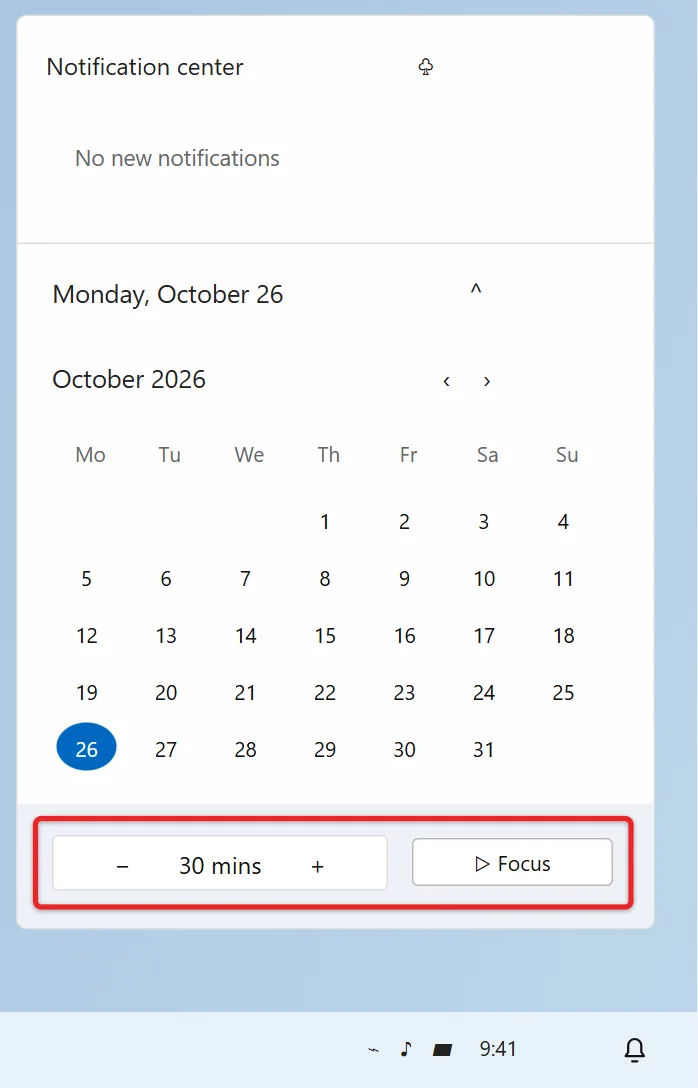
While the session runs, the bell icon next to the taskbar clock changes to show Do not disturb is on, and the same spot in the calendar panel shows an End session button.
Start a Session From Settings
The Settings page is where you control what Focus actually does, so it’s worth visiting once even if you normally start sessions from the taskbar.
- Press Windows key + I to open Settings.
- Select System in the left pane, then Focus on the right.
- Set the Session duration with the + and – buttons. This also becomes the default length shown in the notification center.
- Expand the Focus options if they’re collapsed and check or uncheck these boxes:
- Show the timer in the Clock app
- Hide badges on taskbar apps
- Hide flashing on taskbar apps
- Turn on do not disturb
- Select Start focus session.
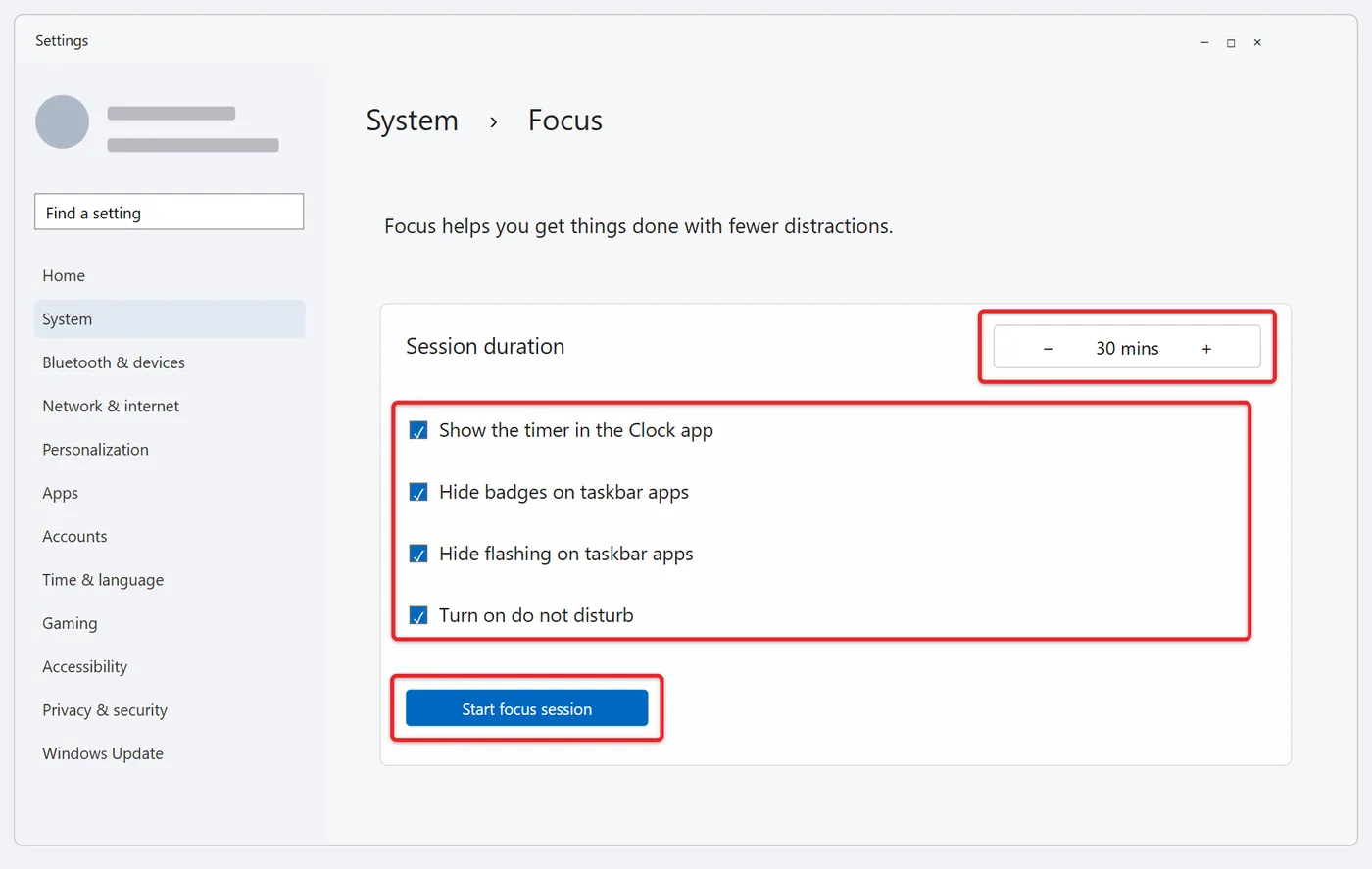
All four boxes are checked by default. The choices you make here apply to every future session, no matter where you start it. If you only want the timer and badge hiding without silencing notifications, for example while you wait for an important message, uncheck Turn on do not disturb.
Use Focus Sessions in the Clock App
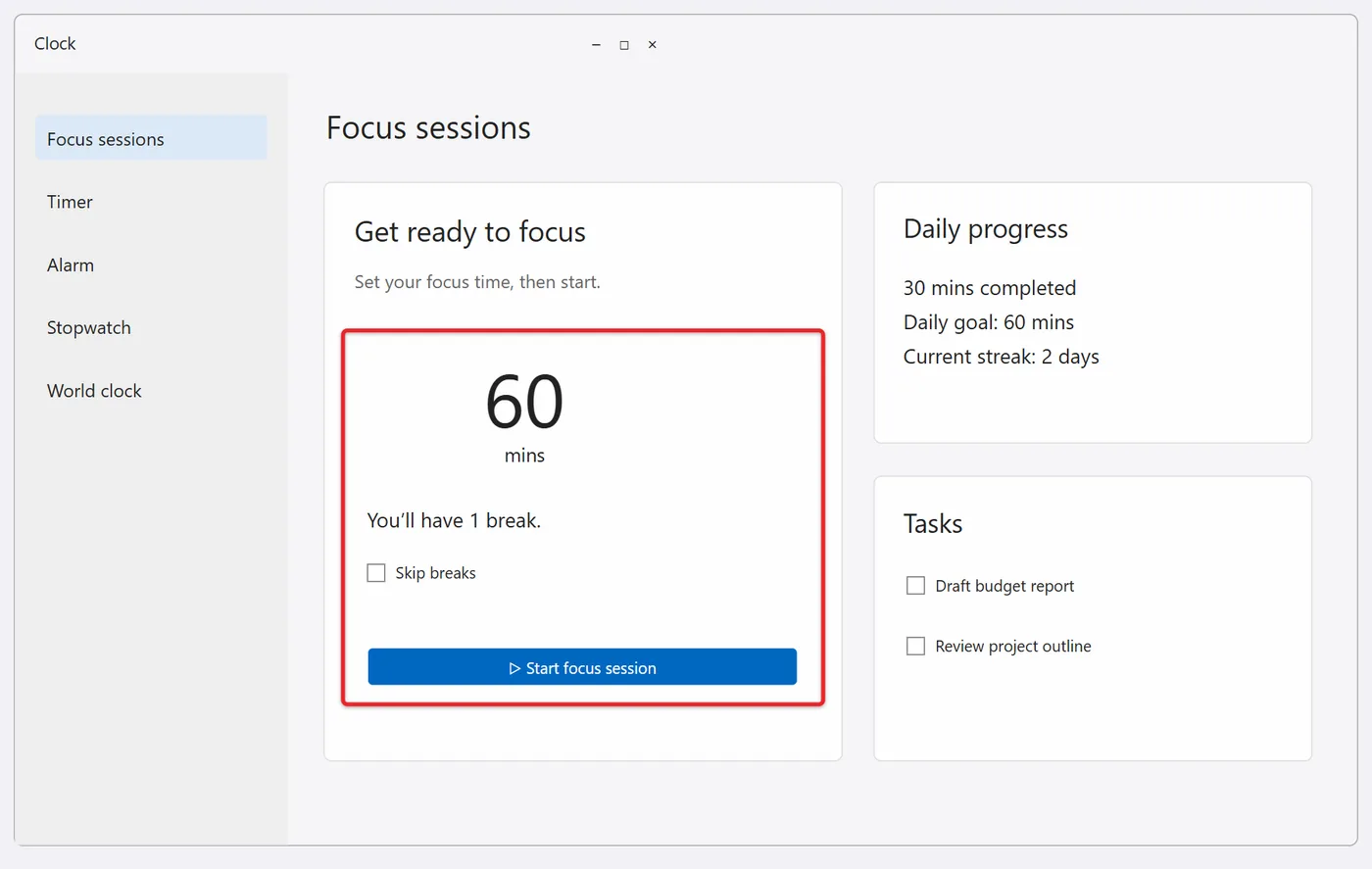
The Clock app has the fullest version of the feature, with breaks, a daily goal, and optional task and music panels.
- Click Start, type Clock, and open the app.
- Select Focus sessions at the top of the left pane. The first time, you may need to click Get started.
- Use the up and down arrows in the Get ready to focus panel to set the length. The panel shows how many breaks the session will include.
- Check Skip breaks if you’d rather work straight through. This option only shows up for sessions long enough to include a break.
- Click Start focus session.
The Clock app also lets you pause a session, which the notification center doesn’t. Click the pause button on the timer, then Resume when you’re ready to continue.
How session length and breaks work
Sessions can be set from 5 minutes up to 240 minutes (four hours). Short sessions run straight through with no break. Once a session is long enough, the Clock app splits it into focus periods with breaks in between, and Skip breaks becomes available. A 30-minute session has no break, while longer sessions get one or more short breaks spaced through the time.
To change how long those pieces are, click the Settings gear at the bottom of the Clock app’s left pane and look under Focus sessions. You can set the Focus period and Break period lengths, and choose or turn off the sounds that play at the end of a session and the end of a break. If you like a 25-minute work, 5-minute break rhythm, this is where you set it up.
Daily progress and streaks
The Daily progress panel in the Clock app adds up the time you spend in finished or stopped sessions and compares it to a daily goal. It also shows how much you focused yesterday and a Streak, which is the number of days in a row you hit your goal. Click the pencil icon on the panel to change the goal, choose when your day resets, and decide whether weekends count toward the streak. Time from a session still in progress isn’t added until it ends.
Shrink or hide the timer
The on-screen timer has a Keep on top button that turns it into a compact window that floats above your other apps. If watching the countdown makes you anxious, click the three dots (See more) on the timer and uncheck Show time remaining. The numbers are replaced with a simple graphic while the session keeps running. Click the expand button to return to the full Clock app view.
Connect Microsoft To Do and Spotify
Both integrations are optional and still described on Microsoft’s Focus Sessions tips page. The rest of Focus works fine without either one.
Microsoft To Do: sign in to the Clock app with your Microsoft account (the sign-in option is at the bottom of the left pane). Your To Do tasks then appear in a Tasks panel on the Focus sessions page. Pick a task before you start, and it’s highlighted for the length of the session. You can add tasks from the panel and check them off between sessions, and the list stays in sync with the To Do app on your phone. If you already use To Do for alerts, our guide to setting reminders on Windows 11 shows how those tasks can notify you at a set time.
Spotify: in the Spotify panel, select Link your Spotify and sign in. Your recently played items and some focus playlists show up, and whatever you pick starts playing when the session starts. You need your own Spotify account, and the desktop Spotify app works best for this.
How to End a Focus Session Early
You can stop a session at any time from any of these places:
- Notification center: press Windows key + N and click End session under the calendar.
- Settings: go to System > Focus and click Stop focus session.
- Clock app or on-screen timer: click pause, then the reset (end) button.
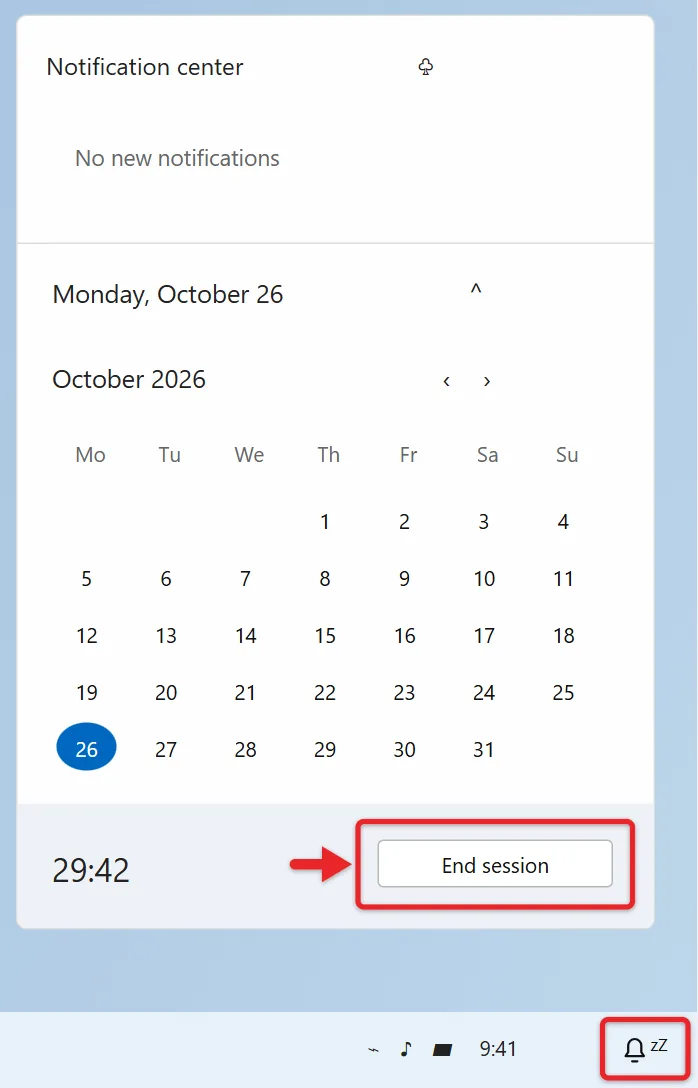
Ending early turns Do not disturb back off and restores badges and flashing. Any notifications that arrived while you were focused are waiting in the notification center.
Focus vs. Do Not Disturb
These two get mixed up because Windows 10 called a similar feature Focus assist. In Windows 11 they’re separate tools:
| Focus session | Do not disturb | |
|---|---|---|
| Has a timer | Yes, 5 to 240 minutes | No, stays on until you turn it off or a schedule ends |
| Silences notifications | Yes, by turning on Do not disturb | Yes |
| Hides taskbar badges and flashing | Yes | No |
| Can turn on automatically | No, you start each session | Yes, on a schedule, during games, full-screen apps and more |
| Where to find it | Settings > System > Focus, notification center, Clock app | Settings > System > Notifications, bell icon in the notification center |
Use Focus when you want a block of timed work. Use Do not disturb for quiet without a timer, like a meeting or a presentation. If you want to stop Do not disturb from turning on by itself, see how to turn off Focus assist and Do not disturb in Windows.
One detail from Microsoft’s documentation: if Do not disturb was already on before your session started, it stays on after the session ends. Focus only turns off what it turned on.
When Focus Doesn’t Work as Expected
The Focus button or timer is missing
Check that the Clock app is installed and up to date. Open the Microsoft Store, select Downloads (or Library), and click Get updates. Then run Windows Update from Settings > Windows Update, since the Settings page and notification center controls come with Windows itself. If Show the timer in the Clock app is unchecked in Settings > System > Focus, sessions still run but no timer window appears.
Some notifications still come through
Do not disturb lets priority notifications through by design. Open Settings > System > Notifications, select Set priority notifications, and review the calls, reminders and apps listed there. Remove any app you don’t want breaking through. Alarms from the Clock app will also still sound. Also confirm that Turn on do not disturb is checked on the Focus settings page.
Badges or flashing still appear
Make sure Hide badges on taskbar apps and Hide flashing on taskbar apps are checked in Settings > System > Focus. These only apply during a session. To get rid of badges permanently, use the taskbar setting described in our guide to removing the numbers from taskbar icons.
To Do tasks or Spotify won’t load
For tasks, confirm you’re signed in to the Clock app with the same Microsoft account you use in To Do. Signing out and back in often fixes an empty Tasks panel, especially after a password change. For Spotify, open the Spotify desktop app and start playing something, then close and reopen Clock. The Spotify panel has had periods where it stopped working, so if it still fails, update both apps and use Spotify separately in the meantime.
Skip breaks isn’t available
That checkbox only appears when the session is long enough to include a break. Raise the length past 30 minutes and it shows up.
Questions People Ask About Focus Sessions
Do I need a Microsoft account to use Focus?
No. The timer, Do not disturb, and badge hiding work with a local account. You only need to sign in to the Clock app if you want the To Do task list, and Spotify needs its own account.
Does Focus work on Windows 10?
Partly. The Clock app’s Focus sessions page can appear on Windows 10, but the Focus button in the notification center and the Settings > System > Focus page are Windows 11 features. Windows 10 uses Focus assist for silencing notifications instead, found under Settings > System > Focus assist.
Can I add a Focus timer to the Widgets board?
Clock app updates have added a Focus Session widget on many PCs. Press Windows key + W, click + to add a widget, and look for Focus Session in the list. If it’s there, you can start, pause and end sessions from the Widgets board without opening Clock. If it isn’t listed, update Clock from the Microsoft Store and check again. For other time cards, see how to add a clock widget in Windows 11.
Will an alarm still go off during a session?
Alarms are meant to get through, but it’s worth checking before you rely on one. Open Settings > System > Notifications > Set priority notifications and make sure Clock is in the list of apps allowed while Do not disturb is on. If it isn’t, select Add apps and add it.
Where do I see what I missed?
Press Windows key + N after the session. Everything that arrived while you were focused is listed in the notification center, grouped by app.
A good first step is a single 30-minute session from the notification center. If the default behavior suits you, open Settings > System > Focus once to set your usual length, then try the Clock app when you want breaks and a daily goal.

Matthew Burleigh is the founder, head writer, and editor of Solve Your Tech, which he launched in 2012. He has written technology tutorials since 2008 and worked in IT since 2003, including small-business support, IT management, and consulting. He holds Bachelor’s and Master’s degrees in Computer Science from Arizona State University.
Matthew writes practical guides for Windows, iPhone and iPad, Microsoft Office, Outlook, Google apps, and Android. Solve Your Tech’s guides are checked step by step against the device or app maker’s own documentation and tested on his own devices whenever he has the hardware or software, with clear steps, sources, and update dates.
Read more about Matthew and how Solve Your Tech writes and updates its guides, or report a correction.