To turn on Memory Saver in Google Chrome, select the three-dot More menu at the top right, choose Settings, select Performance on the left, and switch Memory Saver on. Then pick Moderate, Balanced or Maximum. Chrome then puts tabs you aren’t using to sleep and reloads them when you click back.
Dozens of open tabs can slow the whole computer down. Memory Saver is a desktop feature. It isn’t available in Chrome on iPhone, iPad or Android.
Turn On Memory Saver
The steps are the same on Windows and Mac.
- Open Chrome and select the More button (three vertical dots) at the top right.
- Select Settings.
- Select Performance in the left column.
- Turn on the Memory Saver switch.
- Choose a tab deactivation level: Moderate, Balanced (recommended) or Maximum.
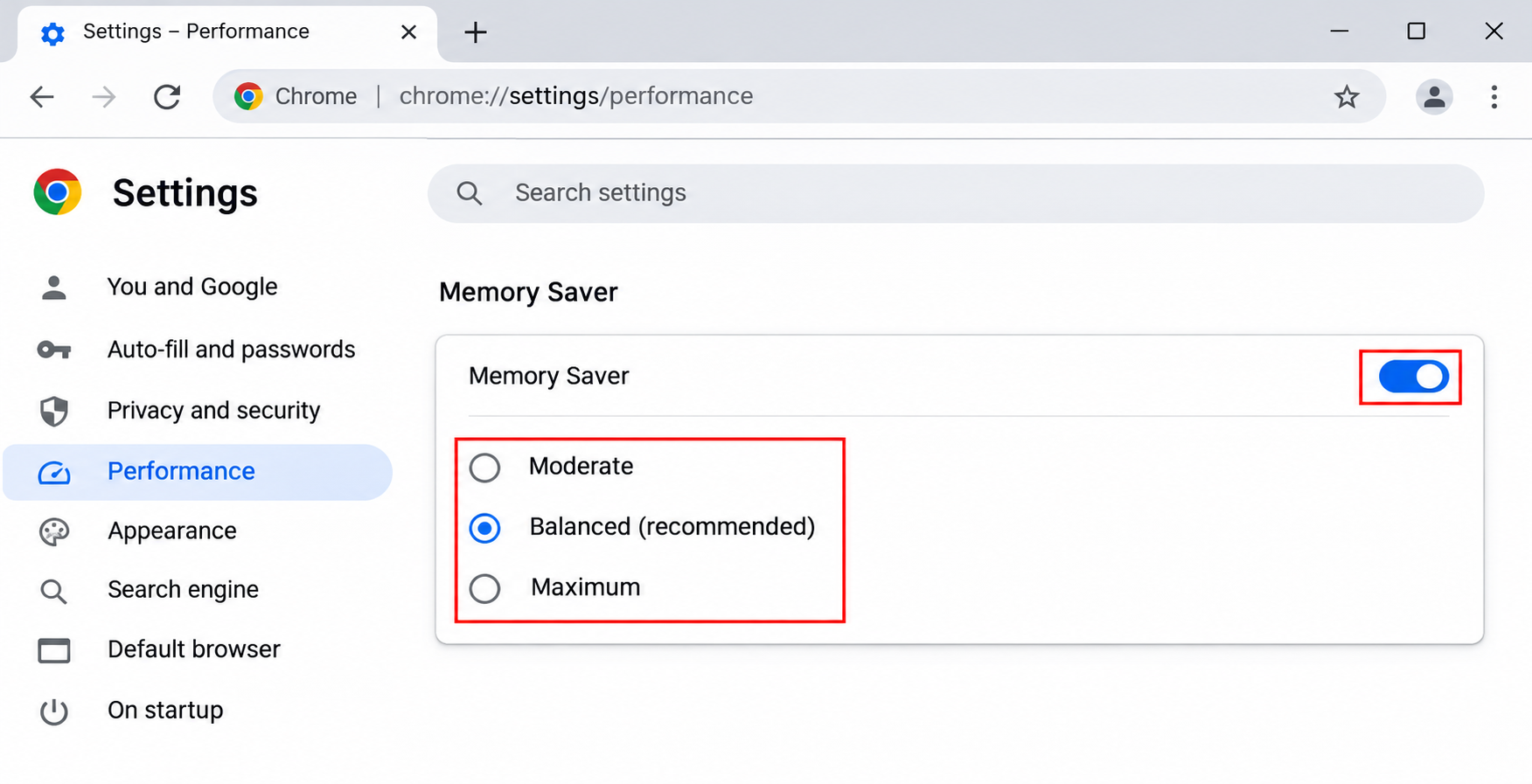
There’s no save button: the switch applies the setting. If Performance isn’t in the left column, your copy of Chrome is probably out of date. Update Google Chrome from Settings > About Chrome, relaunch it, and check again.
Pick Moderate, Balanced or Maximum
The three levels only change how long a tab has to sit unused before Chrome deactivates it. Google describes it in relative terms: Moderate waits longer, Balanced waits for what Google calls an optimal period, and Maximum waits the shortest time. Google doesn’t give exact minutes.
| Your situation | Good starting level |
|---|---|
| Plenty of memory and a few tabs you switch between all day | Moderate |
| Not sure | Balanced |
| Older laptop or a lot of open tabs | Maximum |
These are rules of thumb, not Google figures. If tabs reload more than you’d like, step down one level. If the computer still feels sluggish, step up.
What Happens to a Sleeping Tab
A deactivated tab stays in the tab strip with its title, so you don’t lose your place. When you click it, Chrome reloads the page. Some pages may return to the top or ask you to sign in again, and a web app may lose whatever you hadn’t saved.
To see which tabs are asleep, turn on the Inactive tabs appearance setting. Google says the tab icon then sits inside a ring when a tab is inactive.
Chrome won’t deactivate a tab while any of these are going on:
- Audio or video is playing, including calls
- The tab is sharing your screen
- The page is showing notifications
- A download is running
- You’ve partly filled in a form
- The tab is pinned
- The page is connected to a USB or Bluetooth device
Pinned tabs are the simplest exception to use. Right-click a tab and choose Pin, and it stays awake.
Keep Specific Sites Awake
Some sites should never sleep, such as a webmail inbox you watch or a dashboard that refreshes on its own.
- Go to Settings > Performance.
- Next to Always keep these sites active, select Add.
- Choose Add current sites to tick sites that are already open in tabs, or choose Add sites manually and type an address.
- Select Add.
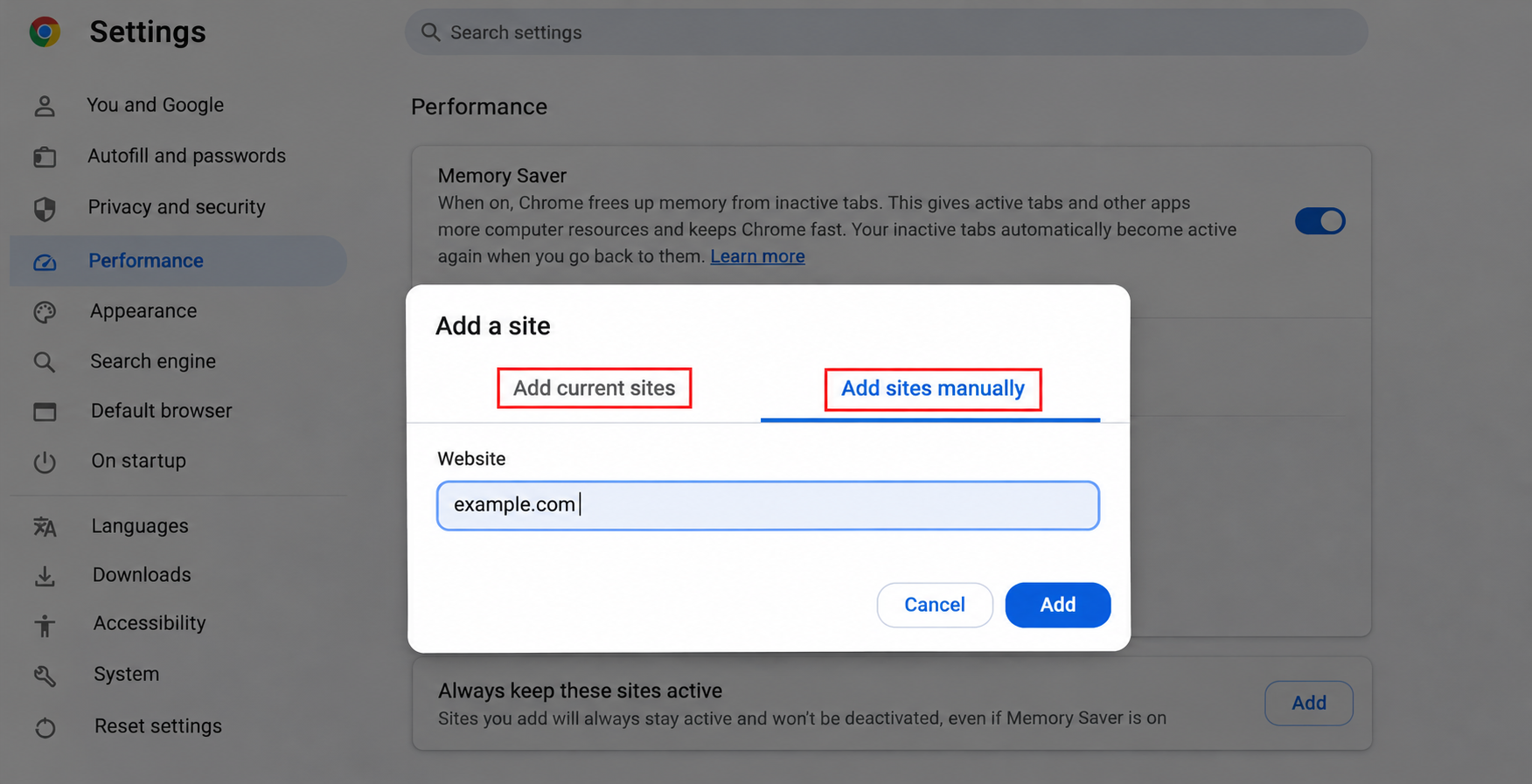
Here is how typed addresses match, with example.com standing in for a real site:
| What you type | What stays awake |
|---|---|
| example.com | The whole domain and its subdomains, such as mail.example.com |
| .example.com | Only example.com itself, not its subdomains |
| www.example.com/reports | Pages inside that folder only |
| videos.example.com/watch?v=* | Any video page on that site (the asterisk works in the host or query part) |
An asterisk can’t stand in for part of a name. Entries such as *ample.com or example.com/* won’t match anything.
See How Much Memory a Tab Uses
Chrome can show a tab’s memory use when you hover over it, which helps you find the tabs worth closing.
- Go to Settings and select Appearance.
- On Windows, Linux or a Chromebook, find Tab hover preview card and turn on Show tab memory usage. On a Mac, turn on Show memory usage on tab hover preview card.
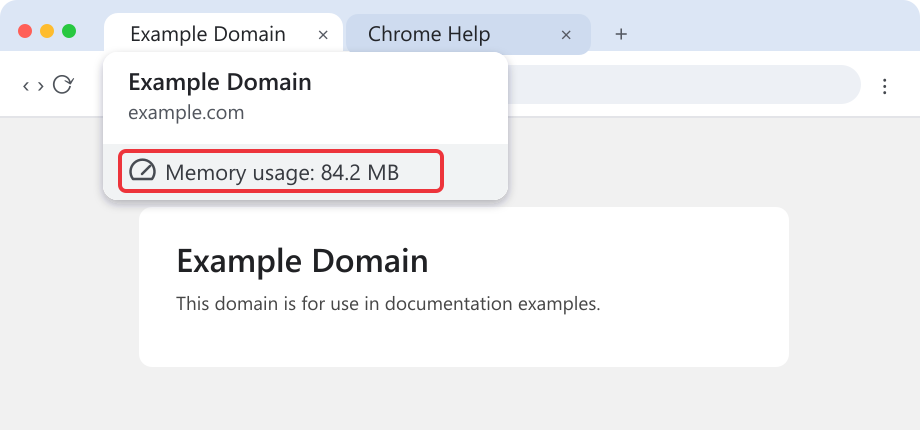
For a fuller picture, open Chrome’s own Task Manager with Shift+Esc on Windows (or Linux). You can also end a stuck process in the Chrome Task Manager from that window.
Memory Saver Is Not Energy Saver
Energy Saver sits on the same Performance page but does a different job. It only works when a laptop is unplugged or the battery is low, and it cuts back Chrome’s background tasks and image capture rate to save power. It stops eligible background tabs that use a lot of processor time, but leaves video calls and audio alone. It’s available on Windows, Mac and Chromebook devices with a battery. You can keep both switched on. To keep background tabs running for one session while Energy Saver is on, select the Energy Saver icon next to the address bar and choose Turn off now.
The same page also has Performance issue alerts, which is on by default. When browsing gets slow, Chrome may show a notification suggesting it deactivate tabs, with a Fix now button. Turn the switch off under General if you’d rather not see it.
When Memory Saver Doesn’t Behave
The Memory Saver switch is missing or locked. Update Chrome first. On a work or school computer, an administrator can control browser settings, so the option may be fixed for you. Ask your IT team in that case.
A tab keeps reloading and losing your work. Add the site to Always keep these sites active, or pin the tab.
Chrome is still slow. Memory Saver helps with idle tabs, not with a single heavy page or extensions. Organizing work into tab groups in Chrome and closing groups you’ve finished with also helps.
Check It Works and Turn It Off
Turn on Inactive tabs appearance, leave a few tabs alone for a while, then look at the tab strip. Sleeping tabs show their icon inside a ring.
To turn the feature off, go back to Settings > Performance and switch Memory Saver off. Google’s Chrome performance help page lists every Performance setting.
Memory Saver Questions
Will I Lose Text I Typed Into a Form?
Chrome doesn’t deactivate a tab with a partly filled form, so typed text should still be there. For long entries, submit or save before you walk away anyway, because a closed or crashed tab can’t bring them back.
Why Can’t I Find Memory Saver on My Phone?
Google says Chrome’s performance settings aren’t available on iOS or Android, so Memory Saver is desktop only.
Do Sleeping Tabs Count Toward Chrome’s Memory Use?
Far less than an active tab. Freeing the memory a page used is the whole point of deactivation, although the tab’s title and its place in the strip remain.
Is Memory Saver Better Than Closing Tabs?
It’s a safety net, not a replacement. A deactivated tab still has to reload, and dozens of tabs still clutter the strip. Bookmark or group tabs you won’t need for days and close them.

Matthew Burleigh is the founder, head writer, and editor of Solve Your Tech, which he launched in 2012. He has written technology tutorials since 2008 and worked in IT since 2003, including small-business support, IT management, and consulting. He holds Bachelor’s and Master’s degrees in Computer Science from Arizona State University.
Matthew writes practical guides for Windows, iPhone and iPad, Microsoft Office, Outlook, Google apps, and Android. Solve Your Tech’s guides are checked step by step against the device or app maker’s own documentation and tested on his own devices whenever he has the hardware or software, with clear steps, sources, and update dates.
Read more about Matthew and how Solve Your Tech writes and updates its guides, or report a correction.