To change the default web browser on a Mac, install the browser you want, open System Settings, click Desktop & Dock, scroll down, and pick it from the Default web browser menu. Links you click in Mail, Messages and other apps open there right away.
This applies to macOS Ventura 13 and later, including macOS 27, Tahoe 26 and Sequoia 15. Older Macs use System Preferences instead, and most browsers can also make themselves the default from their own settings.
What the Default Browser Controls
Safari is the default on every new Mac, so it is the app that opens when you click a web link outside a browser. Changing the default affects links you click in other apps: Mail, Messages, Notes, chat apps and most documents. It doesn’t remove Safari, and it doesn’t change what opens your email links, which is a separate setting covered at the end.
Change the Default Browser in System Settings
These steps match Apple’s instructions for changing the default web browser on Mac for macOS Ventura 13 or later.
- Install the browser you want to use, such as Chrome, Firefox or Edge, and open it once so macOS registers it.
- Click the Apple menu in the top left corner of the screen and choose System Settings.
- Click Desktop & Dock in the sidebar.
- Scroll down on the right side until you see Default web browser.
- Click the menu and choose your browser.
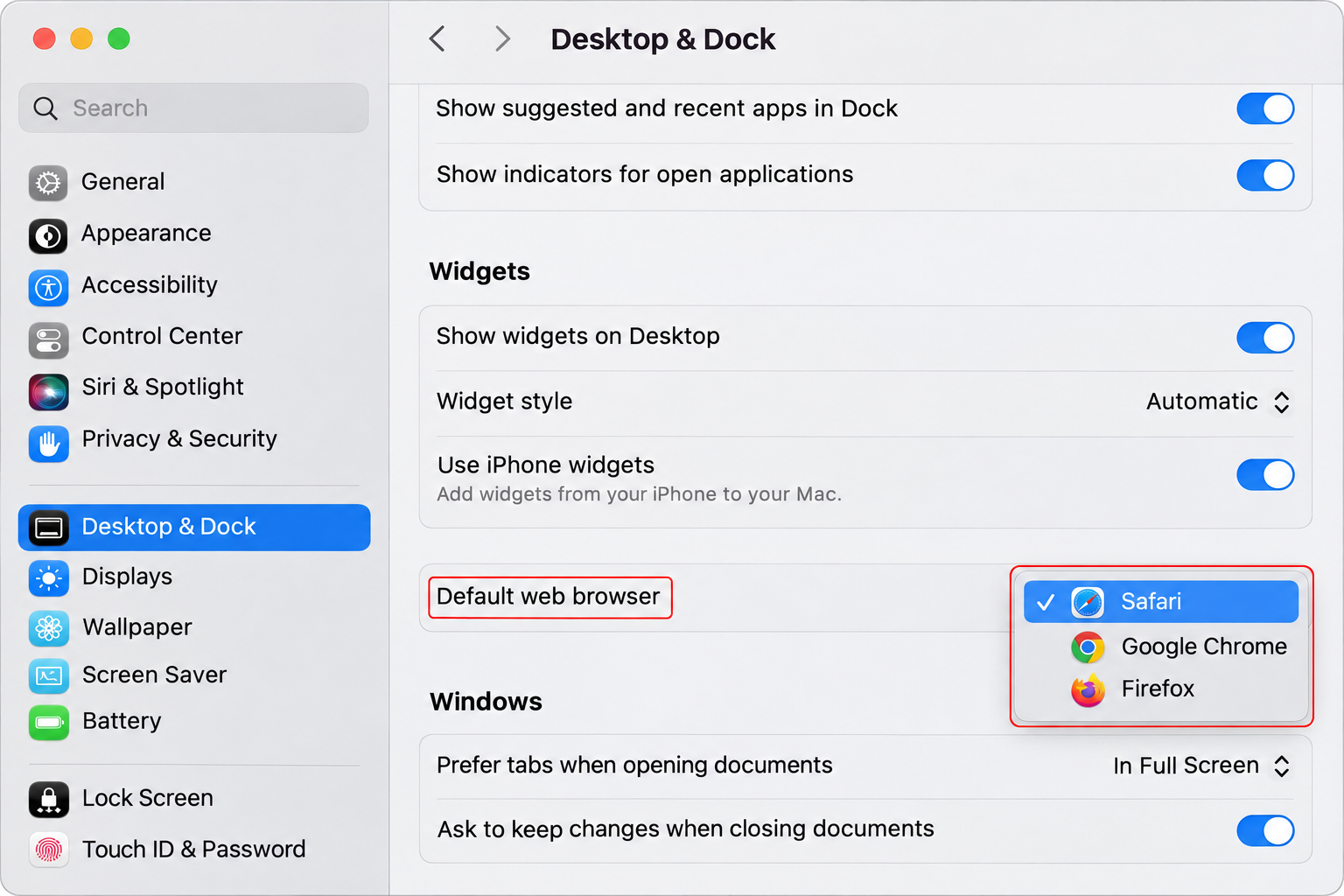
There is no Save button and no restart. Close System Settings and the change is already in place. If you can’t find the Desktop & Dock item, type “default web browser” into the search field at the top of the System Settings sidebar.
Set It From Inside Chrome, Firefox or Edge
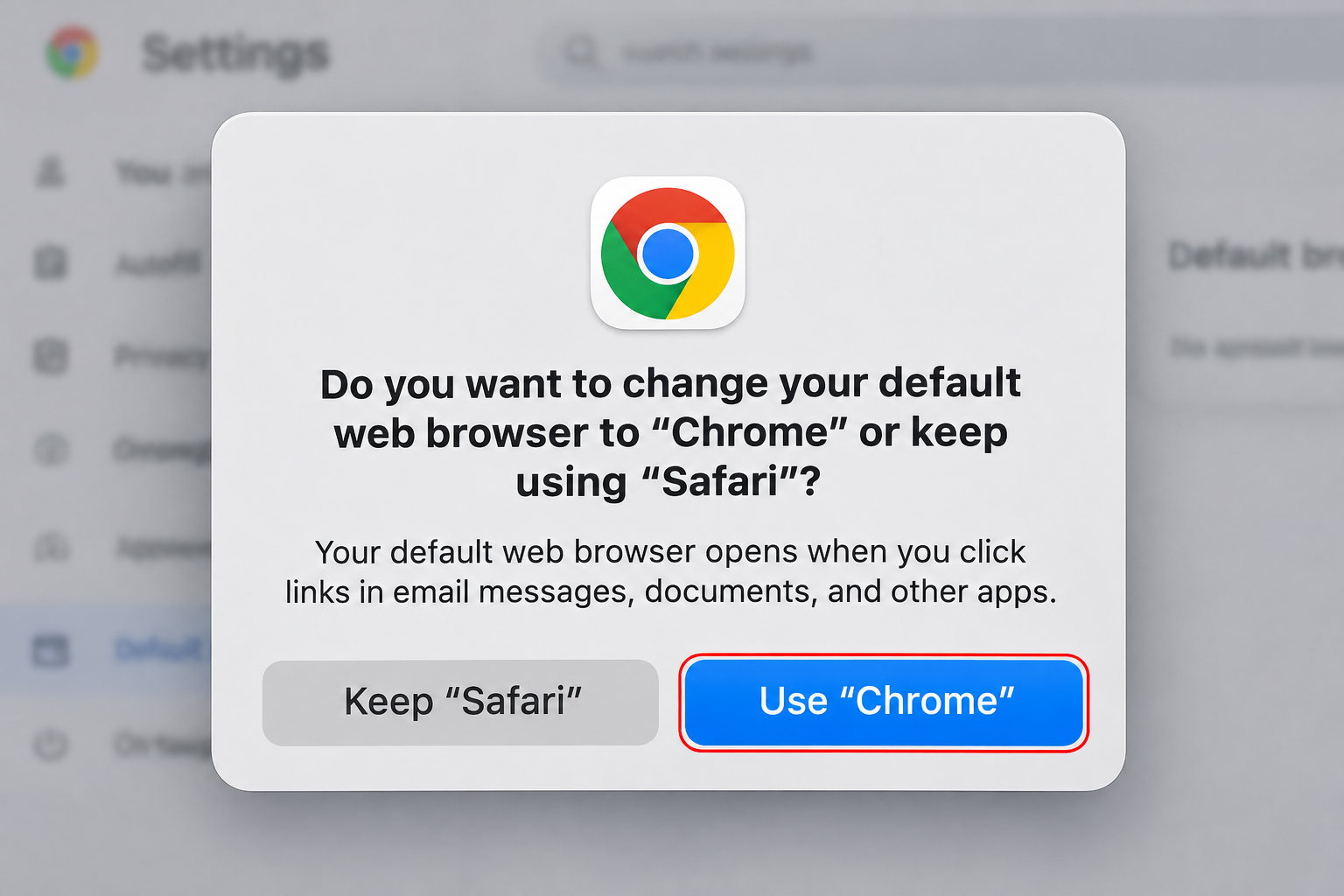
Browsers can ask macOS to make them the default. When they do, macOS shows a confirmation box asking whether to use the new browser or keep the current one; choose the new browser to finish.
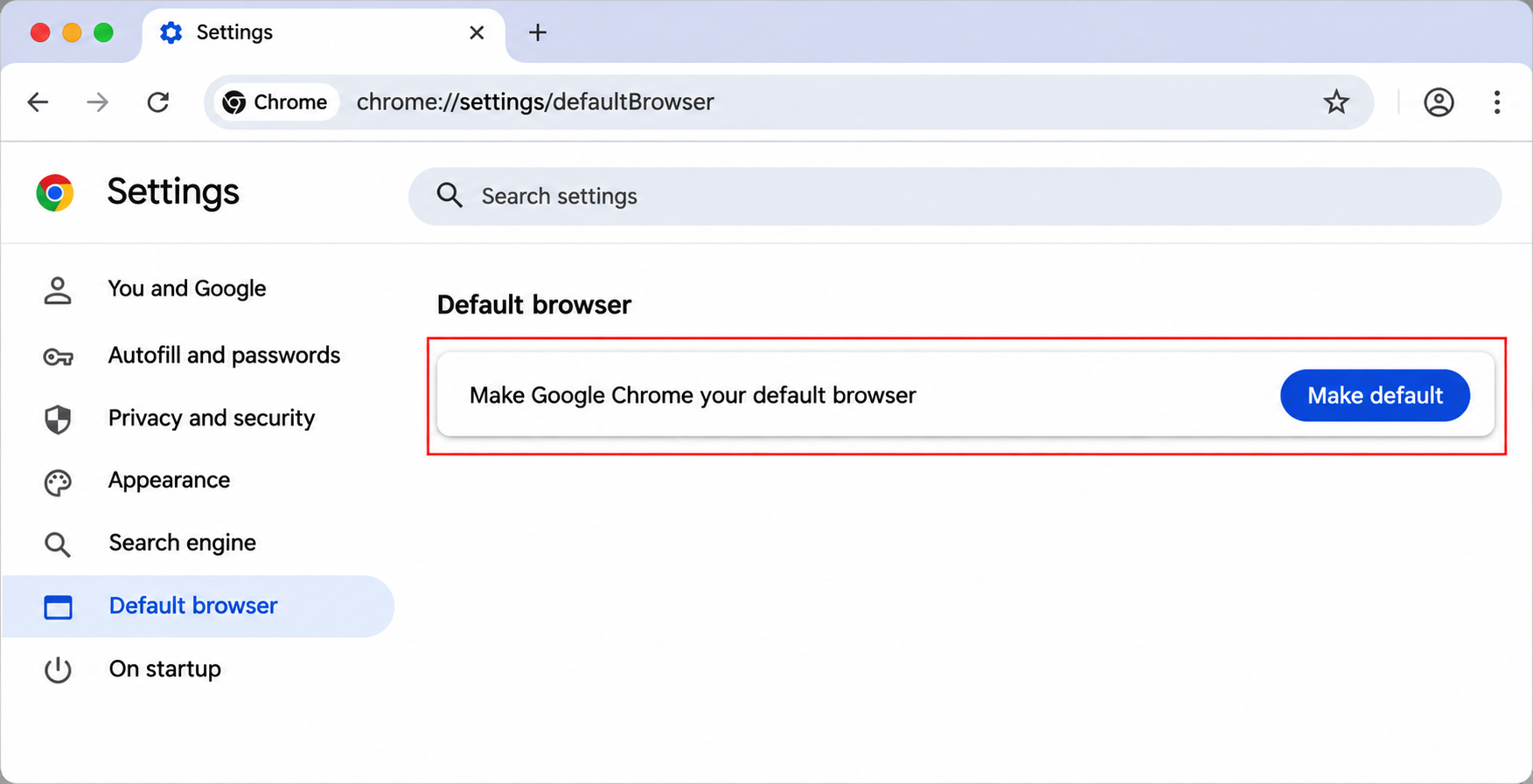
Google Chrome, per Google’s default browser help page:
- Open Chrome.
- At the top right, select More (the three dots), then Settings.
- In the Default browser section, select Make default. If there is no button, Chrome is already the default.
Mozilla Firefox, per Mozilla’s default browser article:
- Click Firefox in the menu bar and choose Settings (or Preferences on some versions).
- Click General. The Default browser section is at the top.
- Click Make default. If Firefox already is the default, it says so instead of showing the button.
Microsoft Edge usually offers to become the default when you first open it. If you skipped that prompt, the System Settings method above is the simplest route.
Change It on macOS Monterey and Earlier
Before Ventura, Macs had System Preferences instead of System Settings, and the menu lived in a different pane.
- Install the browser you want.
- Choose Apple menu > System Preferences.
- Click General.
- Choose a browser from the Default web browser menu.
Test the Change
Dana switched to Firefox and wants to be sure it stuck. She opens Messages, sends herself a message containing a web address, and clicks the link. Firefox opens with the page. That quick test is worth doing because some apps behave differently, as the next section explains.
You can do the same with an email: click any link in a message in Mail. If it opens in your new browser, you are done.
If Links Still Open in Safari
- The browser isn’t in the menu. Make sure it is in the Applications folder, not running from a disk image or the Downloads folder, and open it once. Then check the menu again.
- An app has its own link setting. Some apps, such as certain chat and work apps, can choose a browser themselves. If only one app ignores your default, look in that app’s settings. For Outlook specifically, see how to change which browser opens links in Outlook.
- The app was open during the change. Quit and reopen the app you are clicking links in.
- The setting reverted. If links go back to Safari after a macOS or browser update, recheck the menu in Desktop & Dock and set it again.
- You uninstalled the default browser. macOS will fall back to another browser, usually Safari. Pick a new default from the menu.
Saved Web Pages and Files That Still Open in Safari
The default browser setting covers links. Files you double-click in Finder, such as a saved .html page, follow Finder’s own app choice for that file type, which may still be Safari. To change that:
- Select one of those files in Finder and choose File > Get Info.
- Expand the Open with section and choose your browser.
- Click Change All so every file of that type uses it.
PDFs are a separate case: they open in Preview by default, not in a browser, and the same Get Info steps change that if you want.
Pick the Right Browser for the Job
| If you mainly want | Consider |
|---|---|
| Bookmarks and passwords synced with an iPhone and iPad | Keep Safari |
| Bookmarks and extensions shared with a Windows PC or Android phone | Chrome or Edge, signed in to the same account |
| Work links that open company web apps | Whatever browser your workplace manages |
| A separate browser for one task | Leave the default alone and open that browser directly |
If you use Chrome on your phone as well, you can also make Chrome the default browser on an iPhone so links behave the same on both devices.
Change the Default Email App Too
Email links (the ones that start a new message) follow a separate setting in Mail, not in Desktop & Dock. Apple’s steps on the same page:
- Open Mail. It needs an email account set up for this, but you can remove or disable that account afterward.
- Choose Mail > Settings (or Preferences) from the menu bar.
- Click General and choose an app from the Default email reader menu. If yours isn’t listed, choose Select and find it in the file window.
Apple notes that if you pick a browser here for webmail, the browser might not open your webmail automatically when you click an email link.
Default Browser Questions
Can I Delete Safari After Switching?
No. Safari is part of macOS and can’t be removed in the normal way. It simply stops opening links once another browser is the default.
How Do I Switch Back to Safari?
Open System Settings > Desktop & Dock and choose Safari from the Default web browser menu. Your other browser stays installed.
Can I Open Just One Link in a Different Browser?
Yes. Copy the link (Control-click it and choose the copy option), then paste it into the address bar of the other browser. Your default doesn’t change.
Is This the Same Setting as on Windows?
No. Windows assigns browsers by link and file type in its own Default apps settings. If you use both, see how to change the default browser in Windows 11.
Once links open where you want, sign in to your new browser and import your Safari bookmarks so nothing feels missing.

Matthew Burleigh is the founder, head writer, and editor of Solve Your Tech, which he launched in 2012. He has written technology tutorials since 2008 and worked in IT since 2003, including small-business support, IT management, and consulting. He holds Bachelor’s and Master’s degrees in Computer Science from Arizona State University.
Matthew writes practical guides for Windows, iPhone and iPad, Microsoft Office, Outlook, Google apps, and Android. Solve Your Tech’s guides are checked step by step against the device or app maker’s own documentation and tested on his own devices whenever he has the hardware or software, with clear steps, sources, and update dates.
Read more about Matthew and how Solve Your Tech writes and updates its guides, or report a correction.