To change the video frame rate on a Nikon D3200, press MENU, open the Shooting menu, select Movie settings, then select Frame size/frame rate and choose an option. Each option sets both the frame size and the frame rate, and the rates you see depend on whether the camera’s Video mode is set to NTSC or PAL.
Nikon no longer makes the D3200, but these steps apply to every D3200, including cameras on the latest firmware (C 1.04). Option names and figures come from Nikon’s D3200 manuals, available from the Nikon Download Center.
How to Change the Frame Rate on the Nikon D3200
- Turn on the camera. The monitor turns on.
- Press the MENU button to the left of the monitor on the back of the camera. The camera menus appear.
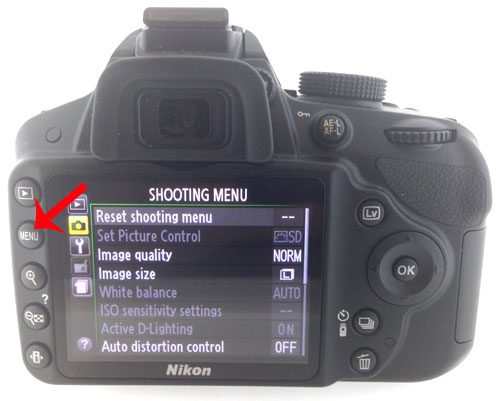
- Use the multi selector (the arrows around the OK button) to choose the Shooting menu on the left side of the screen. The shooting menu options appear.
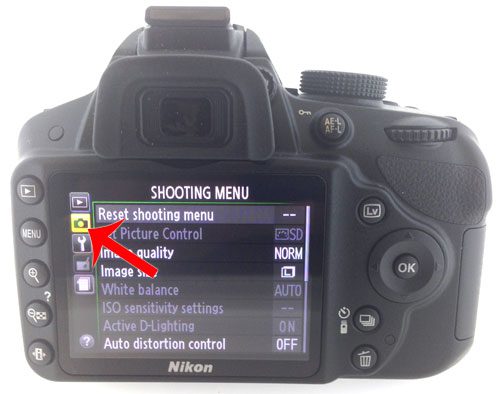
- Scroll down, select Movie settings, then press OK. The movie options appear in this order: Frame size/frame rate, Movie quality, Microphone and Manual movie settings.
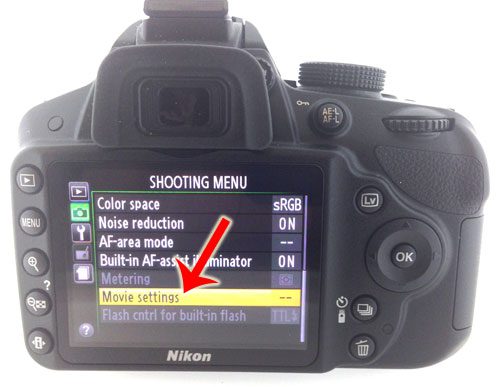
- Select Frame size/frame rate, then press OK. The list of frame size and frame rate options appears.
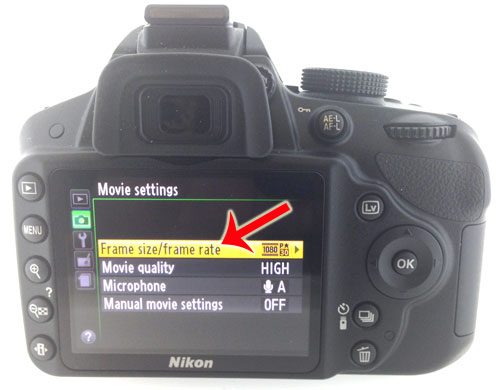
- Highlight the option you want, then press OK. Your next movie records at that size and frame rate.
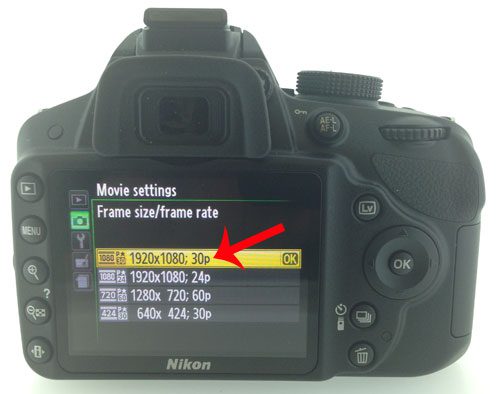
To check it worked, press the Lv button to start live view. The frame size and rate you picked show on the monitor before you press the red movie-record button. Press the record button once to start and again to stop.
Frame Size and Frame Rate Options

Nikon’s manual lists these options for the D3200:
| Frame size (pixels) | Shape | Frame rate with NTSC | Frame rate with PAL |
|---|---|---|---|
| 1920 × 1080 (Full HD) | Widescreen 16:9 | 30p or 24p | 25p or 24p |
| 1280 × 720 (HD) | Widescreen 16:9 | 60p | 50p |
| 640 × 424 | About 3:2 | 30p | 25p |
Nikon notes these are listed values. The actual rates for 60p, 50p, 30p, 25p and 24p are 59.94, 50, 29.97, 25 and 23.976 frames per second.
The “p” stands for progressive, which means each frame is recorded as one complete picture rather than as two interlaced halves. The D3200 only records progressive video.
Which Option Should You Choose?
- 1920 × 1080 at 24p: a film-like look. A good choice for short films and anything you want to feel cinematic.
- 1920 × 1080 at 30p (or 25p): the usual choice for everyday Full HD video, such as family events and YouTube clips.
- 1280 × 720 at 60p (or 50p): more frames per second for smoother motion, useful for sports, pets and kids. It’s also the best option if you plan to slow the clip down in editing. You give up some resolution to get it.
- 640 × 424: much smaller files. Use it when quality matters less than storage space.
If you plan to combine clips with footage from another camera or a phone, use the same frame rate on both so the edit plays smoothly. On an iPhone, you pick the rate in the Camera app, and the steps for recording 4K video on an iPhone show where that setting lives.
Why You Only See Some Frame Rates: Video Mode
Nikon’s manual explains that the frame rates on offer depend on the Video mode option in the setup menu. NTSC gives you 60p and 30p. PAL gives you 50p and 25p. 24p is available with either.
- Press MENU and open the Setup menu. The setup options appear.
- Select Video mode, then choose NTSC or PAL. The Frame size/frame rate list updates to match.
Nikon says that when you connect the camera to a television or VCR, the camera’s video mode should match the device’s video standard. NTSC is used in North America and Japan, and PAL is used in much of Europe, Asia and Australia, so most people keep the setting for their region.
Set Shutter Speed and ISO for Video (Manual Movie Settings)
By default, the camera sets exposure for movies on its own. To control shutter speed and ISO yourself, turn on Manual movie settings. Nikon says this only works in mode M.
- Turn the mode dial to M.
- Press MENU, open the Shooting menu, and select Movie settings.
- Select Manual movie settings, choose On, and press OK.
- Press Lv to start live view, then set the shutter speed and ISO before you record.
Nikon lists these limits:
- Fastest shutter speed: 1/4,000 second.
- Slowest shutter speed: 1/30 second at 24p, 25p and 30p, 1/50 second at 50p, and 1/60 second at 60p.
- ISO: ISO 200 to Hi 1. The camera keeps the ISO you choose and doesn’t adjust it on its own.
A common rule of thumb for natural-looking motion is a shutter speed close to double the frame rate: about 1/50 second for 24p or 25p, 1/60 second for 30p, and 1/125 second for 60p. Much faster speeds make motion look choppy. This is general video practice, not a Nikon requirement.
Movie Quality and Recording Length
The Movie quality option sits in the same Movie settings menu. You can choose high quality (marked with a star) or Normal. Nikon lists these maximum bit rates:
- 1920 × 1080: up to 24 Mbps at high quality or 12 Mbps at Normal.
- 640 × 424: up to 5 Mbps at high quality or 3 Mbps at Normal.
High quality makes larger files. Normal saves card space. Nikon also lists a maximum of 20 minutes and 4 GB per movie file. Recording stops on its own when either limit is reached, when the card is full, or when you change the mode or remove the lens. It can also stop sooner on a card that can’t write fast enough.
Other Movie Settings Worth Knowing
- Microphone: also in Movie settings. Choose Auto sensitivity, set the sensitivity manually, or turn sound recording off with Microphone off. The setting also applies to Nikon’s optional ME-1 stereo microphone. The built-in microphone can pick up autofocus and vibration reduction noise from the lens.
- Flicker reduction: in the setup menu. Nikon says it reduces flicker and banding under fluorescent or mercury-vapor lighting. Choose Auto, or match the frequency of your local power supply. If Auto doesn’t help and you’re not sure of your local frequency, Nikon suggests testing both options.
Once your settings are ready, you can record video on the Nikon D3200.
Troubleshooting
You don’t see 30p or 60p. Video mode is set to PAL. Change it to NTSC in the setup menu.
You can’t set shutter speed or ISO. Manual movie settings is off, or the mode dial isn’t on M. Nikon also says that if your settings are outside the supported range when live view starts, the camera changes them to supported values.
Recording stops before you press the button. You reached the 20-minute or 4 GB limit, the card filled up, or the card is too slow. Live view can also end on its own to protect the camera when it gets hot, for example after long recording sessions or in warm weather. Let it cool before you start again.
Your video flickers or shows bands. Change Flicker reduction, or match the shutter speed to your local power frequency (1/60 or 1/120 second where power is 60 Hz, 1/50 or 1/100 where it’s 50 Hz).
You want to start over. Reset shooting menu in the shooting menu returns its options, including Movie settings, to their defaults.
Frequently Asked Questions
Can the Nikon D3200 record 60 fps video?
Yes, at 1280 × 720 with Video mode set to NTSC. With PAL, the fastest option is 50p.
Can I record 1080p at 60 fps?
No. Full HD on the D3200 tops out at 30p (NTSC) or 25p (PAL). For 60p or 50p, you have to drop to 1280 × 720.
Does the D3200 shoot 4K?
No. Nikon’s manual lists 1920 × 1080 as the largest movie frame size.
Do I need to change the frame rate every time?
No. The camera keeps your choice until you change it again.
When you’re done shooting, copy your files to a PC by following the steps to transfer photos from a camera to a Windows 11 computer.

Matthew Burleigh is the founder, head writer, and editor of Solve Your Tech, which he launched in 2012. He has written technology tutorials since 2008 and worked in IT since 2003, including small-business support, IT management, and consulting. He holds Bachelor’s and Master’s degrees in Computer Science from Arizona State University.
Matthew writes practical guides for Windows, iPhone and iPad, Microsoft Office, Outlook, Google apps, and Android. Solve Your Tech’s guides are checked step by step against the device or app maker’s own documentation and tested on his own devices whenever he has the hardware or software, with clear steps, sources, and update dates.
Read more about Matthew and how Solve Your Tech writes and updates its guides, or report a correction.