To use XLOOKUP in Excel, click an empty cell and type =XLOOKUP(lookup_value, lookup_array, return_array), for example =XLOOKUP(G2,A2:A7,D2:D7), then press Enter. Excel finds the value from G2 in A2:A7 and returns the item in the same row of D2:D7. XLOOKUP works in Excel for Microsoft 365 (Windows and Mac), Excel 2021, Excel 2024, Excel for the web, and the Excel mobile apps. It isn’t in Excel 2019 or Excel 2016.
XLOOKUP replaced VLOOKUP and HLOOKUP for most jobs. You pick the column to search and the column to return as two separate ranges, so you never count column numbers, and it looks for an exact match unless you ask for something else. Below you’ll find each of its six arguments, worked examples on one small table, and fixes for the errors people run into most.
Which Versions of Excel Have XLOOKUP?
| Excel version | XLOOKUP? |
|---|---|
| Excel for Microsoft 365 (Windows and Mac) | Yes |
| Excel 2024 and Excel 2021 (Windows and Mac) | Yes |
| Excel for the web | Yes |
| Excel for iPhone, iPad, and Android | Yes |
| Excel 2019, Excel 2016, and older | No |
One thing to know about Microsoft’s own page: the “Applies to” list at the top includes Excel 2016 and 2019, but a note further down says XLOOKUP isn’t available in those versions. The note is the part that matters. Someone on Excel 2019 can open your workbook, but the XLOOKUP cells won’t work for them. If you’re not sure which version you have, here’s how to check your Excel version. Microsoft 365 is on Version 2609 in the Current Channel as of October 2026, and XLOOKUP has been part of it for years, so a subscription copy that’s getting updates will have it.
The XLOOKUP Syntax and All Six Arguments
The full formula looks like this:
=XLOOKUP(lookup_value, lookup_array, return_array, [if_not_found], [match_mode], [search_mode])
The first three arguments are required. The three in square brackets are optional, and you can leave them out entirely for an everyday exact-match lookup.
| Argument | Required? | What it does |
|---|---|---|
| lookup_value | Yes | The thing you’re searching for, such as an order number typed in a cell or a word in quotation marks. |
| lookup_array | Yes | The single column (or row) Excel searches through. |
| return_array | Yes | The column (or columns) that holds the answer you want back. It must be the same height as lookup_array. |
| if_not_found | No | What to show when there’s no match, like “Not found”. Leave it out and you get #N/A. |
| match_mode | No | 0 = exact match (the default). -1 = exact match, or the next smaller item. 1 = exact match, or the next larger item. 2 = wildcard match using *, ?, and ~. |
| search_mode | No | 1 = search first to last (the default). -1 = search last to first. 2 = binary search on a list sorted ascending. -2 = binary search on a list sorted descending. |
An array, in Excel terms, is just a group of values. When you select A2:A7 for an argument, that range is the array. The argument definitions above follow Microsoft’s XLOOKUP function reference.
The Sample Table Used in Every Example
Every formula below uses this small order list in cells A1:D7. Type it into a blank sheet if you’d like to follow along, and each result should match what’s described.
| Row | A: Order ID | B: Customer | C: Product | D: Total |
|---|---|---|---|---|
| 2 | 1001 | Alex | Desk Lamp | 42.50 |
| 3 | 1002 | Jordan | Monitor Stand | 68.00 |
| 4 | 1003 | Priya | Keyboard | 55.00 |
| 5 | 1004 | Alex | Webcam | 79.99 |
| 6 | 1005 | Sam | Mouse Pad | 12.00 |
| 7 | 1006 | Jordan | USB Hub | 24.95 |
Put the order number you want to look up in G2 (start with 1003). The formulas go in H2 unless a step says otherwise.
How to Write a Basic Exact-Match XLOOKUP
- Click cell H2, the cell where you want the answer to appear.
- Type =XLOOKUP(. As you type, Excel shows a small tooltip under the cell listing the arguments, with the current one in bold.
- Click G2 (the order number to find), then type a comma.
- Select A2:A7 (the Order ID column you’re searching), then type a comma.
- Select D2:D7 (the Total column you want back).
- Type ) and press Enter. The finished formula is
=XLOOKUP(G2,A2:A7,D2:D7), and H2 shows 55.00, the total for order 1003.
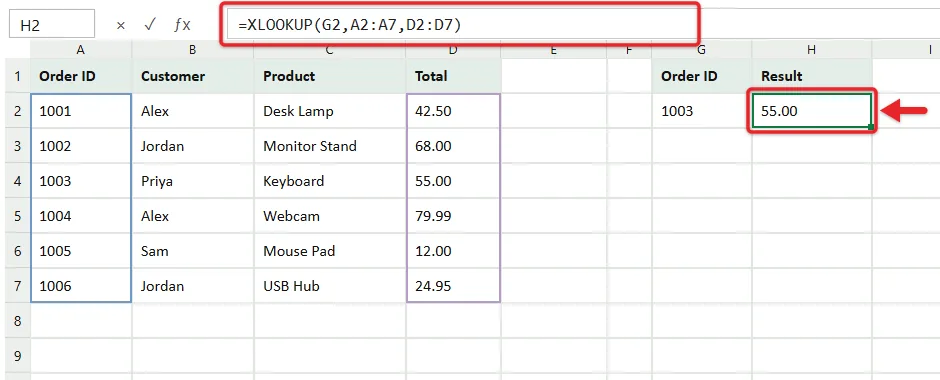
Change G2 to 1005 and H2 updates to 12.00 on its own. There’s no TRUE or FALSE at the end like VLOOKUP needs, because exact match is already the default.
Prefer clicking to typing? On the Formulas tab, click Lookup & Reference and choose XLOOKUP. The Function Arguments window opens with a labeled box for each argument and a preview of the result before you click OK.
Lock the ranges before copying the formula down
If you have a column of order numbers in G2:G10 and want to drag the formula down, lock the two table ranges with dollar signs first: =XLOOKUP(G2,$A$2:$A$7,$D$2:$D$7). Without them, the ranges slide down one row with each copy, and the lower formulas stop searching the top of the table. Click inside a range in the formula bar and press F4 to add the dollar signs quickly. If your data is formatted as an Excel table, structured references such as Orders[Order ID] stay put automatically.
Show a Friendly Message With if_not_found
Type 1009 into G2 and the basic formula returns #N/A, since there’s no order 1009. Add a fourth argument to replace that error with your own text:
=XLOOKUP(G2,A2:A7,D2:D7,"No such order")
Now H2 reads No such order. Text needs quotation marks. You can also use a number (0), an empty string (“”) to leave the cell looking blank, or even a second XLOOKUP that checks a different list when the first one comes up empty. Older lookups needed IFERROR or IFNA wrapped around them to do this. One caution: hiding #N/A while you’re still building a sheet can mask real problems, so add the message once you know the formula works.
Find the Closest Value With Approximate Match
Approximate match is for brackets and tiers, like shipping rates, tax brackets, or grades, where the value you have rarely appears in the table exactly. Add this shipping table in J1:K5:
| J: Order total from | K: Shipping |
|---|---|
| 0 | 8.99 |
| 25 | 5.99 |
| 50 | 2.99 |
| 75 | 0.00 |
In E2, enter =XLOOKUP(D2,$J$2:$J$5,$K$2:$K$5,,-1) and copy it down to E7. The -1 in the match_mode spot tells Excel “use an exact match if there is one, otherwise take the next smaller value.” Order 1001 totals 42.50, which isn’t in column J, so Excel drops back to 25 and returns 5.99. Order 1004 at 79.99 lands on the 75 tier and gets free shipping.
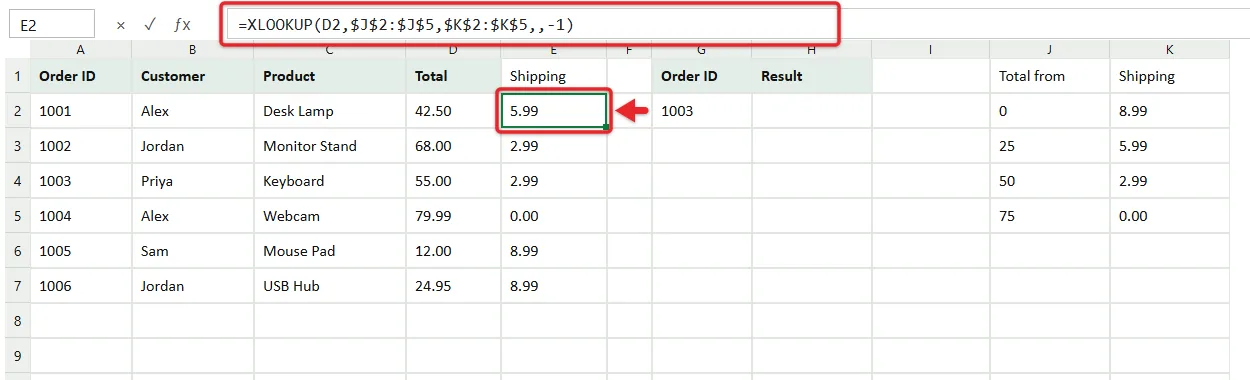
Notice the two commas in a row. That empty slot is if_not_found. You have to keep its place so Excel knows the -1 belongs to match_mode. If you typed =XLOOKUP(D2,J2:J5,K2:K5,-1) instead, Excel would treat -1 as the not-found message and do an exact match.
Use 1 instead of -1 when you need the next larger value, such as picking the smallest box size that fits an item. Unlike VLOOKUP’s approximate mode, these two match modes don’t require the table to be sorted when you use the default search mode.
Match Partial Text With Wildcards
Set match_mode to 2 when you only know part of the text. Excel’s three wildcard characters work like this:
- * (asterisk) stands for any number of characters, including none. “Mon*” matches Monitor Stand.
- ? (question mark) stands for exactly one character. “Webca?” matches Webcam.
- ~ (tilde) goes in front of a *, ?, or ~ when you want to search for that actual symbol.
To get the total for the product starting with “Mon”:
=XLOOKUP("Mon*",C2:C7,D2:D7,"Not found",2)
The result is 68.00. To build the pattern from a cell instead, join the pieces with an ampersand: =XLOOKUP(G3&"*",C2:C7,D2:D7,"Not found",2) uses whatever you type in G3 as the start of the product name. Wildcards are ignored in the default exact mode, so if a search for “Mon*” returns #N/A, check that the fifth argument is 2. Wildcard searches aren’t case-sensitive, and when several items match, XLOOKUP returns the first one.
Look Left, Return Several Columns, or Search Across a Row
Return a value from a column to the left
VLOOKUP can only return columns to the right of the one it searches. XLOOKUP doesn’t care about direction. To find the order number for the Webcam, search column C and return column A:
=XLOOKUP("Webcam",C2:C7,A2:A7) returns 1004.
Return multiple columns with one formula
Make the return_array wider than one column and XLOOKUP hands back the whole matching row. With 1003 in G2, enter this in H2:
=XLOOKUP(G2,A2:A7,B2:D7)
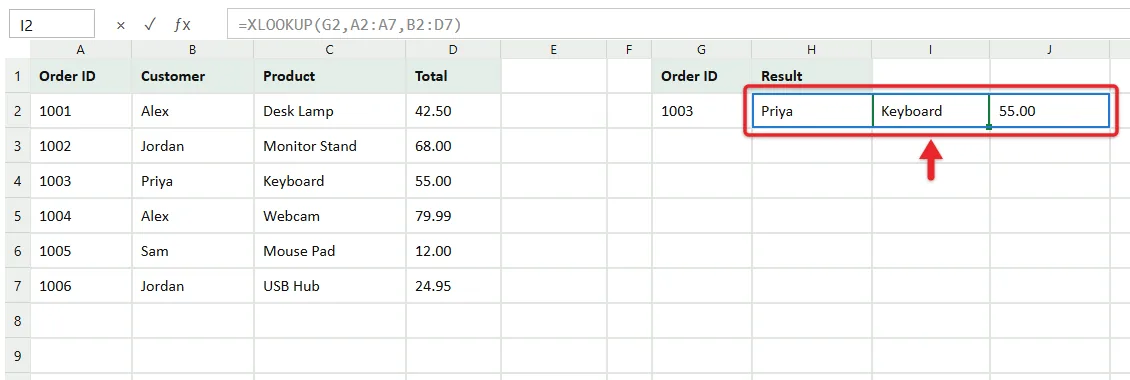
H2 shows Priya, I2 shows Keyboard, and J2 shows 55.00. This is called spilling: one formula fills a block of cells, and Excel draws a thin blue border around that block when you click any cell in it. Only H2 actually contains the formula. The other cells show a grayed-out copy in the formula bar and can’t be edited separately. The cells to the right must be empty, or you’ll get #SPILL! (covered below).
You can flip this around too. Select G2:G4 as the lookup_value and XLOOKUP looks up all three order numbers at once, spilling the answers down the column.
Search across a row instead of down a column
If your labels run across the top, as in a monthly budget with January to December in B1:M1 and amounts in B2:M2, the same function handles it: =XLOOKUP("Mar",B1:M1,B2:M2). That’s the job HLOOKUP used to do.
Combine a row search and a column search
Putting one XLOOKUP inside another gives you a two-way lookup. In the order table, =XLOOKUP(G2,A2:A7,XLOOKUP("Product",A1:D1,A2:D7)) first finds the “Product” column in the header row, then finds order 1003 within it, and returns Keyboard. Change “Product” to “Customer” and it returns Priya instead.
Get the Last Match With a Reverse Search
Alex appears twice in the table. A normal lookup stops at the first hit, so =XLOOKUP("Alex",B2:B7,C2:C7) returns Desk Lamp, Alex’s first order. To get the most recent one, set search_mode to -1 so Excel starts at the bottom:
=XLOOKUP("Alex",B2:B7,C2:C7,"No orders",0,-1) returns Webcam.
This only means “most recent” if newer rows are added at the bottom, which is how most logs and order lists grow. If your list is sorted some other way, sort it by date first.
The other two search modes, 2 and -2, run a binary search. Excel jumps to the middle of the list and halves the search area each time, which can be faster on very large lists. The catch is that the lookup_array must be sorted (ascending for 2, descending for -2). Microsoft warns that an unsorted list gives invalid results, and the formula won’t flag the problem, so stick with the default unless you’re sure your data stays sorted.
XLOOKUP vs VLOOKUP: What Changes
Both formulas below return 55.00 for order 1003:
- VLOOKUP:
=VLOOKUP(G2,A2:D7,4,FALSE) - XLOOKUP:
=XLOOKUP(G2,A2:A7,D2:D7)
| VLOOKUP | XLOOKUP | |
|---|---|---|
| Default match | Approximate (you must add FALSE for exact) | Exact |
| Return column | A typed column number | A selected range |
| Look left | No | Yes |
| Inserting a column in the table | Can silently return the wrong column | Ranges adjust automatically |
| Built-in not-found message | No, needs IFNA or IFERROR | Yes |
| Last match | No | Yes, with search_mode -1 |
| Multiple columns from one formula | No | Yes |
| Works in Excel 2016 and 2019 | Yes | No |
The column-number row is the one that bites people. If someone inserts a new column between A and D, VLOOKUP’s “4” now points at the wrong column, and the formula keeps working with the wrong data. XLOOKUP’s D2:D7 shifts to E2:E7 by itself. VLOOKUP is still the right pick when a file has to work on Excel 2016 or 2019, or in older shared templates. For a full walkthrough of the older function, see how to use VLOOKUP in Excel or Google Sheets.
Fixing #N/A, #VALUE!, #SPILL!, and #NAME? Errors
#N/A: no match was found
Either the value really isn’t in the list, or it’s there in a form Excel doesn’t see as equal. The usual suspects:
- Extra spaces. “Alex ” with a trailing space doesn’t match “Alex”. Clean the column with TRIM, or search for
TRIM(G2). - Numbers stored as text. Order IDs imported from another system often come in as text, shown with a small green triangle in the cell’s corner. Select the cells, click the warning icon, and choose Convert to Number.
- The wrong range. Check that lookup_array covers every row, especially after adding data to the bottom.
- Wildcards in exact mode. A * or ? only works when match_mode is 2.
The same spaces and text-formatted numbers also cause trouble when you remove duplicates in Excel, so cleaning them once fixes both problems. Once the cause is fixed, use if_not_found for values that genuinely may be missing.
#VALUE!: the two ranges don’t line up
This usually means lookup_array and return_array are different sizes, such as A2:A7 paired with D2:D8. Make them start and end on the same rows. If you used whole columns, use whole columns for both (A:A and D:D).
#SPILL!: the results have nowhere to go
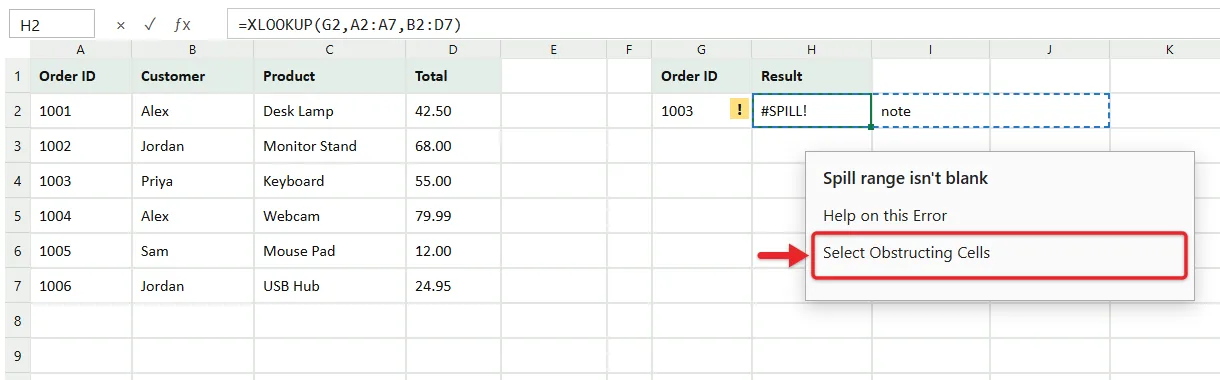
A multi-cell result needs empty cells to spill into. Click the error cell and Excel shows a dashed border around the area it wants. Click the small warning icon next to the cell and choose Select Obstructing Cells to jump to whatever is in the way, then clear or move it. Microsoft’s guide on correcting a #SPILL! error lists the other causes, and two come up often with XLOOKUP:
- The formula is inside an Excel table. Tables don’t support spilled results. Move the formula outside the table, or return one column at a time.
- Merged cells sit in the spill area. Unmerge them or put the formula elsewhere.
Selecting a whole column as the lookup_value, like =XLOOKUP(G:G,A:A,D:D), can also cause #SPILL! because Excel tries to return a result for every row of the sheet. Point it at just the cells you need, such as G2:G10.
#NAME?: Excel doesn’t recognize something
Check the spelling first (XLOOKUP, not XLOOKUPS or X LOOKUP), then look for text typed without quotation marks. =XLOOKUP(Webcam,C2:C7,A2:A7) fails because Excel reads Webcam as an undefined name, while "Webcam" works. If the spelling is right and the formula still shows #NAME?, the copy of Excel opening the file doesn’t have XLOOKUP. That’s typical when a workbook made in Microsoft 365 is opened in Excel 2019 or 2016. Switch those formulas to VLOOKUP or INDEX and MATCH if the file has to work there.
Microsoft’s article on fixing a #NAME? error also recommends picking functions from the list Excel shows as you type, which avoids most spelling mistakes in the first place.
Quick Answers About XLOOKUP
Is XLOOKUP case-sensitive?
No. “alex” and “ALEX” both match Alex. If you need a case-sensitive lookup, you’ll have to combine XLOOKUP with another function such as EXACT.
Can XLOOKUP pull data from another sheet or workbook?
Yes. While building the formula, click the other sheet’s tab and select the range, and Excel writes the reference for you, such as Products!A2:A50. Another workbook works the same way, and Excel adds the file name in square brackets to the reference. Keep both files in the same place afterward, because moving or renaming the source workbook breaks the link.
Can XLOOKUP match on two conditions at once?
Yes, by multiplying the conditions together. =XLOOKUP(1,(B2:B7="Jordan")*(C2:C7="USB Hub"),D2:D7) returns 24.95, because each comparison produces TRUE or FALSE for every row, and only the row where both are TRUE multiplies out to 1.
Does XLOOKUP work in Google Sheets?
Yes. Google Sheets has its own XLOOKUP with the same six arguments in the same order and the same match and search mode numbers, though Google names them search_key, lookup_range, result_range, and missing_value. Google’s XLOOKUP help page for Sheets lists the details.
Is XLOOKUP worth learning if my job uses VLOOKUP?
It’s worth knowing both. XLOOKUP is easier to read and harder to break, while VLOOKUP still shows up in older files and job postings. The Excel skills employers look for usually include one or the other.
Start with the basic three-argument version on a list you already use, like matching an ID to a name. Once that works, add an if_not_found message, and try the multi-column return the next time you need several fields from the same row.

Matthew Burleigh is the founder, head writer, and editor of Solve Your Tech, which he launched in 2012. He has written technology tutorials since 2008 and worked in IT since 2003, including small-business support, IT management, and consulting. He holds Bachelor’s and Master’s degrees in Computer Science from Arizona State University.
Matthew writes practical guides for Windows, iPhone and iPad, Microsoft Office, Outlook, Google apps, and Android. Solve Your Tech’s guides are checked step by step against the device or app maker’s own documentation and tested on his own devices whenever he has the hardware or software, with clear steps, sources, and update dates.
Read more about Matthew and how Solve Your Tech writes and updates its guides, or report a correction.