To sum a column in Excel, click the empty cell right below your numbers, click AutoSum on the Home tab, and press Enter. Excel writes a SUM formula for you and shows the total. For a quick look without a formula, select the cells and read the Sum in the status bar at the bottom of the window. This guide covers Excel for Microsoft 365, Excel 2024, 2021, 2019 and 2016 on Windows and Mac, plus Excel for the web.
The steps come from Microsoft’s Use AutoSum to sum numbers in Excel article and the Microsoft function pages linked in each section.
Which Method Should You Use?
| What you want | Use this | Example |
|---|---|---|
| A total under a column, fast | AutoSum | Home > AutoSum, then Enter |
| A total anywhere on the sheet | SUM | =SUM(B2:B7) |
| A total that grows as you add rows | SUM on the whole column, or a table Total Row | =SUM(B:B) |
| A quick check with no formula | Status bar | Select the cells and look at the bottom right |
| Only the rows you can see | SUBTOTAL | =SUBTOTAL(109,B2:B7) |
| Only the rows that match a condition | SUMIF | =SUMIF(A2:A7,"Apples",B2:B7) |
What You Need
- A column of numbers with no blank cells in the middle. AutoSum stops at the first gap it finds.
- An empty cell for the total. For AutoSum, use the cell directly below the last number.
- Real numbers, not numbers stored as text. If a cell shows a small green triangle in its corner, see the troubleshooting section first.
The Example Used in This Guide
Every formula below uses this small sheet. Row 1 holds the headings, and the numbers sit in B2 through B7.
| Row | A (Item) | B (Amount) |
|---|---|---|
| 2 | Apples | 120 |
| 3 | Pears | 80 |
| 4 | Apples | 60 |
| 5 | Plums | 45 |
| 6 | Pears | 95 |
| 7 | Apples | 100 |
The correct total for column B is 500. If you copy this example into a blank sheet, you can check each method against that number.
How to Sum a Column With AutoSum
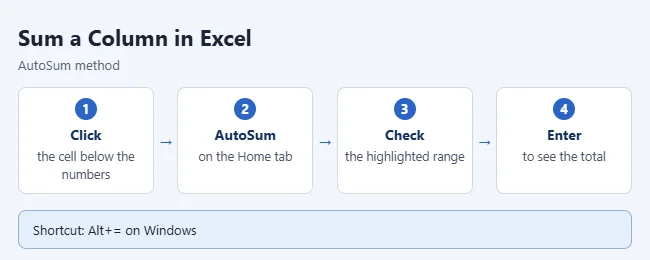
- Click the cell directly below the last number in the column. In the example, that is B8.
- On the Home tab, click AutoSum. The same button is on the Formulas tab. If you click its arrow instead, choose Sum.
- Check that Excel highlighted the right cells. A moving border surrounds the range, and the cell shows
=SUM(B2:B7).
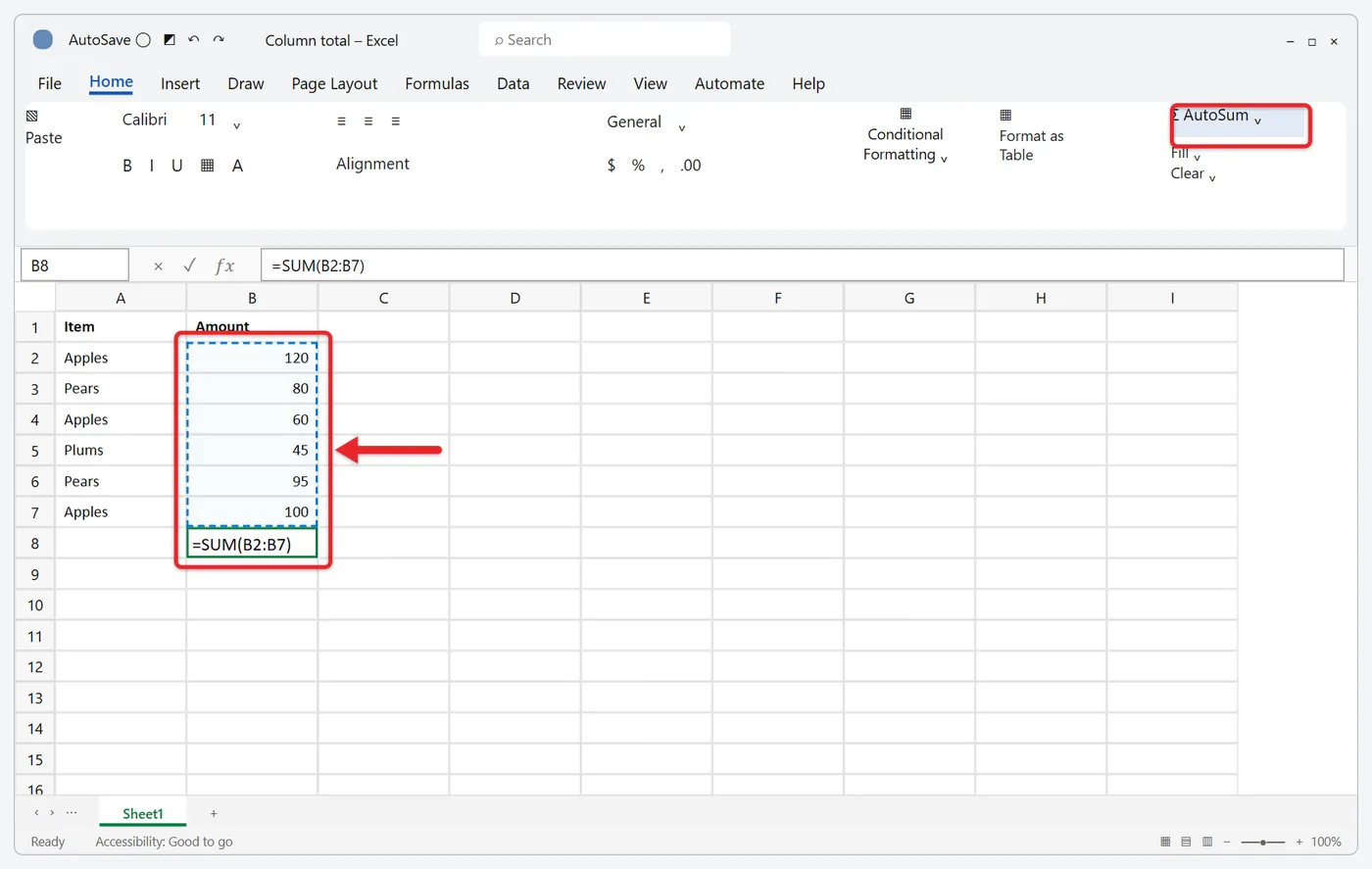
- If the range is wrong, drag over the correct cells, or hold Shift and press an arrow key until the selection matches.
- Press Enter. The cell shows 500, and the formula bar shows the formula when you click the cell again.
AutoSum only detects one continuous block of numbers. It also works sideways: click the empty cell to the right of a row of numbers and it totals the row.
AutoSum Keyboard Shortcuts
Click the cell below your numbers, then press the shortcut and Enter.
- Windows: Alt+= (hold Alt and press the equal sign).
- Mac: Shift+Command+T.
- Excel for the web: Alt+=.
To total several columns at once, select the empty cells under all of them, then click AutoSum or press the shortcut once. Excel puts a separate total under each column.
How to Sum a Column by Typing the SUM Formula
Typing the formula lets you put the total anywhere, not just under the numbers.
- Click the cell where you want the total.
- Type
=SUM( - Drag over the cells you want to add, or type the range, such as
B2:B7. - Type
)and press Enter.
Useful versions of the formula:
=SUM(B2:B7)adds cells B2 through B7. In the example, the result is 500.=SUM(B2:B7,D2:D7)adds two separate ranges. Put a comma between them.=SUM(B2,B4,B7)adds only the cells you list. In the example, the result is 280.=SUM(B2:B7,50)adds the range plus a number you type.
For ranges that do not touch, type =SUM(, then hold Ctrl and click or drag each range. Excel adds the commas for you.
How to Sum a Whole Column
Use a whole-column reference when you keep adding rows and do not want to edit the formula each time.
- Click a cell in a different column, such as D1.
- Type
=SUM(B:B)and press Enter. - Add a new number at the bottom of column B. The total updates on its own.
Two things to know. First, do not put this formula anywhere in column B. A formula that includes its own cell is a circular reference, and Excel shows a warning and may display 0. Second, the formula adds every number in the column. A text heading such as “Amount” is ignored, but a heading that is a number, such as a year, gets added to the total.
See a Total Without a Formula
Select the numbers you want to add. Excel shows their Sum, Average, and Count in the status bar at the bottom right of the window. Nothing is added to your sheet. To check a whole column, click its letter at the top.
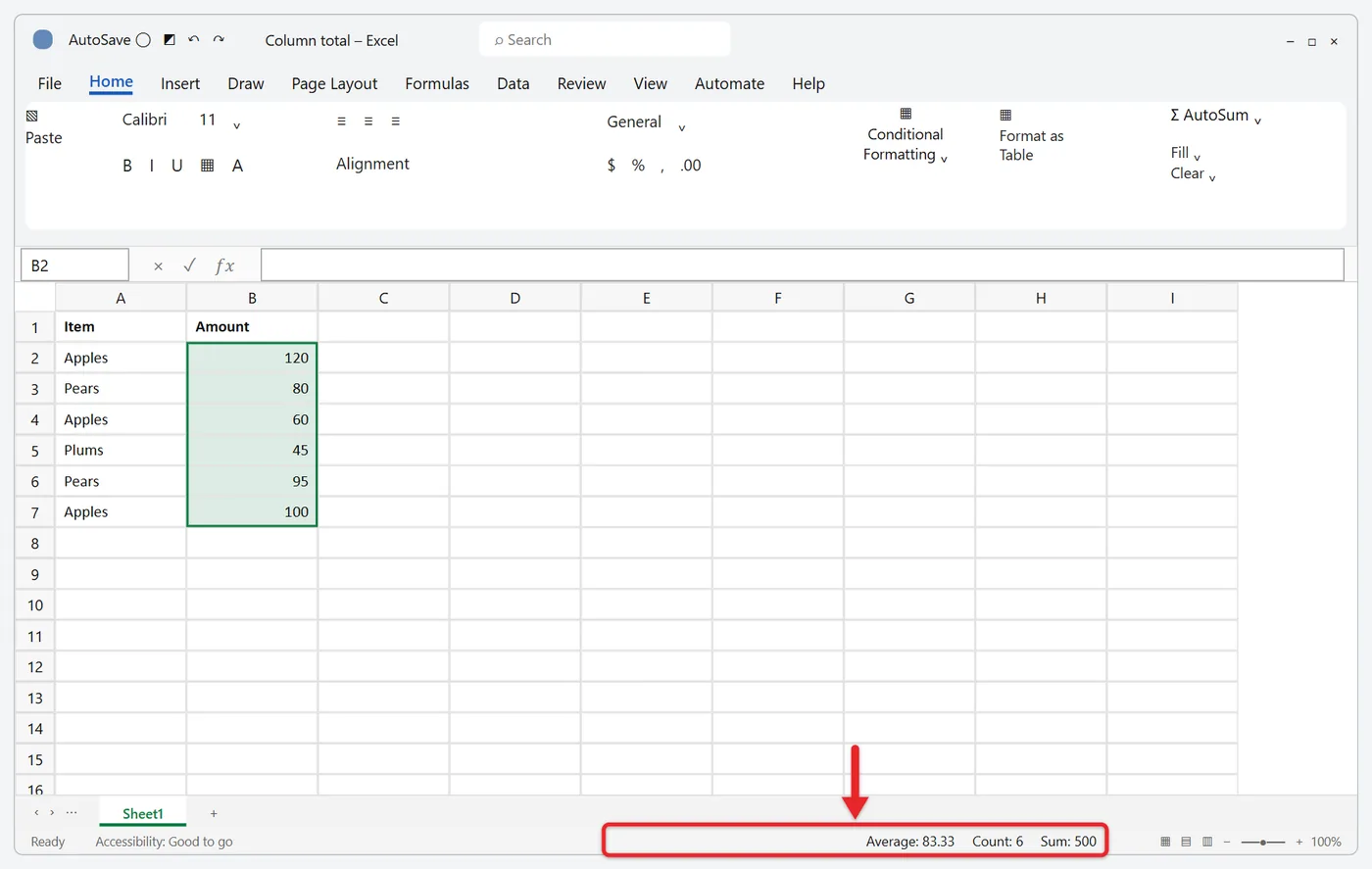
If Sum is missing, right-click the status bar and select Sum in the list. In Excel for the web, click the arrow next to the last status bar entry instead. Microsoft lists Sum, Average and Count as on by default in its Excel status bar options page.
The status bar total disappears when you click elsewhere. In Excel for the web and recent Microsoft 365 versions, you can click the Sum value to copy it, then paste it into a cell. In older versions, type the number yourself or use a formula.
How to Sum a Column With a Table Total Row
An Excel table can add a total row that stays at the bottom as the table grows.
- Click any cell in your data.
- Press Ctrl+T on Windows or Command+T on a Mac. You can also click Insert > Table.
- Check the range, leave My table has headers selected if row 1 holds headings, and click OK.
- Click anywhere inside the table, open the Table Design tab, and select the Total Row check box. Older versions show this tab as Design under Table Tools, and Excel for Mac shows it as Table.
- Click the cell in the new Total row under the column you want. Click the arrow that appears and choose Sum.
Excel inserts a formula like =SUBTOTAL(109,[Amount]). The 109 means SUM, and [Amount] is the column name. Because it uses SUBTOTAL, this total counts only the rows that are showing. That is handy when you filter the table, but it surprises people who expect a grand total. Microsoft explains the feature in Total the data in an Excel table.
To remove the total, clear the Total Row check box. Excel remembers your formula if you turn the row back on.
How to Sum Only Visible or Filtered Rows With SUBTOTAL
SUM adds every cell in its range, including rows you filtered out or hid. SUBTOTAL can skip them.
- Click the cell where you want the total.
- Type
=SUBTOTAL(109,B2:B7)and press Enter. - Click a cell in your data, then click Data > Filter.
- Click the arrow in a column heading, select the items to show, and click OK.
- Read the total. It now counts only the rows that are showing.
 Filter; choose the items to show and click OK; read the total” class=”wp-image-163225″ style=”width:650px;height:auto”/>
In the example, filter column A to show only Pears. The SUBTOTAL formula shows 175, which is 80 plus 95. A plain =SUM(B2:B7) still shows 500.
The first number in the formula decides what counts as hidden:
| Formula | Rows removed by a filter | Rows you hid by hand |
|---|---|---|
=SUM(B2:B7) | Included | Included |
=SUBTOTAL(9,B2:B7) | Left out | Included |
=SUBTOTAL(109,B2:B7) | Left out | Left out |
So if you right-click row 5 and hide it with no filter on, =SUBTOTAL(109,B2:B7) shows 455, while =SUBTOTAL(9,B2:B7) and SUM both show 500. If you are not sure whether rows are hidden, this guide shows how to unhide all rows in Excel.
Limits from Microsoft’s SUBTOTAL function page: it is built for columns of data, not rows, so hiding a column does not change the result. It also ignores other SUBTOTAL formulas inside its range, which prevents double counting. The same filter-and-SUBTOTAL approach is how you count colored cells in Excel.
If the visible cells contain errors such as #N/A, use =AGGREGATE(9,7,B2:B7) instead. The 9 means SUM and the 7 tells Excel to ignore hidden rows and error values.
How to Sum Only Cells That Meet a Condition With SUMIF
SUMIF adds a cell only when it, or a cell beside it, passes a test. The pattern is =SUMIF(range, criteria, sum_range). The range is where Excel looks, the criteria is the test, and the sum_range holds the numbers to add.
- Click the cell where you want the result.
- Type
=SUMIF(A2:A7,"Apples",B2:B7) - Press Enter. In the example, the result is 280, which is 120 plus 60 plus 100.
More tests that work on the example:
=SUMIF(B2:B7,">90")adds amounts over 90. The result is 315. When you leave out the third part, Excel adds the same cells it tests.=SUMIF(A2:A7,"P*",B2:B7)adds items that start with P. The result is 220. The asterisk stands for any characters, and a question mark stands for one character.=SUMIF(A2:A7,D1,B2:B7)uses whatever item name you type in cell D1.
Rules from Microsoft’s SUMIF function page: put text and any test with a symbol such as > or < inside double quotation marks. A plain number needs no quotes. Keep the range and the sum_range the same size and shape.
For two or more conditions, use SUMIFS. The numbers to add come first: =SUMIFS(B2:B7,A2:A7,"Apples",B2:B7,">90") adds Apples rows over 90 and returns 220. See Microsoft’s SUMIFS function page for the full syntax.
How to Check the Total, Copy It, or Undo It
- Check it: Select the same numbers and compare the status bar Sum with your formula result. They should match.
- See the range: Double-click the total cell. Excel outlines the cells the formula uses. Press Esc to leave without changes.
- Copy it across: Copy the total cell and paste it under the next column, or drag the small square at the cell’s corner sideways. Excel adjusts the column letters, so
=SUM(B2:B7)becomes=SUM(C2:C7). - Undo it: Press Ctrl+Z (Command+Z on a Mac) right away, or click the total cell and press Delete. Deleting the formula does not touch your numbers.
Why Your Sum Might Be Wrong
Start by comparing the result with what you expect, then work through these causes.
Numbers Stored as Text
This is the most common cause of a total that is too low. Excel treats the cell as words, so SUM skips it. These cells usually sit on the left side of the cell and show a small green triangle in the corner. In the example, if B4 held 60 as text, the total would show 440 instead of 500. It often happens with data you pasted from a website, a PDF, or a document, such as when you convert a Word table to Excel.
- Select the cells that show a green triangle.
- Click the warning icon that appears next to the selection.
- Choose Convert to Number.
- Check that the numbers move to the right side of their cells and the total updates.
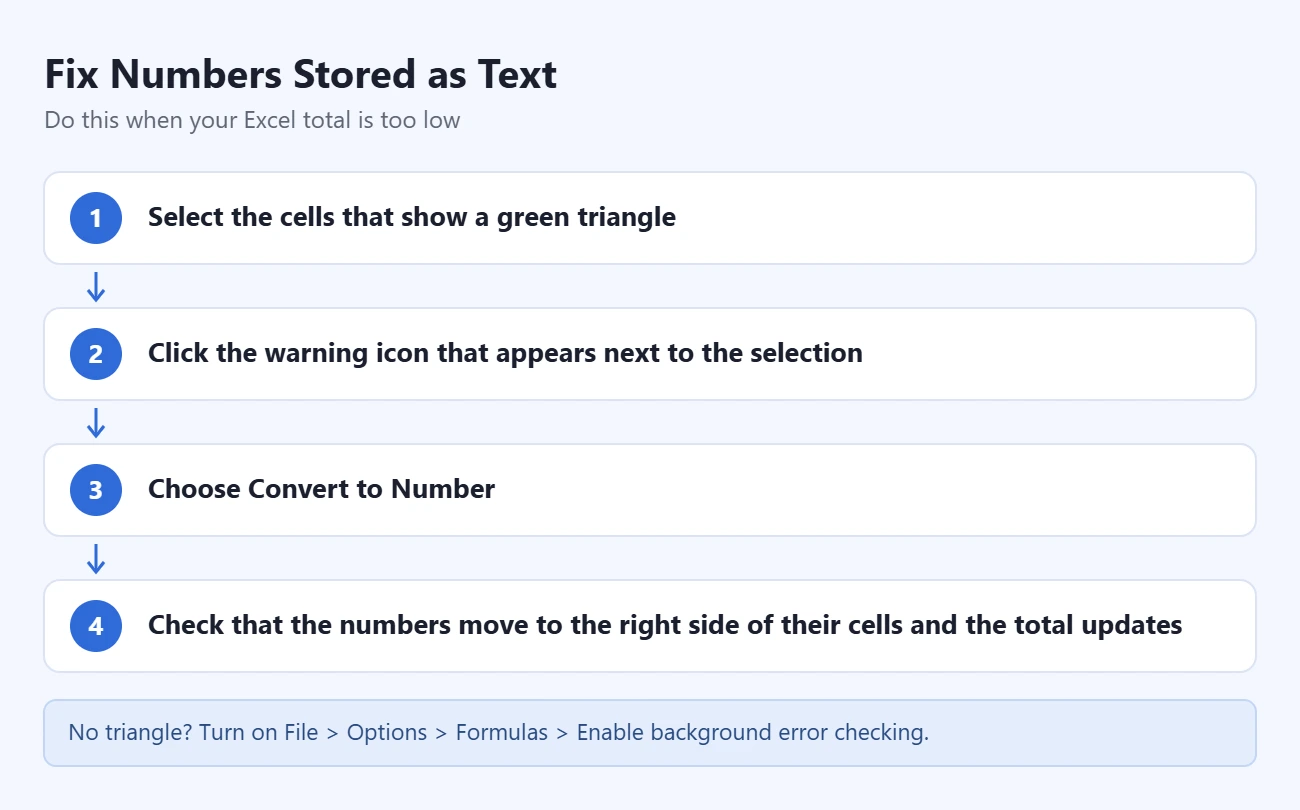
If no triangle or warning icon appears, turn on File > Options > Formulas > Enable background error checking. You can also type =VALUE(B2) in a spare column, fill it down, copy the results, and paste them over the originals with Paste Special > Values. Both fixes are in Microsoft’s Convert numbers stored as text to numbers article.
Hidden or Filtered Rows
If the total looks too high for the rows you can see, SUM is counting rows that are hidden or filtered out. Look for gaps in the row numbers on the left. Switch to =SUBTOTAL(109,B2:B7) to add only what is showing, or unhide the rows.
The opposite also happens. A table Total Row and any SUBTOTAL formula leave out filtered rows, so the total drops when a filter is on. Clear the filter to see the full amount.
Circular Reference
If Excel shows a circular reference warning and the total reads 0, the formula includes its own cell. This happens when you type =SUM(B:B) somewhere in column B, or when the range runs one row too far, such as =SUM(B2:B8) typed in B8.
- Click OK on the warning.
- Go to Formulas > Error Checking > Circular References and click the cell address listed. The status bar also shows Circular References with a cell address.
- Change the range so it stops above the total cell, or move the formula to another column.
Microsoft covers this in Remove or allow a circular reference.
Other Things to Check
- Wrong range: Click the total cell and read the formula bar. AutoSum stops at a blank cell, so a gap in the column cuts the range short. Edit the range by hand.
- Total does not update: Calculation may be set to manual. Go to Formulas > Calculation Options > Automatic, or press F9 to recalculate once.
- The cell shows the formula, not a number: The total cell is formatted as text. Change its format to General on the Home tab, then click in the formula bar and press Enter.
- The cell shows #####: The column is too narrow. Double-click the right edge of the column letter to widen it.
- The total is off by a cent: The cells hold more decimal places than they display. Add decimal places with Increase Decimal on the Home tab to see the real values.
Frequently Asked Questions
What is the shortcut to sum a column in Excel?
Click the cell below your numbers and press Alt+= on Windows or in Excel for the web, or Shift+Command+T on a Mac. Then press Enter to accept the formula.
How do I sum only some cells in a column?
List them in SUM, such as =SUM(B2,B4,B7), or use SUMIF to pick them by a rule. For example, =SUMIF(A2:A20,"Apples",B2:B20) adds values in column B only where column A says Apples.
Can I copy the sum to other columns?
Yes. Copy the total cell and paste it under the next column. Excel adjusts the letters automatically. In a table Total Row, drag the fill handle sideways instead of copying and pasting, so the column names update correctly.
How do I sum a column without including the header?
Start the range at the first number, such as =SUM(B2:B7). A text header is ignored even in =SUM(B:B), but a header that is a number is added, so a set range is safer.
Why does AutoSum show 0?
Usually every number in the range is stored as text, or the formula includes its own cell. Convert the cells to numbers, or fix the range so it ends above the total.
How do I sum a column in Google Sheets?
Sheets also uses =SUM(B2:B20), and you can see the total in the bottom-right corner when you select cells.
Next Step
Start with AutoSum, then switch to SUBTOTAL or SUMIF when you need a total for only part of the column. Want a percent of the total next? See how to calculate a percentage in Excel.

Matthew Burleigh is the founder, head writer, and editor of Solve Your Tech, which he launched in 2012. He has written technology tutorials since 2008 and worked in IT since 2003, including small-business support, IT management, and consulting. He holds Bachelor’s and Master’s degrees in Computer Science from Arizona State University.
Matthew writes practical guides for Windows, iPhone and iPad, Microsoft Office, Outlook, Google apps, and Android. Solve Your Tech’s guides are checked step by step against the device or app maker’s own documentation and tested on his own devices whenever he has the hardware or software, with clear steps, sources, and update dates.
Read more about Matthew and how Solve Your Tech writes and updates its guides, or report a correction.