To set up Medical ID, open the Health app, tap your picture in the top-right corner, tap Medical ID, then tap Get Started (or Edit), fill in your details and emergency contacts, turn on Show When Locked and the emergency call sharing switch, and tap Done. These steps match Apple’s iPhone User Guide for iOS 26 and iOS 27, and the same screens exist on older iOS versions with small label differences.
Medical ID is a page of health facts and contacts that someone helping you can read off your iPhone without your passcode. It takes a few minutes to fill out, and nothing on it is required, so you decide exactly what a stranger can see.
What a Medical ID Can Hold
The form has fields for your name, date of birth, medical conditions, medications, allergies and reactions, blood type, height, weight, organ donor status, primary language and emergency contacts. Any field can stay blank. The most useful ones for a paramedic are the things that change treatment: a serious allergy such as penicillin, a condition like diabetes or epilepsy, blood thinners or other medications, and an implant such as a pacemaker. Height and weight matter much less.
Create Your Medical ID in the Health App
- Open the Health app (the white icon with a red heart). If you can’t find it, swipe down on the Home Screen and type “Health.”
- Tap your picture or initials in the top-right corner.
- Tap Medical ID.
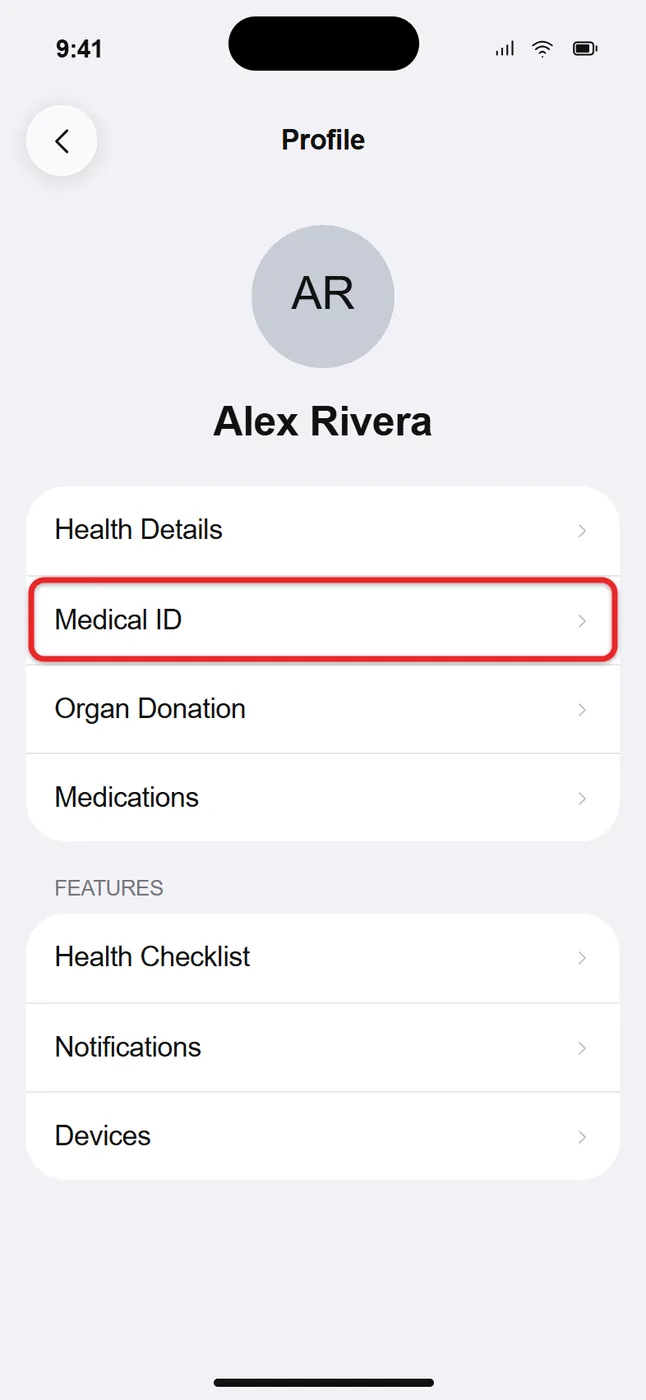
- Tap Get Started if you’ve never made one, or Edit if one already exists.
- Fill in the fields you want to share. Tap a field such as Medical Conditions or Allergies & Reactions and type your details, for example “Penicillin: hives and swelling.”
- Scroll to Emergency Contacts and tap Add Emergency Contact. Pick a person from your contacts, then choose their relationship, such as Mother or Spouse. Repeat for anyone else you want listed.
- Scroll to the bottom and turn on Show When Locked and the emergency call switch (Apple’s guide calls it Emergency Call; on many iPhones it reads Share During Emergency Call).
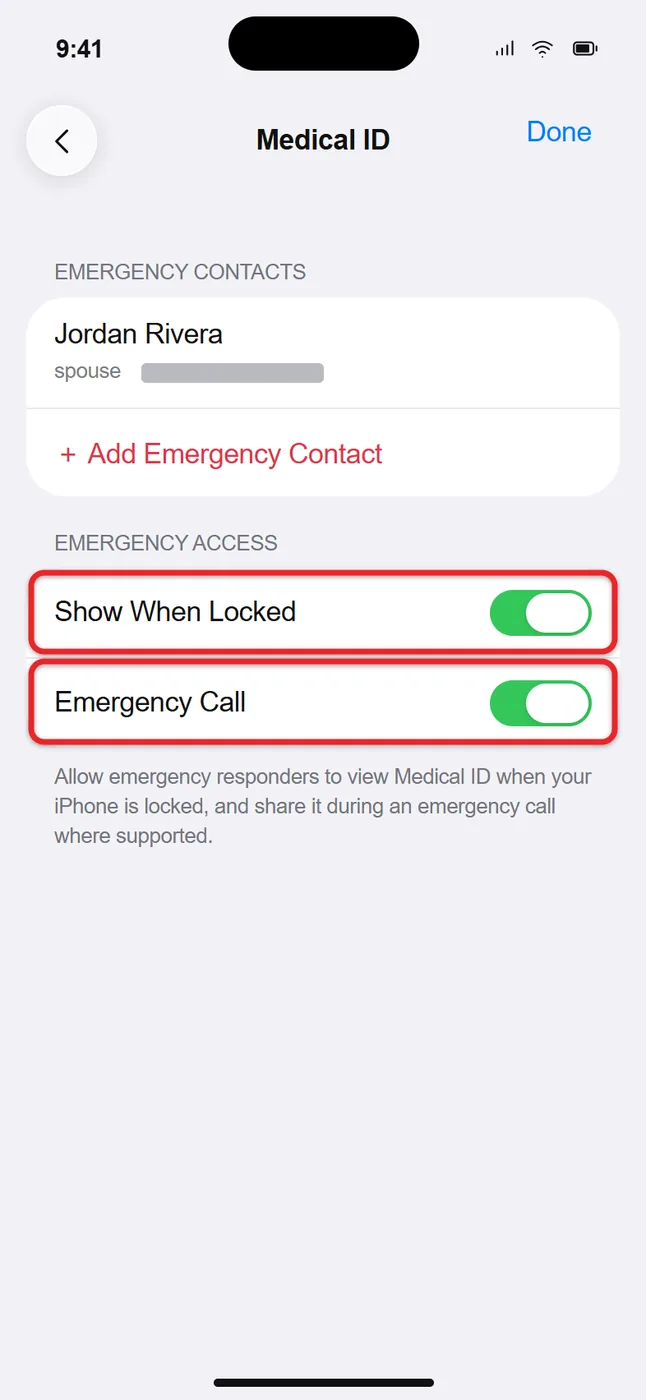
- Tap Done. Your finished Medical ID appears, showing exactly what others will see.
An emergency contact has to be saved in your Contacts app with a phone number first. If the person you want isn’t in the list, add them to Contacts, then come back. You can’t add 911 or another emergency number as a contact.
A shortcut for later: touch and hold the Health app icon on the Home Screen and choose Medical ID to jump straight to it.
Getting there from the Settings app
Medical ID also has an entry in Settings. On recent versions of iOS, open Settings, tap Apps, tap Health, then look for Medical ID. On older versions without the Apps list, it’s under Settings > Health > Medical ID. Both routes open the same form, so use whichever you find first. You can also manage emergency contacts from Settings > Emergency SOS, which sends you to the Health app to make the change.
What the Three Sharing Settings Do
| Setting | What it does | If it’s off |
|---|---|---|
| Show When Locked | Lets anyone holding your locked iPhone open your Medical ID from the passcode screen. | Your Medical ID is only visible after the phone is unlocked. |
| Share During Emergency Call (Emergency Call) | Sends your Medical ID to emergency services when you call or text them from your iPhone or Apple Watch. Apple lists this for the U.S. and Canada. | Dispatchers get nothing from Medical ID, though responders can still read it on your Lock Screen if Show When Locked is on. |
| Emergency Contacts | Receive a text from your iPhone after an Emergency SOS call ends. | No one is notified automatically. |
The call sharing switch depends on a location setting. Go to Settings > Privacy & Security > Location Services > System Services and make sure Emergency Calls & SOS is on. Apple’s Medical ID article says that if it’s off, your Medical ID won’t be shared.
How Emergency SOS Uses Your Contacts
Emergency SOS starts when you press and hold the side button and either volume button until the countdown finishes (outside India), or press the side button five times quickly if Call with 5 Presses is turned on. Once the emergency call ends, your iPhone texts your emergency contacts unless you cancel the message. The text includes your current location if it’s available, and for a while after you enter SOS mode, your contacts get updates when your location changes. Apple covers the button options in its guide to contacting emergency services.
If those button shortcuts keep calling 911 by accident, you can turn off the SOS shortcuts on your iPhone without losing your Medical ID or emergency contacts.
How Someone Else Views It on a Locked iPhone
This is worth knowing for your own phone and for helping someone else. With Show When Locked on, there are two ways in:
- From the passcode screen: swipe up from the bottom of the Lock Screen (on an iPhone with Face ID) or press the Home button (on iPhone SE), tap Emergency in the bottom-left corner, then tap Medical ID.
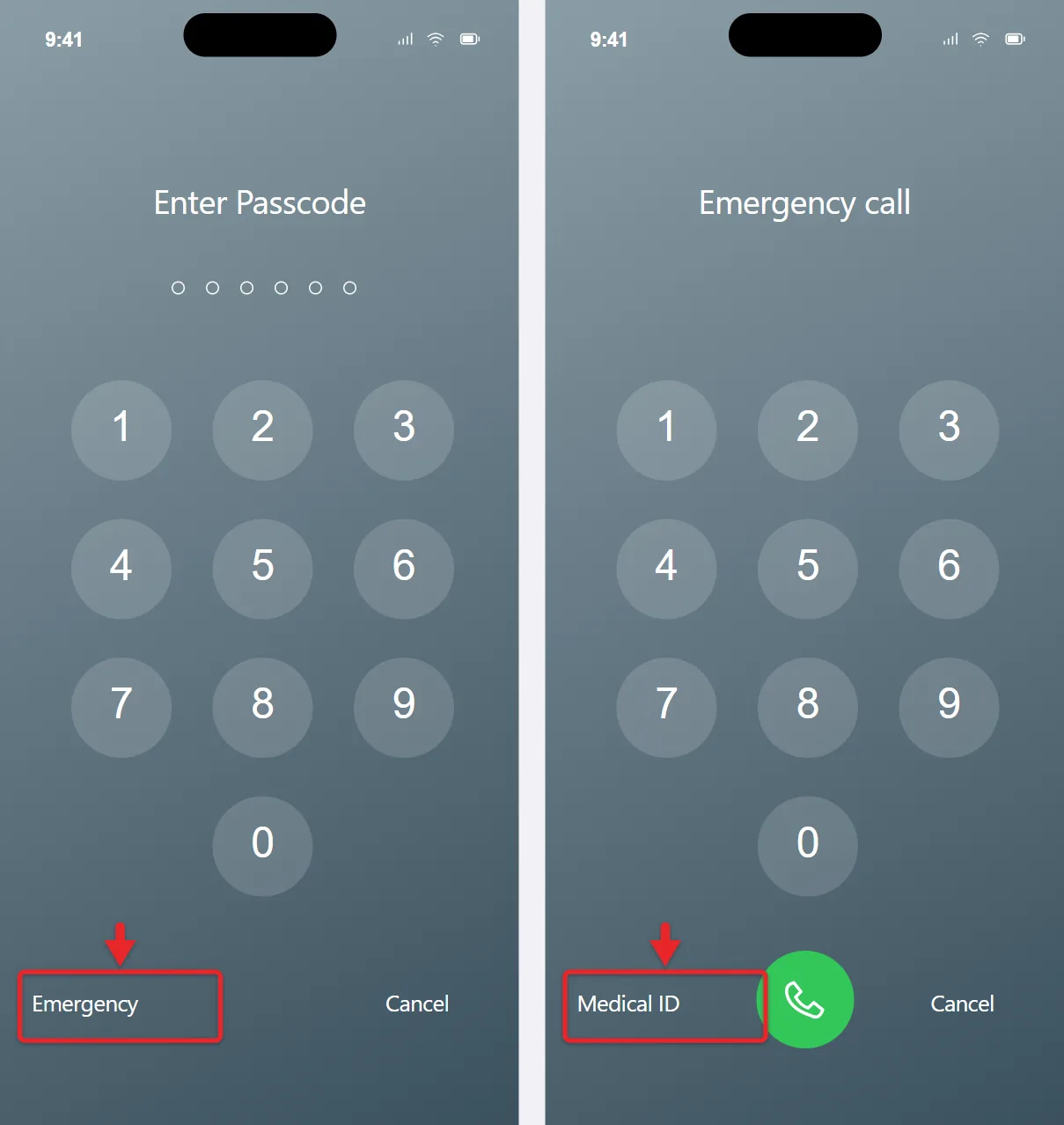
- From the sliders: press and hold the side button and either volume button until the sliders appear, then drag the Medical ID slider to the right. Let go of the buttons as soon as the sliders show up, or the Emergency SOS countdown starts.
To check your setup, lock your phone and try the first method yourself. If you see your details, a responder will too. If you see only the emergency keypad with no Medical ID button, Show When Locked is off or no Medical ID has been saved.
Medical ID on Apple Watch
There’s nothing separate to fill out. Apple’s Watch guide says the Medical ID you set up in the Health app on your paired iPhone is also available on your Apple Watch, and the watch can send it to emergency services when you call or text 911 or use Emergency SOS (U.S. and Canada). To view it on the watch, press and hold the side button until the sliders appear, then slide Medical ID to the right. You can also open Settings on the watch, tap SOS, then tap Medical ID. Apple’s Apple Watch Medical ID page has the details.
Edit, Remove or Delete Your Medical ID
- Change a detail: Health app, your picture, Medical ID, Edit, make the change, then Done. Update it whenever a medication or diagnosis changes.
- Remove an emergency contact: in edit mode, tap the red minus button next to the contact, tap Delete, then Done.
- Hide it from the Lock Screen only: in edit mode, turn off Show When Locked. Your information stays on the phone.
- Delete it entirely: in edit mode, scroll to the very bottom and tap Delete Medical ID, then confirm. This clears every field, so screenshot anything you want to keep first.
Privacy: Who Can See This
With Show When Locked on, anyone who picks up your phone can read your Medical ID, not only paramedics. That’s the trade-off that makes it useful. If a detail is sensitive and wouldn’t change emergency care, leave it out. Apple states that it cannot read your Medical ID information when it’s shared with emergency responders. Medical ID doesn’t give anyone access to the rest of your phone; the Emergency screen only opens the keypad and that one page.
Medical ID Questions
Does Medical ID work when my iPhone shows SOS in the status bar?
Yes. Your Medical ID is stored on the phone, so it opens from the Lock Screen with or without a signal. SOS in the status bar only means you’ve lost regular cellular service; here’s how to get your iPhone out of SOS mode.
Can I sign up as an organ donor from the Health app?
In the United States, yes. In the Health app, tap your picture, tap Organ Donation under Features, then tap Sign Up with Donate Life and complete the form. You can edit or remove the registration later from the same place.
Will my emergency contacts get a text if I cancel the SOS countdown?
Apple describes the text as going out after an emergency call ends. If you stop the countdown before a call is placed, no call ends, and if a call does go through, you can still cancel the message to your contacts.
I live outside the U.S. Is the sharing switch worth turning on?
Automatic sharing with dispatchers isn’t available in every country or region, and Apple’s iPhone guide lists it for the U.S. and Canada. Turning it on does no harm elsewhere. Show When Locked works everywhere, so that’s the setting that matters most for a responder standing next to you.
Once you’ve saved it, lock your phone and open your Medical ID from the Emergency screen to make sure it shows up. Apple’s full walkthrough is in its Set up and view your Medical ID guide.

Matthew Burleigh is the founder, head writer, and editor of Solve Your Tech, which he launched in 2012. He has written technology tutorials since 2008 and worked in IT since 2003, including small-business support, IT management, and consulting. He holds Bachelor’s and Master’s degrees in Computer Science from Arizona State University.
Matthew writes practical guides for Windows, iPhone and iPad, Microsoft Office, Outlook, Google apps, and Android. Solve Your Tech’s guides are checked step by step against the device or app maker’s own documentation and tested on his own devices whenever he has the hardware or software, with clear steps, sources, and update dates.
Read more about Matthew and how Solve Your Tech writes and updates its guides, or report a correction.