To set up Family Sharing on iPhone, open Settings, tap your name, tap Family, then tap Continue and follow the prompts to invite up to five people. Everyone keeps their own Apple Account, but the group can share app purchases, an iCloud+ storage plan, Apple subscriptions and locations.
The steps below follow Apple’s current instructions for iPhone and also work on iPad.
Family Sharing links up to six Apple Accounts: the organizer plus up to five family members. The organizer is the adult who creates the group, and they decide which features the group uses. Each person still signs in with their own account, so nobody sees anyone else’s messages, email, photos or notes just because they joined.
Here’s what a group can share once the organizer turns each feature on:
| Feature | What it means for the family |
|---|---|
| Purchase Sharing | Apps, books, movies and other content bought by one member can be downloaded by the others |
| iCloud+ | One storage plan used by everyone, while each person’s files and photos stay in their own account |
| Apple subscriptions | Eligible plans such as Apple Music, Apple TV, Apple Arcade and Apple Fitness+ on a family plan |
| Location Sharing | Members can see each other’s location in Find My and help locate lost devices |
| Screen Time and parental controls | Parents and guardians manage limits and approvals for children in the group |
| Ask to Buy | A child’s purchase requests go to a parent for approval |
A shared iCloud+ plan is a good example of how the privacy line works. The family shares the storage space, but a parent can’t browse a teenager’s iCloud Drive or photo library. If you do want a shared photo collection, that’s a separate feature called iCloud Shared Photo Library, which people join on purpose.
Before You Start
A little preparation keeps the invitations from stalling halfway.
- Pick the organizer. This must be an adult. The organizer controls the group and, when Purchase Sharing is on, family purchases are billed to the organizer’s payment method, so it’s usually the person who already pays for the household’s apps and subscriptions. Check that their payment details are current; here’s how to update the payment method on an Apple Account.
- Collect everyone’s Apple Account email. Each adult and teen needs their own account. If someone isn’t sure which account their iPhone uses, they can find their Apple Account on the iPhone.
- Check if anyone is already in a group. A person can belong to only one Family Sharing group at a time, and Apple says you can switch to a different group only once per year.
- Live in the same country. Apple’s Family Sharing overview says all members must share the same home country.
- Update iOS on the organizer’s iPhone and, ideally, everyone else’s devices.
- Plan for young kids. Children who are too young to create their own Apple Account get a Child Account, which the organizer or a parent creates from inside Family Sharing. The age cutoff varies by country or region.
Create the Group on Your iPhone
The organizer does this part.
- Open the Settings app.
- Tap your name at the top of the screen.
- Tap Family. In some versions of iOS, Family appears near the top of Settings by itself, so you can tap it there.
- Tap Continue.
- If you’re asked to confirm that you’re an adult, follow the prompt.
- Follow the onscreen instructions to choose features and invite family members. You can also skip invitations and add people later.
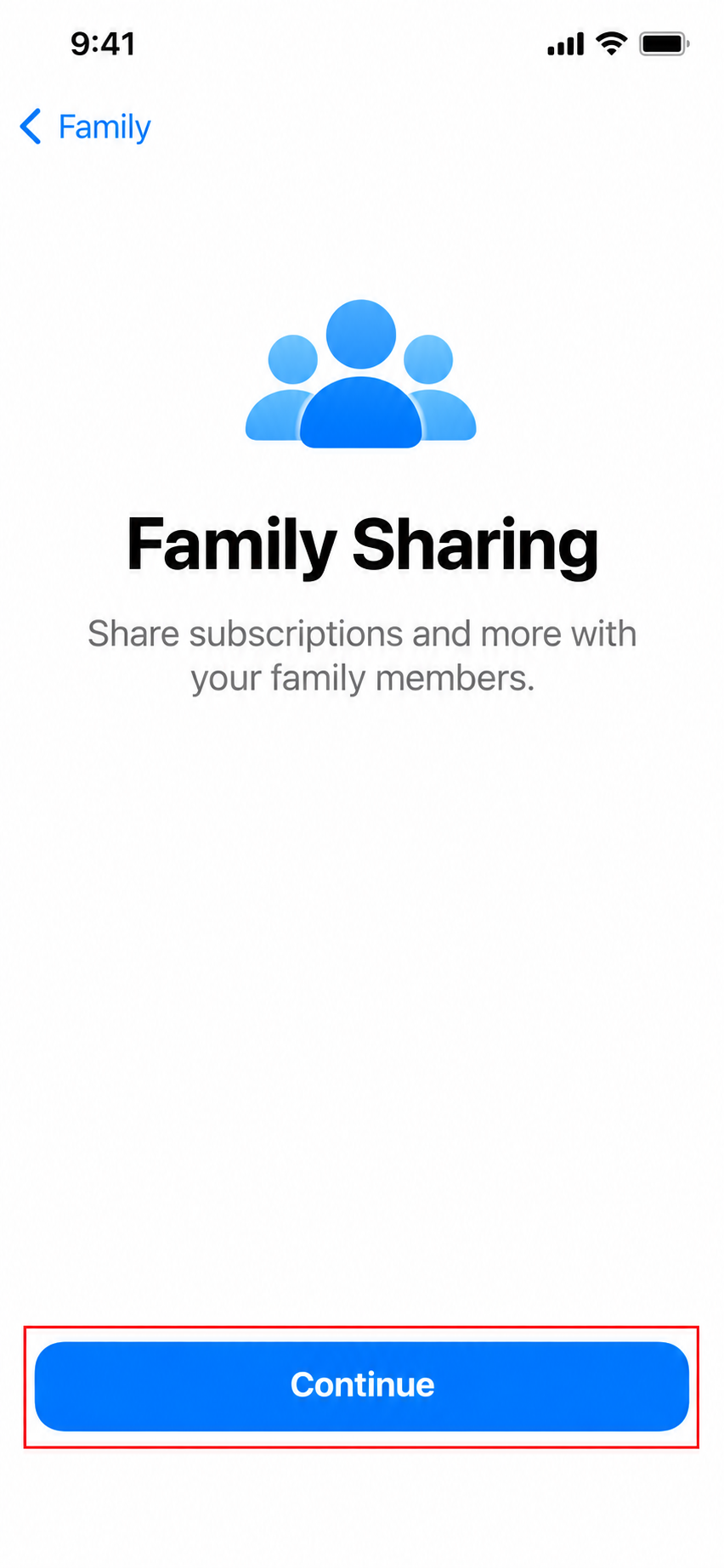
When you finish, the Family screen shows you as Organizer. Apple’s Family Sharing setup page also covers starting the group from an iPad or Mac.
Invite Adults and Teens
People who already have their own Apple Account join by invitation.
- Open Settings and tap Family.
- Tap the Add Member button.
- Tap Invite Others.
- Send the invitation through Messages or email, or hand your iPhone to the person so they can sign in right there.
- Follow the remaining screens to set up features such as location sharing.
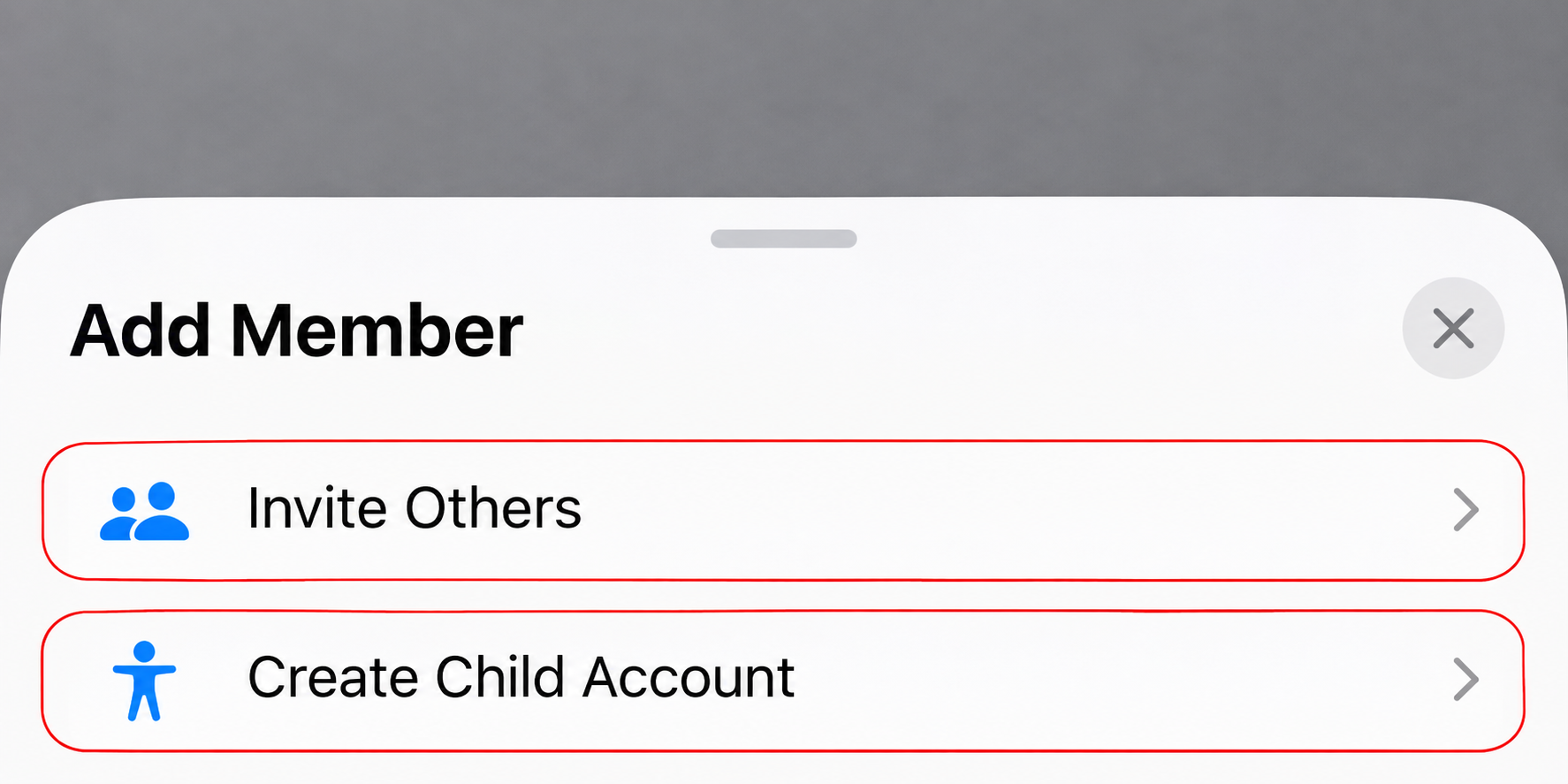
The invited person accepts from the email or text message. If they missed it, they can open Settings, tap their name, and tap Invitations to respond.
To see whether someone has accepted, go to Settings > Family and tap their name. If the invitation is still pending, tap Resend Invitation.
If you have more than one Apple Account yourself, for example an older account with years of app purchases, you can invite each of your own accounts to the group. That lets the family use purchases from your other accounts too.
Add a Child to the Group
How you add a child depends on whether they already have an account.
If Your Child Already Has a Child Account
- On your iPhone, open Settings and tap Family.
- Tap the Add Member button, then tap Invite Others.
- Choose to invite them in person and let the child enter their account password on your iPhone.
- Follow the prompts to choose parental controls, Ask to Buy and location sharing.
If Your Child Doesn’t Have an Account Yet
- Open Settings and tap Family.
- Tap the Add Member button.
- Tap Create Child Account.
- Follow the onscreen instructions, which walk you through the child’s details and a parental consent step.
If You Set Up the Child’s iPhone First
If you set up a new iPhone or iPad for your child and picked a child age range during setup, age-appropriate default settings are already on, and you can connect the device to your group later. On the child’s device, open Settings, tap Connect to Family, and follow the instructions. You’ll need to create a Child Account as part of that process.
Finishing the Child Account matters if you want your child to download apps, use the family’s iCloud storage or have parental controls you adjust yourself.
Turn On Ask to Buy and Screen Time
These are the two controls most parents set up first.
Ask to Buy sends a request to a parent or guardian when a child tries to get an app or make a purchase. You approve or decline it from your own device. Apple’s Ask to Buy instructions explain the details, including that requests expire if nobody approves them within 24 hours (the child then has to ask again) and that redownloads and updates don’t need approval. To check it:
- Open Settings and tap Family.
- Tap your child’s name.
- Tap Apps & Websites, then tap Restrictions.
- Tap Ask to Buy, then turn on Require Purchase Approval.
Depending on your child’s age and region, Ask to Buy may be turned on automatically and you may not be able to turn it off.
Screen Time covers app limits, downtime schedules, content ratings and who your child can contact. You set it up for each child from the same Family screen. For a walkthrough of the content limits, see how to set restrictions on an iPhone with Screen Time.
Example: Setting Up a Family of Four
Grace sets up Family Sharing for her household: her partner Sam, their 15-year-old Ravi, and 8-year-old Mia.
- Grace creates the group from her iPhone and becomes the organizer.
- She invites Sam with Invite Others. Once Sam accepts, Grace opens Settings > Family, taps Sam’s name and taps Set as Parent/Guardian, so Sam can approve Ask to Buy requests too.
- Ravi already has his own account, so Grace invites him and turns on Ask to Buy for him.
- Mia doesn’t have an account, so Grace uses Create Child Account.
- Grace turns on Purchase Sharing and the family iCloud+ plan, so the apps she already bought appear for Ravi and Mia, and everyone backs up to the same storage plan.
Now when Mia asks for a game, both Grace and Sam get the request, and either one can approve it.
Make Another Adult a Parent or Guardian
Any adult in the group can be a parent or guardian. That lets them create Child Accounts, manage parental controls, and answer Ask to Buy and Ask to Browse requests.
- Open Settings and tap Family.
- Tap the adult’s name.
- Tap Set as Parent/Guardian.
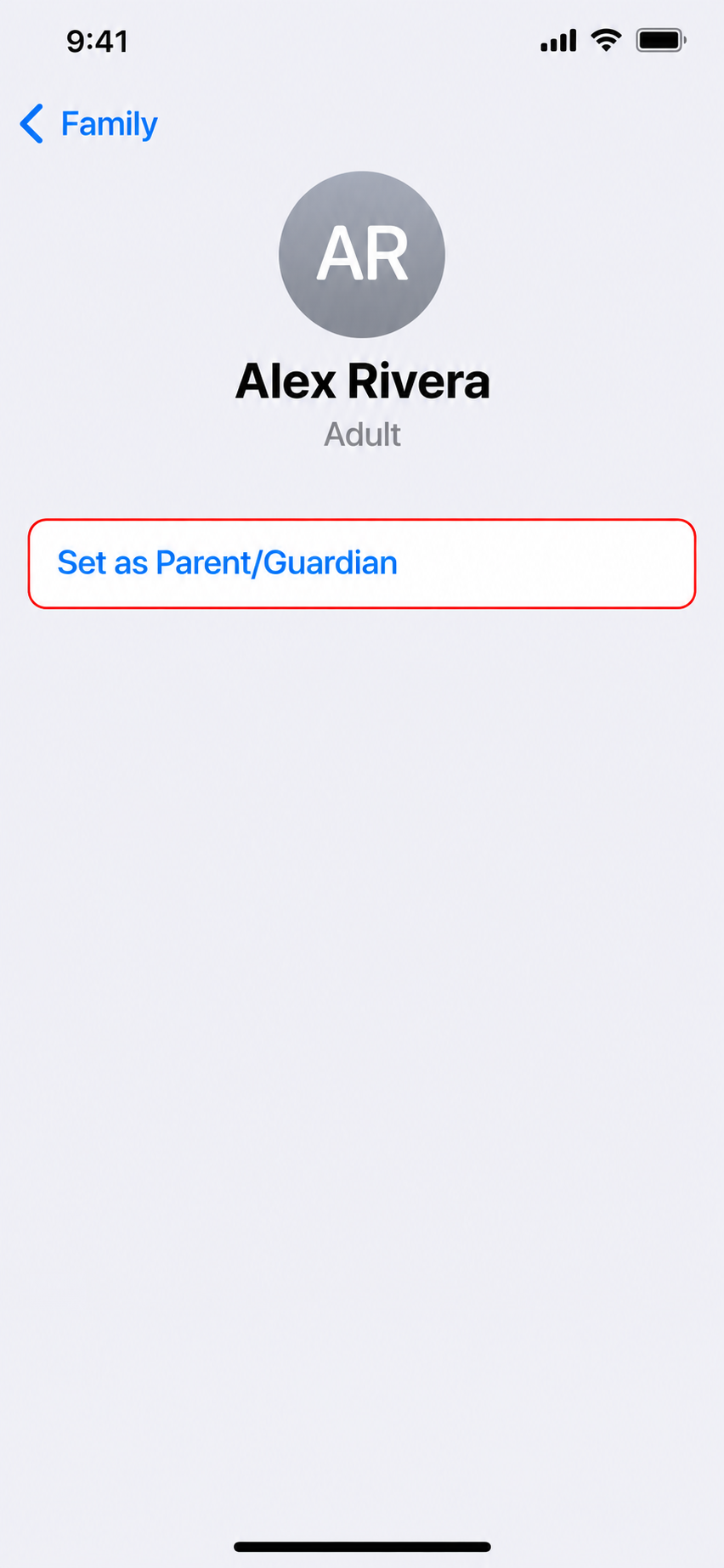
Leave the Group or Remove Someone
To leave a group you joined: open Settings and tap Family (if you don’t see it, tap your name, then Family), tap your name, then tap Stop Using Family Sharing.
To remove a member (organizer only): open Settings, tap Family, tap the person’s name, then tap Remove [name] from Sharing Group.
Before anyone leaves, know what changes:
- They lose access to shared purchases and family subscriptions, and they stop using the shared iCloud+ plan.
- Location sharing with the family stops.
- Their own purchases stay with their own account.
- If the person leaving paid for a shared service, such as the family iCloud+ plan or an Apple Music family subscription, the rest of the group loses access to it too.
Children are handled differently. Depending on the child’s age and region, a Child Account may have to stay in a Family Sharing group until the child is 18. Instead of removing a young child, you can move them to another family group.
When an Invitation or Sharing Doesn’t Work
- The invitation won’t accept. The person may already be in another group, or someone else may have joined a group with their Apple Account. They’ll need to leave that group first, and the once-per-year switching limit can block a quick move.
- The invitation never arrived. Check the email address you used, then resend it from Settings > Family. The person can also look in Settings > their name > Invitations.
- Shared apps don’t show up. Make sure Purchase Sharing is turned on in Settings > Family.
- Ask to Buy requests aren’t coming through. Confirm the adult who should get them is set as a parent or guardian.
- A family member wants to see where you are. Location Sharing is controlled separately; here’s how to share your location on an iPhone.
Family Sharing Questions
How Many People Can Be in a Family Sharing Group?
Six in total: the organizer and up to five other members.
Can I Belong to Two Family Groups?
No. You can be in only one Family Sharing group at a time, and Apple limits switching to a different group to once per year.
Does Family Sharing Cost Anything?
The group itself is free. You only pay for the subscriptions and storage plan you choose to share. Apple One is a separate paid bundle of services that can be shared through a Family Sharing group.
Can Family Members See My Photos and Messages?
No. Each person keeps their own Apple Account, so personal data stays private. A shared iCloud+ plan shares storage space, not files.
Can a Teenager Leave the Group on Their Own?
Not always. If a parent or guardian has set up Screen Time, a teen needs the organizer’s permission to leave. Depending on local laws, they might not be able to leave until they turn 18, so the organizer may need to move them to another group instead.
Every few months, open Settings > Family to check pending invitations, who’s a parent or guardian, and which features are on.

Matthew Burleigh is the founder, head writer, and editor of Solve Your Tech, which he launched in 2012. He has written technology tutorials since 2008 and worked in IT since 2003, including small-business support, IT management, and consulting. He holds Bachelor’s and Master’s degrees in Computer Science from Arizona State University.
Matthew writes practical guides for Windows, iPhone and iPad, Microsoft Office, Outlook, Google apps, and Android. Solve Your Tech’s guides are checked step by step against the device or app maker’s own documentation and tested on his own devices whenever he has the hardware or software, with clear steps, sources, and update dates.
Read more about Matthew and how Solve Your Tech writes and updates its guides, or report a correction.