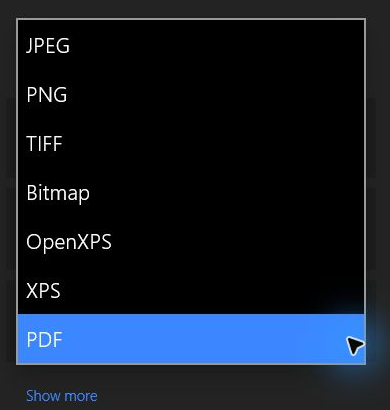
Windows 11’s built-in Scan app saves each scan as an image (JPEG, PNG, TIFF or Bitmap), not a PDF. For one multi-page PDF, use your printer maker’s scan software, which can usually save every page into one PDF, or scan with Windows Scan and combine the images with Microsoft Print to PDF.
You have a twelve-page lease or a stack of tax forms to send, and you want one PDF, not twelve separate image files.
Pick the Method That Fits Your Scanner
Two things decide the easiest route: what software your scanner came with, and whether it has a document feeder.
- Document feeder (ADF): the tray on top of many all-in-one printers that pulls pages through one at a time. It can scan a whole stack in one job.
- Flatbed: the glass under the lid. You scan one page, swap it, and scan the next.
| Your situation | Best route |
|---|---|
| Your printer maker’s scan app is installed (Epson, Brother, HP, Canon) | Scan straight to a multi-page PDF in that app |
| Only Windows’ own tools, any scanner | Windows Scan, then combine with Microsoft Print to PDF |
| Lots of pages and a document feeder | Maker app with the feeder; Windows Scan with Source set to Feeder can pull the stack through, then combine the images with Print to PDF |
Your scanner needs to be connected and installed first. If Windows doesn’t see it yet, start with adding a scanner to Windows 11.
Scan the Pages With the Windows Scan App
Windows Scan is Microsoft’s own scanning app. According to Microsoft’s page on installing and using a scanner in Windows, it saves JPEG, PNG, TIFF and Bitmap files. That’s why each page usually ends up as its own image. For the basics of the app, see how to scan on Windows 11.
- Select Start, type Windows Scan, and choose Scan under Apps. If it isn’t there, install Windows Scan from the Microsoft Store.
- Place the first page face down on the glass, or load the whole stack in the document feeder.
- Under Source, choose Flatbed, Feeder or leave it on Auto-configured. Microsoft says the default Auto-configured is fine for most scans, but picking Feeder makes the app pull pages from the tray.
- Under File type, choose JPEG for small files or PNG for sharper text. TIFF and Bitmap files are much larger.
- Select Show more to see more options, then select the link under Save file to and choose Select Folder. Make a new folder just for this document, such as Lease scans. That keeps the pages together and makes the next step easier. If you skip this, scans go to the Scans folder inside Pictures.
- Select Scan. When it finishes, the app shows where the file was saved. Select View to check it in Photos, or Close to get ready for the next page.
- On a flatbed, swap in the next page and select Scan again. Repeat until every page is in the folder.
Scan the pages in reading order. Windows Scan names files automatically, and when they sort by name or date in File Explorer, the order you scanned them is usually the order they’ll appear in the PDF. If a page goes in crooked or upside down, rescan it now; fixing it later is harder.
Combine the Scans Into One PDF With Microsoft Print to PDF
Microsoft Print to PDF is a virtual printer built into Windows 11. Instead of putting ink on paper, it “prints” whatever you send it into a PDF file. If you select several scanned images and print them together, you get one PDF with one image per page. Microsoft doesn’t publish a step-by-step page for this, so the labels below are what to look for and may differ slightly on your PC.
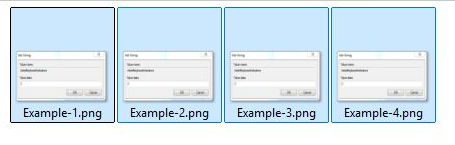
- Open the folder holding your scans in File Explorer.
- Sort the files into the right order. Select Sort on the toolbar and choose Name or Date modified, whichever matches your scanning order.
- Select all the pages: click the first file, then hold Shift and click the last one, or press Ctrl + A.
- Right-click the selection and look for Print. On Windows 11 it may sit under Show more options.
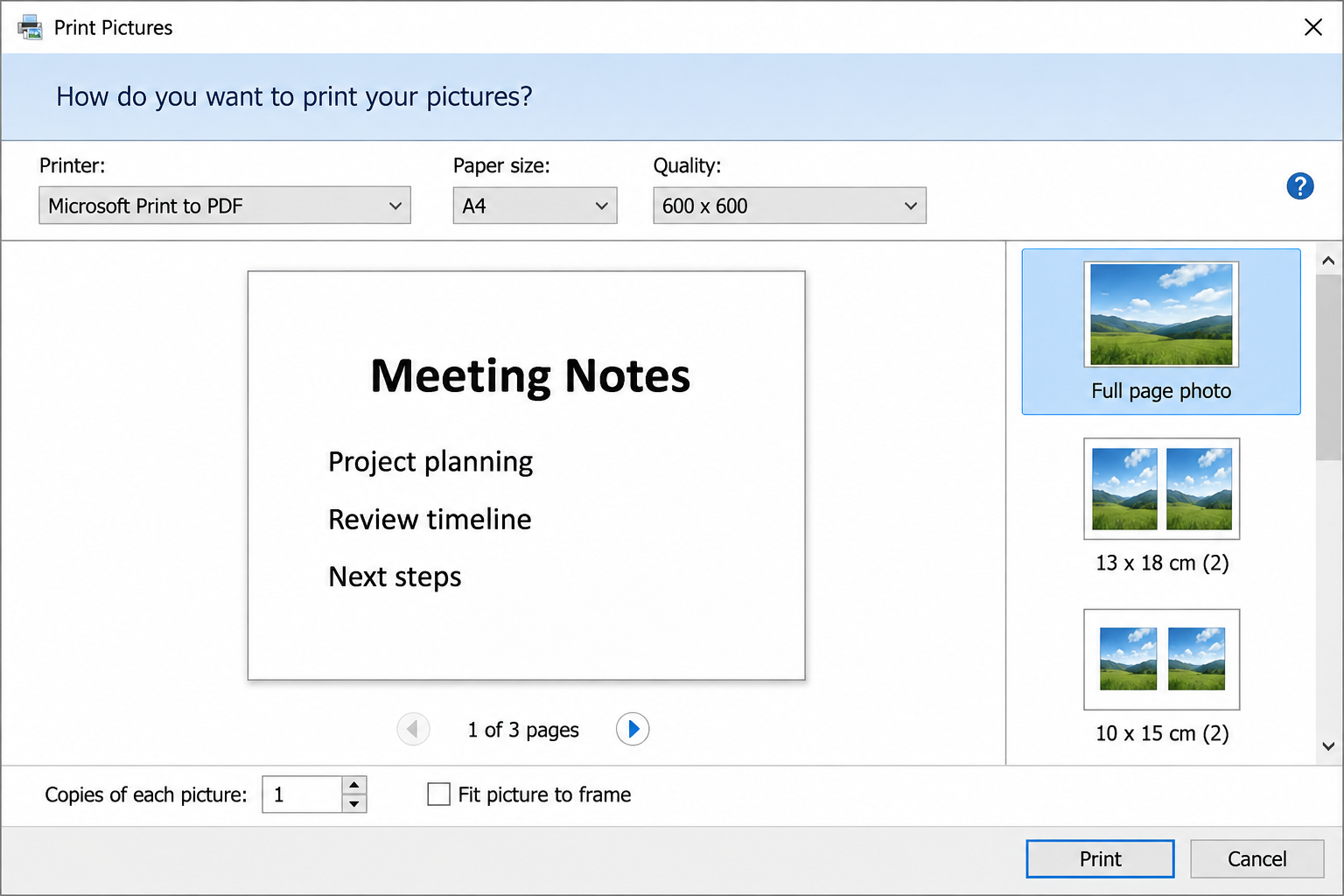
- In the Print Pictures window, set the printer to Microsoft Print to PDF and the paper size to match the original, usually Letter in the US.
- Choose the Full page photo layout so each scan fills one page. If edges of the page are being trimmed, look for a Fit picture to frame check box and clear it.
- Select Print. A Save Print Output As window opens; pick a location, type a name such as Lease 2026, and select Save.
Open the new PDF and page through it before you send it. Check that the page count matches your original, the order is right and no edges were cut off. If something is off, adjust the sort order or the layout settings and print again; the original image files aren’t changed.
If you don’t see Microsoft Print to PDF in the printer list, it may be turned off. You can check under Windows Features (search Start for Turn Windows features on or off) and look for a Microsoft Print to PDF entry.
Scan Straight to a Multi-Page PDF With Your Printer Maker’s Software
Most scanner and all-in-one makers offer their own app that can scan several pages and save them as one PDF, which skips the combining step entirely. Options and labels vary by model and app version, so treat the details below as a guide and check your model’s manual.
Epson ScanSmart
Epson’s ScanSmart user’s guide describes scanning a page, then selecting + Scan to add more originals. When you’re done, select Save and set the file type to PDF (or Searchable PDF if you want text you can search). In ScanSmart’s Save Settings, click Options for the PDF file type and make sure Create file with all pages (described as “Saves all pages as one file”) is selected.
Brother ControlCenter
Brother’s FAQ on scanning several pages into one file covers two cases on supported models: with the document feeder, set the scan File Type to PDF in ControlCenter’s scan configuration and feed the stack; with the flatbed, it describes using the bundled PaperPort software, which offers Scan More Pages after each page and Done when you finish. That FAQ was written for an older model and shows older PaperPort versions, so on a newer Brother printer the scan app and labels will likely differ; check your model’s page on Brother’s support site.
HP and Canon
HP’s scan software and the HP Smart app, and Canon’s IJ Scan Utility, also have multi-page scanning on many models. Look for an option to add pages, a document or PDF scan type, or a setting that saves multiple pages as one file. Search your exact model on the maker’s support site for the steps, since they differ between products.
Tips for Scanning a Stack Through the Document Feeder
- Prepare the pages. Remove staples and paper clips, unfold corners, and fan the stack so pages don’t stick together. Torn, glossy or very thin pages, and anything like a photo or receipt, are safer on the glass.
- Check the orientation. Feeders usually take pages face up with the top edge going in first, but many models differ. The tray often has a small icon showing which way.
- Stay under the tray’s limit. Overfilling causes jams and skewed pages. Scan a big document in batches if needed, then combine them.
- Two-sided pages. Some feeders scan both sides in one pass (look for a duplex or two-sided option in the maker’s app). Without it, you’d scan the fronts, flip the stack, scan the backs, and reorder.
Check Size, Order and Readability Before You Send
A quick check prevents an awkward “page 7 is missing” email. Open the PDF in your viewer and look for:
- Every page present and in the right order.
- Small text readable when zoomed in, especially signatures and fine print.
- File size within limits. Many email services and upload forms cap attachment size. Color scans at high resolution add up fast; for plain text documents, a grayscale or black and white setting and a moderate resolution keep the file much smaller.
Scanned PDFs often hold personal information. Delete the individual image files from the scans folder once you’ve checked the PDF, unless you want to keep them as a backup.
Multi-Page Scanning Questions
Does Windows Fax and Scan Make a Multi-Page PDF?
Not on its own. Windows Fax and Scan, where it’s still installed, offers image file types for scans rather than PDF, so you’d still need Microsoft Print to PDF or your maker’s software to end up with one PDF. Microsoft’s scanner help page uses the Windows Scan app instead.
Can I Add a Page I Forgot After the PDF Is Made?
With the built-in tools, the simplest fix is to scan the missing page into the same folder, sort the images again, and print the full set to a new PDF. That’s another reason to keep the image files until the PDF is sent.
Will the Text in the PDF Be Searchable?
Not with the Print to PDF method; each page is a picture of text. Some maker apps can create a searchable PDF using text recognition, such as Epson’s Searchable PDF file type.
Why Does the Windows Scan App Only Pick Up One Page From the Feeder?
Check that Source is set to Feeder rather than Flatbed, and that the pages are seated properly in the tray. If the app still stops after one page, your maker’s own software usually handles the feeder more fully.
Once your PDF looks right, give it a clear file name with the document type and date, so it’s easy to find when someone asks for it again.

Matthew Burleigh is the founder, head writer, and editor of Solve Your Tech, which he launched in 2012. He has written technology tutorials since 2008 and worked in IT since 2003, including small-business support, IT management, and consulting. He holds Bachelor’s and Master’s degrees in Computer Science from Arizona State University.
Matthew writes practical guides for Windows, iPhone and iPad, Microsoft Office, Outlook, Google apps, and Android. Solve Your Tech’s guides are checked step by step against the device or app maker’s own documentation and tested on his own devices whenever he has the hardware or software, with clear steps, sources, and update dates.
Read more about Matthew and how Solve Your Tech writes and updates its guides, or report a correction.