You bought Fallout 3 years ago, installed it on a new Windows 11 PC, and it either crashes at the intro video or never opens past a black screen. The fixes that most often help are setting Fallout3.exe to run as an administrator with fullscreen optimizations turned off, pushing the game onto a dedicated graphics card, and installing Microsoft’s older DirectX 9 runtime files. Compatibility mode (Windows 7, then Windows XP SP3) is the next thing to try.
Check Which Copy of Fallout 3 You Have
Bethesda’s own support pages say Fallout 3 is not optimized for Windows 7 and later, so nothing here is an official Windows 11 fix. What helps depends partly on where your copy came from:
- Steam (Game of the Year Edition): updates itself. Steam’s update 1.7.0.4, posted on October 12, 2021, removed the Games for Windows LIVE requirement, so the game no longer installs or needs it. If you installed before that update, the update note suggests uninstalling and reinstalling the game.
- GOG: also updates through GOG GALAXY, and GOG publishes its own Fallout 3 launch and crash troubleshooting pages, which many of the steps below come from.
- Epic Games Store: the same Windows settings apply; only the file location and verify button differ.
- Original disc, or a Steam copy installed before the 2021 update: older builds may still look for Games for Windows LIVE. An error that mentions
xlive.dll(Bethesda’s older pages quote “Ordinal 43 could not be located”) is the sign. Microsoft describes Games for Windows LIVE as a retired platform with no customer support, so a store copy is the dependable route if a disc install refuses to start.
Don’t download a Games for Windows LIVE installer from an unofficial site to fix an updated Steam or GOG copy; it doesn’t need one. If you play a GOG, Epic or disc copy and want it in your Steam library anyway, you can add a non-Steam game to Steam after the fixes below work on their own.
Set the Compatibility Options on Fallout3.exe
Bethesda gives the default Steam folder as C:\Program Files (x86)\Steam\steamapps\common\Fallout 3 goty. GOG recommends launching Fallout3.exe directly rather than through a launcher shortcut while you troubleshoot. You need to be signed in with an administrator account. Bethesda’s older help page notes that accounts without administrator rights may not see the Compatibility tab.
- Open the game folder in File Explorer, right-click Fallout3.exe and choose Properties.
- Select the Compatibility tab.
- Check Disable fullscreen optimizations.
- Check Run this program as an administrator.
- Select Apply, then OK, and start the game.
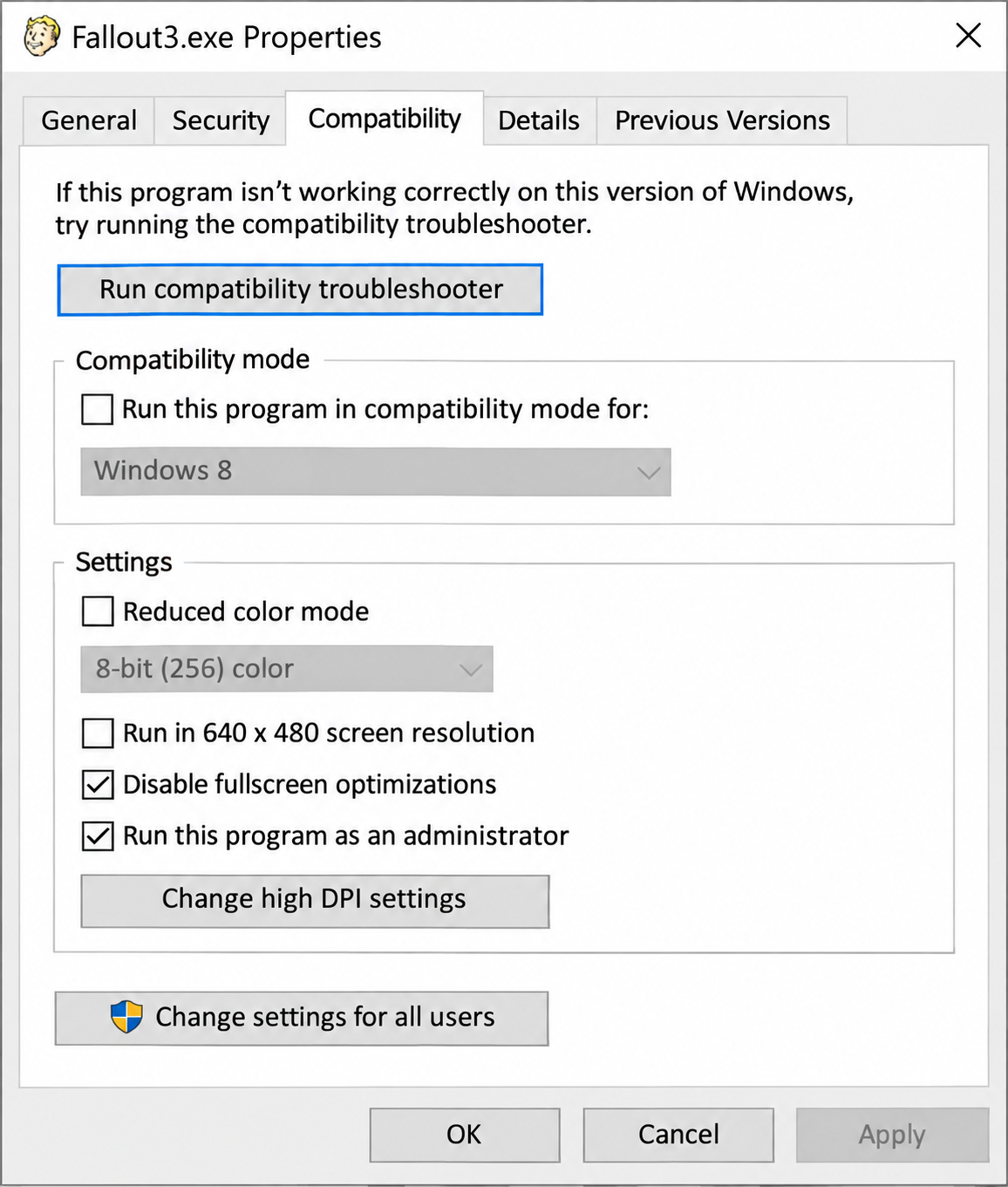
- Still failing? Go back to the same tab, check Run this program in compatibility mode for, choose Windows 7, and test. If that doesn’t help, try Windows XP (Service Pack 3). GOG lists Windows 7 as an optional setting and Bethesda suggests trying different Windows versions, including XP SP3.
Change one setting at a time so you know which one helped. The admin option works the same way as running any app as administrator in Windows 11. If you’d rather let Windows test settings for you, Microsoft’s guide to making older apps compatible covers the Program Compatibility Troubleshooter (Settings > System > Troubleshoot > Other troubleshooters).
Make the Game Use the Right Graphics Card
This is where many laptops go wrong. GOG says Intel integrated graphics (HD, UHD, Iris Xe and Arc integrated chips) are not supported and are the single most frequent cause of crashes when you click New Game. If your PC also has an NVIDIA or AMD card, send the game there:
- Open Settings > System > Display > Graphics.
- Under Custom options for apps, find Fallout3.exe. If it isn’t listed, look for an option to add a desktop app (labels vary by Windows version) and browse to the game folder.
- Select the app, choose Options, pick High performance and save.
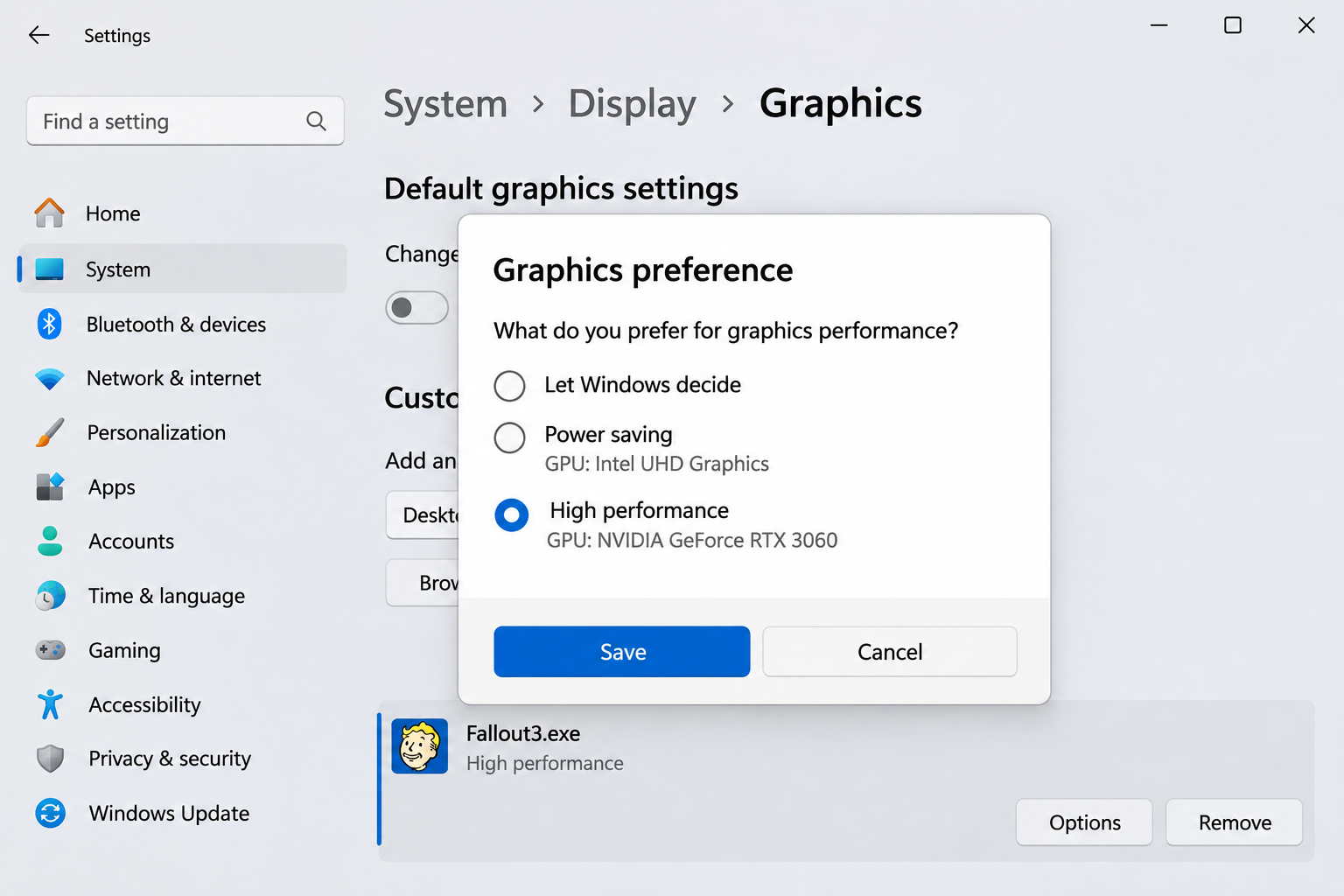
Microsoft documents that menu path on its windowed games settings page. GOG also suggests setting the dedicated card as preferred in NVIDIA Control Panel (Manage 3D Settings) or choosing the High Performance graphics profile in AMD Software: Adrenalin Edition. Update both graphics drivers on a dual-GPU laptop; here’s how to update a graphics driver in Windows 11 from Windows Update or the card maker.
On a PC with only Intel graphics, players share replacement graphics files that get around the problem, but these are unofficial community workarounds that Bethesda and GOG don’t support, so they aren’t covered here.
Two display settings from Bethesda are worth trying too: open the Fallout 3 Launcher, select Options, check Windowed under Mode, and make sure the resolution under Graphics Adapter and Resolution matches your screen. Turning on Game Mode in Windows 11 can help the game get priority once it runs, but it won’t fix a game that refuses to start.
Install the Older Microsoft Runtime Files
Fallout 3 is a DirectX 9 game. Windows 11 includes newer DirectX versions but not every legacy component older games call for. GOG’s crash page recommends two Microsoft downloads:
- DirectX End-User Runtimes (June 2010). Microsoft says it adds legacy components such as D3DX9, XAudio 2.7 and XInput 1.3 and does not change your version of DirectX. The page lists older Windows versions as supported, but GOG recommends it for this game on current Windows.
- The latest supported Visual C++ Redistributable, both the x86 and x64 versions. Microsoft notes the package has to match the app’s architecture, so install both, as GOG advises.
Restart the PC after installing, then launch the game again.
Verify the Game Files
A damaged or incomplete install can look like a compatibility problem. In Steam, restart your PC, open Steam, right-click Fallout 3 in your Library, choose Properties, open Installed Files and select Verify integrity of game files. Steam says it can take several minutes and that one or more files failing to verify is normal (those are usually local settings files). Don’t run it during a virus scan.
In GOG GALAXY, select the settings icon next to Play, then Manage installation > Verify / Repair. The Epic Games Launcher usually has a Verify option in the game’s Manage menu.
Stop Crashes at New Game or When Loading a Save
If the main menu appears but the game dies when a world loads, work through GOG’s list of causes:
- Overlays: close Discord’s overlay, MSI Afterburner, RivaTuner Statistics Server, FRAPS, OBS and the Radeon overlay before launching.
- Display scaling: set Settings > System > Display > Scale to 100% while you play.
- Extra monitors: press Windows key + P and choose PC screen only. If the game keeps dropping to the desktop with two screens connected, see stopping games from minimizing on dual monitors.
- Install location: GOG suggests reinstalling to a short path such as
C:\Gamesand adding the game folder and Fallout3.exe as exclusions in Windows Security. Add exclusions only for a copy from a store you trust, and never turn your antivirus off instead. - Too many saves: GOG lists a large save folder as a cause; move older saves to a backup folder rather than deleting them.
Warning: the next fix lowers a security protection for this one program. Only do it for Fallout3.exe, and undo it if it doesn’t help. GOG’s crash page suggests an exception to Data Execution Prevention (DEP): open Windows Security > App & browser control > Exploit protection settings > Program settings, add Fallout3.exe, and override the DEP setting for it. To undo it, remove the program from that list.
Edit Fallout.ini for Multicore Processors
Fallout 3 predates modern many-core processors, and GOG publishes an ini change for launch problems on them. GOG doesn’t promise it will help, so try it after the steps above.
- Launch the game once so it creates its settings files.
- Press Windows key + R, type
%userprofile%\Documents\My Games\Fallout3and press Enter. - Copy FALLOUT.ini to another folder as a backup, then open the original in Notepad.
- In the [General] section, find the line
sLanguage=ENGLISHand add these two lines below it:bUseThreadedAI=1andiNumHWThreads=2. If the file already has a bUseThreadedAI line, change its value to 1 instead of adding a second one.
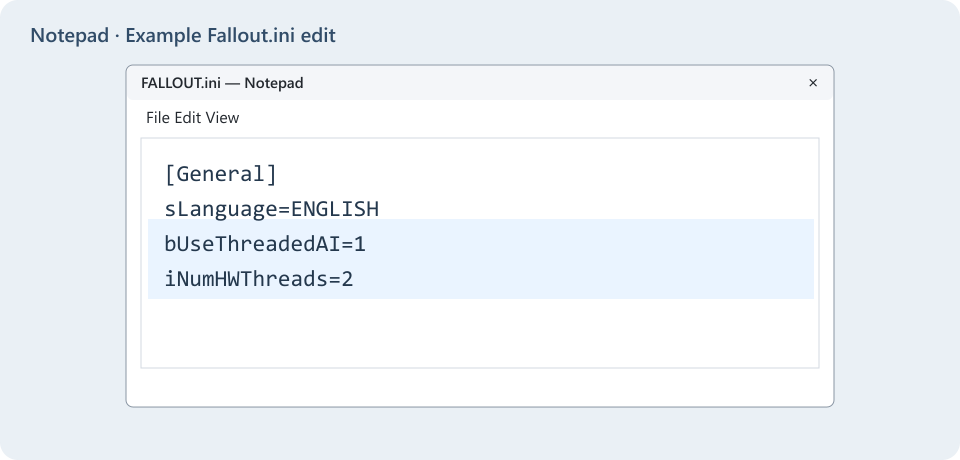
- Save the file and start the game.
Two more tweaks circulate among players. They’re community fixes, not in Bethesda’s or GOG’s documentation: capping the frame rate at 60 (with your graphics card’s control panel or by setting a high-refresh display to 60 Hz) for stutter and physics glitches, and limiting the game to fewer processor cores in Task Manager’s Details tab (right-click Fallout3.exe, then Set affinity). On most PCs the affinity change lasts only until the game closes.
If It Still Won’t Start
- Reset the settings files. Back up the
Savesfolder insideDocuments\My Games\Fallout3first. Then move Fallout.ini, FalloutPrefs.ini and RendererInfo.txt out of that folder; the launcher creates fresh copies with default graphics options. This is a widely used reset rather than a vendor step, and it undoes any ini edits. - Try a clean boot. GOG suggests running
msconfig, choosing Hide all Microsoft services on the Services tab, selecting Disable all, and turning off startup apps in Task Manager. Reverse those changes when you’re done testing. - Contact support. GOG support asks for a DxDiag report (press Windows key + R, type
dxdiag, then save all information), and it’s worth attaching one when you contact Steam or Bethesda support too.
Community patches and mods exist for Fallout 3, but they aren’t supported by Bethesda or the stores and can cause their own crashes, so get the plain game running first.
Fallout 3 on Windows 11 Questions
Do I need Games for Windows LIVE on Windows 11?
Not for an up-to-date Steam copy; update 1.7.0.4 dropped it. Only an older build that shows an xlive.dll error looks for it, and Microsoft no longer supports the platform.
Which compatibility mode should I choose?
Start with none, using only the admin and fullscreen options. Add Windows 7 next, then Windows XP (Service Pack 3). There’s no single setting that works on every PC.
Why does it crash the moment I click New Game?
GOG names Intel integrated graphics as the most common reason and also lists DEP, overlays and missing DirectX 9 files. Check which graphics chip the game is using first.
Will these fixes delete my saves?
Saves are normally stored in Documents\My Games\Fallout3\Saves, separate from the install folder, so compatibility settings and file verification shouldn’t affect them. Copy that folder somewhere safe before reinstalling or resetting ini files anyway.
Once the game reaches the main menu, start a new save in a fresh slot and play for a few minutes before changing anything else.

Matthew Burleigh is the founder, head writer, and editor of Solve Your Tech, which he launched in 2012. He has written technology tutorials since 2008 and worked in IT since 2003, including small-business support, IT management, and consulting. He holds Bachelor’s and Master’s degrees in Computer Science from Arizona State University.
Matthew writes practical guides for Windows, iPhone and iPad, Microsoft Office, Outlook, Google apps, and Android. Solve Your Tech’s guides are checked step by step against the device or app maker’s own documentation and tested on his own devices whenever he has the hardware or software, with clear steps, sources, and update dates.
Read more about Matthew and how Solve Your Tech writes and updates its guides, or report a correction.