You uninstalled a program to free up space, and now a project needs it again and the Start menu shortcut is gone. Windows 11 has no undo button or Recycle Bin for uninstalled programs, so the reliable fix is to reinstall it: from the Microsoft Store Library, from the developer, or from your Microsoft account for Microsoft 365. If you need the PC exactly as it was, System Restore can roll programs back to an earlier restore point.
What “Recovering” an Uninstalled Program Really Means
When you remove a program through Settings or Control Panel, Windows runs the program’s own uninstaller, which removes the program’s files (some programs leave settings behind). Nothing goes to the Recycle Bin, and Microsoft’s page on uninstalling apps and programs in Windows does not describe any way to reverse an uninstall. That leaves two real routes:
- Reinstall the program. This works for almost everything and does not change the rest of your PC.
- Roll Windows back. System Restore or point-in-time restore returns system files and installed programs to an earlier moment. It only helps if a restore point exists from before the uninstall.
Keep programs and personal files separate in your head. The documents, photos or projects you made with a program usually live in your user folders, not inside the program, and they are recovered with different tools (covered near the end).
Use this quick guide to pick a route:
| Your situation | Best route |
|---|---|
| It came from the Microsoft Store | Reinstall from the Store Library |
| You downloaded it from a website | Download the installer again from the developer |
| It is Word, Excel or another Microsoft 365 app | Reinstall from your Microsoft account |
| You removed many programs, or a reinstall is not possible | System Restore to a point before the uninstall |
| It happened in the last three days on Windows 11 24H2 or later | Point-in-time restore may also be available |
| You are setting up a new or reset PC | Windows Backup or a winget export list |
First, Work Out What You Uninstalled
If you remember the exact name, skip ahead. If you cleared out several programs at once, compare what is installed now with what you expect to see.
- Open Start > Settings > Apps > Installed apps and scroll the list. Anything missing there is no longer installed.
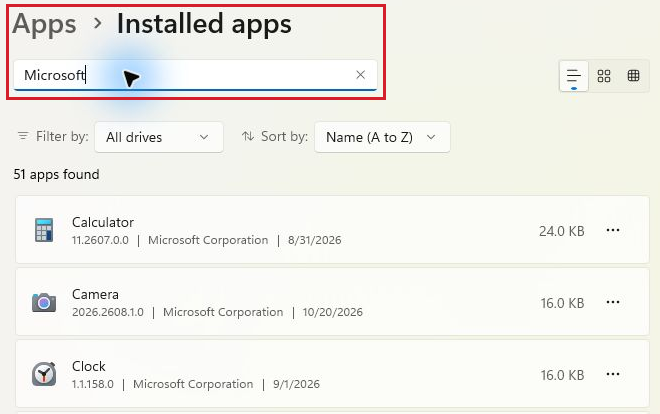
- For older desktop programs, also check Control Panel > Programs > Programs and Features.
- Open the Microsoft Store and look at your Library. It lists Store apps tied to your Microsoft account, including ones not installed on this PC.
- If you are comfortable with a command line, open Terminal and run
winget list, which shows installed packages. Microsoft’s Windows Package Manager documentation explains the tool.
For more ways to see the list, including the hidden apps folder, see finding installed programs in Windows 11.
Reinstall a Microsoft Store App From Your Library
Apps you got from the Microsoft Store stay linked to your Microsoft account after you remove them, and paid apps do not need to be bought again.
- Open the Microsoft Store and make sure you are signed in with the same Microsoft account you used before.
- Select Library (Microsoft’s help page calls it My Library), usually in the lower-left corner of the Store window.
- Find the app and select the Download icon beside it. Items that are not on this PC show that icon.
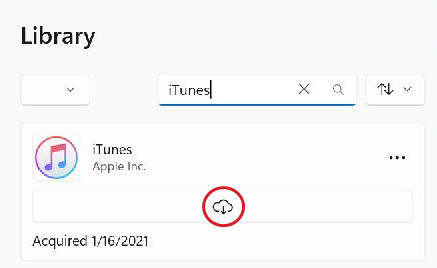
- When it finishes, open the app from Start.
Microsoft’s page on finding and installing your Microsoft Store downloads also covers Order history, where some Microsoft software shows a product key or Install link. If the Store itself is missing or will not open, getting the Microsoft Store back on Windows 11 covers that first.
Reinstall a Program From the Developer
Most desktop programs (browsers, design tools, accounting software, game launchers) come from the developer’s own website. Getting them back is the same as installing them the first time.
- Go to the developer’s official website. Avoid download mirror sites, which sometimes bundle extra software.
- Sign in to your account there if the program is paid. Many developers list past purchases and downloads in the account area.
- Download the installer for Windows and run it. Select Yes if User Account Control asks for permission.
- Enter your license key or sign in when the program asks.
Uninstalling a program usually does not cancel the license you bought, but some licenses allow only a set number of activations. If the program says you have used them all, deactivate the old installation in your account on the developer’s site or contact their support. Search your email for the original receipt if you cannot find the key.
Reinstall With winget
Windows Package Manager (winget) is a Microsoft command line tool that works on Windows 11 through the App Installer. It can find and install many popular programs from their publishers’ packages.
- Right-click Start and open Terminal.
- Type
winget searchfollowed by the program name, for examplewinget search notepad++, and press Enter. - Note the exact name or ID in the results, then run
winget installfollowed by that name or ID. - Accept any agreement prompts and wait for the install to finish.
Reinstall Microsoft 365 From Your Microsoft Account
If you removed Word, Excel, Outlook or the whole Microsoft 365 suite, your subscription or license still belongs to your account.
- In a browser, go to m365.cloud.microsoft/apps and sign in with the account linked to your Microsoft 365 or Office purchase.
- Select Install apps, then Install.
- Run the downloaded file and select Yes at the User Account Control prompt. You need administrator rights on the PC.
- Wait for the message You’re all set! Office is installed now, then open any app and sign in if asked.
Microsoft’s instructions to download, install or reinstall Microsoft 365 or Office 2024 also cover one-time purchase versions and work or school accounts.
Roll Back With System Restore
System Restore returns Windows to an earlier state using a restore point. Microsoft says installed programs go back to the state they were in at that restore point, the registry and system files revert, and your personal files are not affected. That makes it useful when you removed several programs or a program cannot be downloaded again. The catch: it can only help if System Protection was on and a restore point exists from before the uninstall. Anything you installed after that restore point will be removed.
Before you start, save your work and, if your PC uses BitLocker, have your recovery key available in case Windows asks for it.
- Press Windows key + R, type
rstrui.exeand press Enter. (You can also go to Control Panel, search for Recovery, and choose Open System Restore.) - Choose Restore system files and settings if asked, then select Next.
- Pick a restore point dated before the uninstall. Check Show more restore points if the one you need is not listed.
- Select Scan for affected programs. This shows which programs will be removed and which will be restored. Confirm your missing program appears among the ones to be restored.
- Close the scan, select Next, then Finish. The PC restarts and applies the restore.
If Windows will not start normally, you can reach the same tool from the Windows Recovery Environment under Troubleshoot > Advanced options > System Restore; booting into recovery mode shows how to get there. Microsoft’s System Restore page has the full details, and running a System Restore on Windows 11 explains how to check the result or undo it.
Here is an example. Marcus removed a photo editor on Tuesday to clear space. On Thursday he needs it, but the developer no longer offers his version. His restore points list one from Monday. The scan for affected programs shows the photo editor will come back and a game he installed Wednesday will be removed. He accepts that trade, runs the restore and reinstalls the game afterward.
Use Point-in-Time Restore on Windows 11 24H2 and Later
Microsoft lists point-in-time restore as a recovery option for Windows 11 version 24H2 and later. It is a broader rollback than System Restore: it restores the entire Windows drive, including the operating system, apps, settings and files on that drive, to an earlier point. Files in OneDrive and on other drives are not affected.
Warning: because it rolls back files on the Windows drive too, anything you saved there after the restore point can be lost. Copy recent work to OneDrive or a USB drive first.
- Open Settings > System > Recovery.
- Find Point-in-time restore and select View or edit to see whether it is on and which points exist.
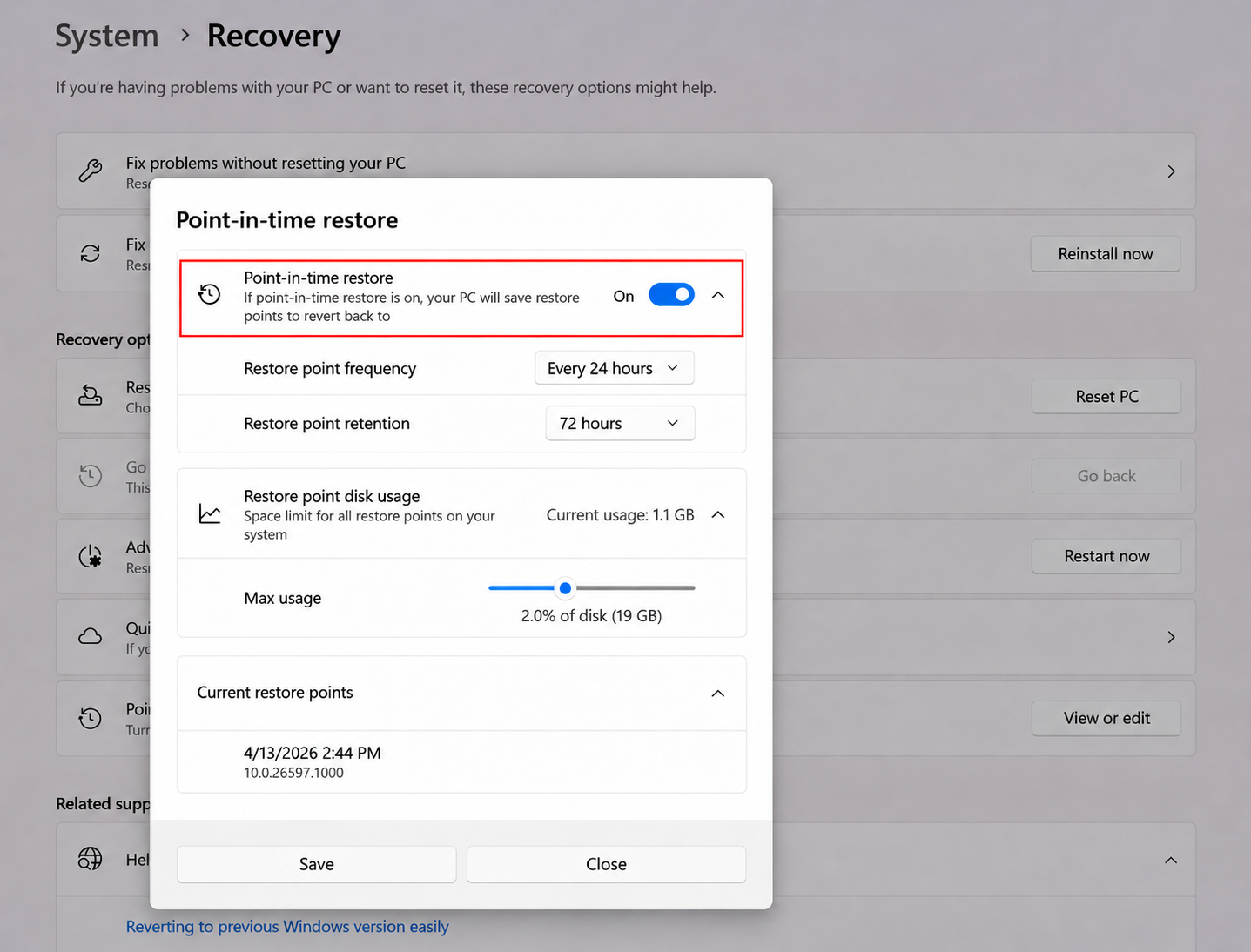
- To restore, use the Windows Recovery Environment and choose Troubleshoot > Point-in-time restore, then pick a point before the uninstall.
Microsoft says points are created about every 24 hours and kept for up to 72 hours, so this only helps for a recent mistake. It turns on automatically only when the Windows drive is at least 200 GB, and it is on by default on devices not managed by an organization. For anything older than three days, use System Restore. See Microsoft’s point-in-time restore page for the limits.
Bring Your Apps Back on a New or Reset PC
If you reset Windows or moved to a new computer, two Microsoft tools help you rebuild your app list.
Windows Backup. With Remember my apps turned on in Settings > Accounts > Windows backup on the old PC, signing in with the same personal Microsoft account on the new PC offers that backup. Afterward, Store apps reinstall when you select their pinned icons, and other programs show a link to their web installer. Windows Backup does not copy the installed programs themselves, and it does not support work or school accounts. Microsoft’s Windows Backup page lists what is included.
winget export and import. If you plan ahead, run winget export -o apps.json on the old PC to save a list of installed apps. Copy that file to the new PC and run winget import -i apps.json to install the packages winget recognizes. Programs it cannot match still need a manual reinstall.
Get Your Files Back Separately
Reinstalling a program does not bring back documents you deleted, and System Restore does not touch personal files at all. If your project files are missing too:
- Check the Recycle Bin. Files you deleted yourself (not program files) go there first.
- If your folders sync to OneDrive, check the OneDrive website, including its own recycle bin. Setting up OneDrive sync on Windows 11 explains which folders are covered.
- If you set up File History on an external drive or network location before the loss, restore the files from there. Microsoft’s overview of backup, restore and recovery in Windows explains it; it has to be set up in advance.
Why Recovery Software Will Not Bring a Program Back
Many search results suggest file recovery software for this problem. Those tools try to recover deleted files from a drive. A working program is more than its files: it also needs registry entries, services and settings that its installer creates. Recovering scattered pieces of an uninstalled program does not give you a working installation, and downloading such tools adds risk. A clean reinstall from the official source is faster and safer.
Last Resort: Reset or Rebuild
Resetting Windows will not recover a program. Microsoft’s recovery options page says Reset this PC removes apps and settings (keeping your files is optional), and Cloud rebuild removes files, apps and settings. Only consider them if Windows itself is broken, and back up first.
Questions About Getting Uninstalled Programs Back
Can I Recover a Program if I Never Made a Restore Point?
Microsoft says Windows creates restore points automatically during significant events, such as software installs and updates, when System Protection is on. Open System Restore and check the list. If there are none from before the uninstall, reinstalling is the only route.
Will My Settings Come Back When I Reinstall?
It depends on the program. Some keep settings in your account online or leave a settings folder behind, so they look the same after reinstalling. Others start fresh. Signing in to the program’s account, if it has one, is the best way to bring your preferences back.
Should I Repair Instead of Uninstalling Next Time?
Yes, if the program is misbehaving rather than unwanted. Microsoft suggests trying to repair an app before uninstalling it. Many apps offer a Repair or Modify option from the Installed apps list.
How Do I Protect Myself Before Removing Programs?
Create a restore point first (see creating a restore point in Windows 11), note any license keys, and use the options in uninstalling a program on Windows 11 so you know exactly what you removed.
For most people the answer is the simplest one: find the program’s official source, download it again and sign in. Keep System Restore for the times when that is not possible.

Matthew Burleigh is the founder, head writer, and editor of Solve Your Tech, which he launched in 2012. He has written technology tutorials since 2008 and worked in IT since 2003, including small-business support, IT management, and consulting. He holds Bachelor’s and Master’s degrees in Computer Science from Arizona State University.
Matthew writes practical guides for Windows, iPhone and iPad, Microsoft Office, Outlook, Google apps, and Android. Solve Your Tech’s guides are checked step by step against the device or app maker’s own documentation and tested on his own devices whenever he has the hardware or software, with clear steps, sources, and update dates.
Read more about Matthew and how Solve Your Tech writes and updates its guides, or report a correction.