A game starts stuttering after an hour, Task Manager shows the GPU memory almost full, and you want a quick way to clear it. Windows 11 has no “clear video memory” button, and it doesn’t need one: Windows and the graphics driver manage video memory automatically and free it when apps close. To get memory back, close the apps using it, lower the game’s texture settings, or restart the PC.
This covers Windows 11 Home and Pro, versions 24H2 and 25H2.
How Video Memory Works in Windows 11
Video memory (VRAM) is where your graphics processor keeps the textures, frames and other data it is drawing. In Task Manager it shows up in two parts:
- Dedicated GPU memory: memory reserved for the GPU alone. On a PC with a separate graphics card, this is the VRAM on the card itself, such as 8 GB or 12 GB.
- Shared GPU memory: ordinary system RAM that the GPU can borrow when it needs more. Microsoft’s DirectX team explains that Windows lets the GPU use up to half of the PC’s physical memory this way. PCs with integrated graphics rely mostly on shared memory.
A part of Windows called the video memory manager (VidMm) decides what sits in that memory, moves data between VRAM and system RAM, and hands idle memory back when an app no longer needs it. Since WDDM 2.0, the driver model Windows uses for graphics, each app also gets its own GPU address space, a bit like the virtual memory system for regular RAM. Microsoft’s overview of GPU virtual memory in WDDM 2.0 describes how this works.
What that means in practice:
- Full VRAM isn’t automatically a problem. Games deliberately fill video memory with textures they might need soon, because keeping data there is faster than loading it again. High usage with smooth gameplay is normal.
- Closing an app releases its memory. There’s nothing extra to flush.
- Stutter happens when an app needs more than the card has. Windows then has to shuffle data to and from slower system RAM. The fix is to ask for less memory (lower settings) or to stop other apps from competing for it.
Check What Is Using Video Memory
Before changing anything, see what’s actually going on.
- Press Ctrl + Shift + Esc to open Task Manager. If it opens small, select More details. There are other ways to open Task Manager in Windows 11 if that shortcut doesn’t work.
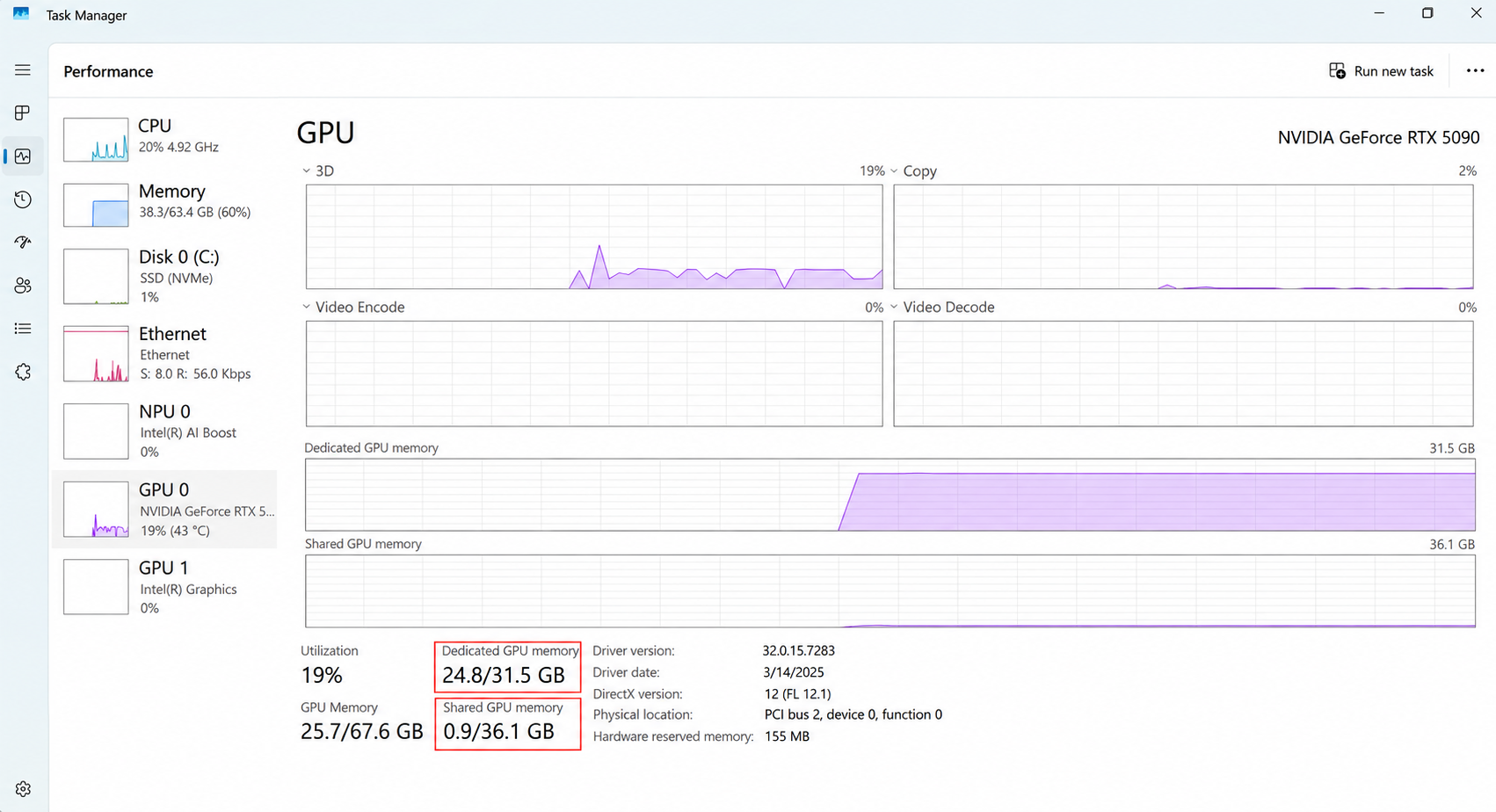
- Select Performance in the left pane, then the GPU entry. If you have two GPUs (common on gaming laptops), they appear as GPU 0 and GPU 1.
- Read Dedicated GPU memory and Shared GPU memory under the graphs. Each shows how much is in use out of the total.
- To see which app is using memory, select Details in the left pane, right-click any column heading, choose Select columns, and check Dedicated GPU memory and Shared GPU memory. Select OK, then select a column heading to sort by it.
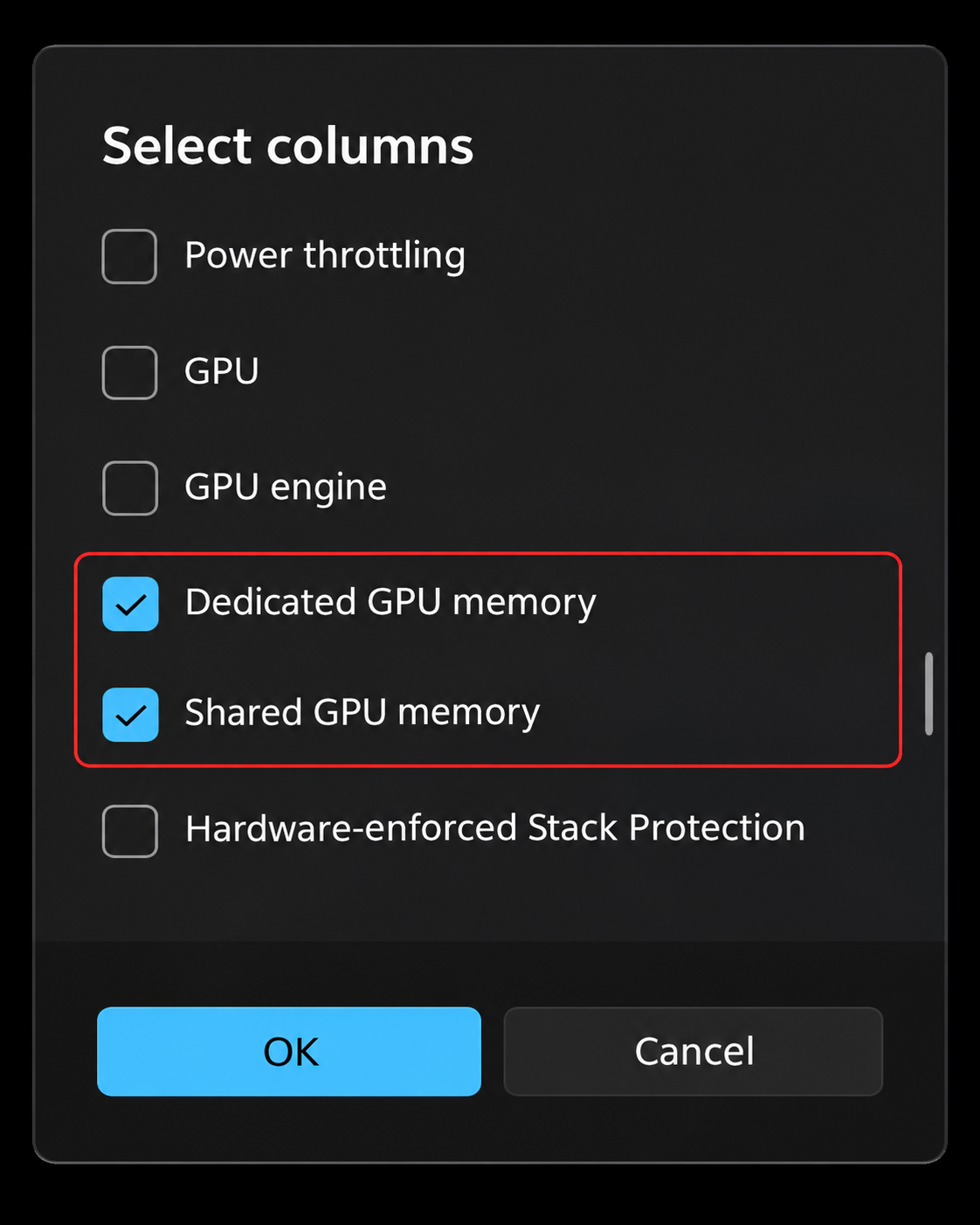
A caution about step 4. Microsoft documents (for Windows 10, version 1709 and later) that the per-process dedicated GPU memory counter can report the wrong value and look like a memory leak even when there isn’t one. Use the Performance page for the real total, and the Details columns only to see which apps are the big users. The per-app numbers can also add up to more than the total, because shared memory is counted for every process that uses it.
These GPU columns and graphs need a WDDM 2.0 or later driver; if they’re missing, update the graphics driver.
Close the Apps Using the Most GPU Memory
This is the closest thing to “clearing” VRAM, and it works immediately.
- In the Details list you sorted above, find apps you don’t need right now. Common heavy users are web browsers with many tabs, video players, video editors, other games or launchers left running, and screen recorders.
- Close those apps normally from their own window or the system tray. That gives them a chance to save your work.
- If an app has stopped responding, select it in Task Manager and choose End task.
- Go back to Performance > GPU and watch Dedicated GPU memory drop as the apps exit.
Don’t end processes you don’t recognize, such as Desktop Window Manager (dwm.exe). It draws the Windows desktop, and it always uses some video memory. That’s expected.
Browsers and overlays
Browsers use the GPU to draw pages and play video, so dozens of open tabs can tie up a noticeable amount of video memory. Closing tabs you don’t need helps. Most browsers also have a setting to turn off hardware or graphics acceleration; in Microsoft Edge and Chrome, look for an option named something like “Use graphics acceleration when available” in the browser’s system settings. Turning it off shifts work back to the CPU and can make video playback less smooth, so use it only if the browser is the main memory user.
Overlays that draw over games, such as Xbox Game Bar, chat apps and the GPU maker’s own overlay, also take a little GPU memory and time. If you don’t use them, turn them off in each app’s settings.
Restart the PC, or Refresh the Display
Restart Windows
A restart closes every app and resets the graphics driver, so video memory use starts again from a clean baseline. Use Start > Power > Restart. If you’re seeing the problem after the PC has been up for days with many apps opened and closed, a restart is the quickest test of whether the issue comes back.
Windows key + Ctrl + Shift + B
Microsoft’s list of Windows keyboard shortcuts gives Windows key + Ctrl + Shift + B as the way to wake up the device when the screen is blank or black. It refreshes the connection to the display, and the screen may go black for a moment while it does. Use it when the screen goes blank or black after a game or driver hiccup. It isn’t a way to free video memory, and you shouldn’t expect usage in Task Manager to change because you pressed it. Save your work first in case an app doesn’t handle the refresh well.
Update the Graphics Driver
The driver decides how memory is allocated and released, so driver bugs can make memory look stuck or cause stutter in specific games. Graphics makers regularly ship fixes for this. Check for a new driver through Windows Update’s optional updates or the maker’s own app; the steps for each are in how to update your graphics driver in Windows 11.
If the problem started right after a driver update, the opposite applies: roll back to the previous driver from Device Manager and wait for the next release.
Some PCs also have a setting called hardware-accelerated GPU scheduling. It changes how work is queued on the GPU, not how much memory exists. If a game misbehaved after you turned it on, see how to turn off hardware-accelerated GPU scheduling.
Lower Game and App Graphics Settings
If one game keeps filling VRAM and stuttering, it is simply asking for more memory than your GPU has. Lowering these settings, in roughly this order, gives the biggest savings:
- Texture quality: the largest single user of VRAM in most games. Dropping one step (for example from Ultra to High) often fixes stutter with little visible difference.
- Resolution and render scale: higher resolutions need bigger frame buffers. Upscaling options such as DLSS, FSR or XeSS render at a lower resolution and use less memory.
- Ray tracing: adds extra data and buffers. Turn it off or lower it on cards with less VRAM.
- Shadow quality and draw distance: smaller gains, but they add up.
Many games show a VRAM usage bar in their graphics menu. Aim to keep it below your card’s total. As a worked example: a laptop with a 6 GB GPU runs a new open-world game at High textures and 1440p, and the in-game meter reads 7.2 GB. Switching textures to Medium brings the meter to 5.4 GB and the hitching stops, even though Task Manager still shows the GPU memory as mostly in use. That’s the game using what’s available, which is fine.
Pick which GPU an app uses
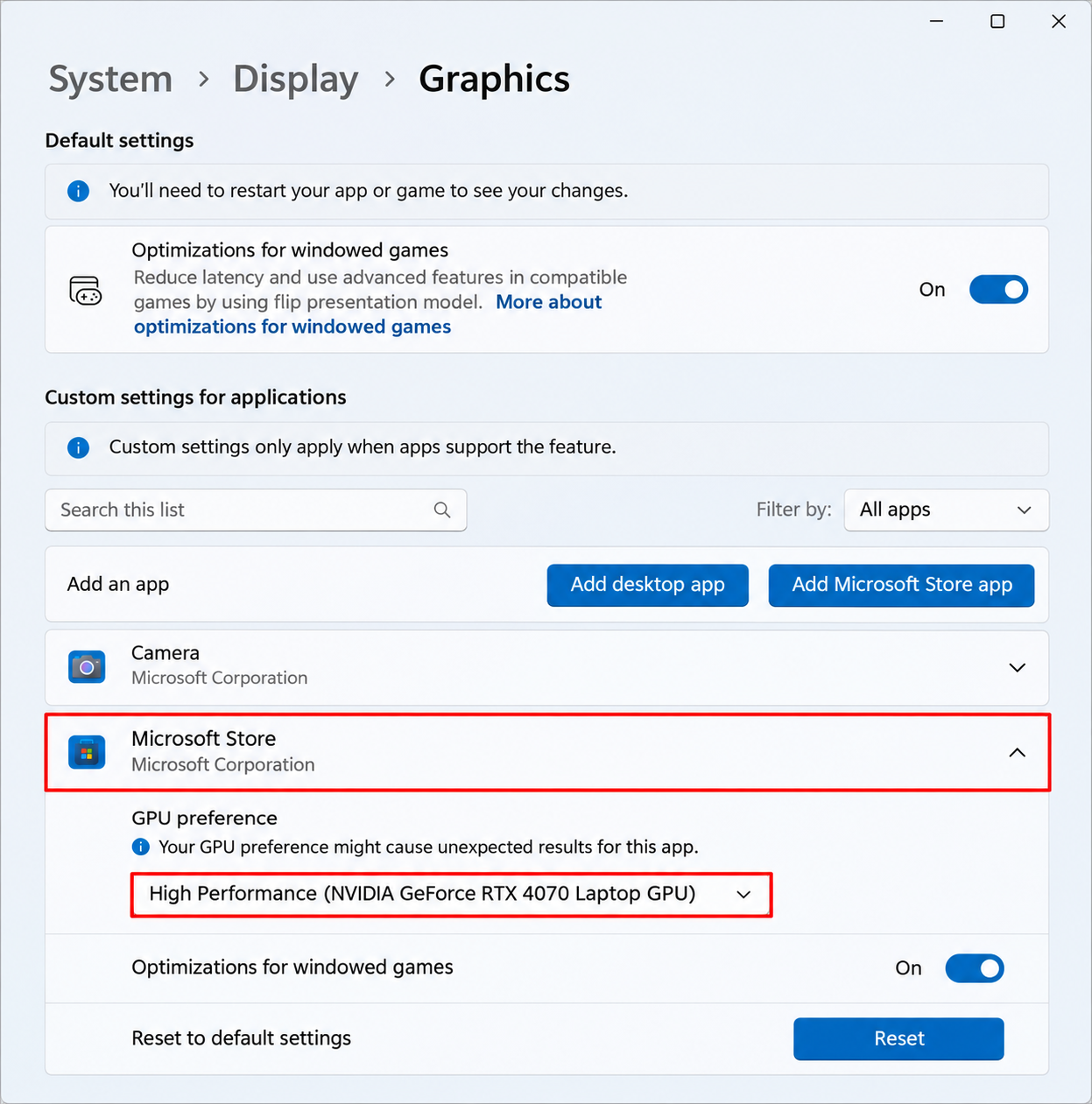
On laptops with both integrated and dedicated graphics, make sure games use the dedicated GPU, which has its own VRAM. Microsoft’s page on optimizations for windowed games points to the graphics settings at Settings > System > Display > Graphics. Under Custom options for apps, select the game, select Options, and under Graphics preference choose High performance (the other choices are Let Windows decide (Power saving) and Power saving). Select Save, then restart the game. Turning on Game Mode in Windows 11 also helps by keeping background activity down while you play.
Virtual Memory Is Not Video Memory
Several older guides tell you to raise virtual memory to fix VRAM problems. That doesn’t work. Virtual memory in Windows means the paging file: space on your drive that Windows uses when system RAM runs short. It has nothing to do with the memory on your graphics card, and changing it won’t give the GPU more dedicated memory. If you’re seeing low-memory warnings for regular RAM, the steps to change virtual memory in Windows 11 explain when adjusting it makes sense.
Two related points:
- Shared GPU memory is your system RAM. Closing RAM-heavy apps helps a PC with integrated graphics, because the GPU and your apps draw from the same pool. Adding RAM helps such PCs more than any setting.
- Integrated graphics frame buffer: some PCs let you change how much RAM is set aside for integrated graphics in the UEFI (BIOS) settings. Not every PC offers this, and the name varies, so check your PC maker’s documentation before changing it.
Disk Cleanup and Storage Sense free space on your drive. They don’t touch video memory either.
What Not to Do
- Don’t install “VRAM cleaner” or memory booster apps. Windows already releases video memory when apps close. These tools can’t do more than closing apps does, and they add software you don’t need.
- Don’t edit the registry to “increase VRAM.” Tweaks that circulate online change what some apps read as the reported memory size. They don’t add real memory and can cause problems that are hard to trace.
- Don’t delete driver or system files to clear caches. A plain driver reinstall from the maker is the safe way to start fresh.
If Video Memory Keeps Filling Up
If one app’s memory use climbs steadily the longer it runs, and drops only when you close it, that app probably has a memory leak. Things to try:
- Update the app or game. Leaks are a common bug and often fixed in patches.
- Update the graphics driver, or roll back if it started after a driver update.
- Install pending updates in Settings > Windows Update.
- Restart the app every so often as a workaround until a fix ships.
- Check the game’s own forums or the developer’s support page for a known issue with your GPU.
If VRAM use looks high on the Performance page with nothing running at all, restart the PC and check again before any other step. If it’s high after a clean restart with no apps open, update the graphics driver. If your PC generally feels sluggish beyond games, work through the checks to fix a slow computer in Windows 11.
Next time a game stutters, open Task Manager’s GPU page before doing anything else. If dedicated memory is at the limit, close what’s running in the background and drop texture quality one step; that settles most cases without a restart.
What Video Memory Can and Cannot Do
Why is VRAM nearly full when I’m not doing much?
Windows and some apps keep data in video memory while there’s room for it, because that’s faster than reloading. Background apps such as browsers, launchers and overlays also hold some. If usage stays high after a restart with nothing open, update the graphics driver.
Will clearing VRAM make games run faster?
Only if the game was short of memory. If the game already fits in your VRAM, freeing more won’t raise frame rates. Lowering texture settings in the game helps more than anything you do outside it.
Can I add more VRAM to my graphics card?
No. Dedicated VRAM is built into the card. You can reduce how much apps use, or upgrade to a card with more memory. For integrated graphics, more system RAM gives the GPU more shared memory to draw on.
Does more shared GPU memory make up for low dedicated VRAM?
Partly. It stops apps from failing outright, but system RAM is slower for the GPU to reach, which is why games stutter once they spill over.

Matthew Burleigh is the founder, head writer, and editor of Solve Your Tech, which he launched in 2012. He has written technology tutorials since 2008 and worked in IT since 2003, including small-business support, IT management, and consulting. He holds Bachelor’s and Master’s degrees in Computer Science from Arizona State University.
Matthew writes practical guides for Windows, iPhone and iPad, Microsoft Office, Outlook, Google apps, and Android. Solve Your Tech’s guides are checked step by step against the device or app maker’s own documentation and tested on his own devices whenever he has the hardware or software, with clear steps, sources, and update dates.
Read more about Matthew and how Solve Your Tech writes and updates its guides, or report a correction.