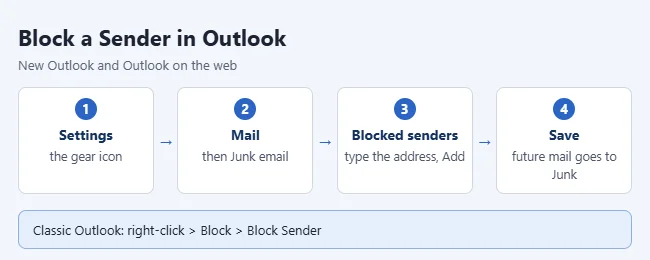
To block a sender in new Outlook or Outlook on the web, go to Settings > Mail > Junk email, type the address under Blocked senders, select Add, and select Save. In classic Outlook, right-click a message from that person and choose Block > Block Sender. Future emails from them go straight to your Junk Email folder. This guide covers new Outlook and classic Outlook for Windows, Outlook on the web, Outlook.com, Outlook for Mac, and the Outlook app for iPhone and Android.
The steps come from Microsoft’s Block or unblock senders in Outlook article and its Block a mail sender in Outlook article for classic Outlook.
What You Need Before You Start
- The right kind of account. Blocking works for Microsoft accounts: Outlook.com, Hotmail, Live, MSN, and work or school mailboxes on Microsoft 365 or Exchange. Microsoft says new Outlook does not support blocking senders for third-party accounts like Gmail, Yahoo, and iCloud.
- The sender’s exact address, or a message from them in your inbox. Phone and Mac blocking starts from a message.
- Which Outlook you have. If you see a gear icon near the top right of the window and no File tab, you are in new Outlook. If you see a File tab and a full ribbon, you are in classic Outlook. Classic steps apply to Outlook for Microsoft 365, Outlook 2024, 2021, 2019, and 2016.
Blocking does not stop the email from being sent or delivered. It only changes where the message lands. Keep that in mind if you need a message gone for good, and see the rule section below.
How to Block a Sender in New Outlook for Windows
- If you have more than one account in Outlook, select the account you want the block to apply to.
- Select Settings (the gear icon) near the top right.
- Go to Mail > Junk email. The junk settings for that account open.
- Under Blocked senders, type the full email address and select Add. The address appears in the list.
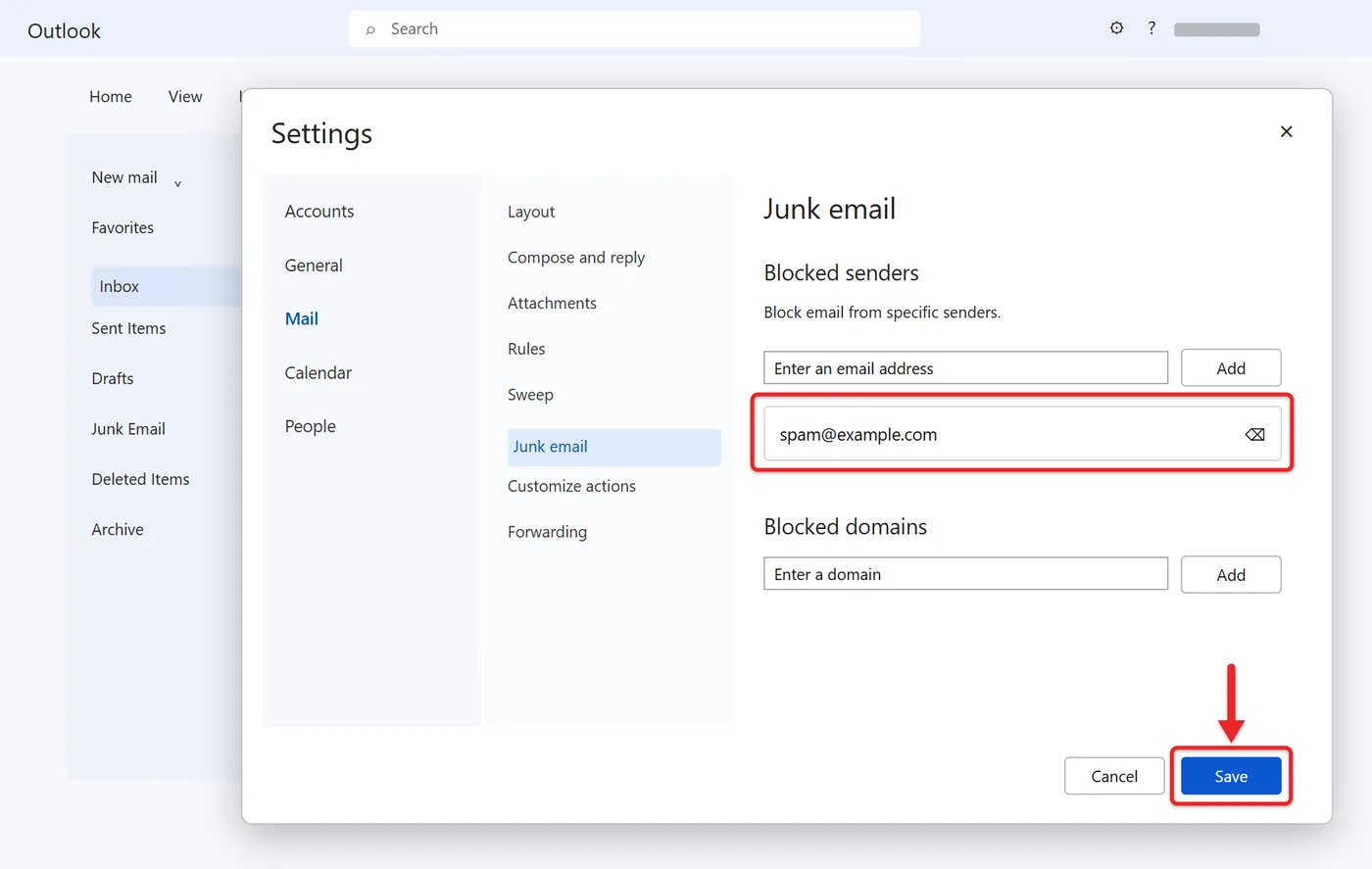
- Select Save. The block does not apply until you save.
Some versions of new Outlook also show a Block option when you right-click a message or open the Report menu. Where that option appears varies by version and account type. If you see it, it adds the sender to the same list. The Settings path above is the one Microsoft documents.
How to Block a Sender in Outlook on the Web or Outlook.com
Outlook on the web and Outlook.com use the same settings page as new Outlook. The labels differ slightly depending on your account.
- Sign in to your mailbox in a browser.
- Select Settings (the gear icon), then Mail > Junk email.
- Find the Blocked senders and domains section. On some accounts it is split into Blocked senders and Blocked domains.
- Select Add blocked sender if you see that button, or click in the box. Type the email address.
- Select OK or Add, whichever your version shows.
- Select Save.
The list is stored with your mailbox, not on one device. A block you add on the web also applies when you read that account in new Outlook or the phone app.
How to Block a Sender in Classic Outlook for Windows
- Find a message from the sender in your message list.
- Right-click the message.
- Select Block > Block Sender. Outlook adds the address to your Blocked Senders list.
 Block Sender” class=”wp-image-183081″/>
You can do the same from the ribbon. Select the message, then on the Home tab, in the Delete group, select Block. In some older versions this button is labeled Junk instead.
To add an address by hand, without a message from the sender:
- On the Home tab, in the Delete group, select Block, and then select Junk E-mail Options.
- Open the Blocked Senders tab.
- Select Add.
- Type the email address, such as someone@example.com, and select OK.
- Repeat for other addresses, then select OK to close the dialog.
 Block > Junk E-mail Options; open the Blocked Senders tab; select Add; type the email address and select OK; select OK to close the dialog” class=”wp-image-163221″ style=”width:650px;height:auto”/>
The same tab has Edit and Remove buttons, plus Import from File and Export to File if you want to move a list between computers.
How to Block a Sender in Outlook for Mac
Microsoft says the block option in Outlook for Mac only works for Exchange accounts, which includes Outlook.com and work email hosted on Exchange. These steps apply to Outlook for Microsoft 365 for Mac and Outlook 2021, 2019, and 2016 for Mac.
- In the message list, select a message from the sender you want to block.
- In the toolbar, select Block.
- Outlook adds the sender’s address to the blocked senders list.
If you don’t see Block in the toolbar, look in the Message menu under the junk mail options. Menu placement varies by version. You can also add the address in a browser using the web steps above, since the list belongs to the mailbox.
How to Block a Sender in the Outlook App on iPhone or Android
- Open the email from the sender.
- Tap the three dots at the top right of the screen.
- Tap Report Junk.
- Tap Block Sender. The same menu offers Junk and Phishing if you would rather report the message.
The app blocks one sender at a time, starting from a message. To type in an address, block a domain, or review the whole list, sign in to Outlook on the web in your phone’s browser. If you use Apple’s Mail app instead of the Outlook app, follow the steps to block an email sender on an iPhone.
How to Block a Whole Domain
A domain is the part of an address after the @ sign. Blocking it covers every address at that company or service. This is useful when one sender keeps changing the name before the @.
- New Outlook, Outlook on the web, Outlook.com: Go to Settings > Mail > Junk email. Type the domain, such as example.com, under Blocked domains (or in the Blocked senders and domains box), select Add, and select Save.
- Classic Outlook: Open Junk E-mail Options > Blocked Senders > Add. Microsoft says you can enter the domain as @example.com or example.com.
Don’t block a domain that many real people use, such as a large free email service. You would send mail from everyone on that service to Junk. Classic Outlook can also block by country code or language. In Junk E-mail Options, open the International tab and use the Blocked Top-Level Domain List or the Blocked Encodings List.
What Happens to Blocked Mail
- It still arrives. Microsoft is clear that the blocked person can still send you mail. Outlook moves it to the Junk Email folder instead of your inbox.
- The sender isn’t told. There is no bounce message or notice.
- Junk empties itself. Microsoft’s page for new Outlook says email is removed from Junk Email after 14 days and can’t be recovered. Its Outlook.com page says between 10 and 30 days, and its page for work accounts says 30 days. Treat anything in Junk as temporary.
- Work accounts may use quarantine. If your administrator has turned on end-user quarantine, blocked mail can go there instead of Junk Email.
- Teams is affected. Microsoft notes that an account you block in Outlook won’t appear in Teams people search unless you have already interacted with it there. You can still reach the person by typing their full email address.
To confirm a block worked, open the junk settings and check that the address is in the list. The next message from that sender should show up in Junk Email, not your inbox.
How to Unblock a Sender
- New Outlook, Outlook on the web, Outlook.com: Go to Settings > Mail > Junk email. Select the address or domain and select the remove (trash) icon. Select Save if the button is active.
- Classic Outlook: Open Junk E-mail Options, go to the Blocked Senders tab, select the address, select Remove, and select OK.
- Outlook for Mac: In the menu bar, select Tools > Junk Email Preferences. Under Blocked Senders, select the address or domain and choose the Remove the selected sender button.
- Phone app: Use the web steps in your phone’s browser.
Unblocking does not move old messages back. Open Junk Email and move any message you want to keep before it is deleted. On a Mac, select the message and choose Report > Not Junk. On Outlook.com, select it and choose the not junk option.
When a Rule Is the Better Tool
The blocked senders list matches one thing: the sender’s address or domain. A rule can match words in the subject or body and can do more than move mail to Junk.
| Your situation | Use |
|---|---|
| One person or company, same address every time | Blocked senders |
| Many addresses at one domain | Blocked domains |
| The address keeps changing but the messages share the same words | A rule |
| You want the mail deleted or filed, not left in Junk | A rule |
| A Gmail, Yahoo, or iCloud account in new Outlook | Block in that email service |
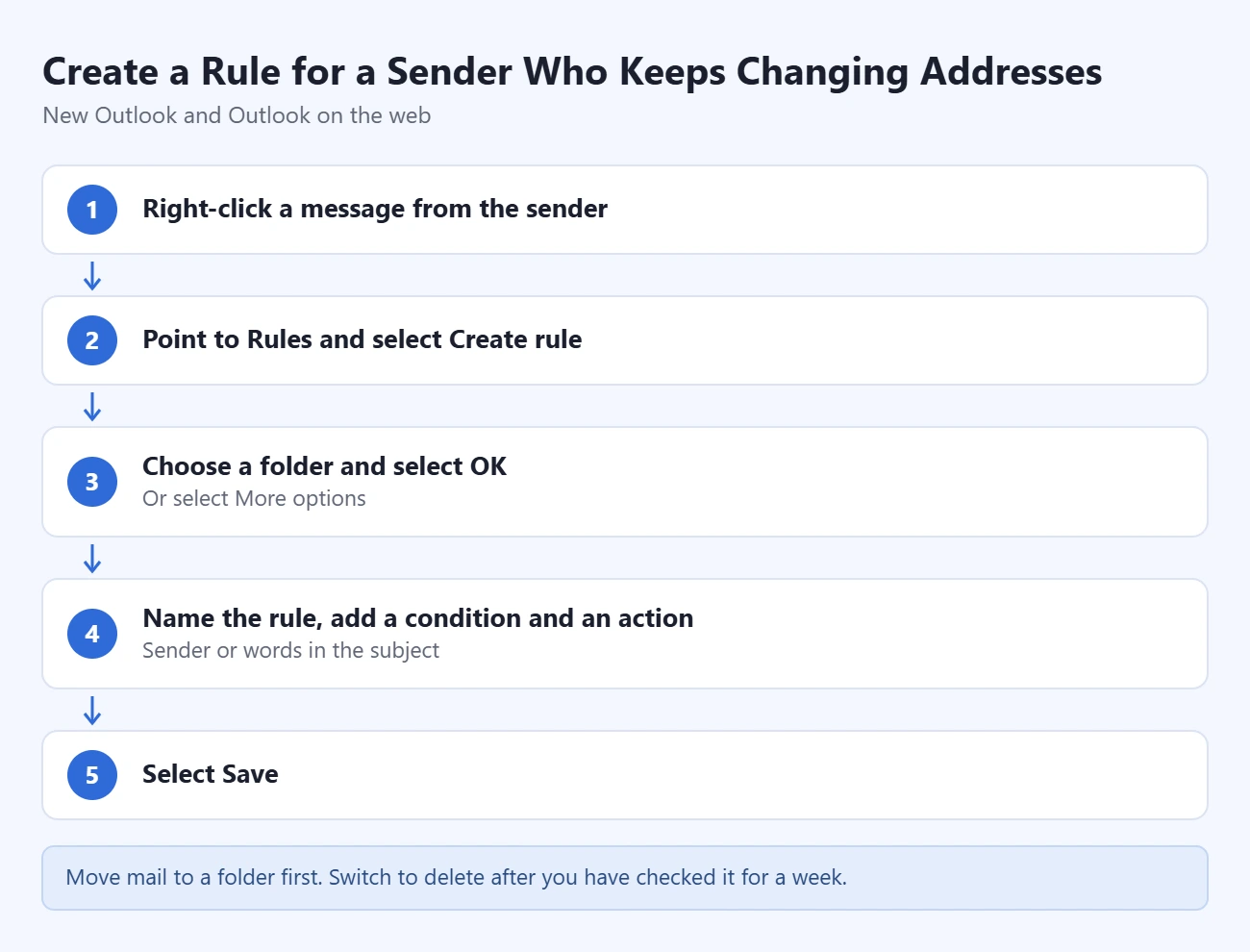
Microsoft itself recommends a rule when a sender keeps switching addresses. Warning: a rule that deletes mail acts on every message that matches, including real ones. Start with a rule that moves mail to a folder, check it for a week, and then switch the action to delete.
- In new Outlook or on the web, right-click a message from the sender.
- Point to Rules and select Create rule.
- Choose a folder and select OK, or select More options to set your own condition and action.
- In the full editor, name the rule, add a condition such as the sender or words in the subject, and add an action.
- Select Save.
In classic Outlook, right-click a message and select Rules > Create Rule. The full walkthrough is in our guide on how to create an email filter (rule) in Outlook.
Limits of the Blocked Senders List
- 10,000 entries in new Outlook. Microsoft says you can have up to 10,000 addresses or domains in the blocked senders and safe senders lists. Block domains to save space.
- A size cap on work mailboxes. For Exchange Online, Microsoft documents a 510 KB limit for all junk lists combined. Go over it and Outlook shows an error saying you are over the size allowed on the server. Remove old entries to fix it.
- No blocking coworkers. On an Exchange account, everyone in your organization’s address book is automatically treated as safe.
- No third-party accounts in new Outlook. Gmail, Yahoo, and iCloud accounts must be handled by that service. See how to block an email address in Gmail.
- Exchange accounts only on Mac.
- It matches the real address. A spoofed display name or a new address gets past it.
Troubleshooting
- You can’t find Junk email in Settings. You may be in classic Outlook, where the list is under Home > Block > Junk E-mail Options. In new Outlook, also check that a Microsoft account is selected, not a Gmail, Yahoo, or iCloud account.
- The Block option is missing or greyed out. The account type doesn’t support it, or the sender is inside your organization. For a Microsoft account, add the address in Outlook on the web. For a Gmail, Yahoo, or iCloud account, block the sender in that service. A coworker in your organization’s address book can’t be added to the blocked list, so use a rule instead.
- The block didn’t stick. Go back to the junk settings and check that the address is listed. The usual cause is leaving the page without selecting Save.
- Blocked mail still reaches your inbox. Microsoft gives two causes: the sender changed addresses, or they are spoofing. View the message’s internet headers to find the real address and block that one, or create a rule based on words the messages share.
- You get a server size error. Your junk lists are too large. Delete individual addresses and replace them with a domain entry.
- Mail from someone you trust lands in Junk. Make sure they are not in your blocked list and that no rule is catching them. Then add them under Safe senders and domains in the same settings page. If you turn on Outlook.com’s option to block attachments, pictures, and links from unknown senders, the safe senders list also controls who is treated as known.
- A work setting overrides yours. Your administrator’s spam policy decides whether blocked mail goes to Junk or quarantine. Contact your IT department if the result isn’t what you expect.
Frequently Asked Questions
Does the person know I blocked them?
No. Outlook doesn’t notify them, and their message isn’t bounced back. It lands in your Junk Email folder.
Does blocking a sender delete their emails?
Not right away. Blocked messages go to Junk Email, and Outlook empties that folder on a schedule. If you want mail from a sender deleted as soon as it arrives, create a rule with a delete action.
Why do I still get emails from a blocked sender?
The sender is probably using a different address or hiding the real one. Block the whole domain, check the real address in the message headers, or use a rule that looks for words the messages have in common.
Can I block a sender on a Gmail or Yahoo account in Outlook?
Not in new Outlook. Microsoft says it does not support blocking senders for third-party accounts like Gmail, Yahoo, and iCloud. Sign in to that email service and block the sender there.
How many senders can I block in Outlook?
Microsoft’s limit for new Outlook is 10,000 addresses or domains across the blocked and safe senders lists. Work mailboxes also have a size limit on the server. Blocking a domain uses one entry no matter how many addresses it covers.
How do I stop real emails from going to Junk?
Open Settings > Mail > Junk email and add the sender or domain under Safe senders and domains. In classic Outlook, select a message from them, then on the Home tab select Block > Never Block Sender.
Is reporting junk the same as blocking?
No. Reporting a message as junk or phishing moves that message and sends feedback to Microsoft. Blocking adds the address to your list so later messages from it go to Junk Email. For a scam email, report it as phishing instead of only blocking it.
Next Step
Block the sender, then look in Junk Email in a few days to confirm their mail is landing there. If they come back under a new address, block the domain or set up a rule.

Matthew Burleigh is the founder, head writer, and editor of Solve Your Tech, which he launched in 2012. He has written technology tutorials since 2008 and worked in IT since 2003, including small-business support, IT management, and consulting. He holds Bachelor’s and Master’s degrees in Computer Science from Arizona State University.
Matthew writes practical guides for Windows, iPhone and iPad, Microsoft Office, Outlook, Google apps, and Android. Solve Your Tech’s guides are checked step by step against the device or app maker’s own documentation and tested on his own devices whenever he has the hardware or software, with clear steps, sources, and update dates.
Read more about Matthew and how Solve Your Tech writes and updates its guides, or report a correction.