To turn on Conversation Awareness, wear your AirPods while they’re connected to your iPhone or iPad, open Control Center, touch and hold the volume control, then tap Conversation Awareness. On a Mac, open Control Center, click Sound, click your AirPods, then click Conversation Awareness On.
After that, you can answer a barista or a coworker without pulling an AirPod out. Your music drops the moment you start talking.
What Conversation Awareness Does
Conversation Awareness listens for you to start speaking. When you do, it lowers your media volume and boosts the voices in front of you. When the conversation ends, it turns the volume back up and returns you to the listening mode you were using before, such as Noise Cancellation or Adaptive.
The trigger is your own voice. Someone talking near you won’t change anything until you reply, which is why the feature suits quick exchanges like ordering a coffee or answering a question at your desk.
Apple groups it with two related features, Adaptive mode and Personalized Volume, under the name Adaptive Audio. Apple’s Adaptive Audio support page also notes that these settings carry over to your other Apple devices when your AirPods switch between them, so you only need to turn it on once.
Which AirPods Support It
Check your model before hunting for the switch. If your AirPods aren’t on Apple’s list, the option never appears.
| AirPods model | Conversation Awareness |
|---|---|
| AirPods Pro 2 | Yes |
| AirPods Pro 3 | Yes |
| AirPods 4 (ANC) | Yes, the Active Noise Cancellation version only |
| AirPods 5 (both models) | Yes |
| AirPods Max 2 | Yes |
Apple’s page lists only the ANC version of AirPods 4, so the standard AirPods 4 doesn’t get the setting. The page doesn’t name a minimum iOS version, so keep your iPhone or iPad updated if the switch is missing on a supported model.
Turn It On From Control Center (iPhone or iPad)
This is the fastest route, and it’s the one Apple documents first.
- Put both AirPods in your ears and make sure they’re connected to your iPhone or iPad.
- Open Control Center.
- Touch and hold the volume control. The expanded control shows your AirPods options.
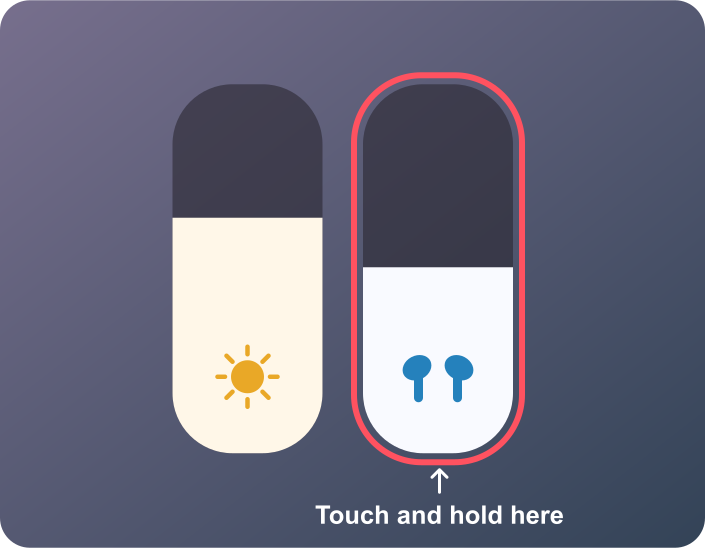
- Tap Conversation Awareness so it’s turned on.
If you don’t see AirPods options after step 3, the AirPods probably aren’t the current audio output. Play something briefly, confirm the sound is coming from the AirPods, then try again.
Turn It On in Settings
The Settings app holds the same switch, plus related options you may want to adjust at the same time.
- With your AirPods connected, open the Settings app.
- Tap the name of your AirPods near the top of the list. You can also go to Bluetooth and tap the More Info button next to your AirPods.
- Turn on Conversation Awareness. If you don’t see it, tap Audio & Routing first and look there.
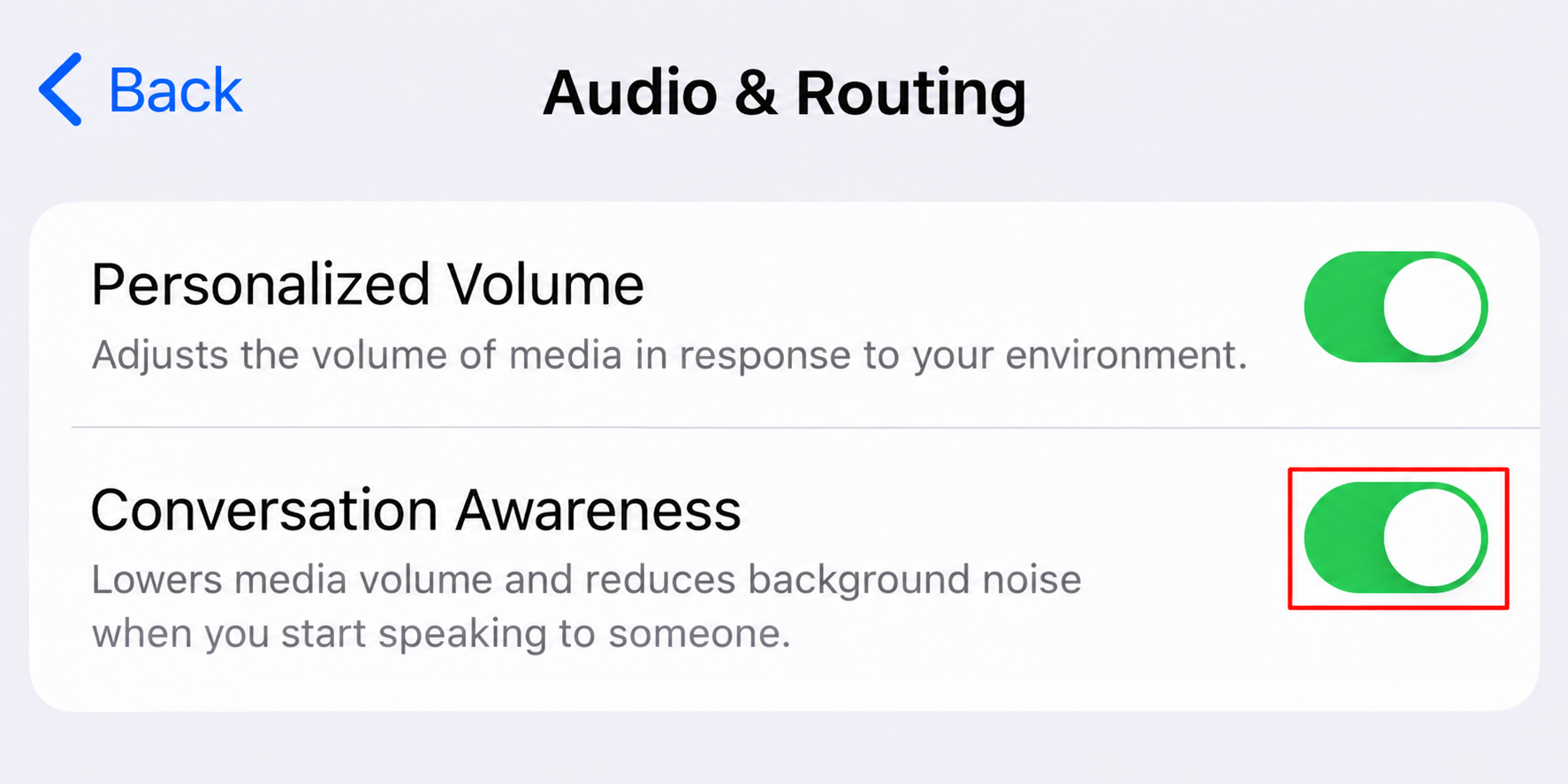
Apple’s AirPods User Guide section on Conversation Awareness covers the same Settings switch and the Control Center route.
Turn It On From a Mac
If your AirPods are connected to a Mac, you can turn the feature on from the menu bar.
- Wear your AirPods and make sure they’re connected to the Mac.
- Open Control Center in the menu bar.
- Click Sound, then click your AirPods.
- Click Conversation Awareness On.
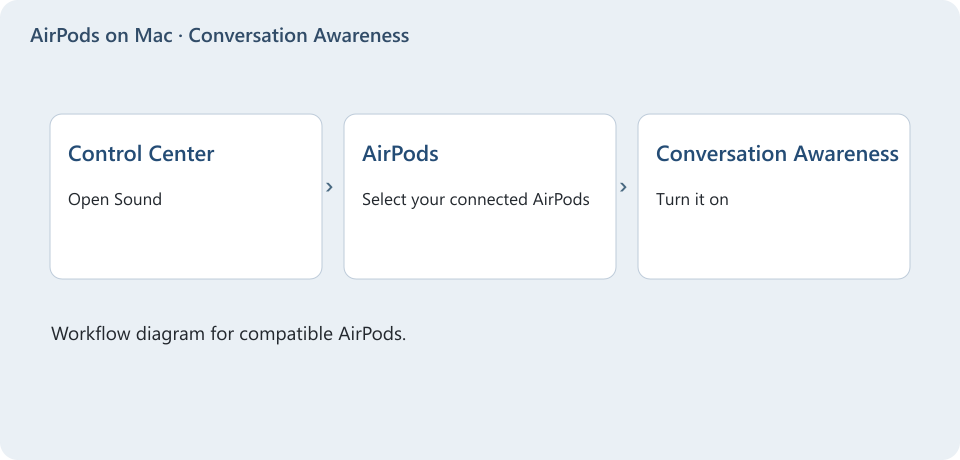
You can also turn it on in System Settings: click your AirPods name in the sidebar (you may need to scroll), then turn on Conversation Awareness, opening Audio & Routing first if it isn’t shown.
Because the setting carries over, turning it on from the Mac also covers your iPhone when the AirPods move back to it.
What Happens When You Start Talking
Here’s how a typical exchange plays out. Priya is listening to a playlist in Noise Cancellation mode while she waits in line. When she says “a medium oat latte, please,” her music dips and the barista’s voice comes through more clearly. A few moments after the conversation ends, the volume returns and Noise Cancellation is back on.
- End a conversation early. Press and hold the AirPods stem to bring the volume back right away instead of waiting.
- Podcasts and audiobooks. According to the AirPods User Guide, spoken audio pauses after a few seconds of conversation, so you don’t miss part of an episode.
- False starts. Because it reacts to your voice, singing along, humming or clearing your throat may also lower the volume. If that keeps happening, turn the feature off while you listen.
How It Differs From Adaptive Mode and Personalized Volume
These three features sit side by side in the same menus, and their names are easy to mix up.
| Feature | What it changes | Where to find it |
|---|---|---|
| Conversation Awareness | Lowers media volume and boosts voices in front of you when you speak | Control Center volume control, or your AirPods in Settings |
| Adaptive mode | Blends Active Noise Cancellation and Transparency based on the noise around you | Control Center volume control > Listening Mode > Adaptive |
| Personalized Volume | Adjusts media volume based on your surroundings and learns your preferences over time | Settings > Bluetooth > More Info next to your AirPods (under Audio & Routing if hidden) |
You can turn on any combination. If you mostly want quieter surroundings rather than conversation help, the listening modes matter more, and it’s worth reading how to keep noise cancellation working with one AirPod if you often wear just one.
Turn Conversation Awareness Off
Use the same switch you turned on.
- On iPhone or iPad, open Control Center, touch and hold the volume control, then tap Conversation Awareness so it’s off. You can also turn off the switch in Settings under your AirPods name.
- On a Mac, choose Apple menu > System Settings, click your AirPods name in the sidebar, then turn off Conversation Awareness (click Audio & Routing first if you don’t see it).
Turning it off is sensible during a long call, a language lesson where you repeat phrases out loud, or any time you sing along to music. You can switch it back on from Control Center in a few seconds.
Fix It When It’s Missing or Not Working
- The switch isn’t there. Confirm your model is on the list above. Older and non-ANC models don’t offer it.
- Control Center shows no AirPods options. Wear the AirPods and make sure audio is routed to them. Apple’s steps all start with the AirPods in your ears and connected.
- It’s not in Settings. Look under Audio & Routing on your AirPods settings screen.
- Your iPhone, iPad or AirPods are out of date. Install the latest software update on your iPhone or iPad, keep the AirPods charging near it so their firmware can update, then reconnect them.
- It worked on one device but not another. The setting follows the AirPods, but they must actually be connected to the device you’re using. If they keep jumping between devices, see how to control when AirPods switch to your iPhone.
- Still stuck. Put the AirPods in their case, close the lid, wait a few seconds, then put them back in and check the switch again.
Conversation Awareness Questions
Does Conversation Awareness Work on AirPods Max?
Apple lists AirPods Max 2. If you have a different AirPods Max model, check the Control Center volume control while they’re connected; if the option isn’t there, that model doesn’t support it.
Can I Ask Siri to Turn It On?
Apple’s Siri examples on its Adaptive Audio page cover Adaptive mode and Personalized Volume, not Conversation Awareness by name. Control Center is the dependable route.
Does Pressing the Stem Do Anything Else?
Press and hold is also a stem gesture you can assign to other actions, such as switching listening modes, and Apple doesn’t spell out how the two interact. To see or change those gestures, read about changing AirPods press and hold controls.
Next time you’re in line, leave the AirPods in, say your order, and let the volume take care of itself. If the dip feels too eager, the off switch is one long press on the volume control away.

Matthew Burleigh is the founder, head writer, and editor of Solve Your Tech, which he launched in 2012. He has written technology tutorials since 2008 and worked in IT since 2003, including small-business support, IT management, and consulting. He holds Bachelor’s and Master’s degrees in Computer Science from Arizona State University.
Matthew writes practical guides for Windows, iPhone and iPad, Microsoft Office, Outlook, Google apps, and Android. Solve Your Tech’s guides are checked step by step against the device or app maker’s own documentation and tested on his own devices whenever he has the hardware or software, with clear steps, sources, and update dates.
Read more about Matthew and how Solve Your Tech writes and updates its guides, or report a correction.