Your iPhone 17 is acting sluggish or an app keeps freezing, and you want to restart it the right way, or force it if the screen won’t respond. For a normal restart, press and hold the side button and either volume button until the slider appears, drag it, then hold the side button to turn the phone back on. If the screen is frozen, force restart: press volume up, press volume down, then hold the side button until the Apple logo appears.
Which Models This Covers
These steps apply to the iPhone 17, iPhone 17 Pro, iPhone 17 Pro Max and iPhone Air, which Apple lists in its guide to identifying your iPhone model, along with the iPhone 17e. All of them use Face ID and have no Home button, so they share the same button combinations. If you have an older phone, see how to turn off or force restart an iPhone 16 and later models.
Use a normal restart first. Save the force restart for when the screen doesn’t respond to touches or the phone won’t show the power-off slider.
Restart an iPhone 17 With the Buttons
This is the method in Apple’s Restart your iPhone article:
- Press and hold the side button and either volume button at the same time.
- Let go as soon as the power-off slider appears.
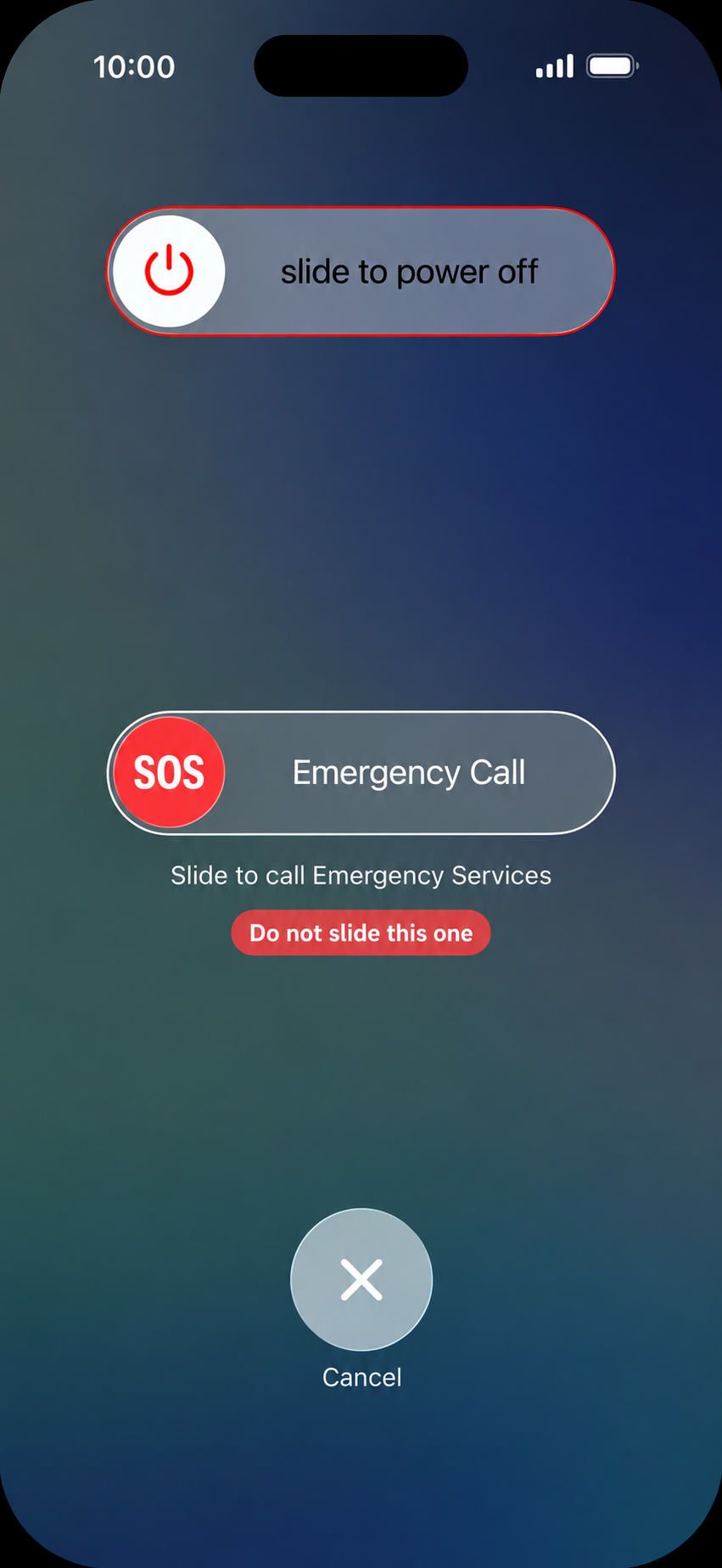
- Drag the slider to the right, then wait about 30 seconds for the iPhone to shut down completely.
- Press and hold the side button until the Apple logo appears, then let go.
Warning: release the buttons once the slider shows up. Holding them longer starts the Emergency SOS countdown, explained below.
Restart Without the Side and Volume Buttons
Apple’s turn iPhone on or off guide lists two touchscreen routes to the same slider. They help when a button is hard to press or a thick case gets in the way.
- Settings: open Settings > General, scroll to the bottom, tap Shut Down, and drag the slider.
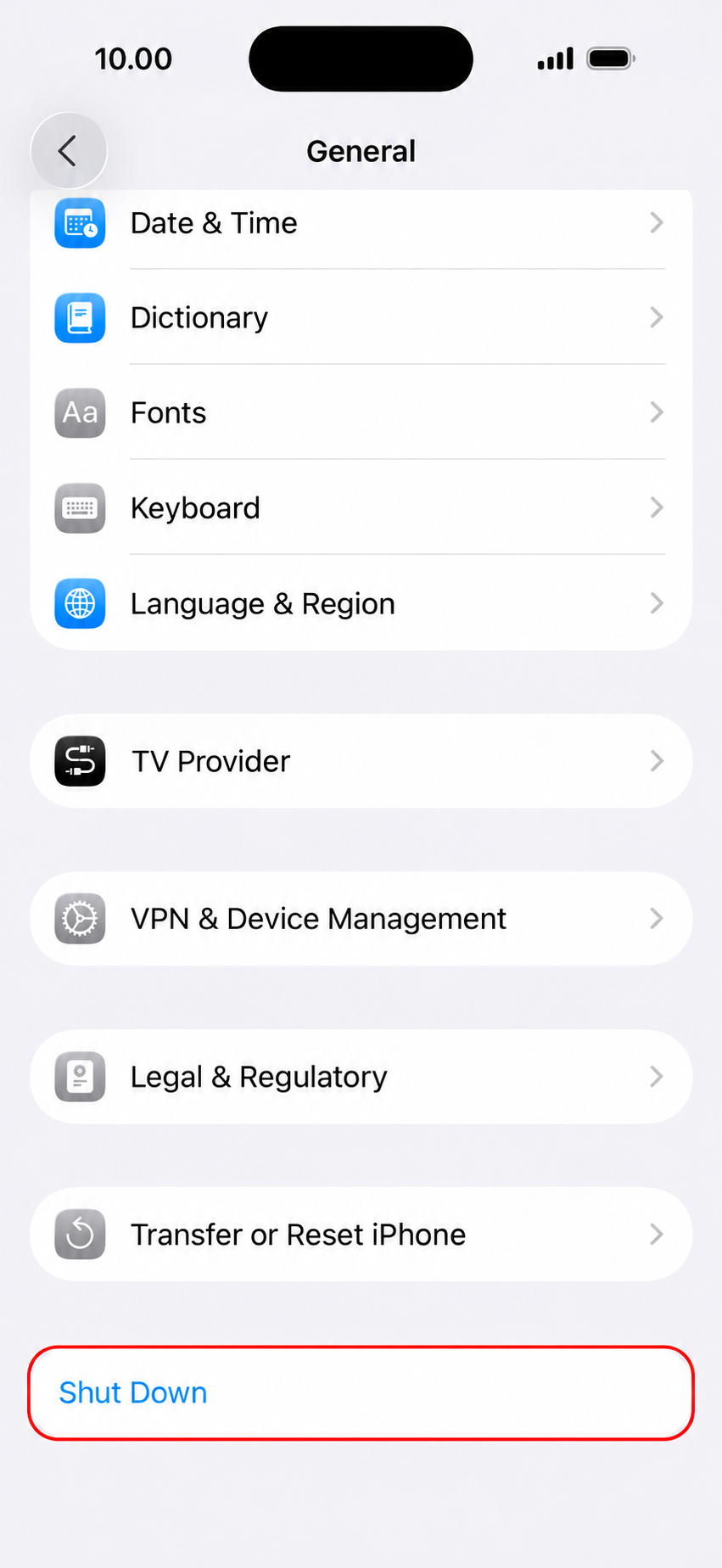
- Control Center: swipe down from the top-right corner to open Control Center, touch and hold the power icon in the top-right corner, and drag the slider.
Either way, you still turn the phone back on by holding the side button until the Apple logo appears. For more on the startup screens, see how to turn on an iPhone 17.
Force Restart a Frozen iPhone 17
Apple’s force restart instructions say to use this when the iPhone isn’t responding and you can’t turn it off and back on. It works even when the screen is black or stuck on one app.
- Press and quickly release the volume up button.
- Press and quickly release the volume down button.
- Press and hold the side button.
- When the Apple logo appears, release the side button.
Keep holding the side button until you see the Apple logo. Apple notes the logo might take longer than 10 seconds, so be patient. The first two presses are quick taps, one after the other, not a hold. If nothing happens, start over and do the two volume taps a little faster. If the iPhone 17 turns on but won’t get past the Apple logo, recovery mode for the iPhone 17 lets a Mac or a Windows PC with the Apple Devices app update or restore iOS.
Watch Out for Emergency SOS
The normal restart uses the same buttons as Emergency SOS. According to Apple’s Emergency SOS guide, if you keep holding the side button and a volume button after the sliders appear and let the countdown finish, the iPhone calls emergency services (in all countries or regions except India, where Apple uses a different button method). That behavior is controlled by Call with Hold and Release in Settings > Emergency SOS.
If you start a call by accident, Apple advises not to hang up: stay on the line and explain that you don’t need help. If the phone seems stuck on an SOS screen afterward, see how to get an iPhone out of SOS mode.
If Your iPhone 17 Won’t Restart
When neither method works and the screen stays black, Apple’s article on an iPhone that won’t turn on or is frozen suggests these steps:
- Plug the iPhone into a charger and let it charge for one hour.
- Try the force restart again.
- If a low-battery icon appears, keep it charging for up to 30 minutes or until it starts up.
- If it still won’t turn on, the iPhone might need service from Apple.
Restart vs. Hard Reset vs. Erase
These terms get mixed up. A restart turns the iPhone off and on through the slider. A force restart (often called a hard reset online) does the same job when the phone is frozen. Neither one is the same as erasing the iPhone, which deletes your content and settings through Settings > General > Transfer or Reset iPhone. If you actually need to wipe the phone, see how to hard reset an iPhone, by force restart or factory reset, and make a backup first.
iPhone 17 Restart Questions
Does a force restart delete anything?
A force restart doesn’t erase your content. Apple presents it as the fix for an unresponsive phone, separate from erasing. Unsaved work in an app that was frozen can be lost, as with any app that stops responding.
My screen works but one app keeps freezing. Do I need to restart?
Try closing the app first: swipe up from the bottom of the screen and pause to see open apps, then swipe the app up and away. If it keeps freezing, update the app in the App Store, then restart the iPhone.
If restarts become a daily habit, check Settings > General > Software Update for an iOS update, since bugs that freeze apps are often fixed there.

Matthew Burleigh is the founder, head writer, and editor of Solve Your Tech, which he launched in 2012. He has written technology tutorials since 2008 and worked in IT since 2003, including small-business support, IT management, and consulting. He holds Bachelor’s and Master’s degrees in Computer Science from Arizona State University.
Matthew writes practical guides for Windows, iPhone and iPad, Microsoft Office, Outlook, Google apps, and Android. Solve Your Tech’s guides are checked step by step against the device or app maker’s own documentation and tested on his own devices whenever he has the hardware or software, with clear steps, sources, and update dates.
Read more about Matthew and how Solve Your Tech writes and updates its guides, or report a correction.