To install Python on Windows 11, get the Python Install Manager from the Microsoft Store or python.org/downloads. After it installs, open Terminal or Command Prompt and type python. If no version is installed yet, the manager downloads the latest stable Python for you. The full old-style installer, where you checked “Add Python to PATH,” is deprecated as of Python 3.14.
These steps follow the official Using Python on Windows documentation for Python 3.14, checked in October 2026, when Python 3.14.8 was the current release and 3.15 was in pre-release. Windows 11 does not include Python, so you need to install it yourself.
How to Install Python on Windows 11
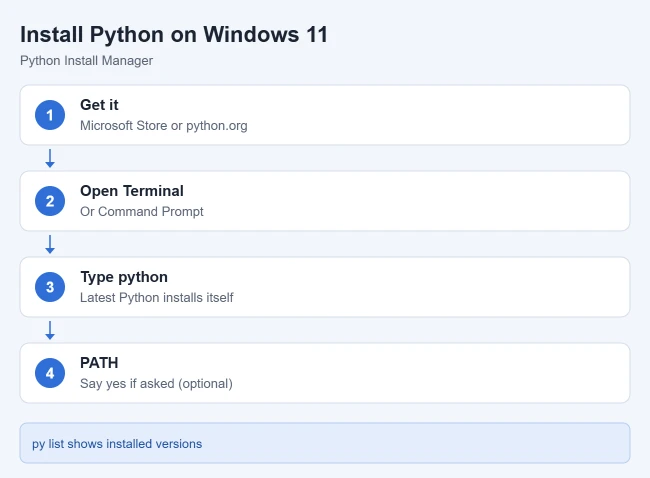
- Open the Microsoft Store, search for Python Install Manager, and select Get or Install. Or download it from python.org/downloads and double-click it, then select Install. The two versions are identical. Result: the Install Manager is on your PC.
- Open Terminal or Command Prompt. (See how to open Command Prompt in Windows 11 if you have not used it before.) Result: a command window opens.
- Type python and press Enter. Result: the first time, the manager installs the latest Python, then starts it.
- If it asks whether to add a folder to your PATH, say yes if you want commands like python3.14 to work everywhere. It is optional if you use py or python. Result: Python is ready to use.
After installing, the python, py, and pymanager commands should all work. If Windows blocks the download, check your app installation settings and whether the PC is in S mode, which only allows Store apps. See how app installation restrictions work in Windows.
Prefer the Command Line?
Microsoft’s Python setup guide also offers a winget command. Open PowerShell in Windows Terminal and run winget install Python.Python.3.14, then close and reopen PowerShell and check it with python –version.
Check That It Works
- python starts the Python prompt. Type exit() to leave.
- py list shows the versions you have installed and which one is current.
- python my-script.py runs a script.
Install Another Version
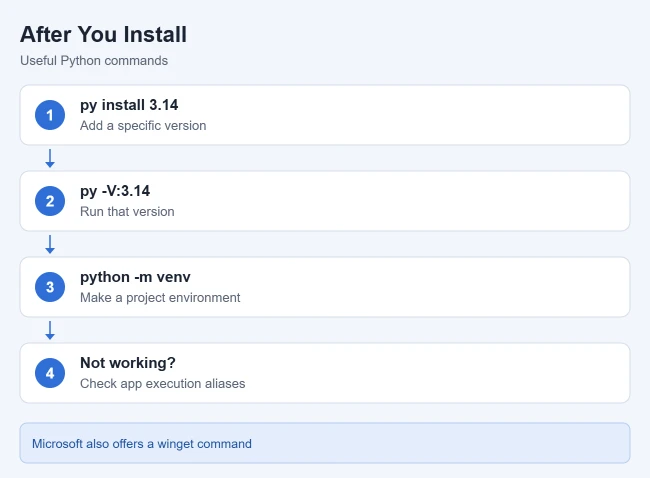
The Python docs recommend the py command when you have more than one version. Use py install 3.14 (or another version number) to add a version, then start it with py -V:3.14. The Install Manager updates itself automatically, but that does not change the Python versions you have installed.
Use a Virtual Environment for Projects
- In your project folder, run python -m venv .venv. Result: a .venv folder is created.
- Activate it with .venv\Scripts\Activate. Result: your prompt shows the environment name.
- Install packages with pip install while it is active. Result: packages stay inside that project.
The Python docs recommend a virtual environment for each project so packages do not clash. To use Python for browser-based notebooks, see how to install Jupyter Notebook on Windows 11.
Add Python to PATH Later
The Install Manager puts its commands in %LocalAppData%\Python\bin by default. To add it yourself, search Start for Edit environment variables for your account and add that folder. See how to open environment variables in Windows 11.
If the python Command Does Not Work
- It opens the Microsoft Store or says command not found: click Start, open Manage app execution aliases, and make sure the aliases for Python (default) are on. If they already are, turn them off and on again.
- Check py and pymanager: if those work, the problem is the python alias or your PATH.
- Older installs: if you installed Python before, or changed your PATH, you may need to remove the old version or undo those changes.
Frequently Asked Questions
Is Python free?
Yes. Python and the Install Manager are free from python.org and the Microsoft Store.
Should I use python or py?
The docs recommend python for everyday use and py when you need to pick a specific version or manage installs.
Does uninstalling the Install Manager remove Python?
No. The Python docs say uninstalling the Install Manager does not uninstall the Python versions it installed.
If your class still uses an older C++ compiler, here’s how to run Turbo C++ on Windows 11 with DOSBox.

Matthew Burleigh is the founder, head writer, and editor of Solve Your Tech, which he launched in 2012. He has written technology tutorials since 2008 and worked in IT since 2003, including small-business support, IT management, and consulting. He holds Bachelor’s and Master’s degrees in Computer Science from Arizona State University.
Matthew writes practical guides for Windows, iPhone and iPad, Microsoft Office, Outlook, Google apps, and Android. Solve Your Tech’s guides are tested on current devices or checked against official product documentation, with clear steps, sources, and update dates.
Read more about Matthew and how Solve Your Tech writes and updates its guides, or report a correction.