This post contains affiliate links. As an Amazon Associate, solveyourtech.com earns from qualifying purchases, at no extra cost to you.
To clean a laptop keyboard safely, shut the laptop down and unplug it first. Blow out crumbs with short bursts of compressed air, then wipe the keys with a soft, lint-free cloth that is lightly dampened with 70 percent isopropyl alcohol. Never spray or pour liquid onto the keyboard, and let it dry fully before you turn the laptop back on. This guide covers MacBook, Microsoft Surface, Dell, HP and Lenovo laptops, and it points out where those makers give different advice.
The steps follow Apple’s How to clean your Apple products and How to clean the keyboard of your MacBook guides, Microsoft’s Clean and care for your Surface page, Dell’s guidance for keeping Dell equipment clean, HP’s How to clean your laptop guide and Lenovo’s Keeping your computer clean page. The advice here reflects those pages as of October 2026. It is about the hardware, so it applies no matter which version of Windows or macOS you run.
Before You Start: Power Off and Unplug
Warning: shut the laptop down completely and unplug it before you clean anything. Sleep mode is not enough. Choose Shut down, wait for the screen and lights to go dark, then disconnect the power adapter and every cable, drive, dock and USB device.
Every maker says this. Dell puts it most plainly: never clean a product while it is turned on or plugged in. Powering off protects the laptop if a little moisture gets where it shouldn’t, and it stops stray key presses from opening or deleting things while you wipe.
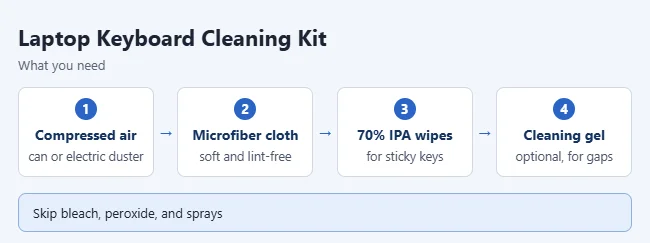
What You Need
- Compressed air: A can like Office Depot 10 oz duster, or a rechargeable WOLFBOX electric air duster if you clean often.
- Soft, lint-free cloth: A microfiber cloth works. Apple says to avoid paper towels and rough cloths.
- 70% isopropyl alcohol wipes: Like iCloth electronics wipes, for sticky spots and disinfecting.
- Optional cleaning gel: ColorCoral cleaning gel can lift dust from between keys.
- Cotton swabs: For the edges of a sticky key.
Two notes on that list. Dell says to use only a microfiber cloth on its laptops, dampened with a mix of 70 percent isopropyl alcohol and 30 percent water. And none of the five makers mention cleaning gel, so treat it as optional and keep it away from vents and ports.
How to Clean a Laptop Keyboard
These steps work for most Windows laptops and MacBooks. Check the maker table below before you pick a wipe or liquid.
- Shut down the laptop and unplug the power adapter and any cables.
- Hold the laptop at about a 75-degree angle, so it’s tilted but not quite upright. Apple and HP both give this angle.
- Spray compressed air across the keys in short bursts, moving left to right. Use the straw, keep it about half an inch from the keys, and keep the can upright.
- Turn the laptop onto its right side and spray again, left to right. Then repeat on its left side. Loose dust and crumbs should fall away.
- Dampen a soft, lint-free cloth with 70 percent isopropyl alcohol, or use a 70 percent isopropyl alcohol wipe. Squeeze or wring out any extra liquid first. The cloth should be damp, not dripping.
- Wipe the top of each key and the area around the keyboard. Wipe gently, and don’t let any liquid run on or between the keys.
- Let everything dry completely before you turn the laptop back on. Dell says no moisture should be visible. Microsoft’s laptop keyboard cleaning article suggests waiting at least 10 to 15 minutes.
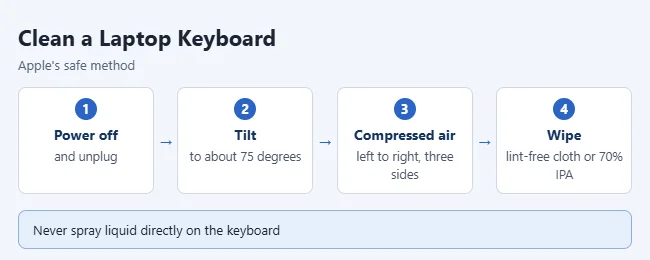
Apple’s compressed-air steps come from its MacBook guide, and it warns not to turn the can upside down while spraying. A tilted or inverted can may spray liquid propellant onto the keys.
Use a can of compressed air or a small electric duster made for electronics. Lenovo says a compressed air can is fine for crumbs and dust beneath the keys, but it warns you not to use an air compressor.
Which Cleaners Each Laptop Maker Allows
The makers agree on most points, but not all. Ethyl alcohol and hydrogen peroxide are the two big differences.
| Maker | OK to use on the keyboard | Do not use |
|---|---|---|
| Apple (MacBook) | 70% isopropyl alcohol wipe, 75% ethyl alcohol wipe, or Clorox Disinfecting Wipes on hard, nonporous surfaces. Soft, lint-free cloth. | Bleach, hydrogen peroxide, aerosol sprays, abrasives, paper towels. |
| Microsoft (Surface) | Lint-free cloth dampened with mild soap and water (five parts water to one part soap). To disinfect, an isopropyl alcohol solution of 70% or less. | Glass cleaner, other chemical cleaners, chlorine, bleach, hydrogen peroxide. |
| Dell | Microfiber cloth dampened with 70% isopropyl alcohol and 30% water. | Bleach and other chlorine cleaners, peroxides, ammonia, ethyl alcohol, solvents such as acetone. Any cloth other than microfiber. |
| HP | Microfiber cloth lightly dampened with isopropyl alcohol, 70% or higher. | Harsh chemicals, abrasive materials, excess liquid. |
| Lenovo | Isopropyl alcohol on a soft, lint-free cloth. For disinfecting, wipes with up to 0.5% hydrogen peroxide or wipes that are not based on ethyl alcohol. | Bleach or chlorine wipes, acetone, ethyl alcohol, ammonia-based or abrasive cleaners. |
What this means for you:
- 70 percent isopropyl alcohol on a damp cloth is the one option all five makers accept.
- Ethyl alcohol wipes are fine on a MacBook, but Dell and Lenovo say not to use ethyl alcohol.
- Hydrogen peroxide is banned by Apple, Microsoft and Dell. Lenovo allows wipes with a maximum of 0.5 percent.
- Bleach is banned by every maker that lists specific chemicals.
- Spraying or pouring liquid straight onto the laptop is banned by all of them.
If your brand isn’t listed, check its manual. When in doubt, use the damp 70 percent isopropyl alcohol cloth.
How to Clean a MacBook Keyboard With Compressed Air
Apple’s compressed-air method is written for MacBook (2015 and later) and MacBook Pro (2016 and later) models with an unresponsive key.
- Shut down the Mac and unplug the power adapter.
- Hold the Mac at a 75-degree angle, so it’s not quite vertical.
- Spray the keyboard, or just the affected keys, with compressed air in a left-to-right motion.
- Rotate the Mac onto its right side and spray again, from left to right.
- Rotate the Mac onto its left side and spray once more, from left to right.
Use the straw that came with the can, hold its tip about half an inch from the keys, and don’t invert the can. If your MacBook has a Touch Bar or Touch ID button, Apple says to clean those the same way as the display: with a soft, lint-free cloth dampened with water only.
How to Clean a Surface Keyboard or Type Cover
Microsoft’s advice for Surface keyboards is gentler than the others. Its Surface support page starts with soap and water, not alcohol, and that page doesn’t mention compressed air.
- Unplug your Surface and shut it down.
- Mix five parts water with one part mild soap.
- Dampen a lint-free cloth with the mix and wring it out well.
- Gently wipe the keyboard.
- To disinfect, wipe again with a cloth dampened with an isopropyl alcohol solution of 70 percent or less.
- Let the keyboard dry before you turn the Surface on.
If your keyboard has the soft Alcantara fabric, use a white, lint-free cloth dampened with mild soap and water, and clean spills within 30 minutes so they don’t stain. Don’t use disinfectant wipes on a Surface touchscreen.
How to Fix a Sticky Key
A key that feels sticky or slow usually has dried residue around its edges. Clean it without removing it.
- Shut down the laptop and unplug it.
- Blow compressed air around the key in short bursts with the laptop tilted.
- Lightly dampen a cotton swab with isopropyl alcohol. It should not drip.
- Rub the swab around the edges of the sticky key. Don’t let liquid run under the key.
- Let the key dry completely, then turn the laptop on and test it.
HP recommends this swab method for sticky keys. If the key still sticks after a second try, the residue is under the key, and that’s a job for a repair shop.
What Never to Use on a Laptop Keyboard
- Don’t spray any cleaner directly onto the keyboard. Put it on the cloth instead.
- Don’t use bleach, hydrogen peroxide, aerosol sprays, or abrasive cleaners. The one exception is Lenovo’s allowance for low-strength hydrogen peroxide wipes.
- Don’t use glass cleaner or anything with ammonia. Microsoft and Dell both warn against it.
- Don’t use acetone, paint thinner or other solvents. Dell and Lenovo both list them among the chemicals to avoid.
- Don’t let moisture get into openings, and don’t soak the keys.
- Don’t use paper towels or rough cloths. Apple and Dell both call for a soft cloth.
- Don’t use an air compressor. Lenovo warns against it. A can of compressed air is far gentler.
- Don’t turn a can of compressed air upside down while you spray.
- Don’t pry off keys unless your manual says it’s safe. Many laptop keys break easily.
- Don’t scrub. Apple warns that excessive wiping might cause damage.
If You Spilled Something on the Keyboard
Warning: turn the laptop off and unplug it before you do anything else, even if you lose unsaved work. Lenovo’s IdeaPad user guide explains why: cutting the power quickly limits short-circuit damage, and leaving the laptop running may ruin it.
- Turn the laptop off right away.
- Unplug the power adapter and every cable and device.
- Remove the battery if yours comes out without tools.
- Blot the outside dry with a soft cloth.
- Let it air dry for at least 48 hours.
- Get service if liquid went inside or keys misbehave.
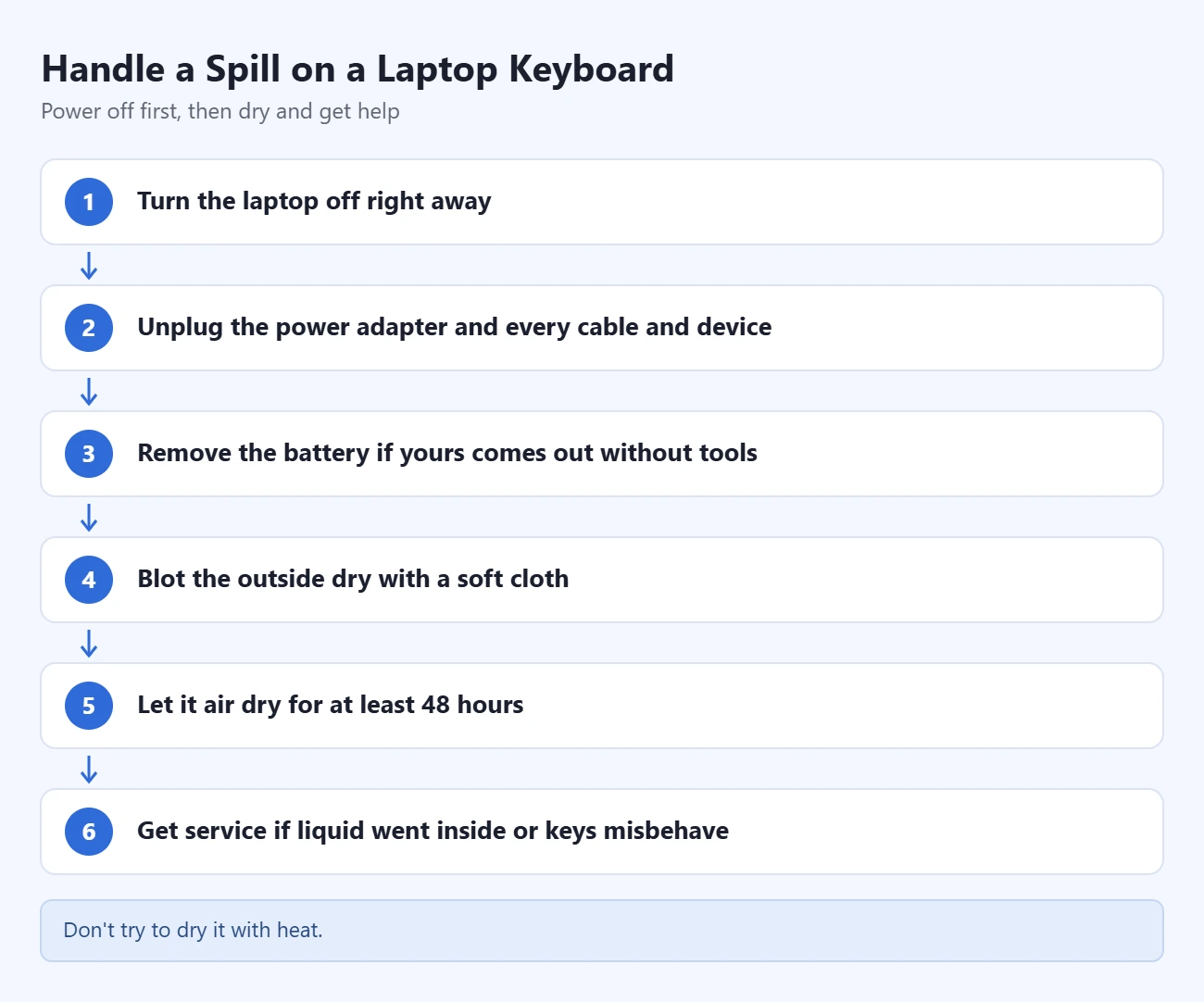
The 48-hour drying time and the battery step come from HP’s guide. Makers differ on tilting. Lenovo’s IdeaPad user guide says not to tilt the laptop to drain it, because models with keyboard drainage holes let the liquid out on their own. Check your manual before you turn the laptop over.
Apple says that if liquid gets inside, you should get help from an authorized service provider as soon as possible. Don’t try to dry it with heat.
How to Confirm It Worked
Wait until no moisture is visible, then plug the laptop in and turn it on. Open a blank document and press every key once, including Shift, the arrow keys and the function row. Each key should register once and spring back.
If your keyboard is backlit, turn the light on to spot any crumbs you missed. On HP models, here’s how to turn on the keyboard light on an HP laptop.
Troubleshooting: When to Stop and Get Service
- A key still doesn’t respond after cleaning. On a MacBook, Apple says to visit an Apple Store or Apple Authorized Service Provider. On a Windows laptop, first rule out software with our guide on how to troubleshoot keyboard issues in Windows 11.
- Keys type on their own, repeat, or type the wrong letters after a spill. Shut the laptop down and get it serviced. Liquid has likely reached the electronics.
- A key popped off or sits crooked. Don’t force it back. The clips under laptop keys are small and easy to snap. Contact the maker or a repair shop.
- The laptop won’t turn on after a spill. Leave it off and unplugged, and contact the maker’s support.
- The key labels are fading. Stop using that cleaner. Switch to a cloth that is only lightly damp, and wipe with less pressure.
In the meantime, you can type with the on-screen keyboard.
Frequently Asked Questions
Can I use rubbing alcohol on my laptop keyboard?
Yes, if it is 70 percent isopropyl alcohol and you put it on a cloth first. Apple says a 70 percent isopropyl alcohol wipe is OK on hard, nonporous surfaces like the keyboard. Dell, HP, Lenovo and Microsoft also allow isopropyl alcohol on a damp cloth. Use a wipe or a damp cloth, not a spray or a soaked rag.
Can I use disinfecting wipes on a laptop keyboard?
It depends on the maker and the wipe. Apple allows 70 percent isopropyl alcohol wipes, 75 percent ethyl alcohol wipes and Clorox Disinfecting Wipes on a MacBook keyboard. Dell and Lenovo say not to use ethyl alcohol, and every maker rules out bleach. Squeeze out extra liquid before you wipe.
How often should I clean my laptop keyboard?
A quick wipe every week or two keeps grime down. Use compressed air whenever keys feel gritty or stop responding. Microsoft simply says to clean a Surface frequently.
Is compressed air bad for a laptop?
Not when used as Apple describes: short bursts, upright can, and the straw about half an inch away. Keep the can upright so liquid propellant doesn’t spray out. Don’t use a shop air compressor.
Can I clean my laptop keyboard with water?
Only on a damp cloth, never poured or sprayed. Microsoft recommends a cloth dampened with mild soap and water for Surface keyboards, and Apple allows a damp, soft, lint-free cloth on a MacBook’s exterior. The cloth must not drip.
Should I remove the keys to clean under them?
No, not unless your laptop’s manual shows how. None of the makers’ cleaning guides tell you to pull keys off. Laptop keys sit on thin clips that break easily, so use compressed air and a swab around the edges instead.
Do I need to turn off my laptop to clean the keyboard?
Yes. Shut it down and unplug it every time. Apple, Microsoft, Dell, HP and Lenovo all say to disconnect power before cleaning.
How long should I wait before turning my laptop back on?
After a normal wipe, wait until no moisture is visible. Microsoft’s laptop keyboard cleaning article suggests at least 10 to 15 minutes. After a spill, HP says to let the laptop air dry for at least 48 hours.
Once your keyboard is clean, a quick wipe every week or two will keep it that way. If a key still misbehaves after cleaning and drying, stop there and contact your laptop maker’s support.

Matthew Burleigh is the founder, head writer, and editor of Solve Your Tech, which he launched in 2012. He has written technology tutorials since 2008 and worked in IT since 2003, including small-business support, IT management, and consulting. He holds Bachelor’s and Master’s degrees in Computer Science from Arizona State University.
Matthew writes practical guides for Windows, iPhone and iPad, Microsoft Office, Outlook, Google apps, and Android. Solve Your Tech’s guides are checked step by step against the device or app maker’s own documentation and tested on his own devices whenever he has the hardware or software, with clear steps, sources, and update dates.
Read more about Matthew and how Solve Your Tech writes and updates its guides, or report a correction.