To change the registered owner name in Windows 11, back up the registry, open Registry Editor as an administrator, go to HKEY_LOCAL_MACHINE\SOFTWARE\Microsoft\Windows NT\CurrentVersion, and edit the RegisteredOwner value (and RegisteredOrganization if you want a company name). Then run winver to check the new name. There’s no Settings page for this, and the change is cosmetic.
A secondhand PC still shows the previous company’s name when you open winver, and you want your own name there instead.
What the Registered Owner Name Is (and Isn’t)
Windows stores the name of the person the copy of Windows is registered to, plus an optional organization. Microsoft’s setup documentation describes RegisteredOwner as the name of the end user and RegisteredOrganization as that user’s organization. You mostly see them in the About Windows box, and some installers may read them as a default name.
It’s easy to confuse this with other names on the PC. Changing the registered owner doesn’t touch any of these:
| Name | Where you see it | Where to change it |
|---|---|---|
| Registered owner and organization | winver (About Windows) | Registry Editor (this article) |
| Account name | Sign-in screen, Start menu | Account settings; see changing your user name in Windows 11 |
| PC (device) name | Settings > System, network lists | Settings > System > About > Rename this PC |
| Microsoft account | Settings > Accounts | Your Microsoft account online |
Microsoft doesn’t list the registered owner among the things activation depends on, and editing it isn’t a way to move or remove a Windows license.
Check the Current Owner Name With winver
- Press Windows key + R, type
winverand press Enter. - Read the lines near the bottom of the About Windows box. On most versions there’s a sentence saying the product is licensed under the Microsoft Software License Terms to a name, with the organization (if any) on the line below.
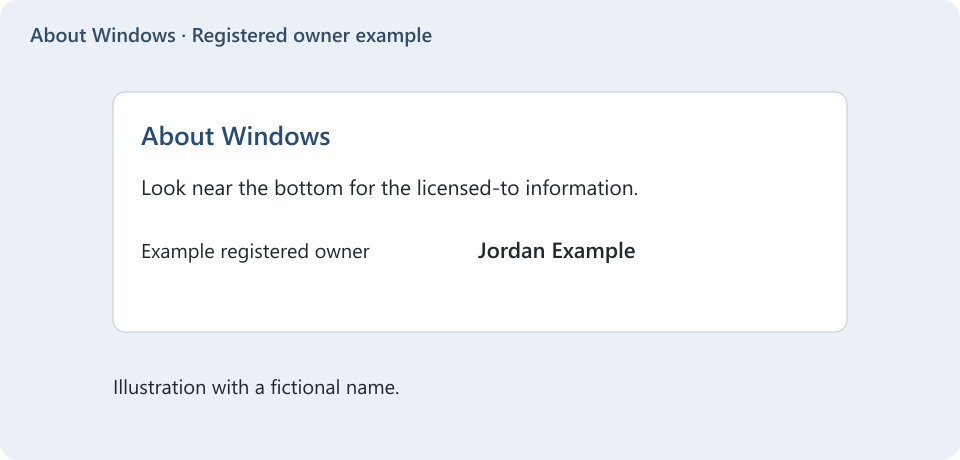
On a fresh install, the owner is usually the name or email from the account created during setup, and the organization is usually blank. A PC that came from a business may show that company, because IT departments often set both values when they deploy Windows.
Back Up the Registry Key First
You’ll be editing the registry, where a mistake in the wrong place can cause problems. You need an administrator account for this change; if yours isn’t one, see getting administrator rights in Windows 11. Then export the one key you’ll change, using the steps in Microsoft’s registry backup and restore article:
- Click Start, type regedit.exe and press Enter. Approve the administrator prompt. (More ways in: opening Registry Editor in Windows 11.)
- Paste
HKEY_LOCAL_MACHINE\SOFTWARE\Microsoft\Windows NT\CurrentVersioninto the address bar at the top and press Enter, or expand the folders in the left pane until CurrentVersion is selected. - Click File > Export. In the Export Registry File dialog, pick a location, type a name such as owner-backup in the File name box, and click Save.
Change RegisteredOwner and RegisteredOrganization
Keep Registry Editor open on the CurrentVersion key. The right pane holds many values, sorted alphabetically.
- Scroll to RegisteredOwner and double-click it.
- In the Edit String box, replace the text under Value data with the name you want, such as your own full name. Click OK.

- Double-click RegisteredOrganization, type the organization name or delete the text to leave it blank, and click OK.
- Close Registry Editor. Changes save as you click OK; there’s no separate Save command.
If a value is missing (this can happen on some installs), create it: right-click an empty area of the right pane, choose New > String Value, type the name exactly as RegisteredOwner or RegisteredOrganization, press Enter, then double-click it and enter the data. The spelling must match, with no spaces.
Make sure you’re in the Windows NT\CurrentVersion key, which Microsoft’s WMI documentation names for RegisteredOwner. A similarly named key without “NT” (HKEY_LOCAL_MACHINE\SOFTWARE\Microsoft\Windows\CurrentVersion) also exists and is easy to land in by mistake; make these edits in the NT key.
Confirm the Change
Run winver again. If the About Windows box was already open, close it first. Reopening usually shows the new name; if the old one persists, restart the PC and check again. Sources differ on whether a restart is needed, so try reopening first.
Microsoft’s Win32_OperatingSystem documentation maps its RegisteredUser property to the RegisteredOwner value in this key, so tools that read system information through Windows Management Instrumentation should report the new owner name too. Microsoft maps the organization property to a RegisteredOrganization value under …\Windows\CurrentVersion (without NT) instead, so those tools may still show an old organization even when winver is correct.
If the Name Won’t Change or Comes Back
- “Cannot edit” or access errors: you’re not running Registry Editor with administrator rights. Close it and open it again from an administrator account. See running apps as administrator in Windows 11.
- winver still shows the old name: check that you edited RegisteredOwner in Windows NT\CurrentVersion, not a similarly named value or key, and restart.
- The old company name returns: the PC may still be enrolled in the former owner’s management system, which can reapply its settings. Check Settings > Accounts > Access work or school. On a secondhand business PC, a full reset (or a clean install) is the better fix anyway, because it also removes leftover accounts and policies; the reset asks for a new account, and the owner name usually follows that account.
- Something else broke after the edit: open Registry Editor, click File > Import, pick the owner-backup file and click Open to restore the key. For a wider safety net before registry work, you can also create a restore point in Windows 11.
Rename the PC or Your Account Instead
If what bothers you is the name other devices see on the network, change the PC name. Microsoft’s rename your Windows device page gives the route: Settings > System > About > Rename this PC, enter the new name, select Next, then choose Restart now or Restart later. If it’s the name on the sign-in screen, change the account name instead, or switch to a different sign-in account as described in changing the Microsoft account on Windows 11.
Registered Owner Questions
Can I change the registered owner without Registry Editor?
There’s no option in Settings or Control Panel. IT departments can set both values during deployment with a Windows setup answer file, where Microsoft documents RegisteredOwner and RegisteredOrganization as text of up to 256 characters that may be left empty. For a single PC, Registry Editor is the practical route.
Will apps I already installed pick up the new name?
Usually not. Programs that copied the owner name during installation keep their own copy. Only installers and tools that read the value later see the change.
Once winver shows the right name, keep the exported .reg file until you’re sure everything works, then delete it.

Matthew Burleigh is the founder, head writer, and editor of Solve Your Tech, which he launched in 2012. He has written technology tutorials since 2008 and worked in IT since 2003, including small-business support, IT management, and consulting. He holds Bachelor’s and Master’s degrees in Computer Science from Arizona State University.
Matthew writes practical guides for Windows, iPhone and iPad, Microsoft Office, Outlook, Google apps, and Android. Solve Your Tech’s guides are checked step by step against the device or app maker’s own documentation and tested on his own devices whenever he has the hardware or software, with clear steps, sources, and update dates.
Read more about Matthew and how Solve Your Tech writes and updates its guides, or report a correction.