To change your DNS server in Windows 11, open Settings > Network & internet, select Wi-Fi or Ethernet and then your connection’s properties, select Edit next to DNS server assignment, switch Automatic (DHCP) to Manual, turn on IPv4, type a Preferred DNS and Alternate DNS address, and select Save. These steps follow the Settings layout in Windows 11 version 26H2, the current release, and the same fields appear in recent earlier versions, though older builds label the encryption options differently.
Below you’ll also find the Control Panel, Command Prompt and PowerShell routes, how to turn on encrypted DNS, how to check that the change took, and how to put everything back the way it was.
What You’re Changing and What to Note First
DNS (Domain Name System) is the lookup service that turns a name like solveyourtech.com into the numeric address your PC actually connects to. The computer that answers those lookups is called a DNS server or resolver. By default Windows uses whatever server your router hands out through DHCP (the automatic setup your router does when a device joins the network), which is usually your internet provider’s resolver or the router itself.
Switching to a public resolver can help if your provider’s DNS is slow to answer, goes down, or you want encrypted lookups or malware filtering. It won’t raise your download speed, because DNS only handles the name lookup, not the data transfer that follows.
Before you start:
- Write down your current DNS servers. If they were set by hand, you’ll want them back if something breaks. Here’s how to find your primary and secondary DNS servers.
- Know which connection you use. DNS is set per connection. A laptop that uses both Wi-Fi and a wired dock needs the change on both.
- Have an administrator account. Settings asks for approval on standard accounts, and the command-line methods need an elevated window.
- Skip this on a work or school PC. Company networks often depend on their own DNS servers for sign-in, file shares and internal sites. Ask your IT team instead.
Public DNS Addresses You Can Use
Enter both addresses from the same provider, so the second one takes over if the first stops answering. The IPv6 pair only matters if your connection has IPv6 (more on that below).
| Service | IPv4 (preferred, alternate) | IPv6 (preferred, alternate) | Notes |
|---|---|---|---|
| Google Public DNS | 8.8.8.8, 8.8.4.4 | 2001:4860:4860::8888, 2001:4860:4860::8844 | No filtering |
| Cloudflare 1.1.1.1 | 1.1.1.1, 1.0.0.1 | 2606:4700:4700::1111, 2606:4700:4700::1001 | No filtering |
| Cloudflare 1.1.1.1 for Families (malware) | 1.1.1.2, 1.0.0.2 | 2606:4700:4700::1112, 2606:4700:4700::1002 | Blocks known malware sites |
| Cloudflare 1.1.1.1 for Families (malware and adult content) | 1.1.1.3, 1.0.0.3 | 2606:4700:4700::1113, 2606:4700:4700::1003 | Also blocks adult content |
The addresses come from Google’s Public DNS setup page and Cloudflare’s Windows setup page. Google’s page also notes that some routers won’t accept the shortened IPv6 form with ::, and lists the full form (for example, 2001:4860:4860:0:0:0:0:8888) for those cases. Microsoft’s DNS over HTTPS documentation also lists Quad9 (9.9.9.9 and 149.112.112.112) among the servers Windows recognizes for encryption.
Change DNS in the Settings App
This is the easiest route and the only one with built-in options for encrypted DNS. Microsoft documents the fields in its essential network settings guide.
- Press Windows + I to open Settings, then select Network & internet in the left pane.
- Open your connection’s settings page:
- Wi-Fi: select Wi-Fi, then the properties entry for the network you’re connected to (it shows the network name followed by “properties”). You can also select Manage known networks and pick the network from the list.
- Ethernet: select Ethernet. The page for the wired connection opens directly.
- Scroll to DNS server assignment. It normally reads Automatic (DHCP). Select the Edit button beside it.
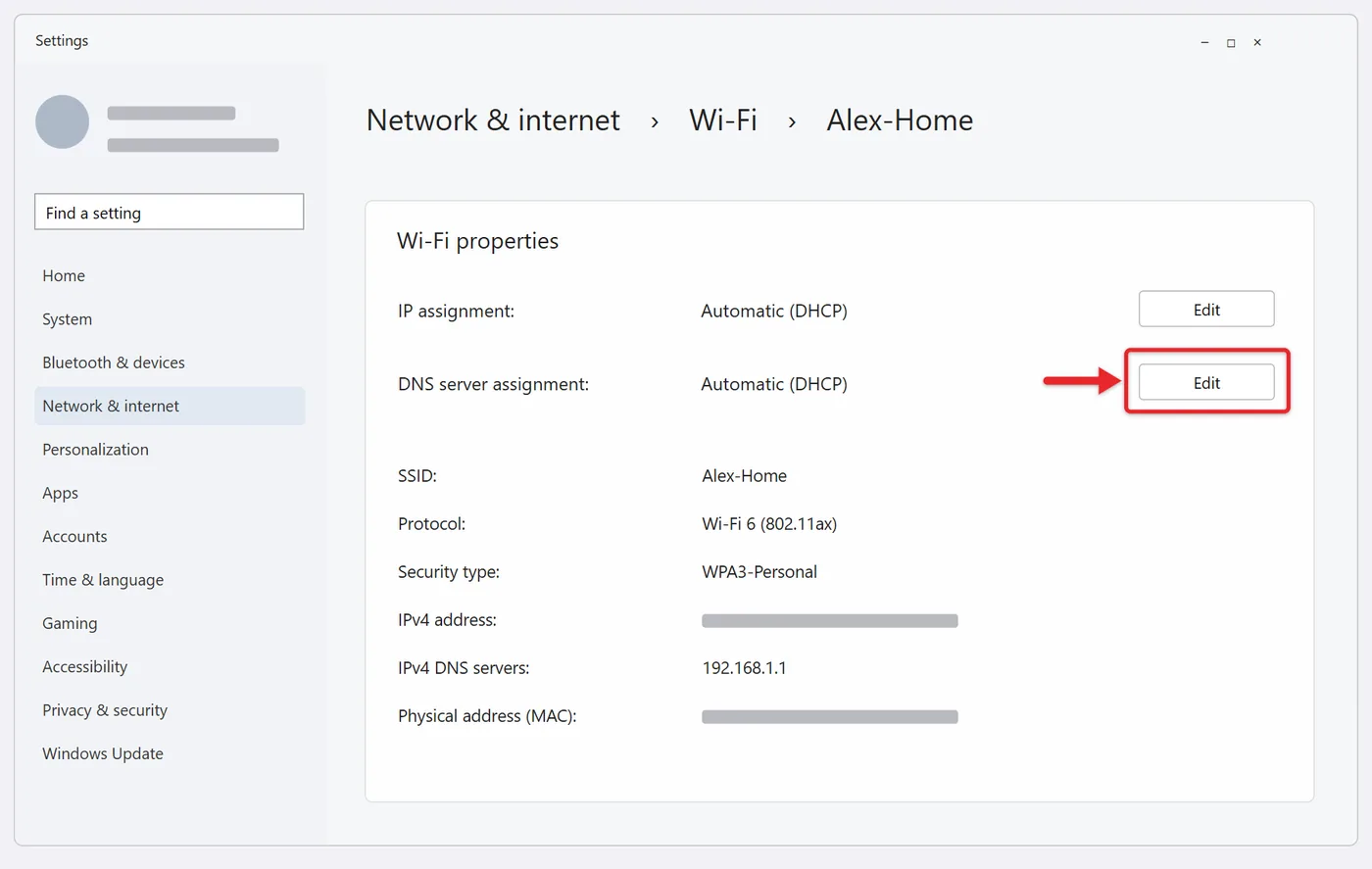
- In the Edit DNS settings box, change the drop-down from Automatic (DHCP) to Manual. Two switches appear, IPv4 and IPv6.
- Turn on IPv4. Type the first address in Preferred DNS (for example, 1.1.1.1) and the second in Alternate DNS (1.0.0.1).
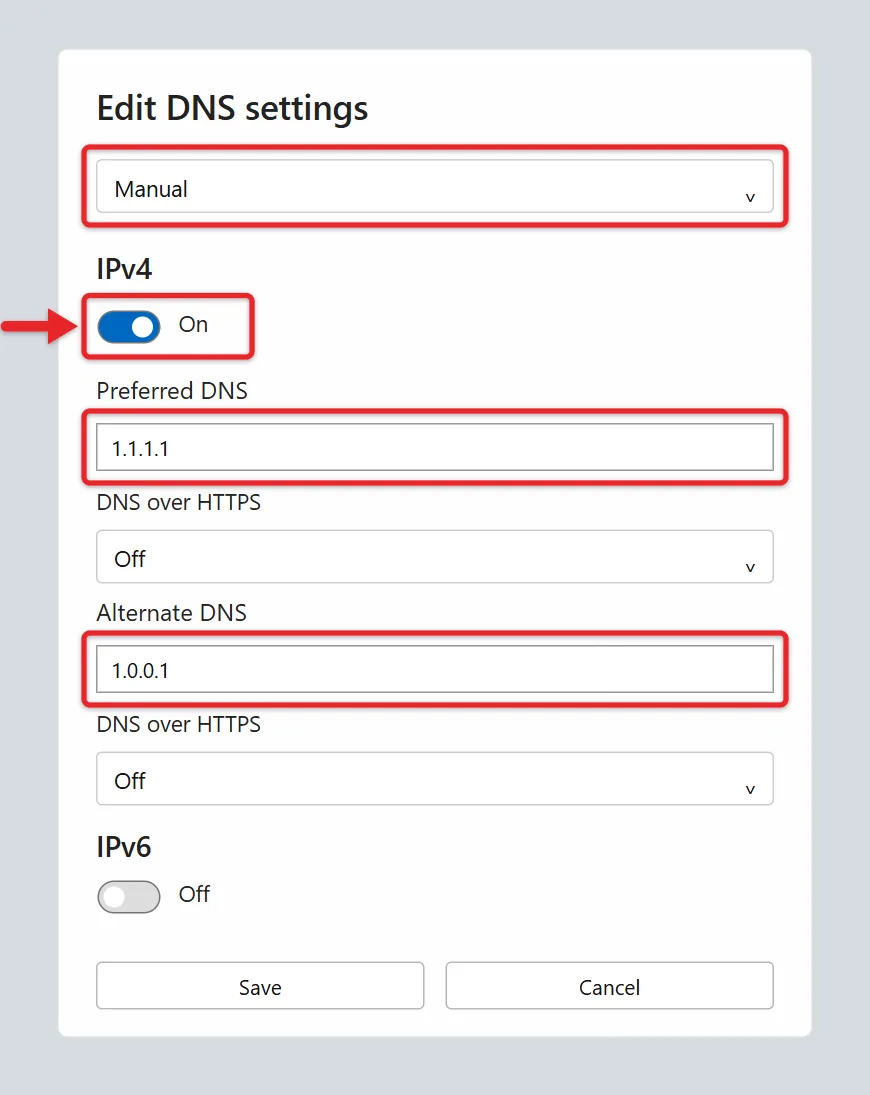
- Leave DNS over HTTPS set to Off for now, or turn it on using the next section.
- If your network uses IPv6, turn on IPv6 and fill in the IPv6 pair from the same provider.
- Select Save. The box closes and the connection page now lists your new servers under IPv4 DNS servers (and IPv6 DNS servers), with their encryption status beside them.
The change takes effect right away. No restart is needed, although open browser tabs may keep using answers they already looked up until you refresh or flush the cache.
You may notice a separate Edit button next to IP assignment with DNS fields of its own. That one is for setting a static IP address as well. If you only want new DNS servers, use DNS server assignment so your PC keeps getting its IP address automatically. If you do need a fixed address, the guide to changing your IP address in Windows 11 covers that screen.
Should you turn on IPv6?
Check before you guess. Run ipconfig in Command Prompt and look at your adapter. If you see an IPv6 Address line (one that doesn’t start with fe80, which is a local-only address), your connection has IPv6 and it’s worth filling in the IPv6 pair too, otherwise Windows may keep sending some lookups to your provider’s IPv6 resolver. If there’s no such line, leave the IPv6 switch off. Entering IPv6 servers on a connection without IPv6 can cause lookups to stall.
Turn On Encrypted DNS (DNS over HTTPS)
Normal DNS lookups travel unencrypted, so anyone on the same network, and your provider, can see which site names you look up. DNS over HTTPS (DoH) wraps those lookups in the same encryption websites use. It doesn’t hide the sites you visit from your provider entirely, but it stops the lookups from being read or tampered with along the way.
In the Edit DNS settings box, under each address you entered, the DNS over HTTPS drop-down offers three choices:
- Off: lookups go out unencrypted, as before.
- On (automatic template): Windows encrypts lookups using settings it already knows for that server. This works for servers on Windows’ built-in list, which includes the Google, Cloudflare and Quad9 addresses above.
- On (manual template): for a provider Windows doesn’t recognize. Paste the DoH template address (a URL beginning with https://) your provider gives you into the DNS over HTTPS template box.
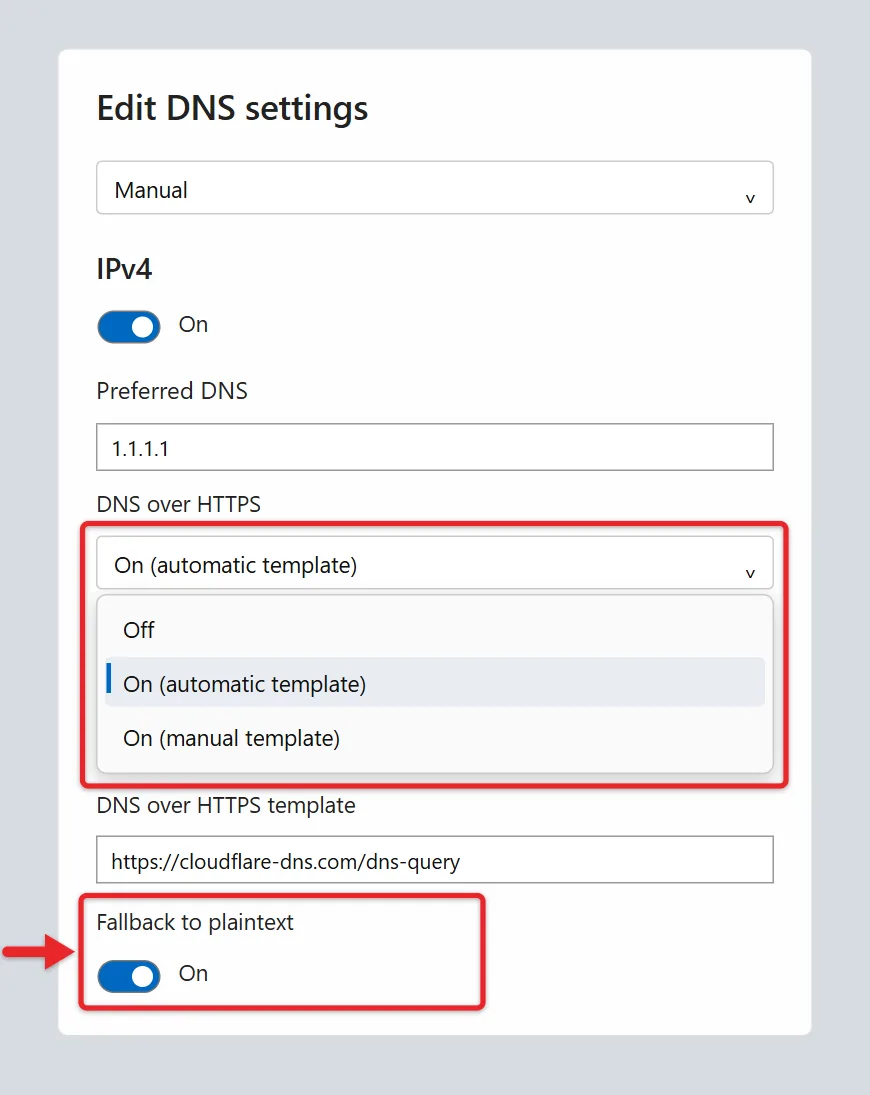
Once you pick an On option, a Fallback to plaintext switch appears. With it on, Windows sends a normal unencrypted lookup if the encrypted one fails, so websites keep loading. With it off, the lookup simply fails, which is stricter but can leave you with no internet if the server’s encryption is unreachable. Most home users are better off leaving fallback on at first.
Set the option for the Alternate DNS as well, and for IPv6 if you turned it on. If your screen shows Encrypted only (DNS over HTTPS), Encrypted preferred, unencrypted allowed and Unencrypted only instead, you’re on an older build. Those map to On without fallback, On with fallback, and Off.
To see which servers Windows knows how to encrypt, open PowerShell and run Get-DnsClientDohServerAddress. If the automatic template option isn’t offered for your server, it isn’t on that list. Windows 10 has none of these encryption options.
Use Control Panel Instead
The classic adapter properties window still works in Windows 11 and is handy if you want more than two DNS servers. It has no encryption option, though.
- Open Control Panel from Start, then go to Network and Internet > Network and Sharing Center and select Change adapter settings. (In Settings, Network & internet > Advanced network settings > More network adapter options opens the same window.)
- Right-click your Wi-Fi or Ethernet adapter and choose Properties. Approve the administrator prompt if one appears.
- On the Networking tab, select Internet Protocol Version 4 (TCP/IPv4) and select Properties.
- Choose Use the following DNS server addresses, then fill in Preferred DNS server and Alternate DNS server. Leave Obtain an IP address automatically selected at the top.
- Select OK, then Close (or OK) on the adapter properties window. Repeat with Internet Protocol Version 6 (TCP/IPv6) if needed.
To add a third server, select Advanced in the IPv4 properties window, open the DNS tab, and use Add. The up and down arrows there set the order Windows tries them in. For more on this window, see how to change adapter settings in Windows 11.
Change DNS From Command Prompt With netsh
Commands are quicker once you know your adapter’s name, and you can save them in a text file to reuse. Search for Command Prompt, right-click it and choose Run as administrator.
- List your adapters with
netsh interface show interface. Note the name in the Interface Name column for the one marked Connected, such as Wi-Fi or Ethernet. - Set the preferred server:
netsh interface ipv4 set dnsservers name="Wi-Fi" source=static address=1.1.1.1 validate=no - Add the alternate as second in line:
netsh interface ipv4 add dnsservers name="Wi-Fi" address=1.0.0.1 index=2 validate=no - For IPv6, repeat both commands with
ipv6in place ofipv4and the IPv6 addresses.
Replace “Wi-Fi” with your adapter’s exact name, keeping the quotes. Microsoft’s netsh interface reference explains each option. validate=no skips a check that the server is reachable, which avoids a long pause. Leave it out if you want Windows to test the address first.
Change DNS With PowerShell
PowerShell can set every address in one line. Right-click Start and choose Terminal (Admin), which opens PowerShell by default.
- Run
Get-NetAdapterand note the Name of the adapter whose Status is Up. - Set the servers:
Set-DnsClientServerAddress -InterfaceAlias "Wi-Fi" -ServerAddresses ("8.8.8.8","8.8.4.4"). To include IPv6, add those addresses to the same list, such as("8.8.8.8","8.8.4.4","2001:4860:4860::8888","2001:4860:4860::8844"). - Confirm with
Get-DnsClientServerAddress -InterfaceAlias "Wi-Fi". The IPv4 row should list your new addresses.
The Set-DnsClientServerAddress documentation notes that addresses set this way override whatever the network supplies through DHCP. It also offers -Validate, which checks that each address answers as a DNS server before saving it.
Which Method Fits You
All four methods change the same per-connection setting, so a change made in one shows up in the others. Choose by what you need:
- Settings: best for most people, and the only one that turns on encryption.
- Control Panel: when you want three or more servers or prefer the classic window.
- netsh: for batch files and older scripts.
- PowerShell: for setting up several PCs the same way, or for a one-line undo.
Change It on the PC or on the Router?
Changing DNS in Windows affects only that PC, and only on the connection you edited. Your phone, TV and game console keep using the old servers. Changing the DNS fields in your router’s admin page instead covers every device that gets its settings from the router, without touching each one.
The PC route makes sense when you want the change only for yourself, you use a laptop on many networks, or you can’t get into the router. The router route makes sense for a whole household, such as using a family filtering service. Google’s setup page points out that some internet providers lock the DNS settings on the equipment they supply. In that case, setting DNS on each device is the only option. Router menus vary by brand, so look for DNS fields under the WAN, Internet or DHCP section.
One thing to watch for on a laptop: manual DNS on a Wi-Fi connection follows that network. A public hotspot that shows a sign-in page may not load that page until you switch back to Automatic (DHCP).
Flush the DNS Cache After Switching
Windows remembers recent lookups for a while, so it may keep using old answers right after the switch. Clear them in Command Prompt with ipconfig /flushdns. Windows replies that it successfully flushed the DNS Resolver Cache. In PowerShell, Clear-DnsClientCache does the same thing. Then close and reopen your browser.
If certain sites still behave strangely, check your hosts file, which overrides any DNS server. The guide to editing the hosts file in Windows 11 shows where it lives.
Check That Windows Is Using the New Servers
- ipconfig /all: in Command Prompt, find your adapter’s section and read the DNS Servers lines. Your new preferred server should be first, with the alternate on the line below.
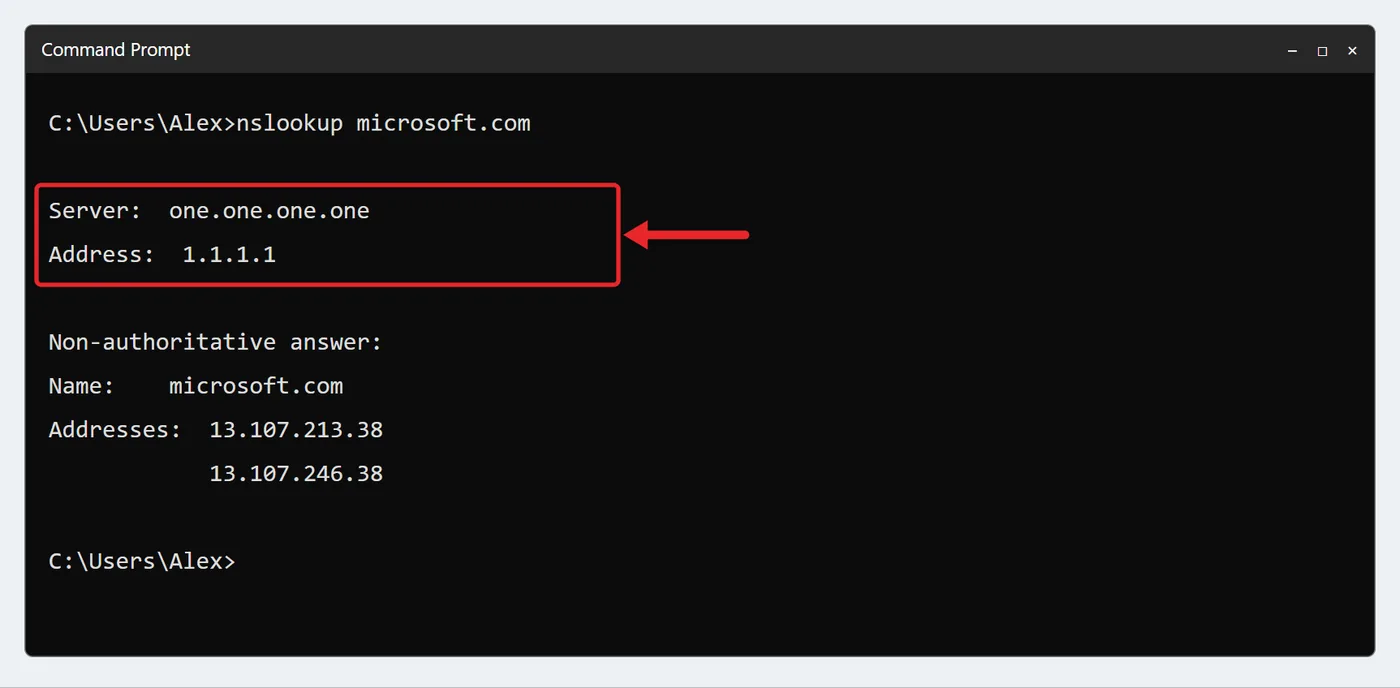
- nslookup: run
nslookup microsoft.com. The Server and Address lines at the top show which DNS server answered. If it lists your router’s address (such as 192.168.1.1) instead, the change didn’t apply to the adapter you’re using.
- Settings: the connection page lists the servers, with “Encrypted” or “Unencrypted” next to each, so you can confirm DoH is working.
Then load a few websites you haven’t visited today. If they open normally, you’re done.
Go Back to Automatic DNS
Use the method that matches how you made the change, or any of them, since they share the setting:
- Settings: select Edit next to DNS server assignment, choose Automatic (DHCP), and select Save.
- Control Panel: in the IPv4 (and IPv6) properties, choose Obtain DNS server address automatically and select OK.
- netsh:
netsh interface ipv4 set dnsservers name="Wi-Fi" source=dhcp, plus the same withipv6. - PowerShell:
Set-DnsClientServerAddress -InterfaceAlias "Wi-Fi" -ResetServerAddresses
Flush the cache afterward. If you had custom servers before you started, enter the ones you wrote down instead of choosing automatic.
When Things Don’t Work
- No websites load after saving. A single wrong digit makes the server unreachable, which looks like a dead connection. Recheck the addresses. If they’re right, turn off the IPv6 switch, then turn off DNS over HTTPS or turn Fallback to plaintext on.
- The Edit button is grayed out or missing. Your organization may manage the PC, or you’re signed in with a standard account. Sign in as an administrator or ask whoever manages the device.
- nslookup still shows the old server. You probably changed a different adapter, such as Ethernet while you’re on Wi-Fi. A VPN can also push its own DNS servers while it’s connected.
- The browser seems to ignore your change. Chrome and Edge each have a “Use secure DNS” option in their privacy and security settings that can send lookups to a provider of its own choosing. Set it to use your current service provider if you want Windows’ setting to apply.
- netsh says the element wasn’t found. The adapter name doesn’t match. Copy it exactly from
netsh interface show interface, including spaces and capital letters.
If nothing helps, switch back to automatic first. If the connection is still broken, resetting network settings in Windows 11 returns every adapter to its defaults.
Common Questions About Windows 11 DNS
Will changing DNS make my internet faster?
Only the first moment of loading a site, when the name gets looked up, can get faster, and only if your current resolver is slow. Downloads, streaming and game ping depend on your connection, not DNS.
Can I mix servers from two providers?
Yes. A Google address as preferred and a Cloudflare address as alternate is a valid setup, and keeps you online if one service has an outage. If you use a filtering service, keep both addresses from that service, or the unfiltered backup will let blocked sites through.
Do I need to restart my PC?
No. The new servers apply as soon as you select Save or run the command. Flushing the DNS cache and reopening your browser is enough to stop old answers from lingering.
Does a network reset undo my DNS change?
Yes. Network reset removes and reinstalls your adapters, so manual DNS servers are cleared and Windows goes back to automatic. You’d need to enter them again afterward.
Is it safe to use public DNS?
Google and Cloudflare are widely used, and each publishes a privacy policy describing what it logs. Only enter addresses you got from the provider’s own site. A mistyped or untrusted DNS server could send you to the wrong place.
Once your new servers are in place, run nslookup microsoft.com one more time and save a note of the addresses you chose, so you can enter them again quickly after a network reset or on your next PC.

Matthew Burleigh is the founder, head writer, and editor of Solve Your Tech, which he launched in 2012. He has written technology tutorials since 2008 and worked in IT since 2003, including small-business support, IT management, and consulting. He holds Bachelor’s and Master’s degrees in Computer Science from Arizona State University.
Matthew writes practical guides for Windows, iPhone and iPad, Microsoft Office, Outlook, Google apps, and Android. Solve Your Tech’s guides are checked step by step against the device or app maker’s own documentation and tested on his own devices whenever he has the hardware or software, with clear steps, sources, and update dates.
Read more about Matthew and how Solve Your Tech writes and updates its guides, or report a correction.