How many times today did you copy something, copy something else, and then realize you needed the first thing again? On a Windows PC you don’t have to go back for it. Press the Windows key and V together and you get a list of the last things you copied, ready to paste with one click.
That list is clipboard history, and it’s built into both Windows 11 and Windows 10. It holds up to 25 recent items, lets you pin the snippets you paste every day so they stick around, and can even sync text between your PCs. It’s turned off by default, which is the main reason so many people have never seen it.
It Remembers More Than the Last Thing You Copied
The normal clipboard holds exactly one item. Copy something new and the old one is gone. Clipboard history keeps a running list instead, with the newest entry on top.
Say you’re filling out a shipping form from an order confirmation email. You need the order number, the street address, and the tracking number. Without history, that’s three trips back and forth between windows. With it, you copy all three in a row from the email, switch to the form once, and fill each field like this:
- Click in the Order Number field and press Windows+V.
- Click the order number in the list (it’s the third item down, since you copied it first).
- Click in the Address field, press Windows+V, and pick the address.
- Do the same for the tracking number, which is sitting at the top.
It also works as a safety net. If you accidentally copy over something you needed, it’s still one row down in the list. If you want a closer look at what the panel shows, this guide covers how to view the clipboard in Windows 11.
Pin the Text You Type Over and Over
Every item in the panel can be pinned. Pinned items survive two things that wipe the rest of the list: clearing your history and restarting your PC. That turns clipboard history into a small, free text expander for anything you paste often.
Good candidates for pinning:
- Your mailing address or a company’s billing address
- A short sign-off you add to support emails
- A meeting link you share several times a week
- A product SKU, account number, or reference code you look up constantly
Copy the text once, press Windows+V, and select the pin option on that item. From then on it stays in the list until you unpin it.
Paste Without Dragging the Formatting Along
Copy a heading from a web page into an email and you often get the web page’s font, size, and color too. In Windows 11, clipboard history has a fix for text items. Press Windows+V, select See more (the three dots) next to the entry, and choose the paste as text option. The text arrives without its original formatting, so it matches whatever you’re pasting into.
That’s handy for dropping a quote into a document that already has its own style, or for pasting a price from a shopping site into a spreadsheet cell without bringing a bold red font with it.
Emoji, GIFs, and Symbols Live Next Door
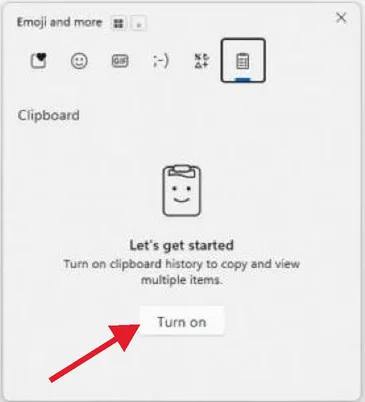
In Windows 11, the clipboard panel shares space with the emoji panel. Windows+V opens straight to your clipboard history, and Windows+period (.) or Windows+semicolon (;) opens the same panel on the emoji side. Tabs across the top let you jump between emoji, animated GIFs, kaomoji, symbols, and the clipboard.
So if you need a degree sign for a recipe, an arrow for a set of instructions, or a thumbs up for a chat reply, you don’t need to search the web for one and copy it. Check the Symbols tab first. GIF search needs an internet connection.
Copy on One PC, Paste on Another
If you work on a desktop at the office and a laptop at home, clipboard sync can carry text between them. Go to Start, then Settings, then System, then Clipboard, and turn on Clipboard history across your devices. Sync is tied to your Microsoft account or work account, so sign in with the same one on each PC.
You get two choices. Automatically sync text that I copy sends everything over. The manual option only syncs items when you select the sync button on them in the Windows+V panel, which is the better pick if you copy passwords or other private text.
Limits and Privacy Worth Knowing
| Detail | What Microsoft says |
|---|---|
| Windows versions | Windows 11 and Windows 10 |
| Default setting | Off until you turn it on |
| Items kept | Up to 25; older unpinned items drop off |
| Size per item | Up to 4 MB |
| Content types | Text, HTML, and bitmap images |
| After a restart | History is cleared except pinned items |
| Sync | Requires a Microsoft account or work account |
Because history keeps everything you copy, it can also keep sensitive text, such as an account number or a password you copied out of a document. You can remove a single item by selecting See more, then Delete. Select Clear all at the top of the panel to empty the list, or go to Settings, then System, then Clipboard and select Clear under Clear clipboard data, which clears everything except pinned items on the device and in the cloud. Our walkthrough on clearing the clipboard in Windows 11 has more detail. Microsoft’s clipboard in Windows page lists the official limits.
How to Turn On Clipboard History
- Press the Windows key and V at the same time.
- If clipboard history is off, select Turn on.
- Copy two or three things with Ctrl+C.
- Press Windows+V again and click any item to paste it.
- Optional: open Settings, then System, then Clipboard to turn on sync.
Once it’s running, you can also use those copied items in other ways, like printing from the clipboard in Windows 11.
Quick Answers About Windows Clipboard History
Does clipboard history save images?
Yes, as long as each one is 4 MB or smaller. Clipboard history supports text, HTML, and bitmap images.
Why is my clipboard history empty after a restart?
Windows clears clipboard history every time the PC restarts. Only pinned items are kept, so pin anything you want to survive a reboot.
Can other people see what I copied?
Anyone using your signed-in PC could open Windows+V and see the list. If you turn on sync, items also go to your other devices signed in with the same account, so use manual sync or clear sensitive items after you paste them.
Turn it on right now, then pin your mailing address. The next time a website asks for it, press Windows+V instead of typing, and see how quickly that becomes a habit.

Matthew Burleigh is the founder, head writer, and editor of Solve Your Tech, which he launched in 2012. He has written technology tutorials since 2008 and worked in IT since 2003, including small-business support, IT management, and consulting. He holds Bachelor’s and Master’s degrees in Computer Science from Arizona State University.
Matthew writes practical guides for Windows, iPhone and iPad, Microsoft Office, Outlook, Google apps, and Android. Solve Your Tech’s guides are checked step by step against the device or app maker’s own documentation and tested on his own devices whenever he has the hardware or software, with clear steps, sources, and update dates.
Read more about Matthew and how Solve Your Tech writes and updates its guides, or report a correction.