To use Flash Fill in Excel, type the result you want in the first cell next to your data, move to the cell below it, and press Ctrl+E. Excel follows your example and fills the rest of the column. You can also start it from Data > Flash Fill, or just keep typing in the second cell and press Enter when Excel shows a gray preview of the remaining rows.
These steps apply to Excel for Microsoft 365, Excel 2024, 2021, 2019 and 2016 on Windows. Flash Fill is also in Excel for Mac and Excel for the web, with a couple of differences covered further down. Microsoft’s Using Flash Fill in Excel page is the source for the menu path and shortcut.
What Flash Fill does
Flash Fill is a pattern tool. Instead of writing a formula, you show Excel one or two finished examples, and it works out the rule. Microsoft describes it as filling your data automatically when it senses a pattern, such as separating first and last names or putting them back together.
It helps to know three things before you start:
- The result goes in its own column. Flash Fill types new values into the column where your example is. Your original data stays where it is.
- That column must sit right next to the data. Excel reads the columns beside your example to find the source text. A blank column in between breaks the connection.
- The output is plain text, not a formula. This is the biggest difference from a formula like LEFT or CONCAT, and it matters later if your data changes.
If you need an empty column next to your data first, right-click the column letter to the right of it and choose Insert.
How to run Flash Fill with Ctrl+E
This is the most dependable method because it works even when the automatic preview doesn’t appear. The example uses a list of full names in column A, with first names going into column B.
- Add a heading. Type a label such as First Name in B1. Headings aren’t required, but they keep Flash Fill from treating your column title as data.
- Type one finished example. Click B2 and type the result you want for row 2 exactly as it should look. If A2 says Alex Rivera, type Alex, then press Enter.
- Stay in the same column. The cursor drops to B3. You can also click any cell in column B that should be filled.
- Press Ctrl+E. Excel fills B3 down to the last row that has data in column A. Microsoft’s Excel keyboard shortcuts list describes Ctrl+E as invoking Flash Fill to recognize patterns in adjacent columns and fill the current column.
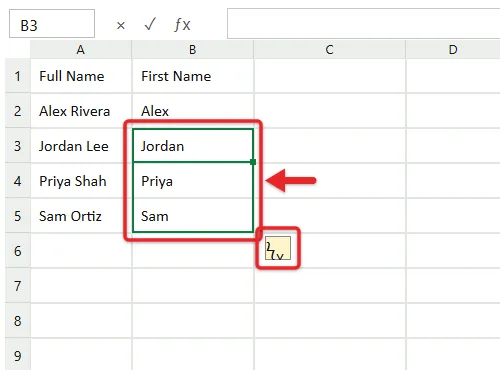
- Check the results. Scroll through the new column. A small Flash Fill Options button appears next to the filled cells, and the status bar may report how many cells changed.
If Excel shows a message saying it couldn’t find a pattern, your one example wasn’t enough. Type a second example in B3 and press Ctrl+E again.
Let Excel suggest the fill as you type
When automatic Flash Fill is turned on (it usually is), you don’t need the shortcut at all. Microsoft’s own example combines first names in column A and last names in column B into full names in column C:
- Type the full name in C2, such as Alex Rivera, and press Enter.
- Start typing the next full name in C3. After a letter or two, Excel shows the rest of the column in light gray. That gray list is the preview.
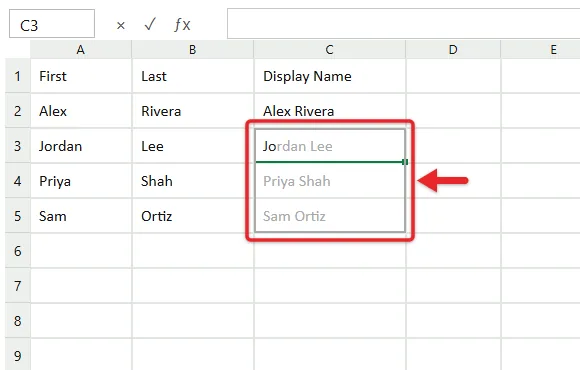
- Press Enter to accept it. To ignore it, keep typing or press Esc.
The preview only shows up when Excel is confident about the pattern. If it doesn’t appear, nothing is broken. Finish typing the second example and press Ctrl+E.
If you prefer clicking, the same command lives on the ribbon.
- Type your example in the first cell of the new column.
- Select that cell, or the next empty cell below it.
- Click the Data tab at the top of the window.
- In the Data Tools group, click Flash Fill. Its icon looks like a column with a small lightning bolt.
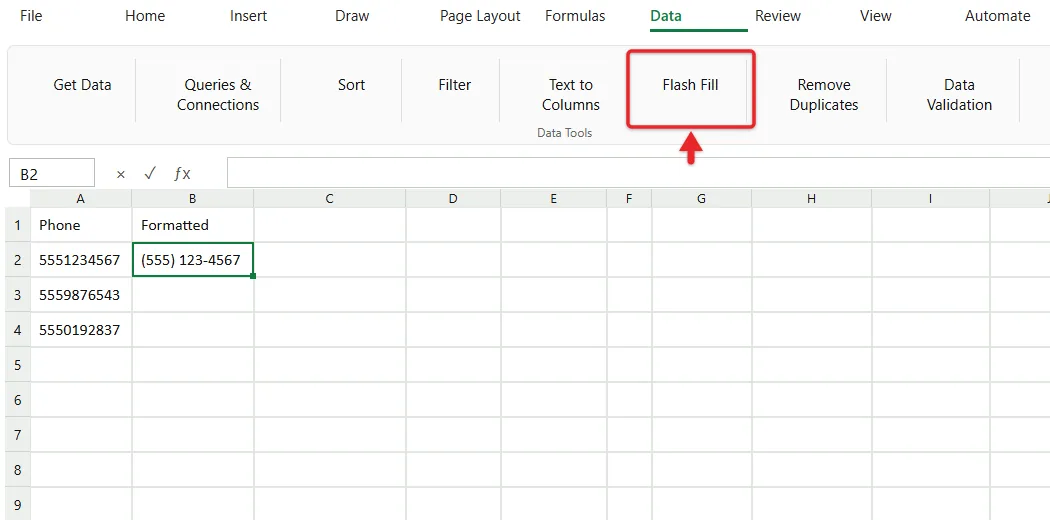
The button does exactly what Ctrl+E does. It’s also on the Home tab under Fill in the Editing group, which is handy if you already have the Home tab open.
Five Flash Fill examples you can copy
Each table shows the source column, the one example you type (in bold), and what Flash Fill should produce for the remaining rows. The names and numbers are made up.
Split full names into first and last names
| A: Full Name | B: First | C: Last |
|---|---|---|
| Alex Rivera | Alex (typed) | Rivera (typed) |
| Jordan Lee | Jordan | Lee |
| Priya Shah | Priya | Shah |
| Sam Ortiz | Sam | Ortiz |
Do one column at a time. Fill column B with Ctrl+E, then click C2, type the last name, and press Ctrl+E again. Flash Fill can’t produce two columns in one pass. If some people have middle names, give an example from one of those rows too, or Excel may put the middle name in the Last column. For other ways to break text apart, such as Text to Columns, see how to split a cell in Excel.
Combine first and last names
| A: First | B: Last | C: Display Name |
|---|---|---|
| Alex | Rivera | Rivera, Alex (typed) |
| Jordan | Lee | Lee, Jordan |
| Priya | Shah | Shah, Priya |
Flash Fill copies the order, punctuation and spacing you type, so “Rivera, Alex” produces last-name-first results and “Alex Rivera” produces the normal order. The same idea works for building email addresses, such as typing alex.rivera@example.com next to the name columns. If you’d rather have a result that updates when a name changes, our guide to combining first and last names in Excel covers the formula method.
Pull numbers out of text
| A: Order Note | B: Order Number |
|---|---|
| Order 4821 shipped | 4821 (typed) |
| Order 517 on hold | 517 |
| Order 90133 delivered | 90133 |
| Order 12.5 returned | Check this row |
Extracting numbers works well when the number is surrounded by the same kind of text in every row. Decimals are a common trouble spot: if your first example has no decimal point, Excel may grab only the digits after it in rows like the last one. Correct that cell by typing the right value, and Flash Fill usually adjusts the other rows to match. Also expect the results to be stored as text, which means you may need to convert them before using them in sums.
Format phone numbers
| A: Phone | B: Formatted |
|---|---|
| 5551234567 | (555) 123-4567 (typed) |
| 5559876543 | (555) 987-6543 |
| 5550192837 | (555) 019-2837 |
Flash Fill adds the parentheses, space and dash in the same spots for every row. This only works cleanly when the source numbers all have ten digits with no other characters. If some rows already include dashes, dots or a leading 1, add an example for each style. Because the results are text, they won’t lose a leading zero the way a number cell can.
Create initials
| A: Full Name | B: Initials |
|---|---|
| Alex Rivera | AR (typed) |
| Jordan Lee | JL (typed if needed) |
| Priya Shah | PS |
| Sam Ortiz | SO |
Initials are a short pattern, so a single example can be read more than one way. If Excel’s first attempt looks off, type a second example and press Ctrl+E again. Adding periods (A.R.) works the same way: type them in your examples and Flash Fill repeats them.
Turn automatic Flash Fill on or off
The automatic preview is controlled by a single checkbox. Turning it off stops the gray suggestions while you type, which some people find distracting when entering data by hand. Microsoft’s Enable Flash Fill in Excel page lists these steps for Windows:
- Click File, then Options. On some screens Options is under More at the bottom of the left pane.
- Click Advanced in the left pane.
- Under Editing options, check Automatically Flash Fill to turn the preview on, or uncheck it to turn it off.
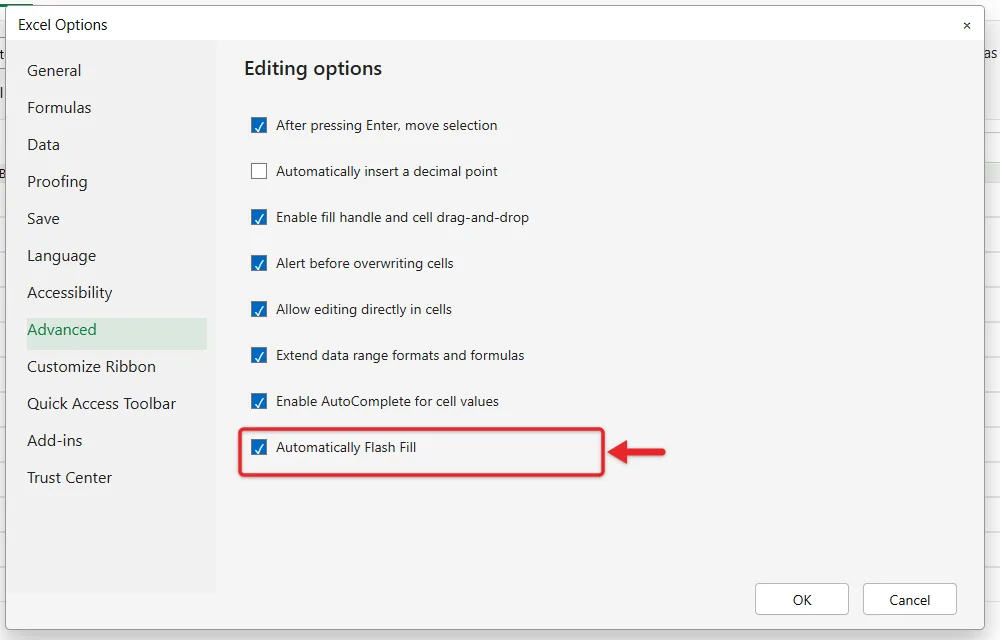
- Click OK.
- Close Excel and open it again. Microsoft includes this restart step.
Unchecking the box only stops the automatic suggestions. Ctrl+E and the Flash Fill button on the Data tab keep working either way, so you can leave suggestions off and still run Flash Fill when you want it.
Review, undo or fix the results
Flash Fill guesses, so always look over what it produced before you rely on it. A few tools make that easier:
- Ctrl+Z removes the whole fill in one step if it’s wrong.
- The Flash Fill Options button next to the filled cells opens a short menu with choices such as undoing the fill and selecting the cells that changed or were left blank. Selecting them highlights exactly which rows to check.
- Correcting one cell often fixes the rest. Type the right value over a wrong result, and Excel may update the other filled cells to match the new example.
Pay the most attention to rows that look different from the rest: names with a middle initial, suffixes like Jr., blank cells, or entries with extra spaces. Those are the rows where a guessed pattern tends to break.
What Flash Fill can’t do
- It doesn’t update. The filled values are typed text with no link back to the source. If you change “Alex Rivera” to “Alexis Rivera” in column A, the first-name column still says Alex. Run Flash Fill again, or use a formula if the data changes often.
- It fills one column per run. To split a name into three parts, you run it three times, once in each column.
- It needs consistent data. Mixed formats, such as some names written “Last, First” and others “First Last,” usually produce errors unless you give an example for each format.
- It can turn numbers into text. Extracted digits often land as text. Use them as labels, or convert them before doing math.
- It can stumble on hidden characters. Data pasted from a website may contain line breaks or non-breaking spaces that make Flash Fill skip a cell or fill it oddly.
- It isn’t great for huge or repeated jobs. If you clean the same export every week, a formula or Power Query does the work again automatically, while Flash Fill needs a fresh example each time.
Flash Fill on a Mac and in Excel for the web
Microsoft’s Flash fill a column of data page lists the feature for Microsoft 365, Microsoft 365 for Mac and the web, with the same basic steps on each:
- Excel for Mac: type your example, then choose Data > Flash Fill or press Control+E. Microsoft’s Mac instructions have you run it from the Data tab after the first example rather than waiting for the preview. Flash Fill is listed for Excel 2024 for Mac and Excel 2021 for Mac as well as the Microsoft 365 version.
- Excel for the web: type your example, then choose Data > Flash Fill or press Ctrl+E. The browser version has no Excel Options dialog, so the Automatically Flash Fill checkbox described above is a Windows desktop setting.
In Excel for the web, a browser or extension can sometimes grab a shortcut before Excel sees it. If Ctrl+E doesn’t respond there, use the Data tab button instead.
When Flash Fill fills the wrong thing or does nothing
Nothing happens and no preview appears
- Press Ctrl+E or click Data > Flash Fill instead of waiting for the preview.
- Check that automatic Flash Fill is on in File > Options > Advanced, then restart Excel.
- Make sure your example column touches the source data, with no blank column between them.
- Click a cell in the column you want filled. If the active cell is somewhere else, Flash Fill has no column to work on.
- Press Esc if you’re still editing a cell. Commands on the ribbon can’t run while you’re typing in a cell.
Excel says it couldn’t find a pattern
Give it more to go on. Type a second and even a third example, choosing rows that look different from the first one, then press Ctrl+E. Also check that your example matches the source exactly. A typo in the example, such as “Alx” for “Alex,” tells Excel there’s no clean rule to follow.
Some rows are wrong or left blank
- Overtype one of the wrong cells with the correct value. Excel often uses that correction to refill the others.
- Look at the source cell for extra spaces, a middle name or a different format. Fix the source or add an example that covers that variation.
- Use the Flash Fill Options button to select the blank or changed cells so you can find every problem row.
The Flash Fill button is grayed out
This usually means you’re in cell edit mode or the sheet is protected. Press Esc, and if the sheet is protected, unprotect it from the Review tab (you’ll need the password if one was set).
Flash Fill, a formula or Text to Columns?
| If you want to | Use | Why |
|---|---|---|
| Clean up a list once, quickly | Flash Fill | No formula to write and no cleanup afterward |
| Keep results in sync with the source | A formula | Recalculates when the original text changes |
| Split text at every comma or space into several columns at once | Text to Columns | Handles multiple output columns in one pass |
| Join several columns into one | Flash Fill or the & operator | Both work, and the formula updates |
For joining three or more columns with formulas such as TEXTJOIN, see how to combine columns into one in Excel.
Common Flash Fill questions
Is Flash Fill the same as AutoFill?
No. AutoFill uses the fill handle (the small square at the bottom-right of a selected cell) to continue a series like 1, 2, 3 or Monday, Tuesday, or to copy a formula down. Flash Fill reshapes text from neighboring columns based on an example. They solve different problems.
Can I delete the original column after using Flash Fill?
Yes. Because the results are plain values, they stay put when the source column is deleted. That’s different from a formula, which would show a #REF! error. Make sure you’ve filled every column you need first, since Flash Fill can’t run again without the source.
Does Flash Fill work in older versions of Excel?
Flash Fill first appeared in Excel 2013. Excel 2010 and earlier don’t have it, so you’d need formulas or Text to Columns in those versions.
Does Flash Fill overwrite cells that already have data?
Work in an empty column to be safe. If Excel does write over something you needed, press Ctrl+Z right away to bring it back.
Why does the Ctrl+E shortcut do something else?
In Excel for Windows, Ctrl+E is assigned to Flash Fill. If it does something different, an add-in or macro may have taken over the shortcut, or you may be in another app like Word, where Ctrl+E centers text. The Data tab button always works as a backup.
A good first test is the name split: put a few full names in column A, type the first name in B2, and press Ctrl+E. Once that works, try the phone number or initials patterns on your own data.

Matthew Burleigh is the founder, head writer, and editor of Solve Your Tech, which he launched in 2012. He has written technology tutorials since 2008 and worked in IT since 2003, including small-business support, IT management, and consulting. He holds Bachelor’s and Master’s degrees in Computer Science from Arizona State University.
Matthew writes practical guides for Windows, iPhone and iPad, Microsoft Office, Outlook, Google apps, and Android. Solve Your Tech’s guides are checked step by step against the device or app maker’s own documentation and tested on his own devices whenever he has the hardware or software, with clear steps, sources, and update dates.
Read more about Matthew and how Solve Your Tech writes and updates its guides, or report a correction.